
Recommendations at a Glance
These settings apply to people signing in through the Fiddler sign-in page.
They do not change Fiddler API keys or service accounts.
Before You Begin
You need the Org Owner role in the AuthN console. See Understanding AuthN Roles. Changes to sign-in settings can lock people out, including you. Before you change anything:- Make sure at least two people hold the Org Owner role.
- Keep one AuthN console session signed in while you test from a private browser window. If the test fails, use the open session to undo the change.
Where the Settings Live
All of the settings on this page are on the Login Behavior and Security page of your organization’s settings. The AuthN console holds more than one organization:- Your organization is the one your users sign in to. Every deployment has one.
- The
fiddlerorganization is reserved for system use. On Fiddler-managed (SaaS) deployments, Fiddler manages it; don’t change it. On self-hosted deployments, see Self-Hosted Deployments.
Open the Login Settings
1
Sign In to the AuthN Console
Sign in to Fiddler first.
Then, in the same browser, go to your AuthN console URL: your Fiddler URL with
authn- added before the host name.
For example, if your Fiddler URL is https://acme.cloud.fiddler.ai,
the AuthN console is at https://authn-acme.cloud.fiddler.ai.
The console uses your Fiddler session, so you don’t sign in again.If you sign in through SSO, this is the only way into the AuthN console,
because SSO sign-in works only through Fiddler.
If you hold the Org Owner role, you see your organization’s settings;
otherwise, you see only your own profile.2
Select Your Organization
Select your organization from the organization menu at the top left of the page.
3
Open Login Behavior and Security
Select Settings in the top menu, then select Login Behavior and Security in the left menu.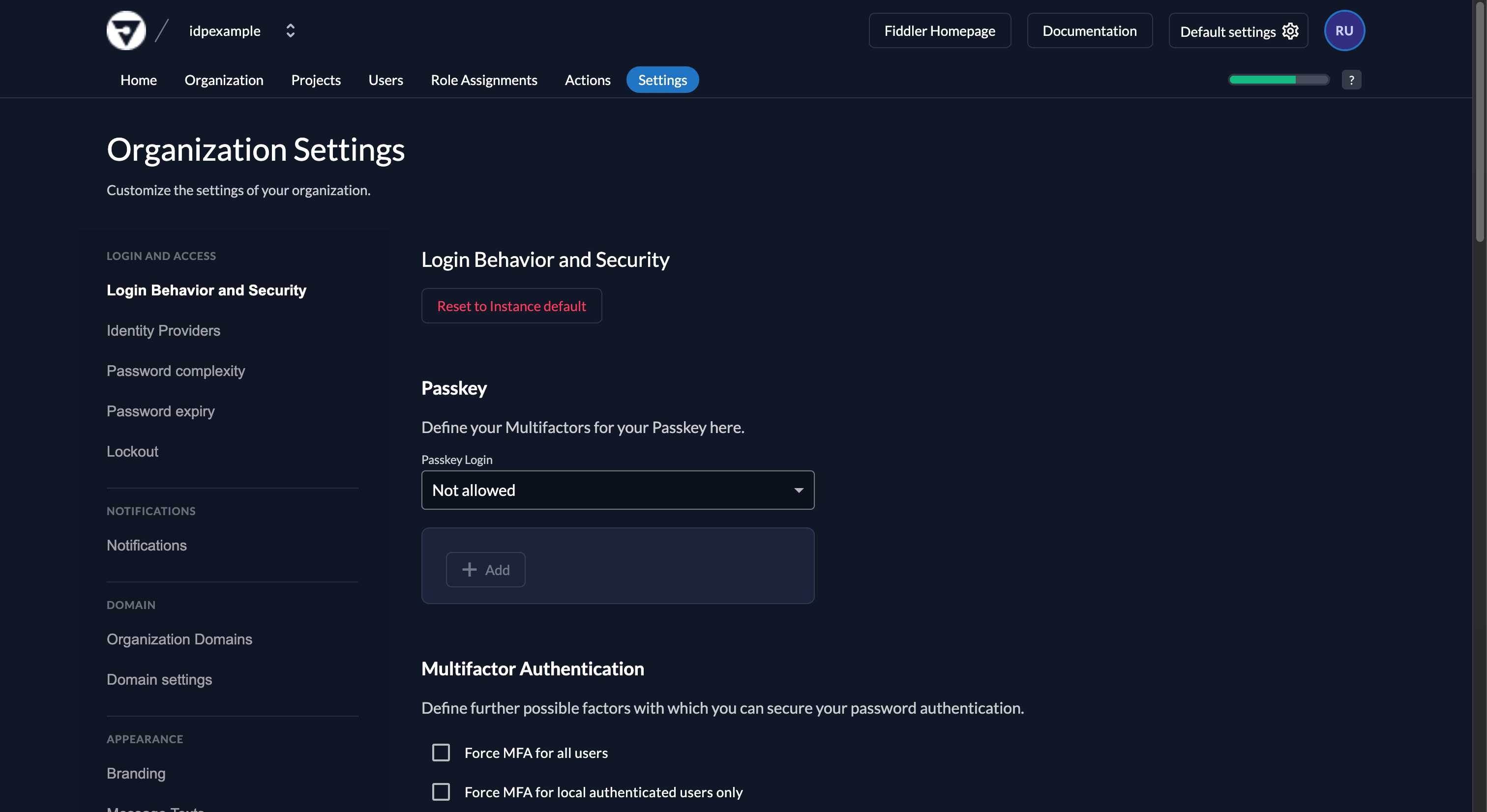
Use Single Sign-On
Single sign-on (SSO) lets your users sign in to Fiddler with the account they already use at work, through your identity provider (for example, Okta or Microsoft Entra ID). Your identity provider then decides who can sign in and how, so its MFA requirements, device checks, and offboarding apply to Fiddler automatically. To set up SSO, follow the guide for your identity provider in the SSO Authentication Guide. Each guide ends by selecting External Login allowed on the Login Behavior and Security page.Turn Off Password Sign-In
Once everyone signs in through SSO, turn off password sign-in for your organization. The sign-in page then offers only your identity provider. Users who signed in with an email address and password don’t need new accounts. If the email address in your identity provider matches their Fiddler username, they sign in to the same account through SSO.1
Open the Login Settings
Follow Open the Login Settings for your organization.
2
Clear Local Authentication Allowed
Clear the Local authentication allowed checkbox, then select Save.
This turns off sign-in with a username and password, and with a passkey.Leave External Login allowed selected.
3
Test Sign-In
In a private browser window, go to your Fiddler URL.
The sign-in page shows only your identity provider.
Sign in through it with an Org Owner account to confirm SSO still works.Then, in the same private window, go to your AuthN console URL
and confirm you can open Login Behavior and Security.
Close your original console session only after both tests pass.
Require MFA for Password Sign-In
If anyone in your organization signs in with a password, require MFA. With MFA, users also enter a one-time code from an authenticator app, or use a security key, each time they sign in.Choose Which Factors Users Can Use
Before you require MFA, allow at least one MFA method. If you require MFA and no method is allowed, nobody it applies to can complete sign-in, including you and the other Org Owners.1
Open the Login Settings
Follow Open the Login Settings for your organization.
2
Review the Allowed Factors
Scroll to the Multifactor Authentication section.
It lists the MFA methods (factors) your users can set up.
3
Add an Authenticator App and Passkey
Starting with Fiddler 26.26, TOTP (Authenticator App) and Passkey are listed for you.
If either is missing, select Add, choose it, and save.
- TOTP (Authenticator App) works with any standard authenticator app, such as Google Authenticator, Microsoft Authenticator, or 1Password.
- Passkey works with hardware security keys and device biometrics, such as Windows Hello or Touch ID.
Use only TOTP (Authenticator App) and Passkey.
Fiddler deployments don’t support one-time codes by email or text message, so don’t add OTP Email or OTP SMS.
Turn On the MFA Requirement
On the same page, in the Multifactor Authentication section, select one of these checkboxes, clear the other one, then select Save:
Starting with Fiddler 26.26, Fiddler selects Force MFA for local authenticated users only automatically when neither box is selected,
and keeps whichever box you choose on later upgrades.
The next time each affected user signs in, Fiddler asks them to set up a factor before they can continue.
Sessions that are already open continue.
Tell your users before you turn this on.
If an Account Is Locked
An account can be locked after too many failed sign-in attempts, and it stays locked until an administrator unlocks it. To unlock it, an Org Owner in the AuthN console:- Selects the user’s organization, then opens the Users page.
- Selects the locked user.
- Opens the actions menu at the top of the user page and chooses Unlock User.
Give Every Administrator a Named Account
Don’t share one administrator account between several people, and don’t use an account with a shared password for daily administration. A shared password is hard to change, hard to keep secret, and impossible to trace to one person. Instead:- Give each administrator their own account, signed in through SSO where possible.
- Assign the Org Owner or Org User Manager role to those named accounts. See How to Assign the Org Owner Role.
- When an administrator leaves, remove their role and deactivate their account the same day, in both places: in the AuthN console, which stops them from signing in, and in Fiddler under Settings → Access → Users, which stops all of their API keys immediately.
- If you inherited a shared administrator account, assign the role to named accounts first and confirm they work. Move integrations that use API keys created under the shared account to a service account, where service accounts are available in your environment and their permissions cover what the integration does, and otherwise to an API key owned by a named administrator. Then deactivate the shared account in both places: in the AuthN console on the Users page, and in Fiddler under Settings → Access → Users, which stops its API keys immediately.
Keep Self-Registration Off
Make sure User Registration allowed is cleared on the Login Behavior and Security page, so nobody can create their own account from the sign-in page.Review Administrator Roles
Check who holds the Org Owner and Org User Manager roles at least once a quarter, and whenever someone changes teams or leaves. Remove roles that are no longer needed. The list also includes Root User, a system account that Fiddler uses to set up and support your deployment. Leave it in place: upgrades add the role back if it is removed. See the review practices in Best Practices and Security Recommendations.Self-Hosted Deployments
Self-hosted deployments have additional steps for the systemfiddler organization and its built-in administrator account.
Your operators can find them in the Self-Hosted documentation, under Fiddler AuthN Authentication Provider Configuration → Security Considerations,
or ask your Customer Success Manager.
Related Resources
- Authentication Management: AuthN console roles and user management
- SSO Authentication Guide: set up SSO with your identity provider
- Email Login: add and manage users who sign in with a password
- Role-Based Access Control: permissions inside the Fiddler application