Open Settings from the Settings link at the bottom of the main sidebar. The Access page manages the users, teams, and invitations in your organization. It has three sub-tabs: Users, Teams, and Invitations.

Users

The Users sub-tab displays all users who are members of your organization. Users sub-tab of the Access tab on the Settings page showing a list of users. The table has the columns User, Email, and Org Role. Org Admins have a row menu on other users’ rows with these actions:
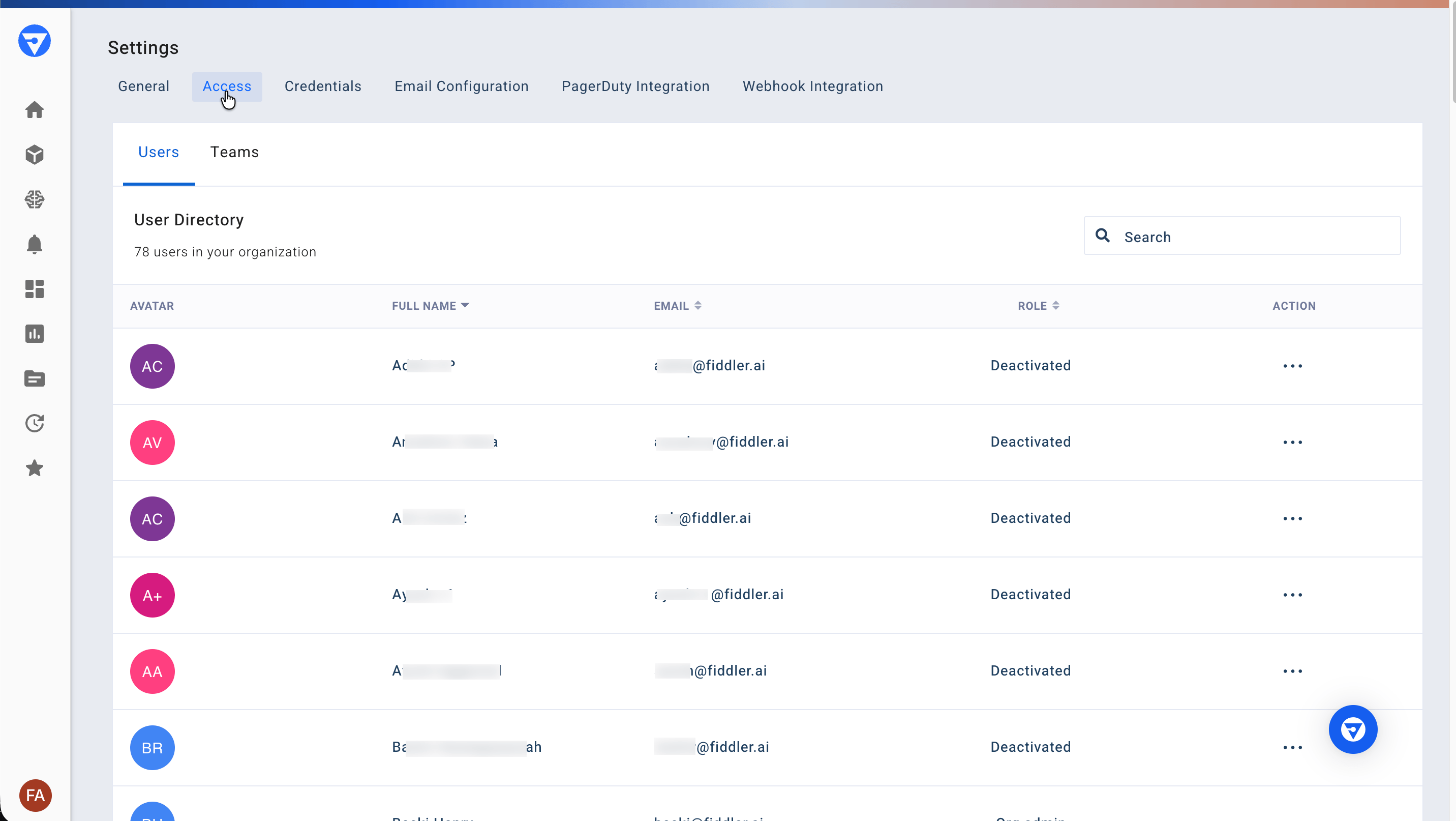
  • Edit User: Change the user’s team and project assignments.
  • Edit Org Role: Change the user’s organization role.
  • Deactivate or Activate: Turn the user’s access off or back on. Reactivating a user sets their role to Org Member.

Teams

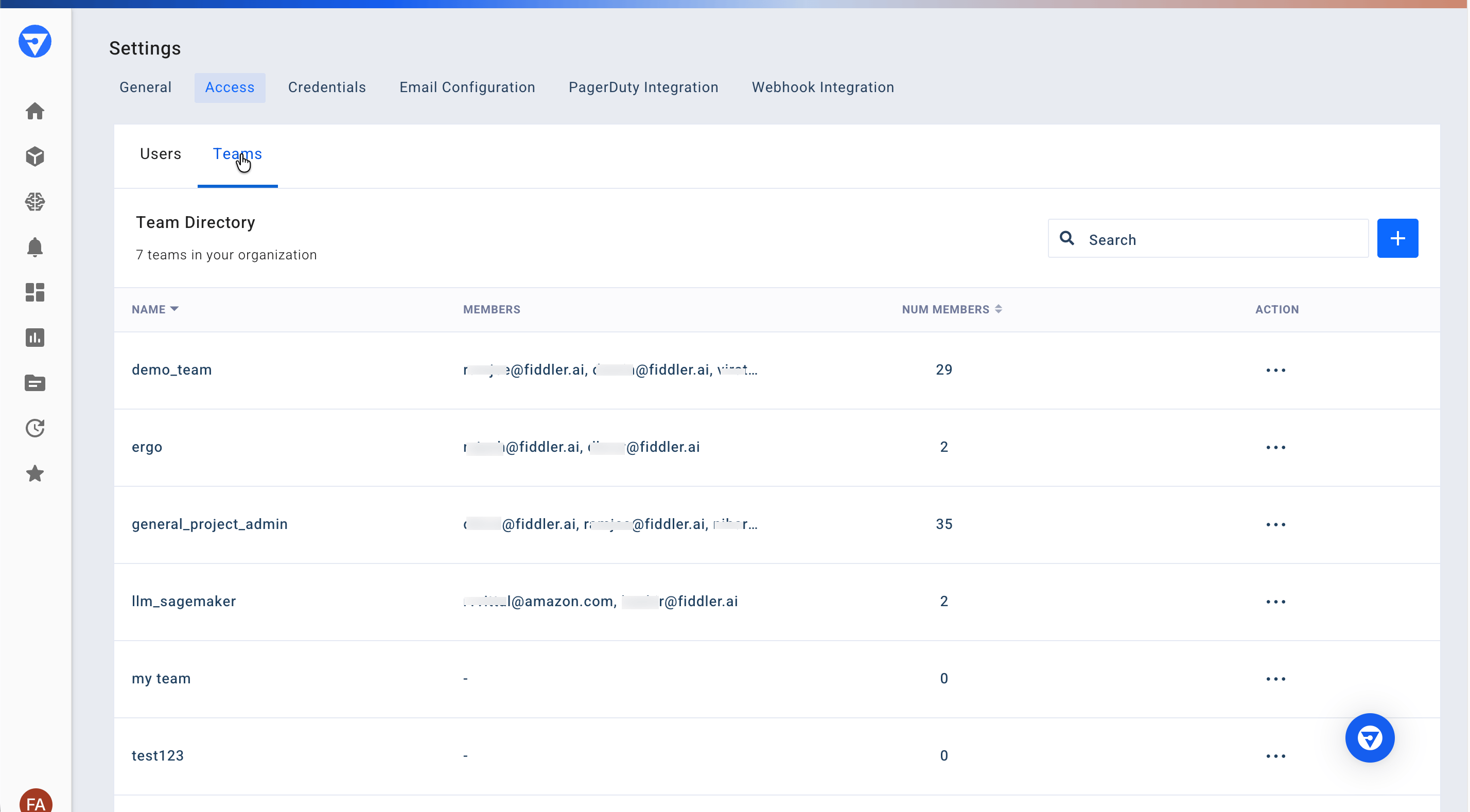
The Teams sub-tab displays all teams defined within your organization. Teams provide a way to organize users and manage project-level access controls. Teams sub-tab of the Access tab on the Settings page showing a list of teams The table has the columns Team Name, Members, and Created.
Creating Teams

Org Admins select Create Team and enter a team name. Add members and projects afterward through the row menu’s Edit action, which has the tabs Members and Projects. The row menu also has Delete. The Create Team button is unavailable to Org Members.

Team Synchronization

If your organization uses SSO with group synchronization enabled, teams can be automatically created and managed based on your identity provider groups. See Mapping SSO Groups to Teams for configuration details.

Invitations

The Invitations sub-tab is shown to Org Admins when your organization uses email and password sign-in, users aren’t managed in the Fiddler AuthN console, and the deployment isn’t running on Amazon SageMaker. If your users are managed in the AuthN console, invite them there instead; see Adding Users to Fiddler. Select Invite User and enter an email address and a role (Org Member or Org Admin). The table has the columns Email and Role. The row menu has Edit Role, Copy Invite Link, and Revoke.