Create organization-owned service accounts and API keys so collectors and pipelines can send traces to Fiddler without relying on a personal API key.
This capability is currently in private preview and is not yet available to all customers. Contact your Fiddler Customer Success Manager to request access.
A service account is an identity owned by your organization, not by a person.
Its API keys let integrations, such as an OpenTelemetry collector, send traces to Fiddler.A personal API key acts as the person who created it, so it breaks or changes behavior when that person leaves or changes roles.
Service account keys belong to the organization and carry only the permissions you grant.
Use a service account when a workload, not a person, needs to send traces to Fiddler.
Use a personal API key for your own scripts and notebooks.Fiddler service accounts are separate from cloud-provider service accounts, such as the Google Cloud service account you use for the LLM Gateway.
You are an Org Admin. Only Org Admins can create and manage service accounts.
Fiddler has enabled service accounts for your Fiddler environment.
Because this is a private preview, talk to your Fiddler contact before you move a production workload onto it.
You are using the new Fiddler UI. To open it, add preview. to the start of your Fiddler address, as described in the New Fiddler UI quick start.
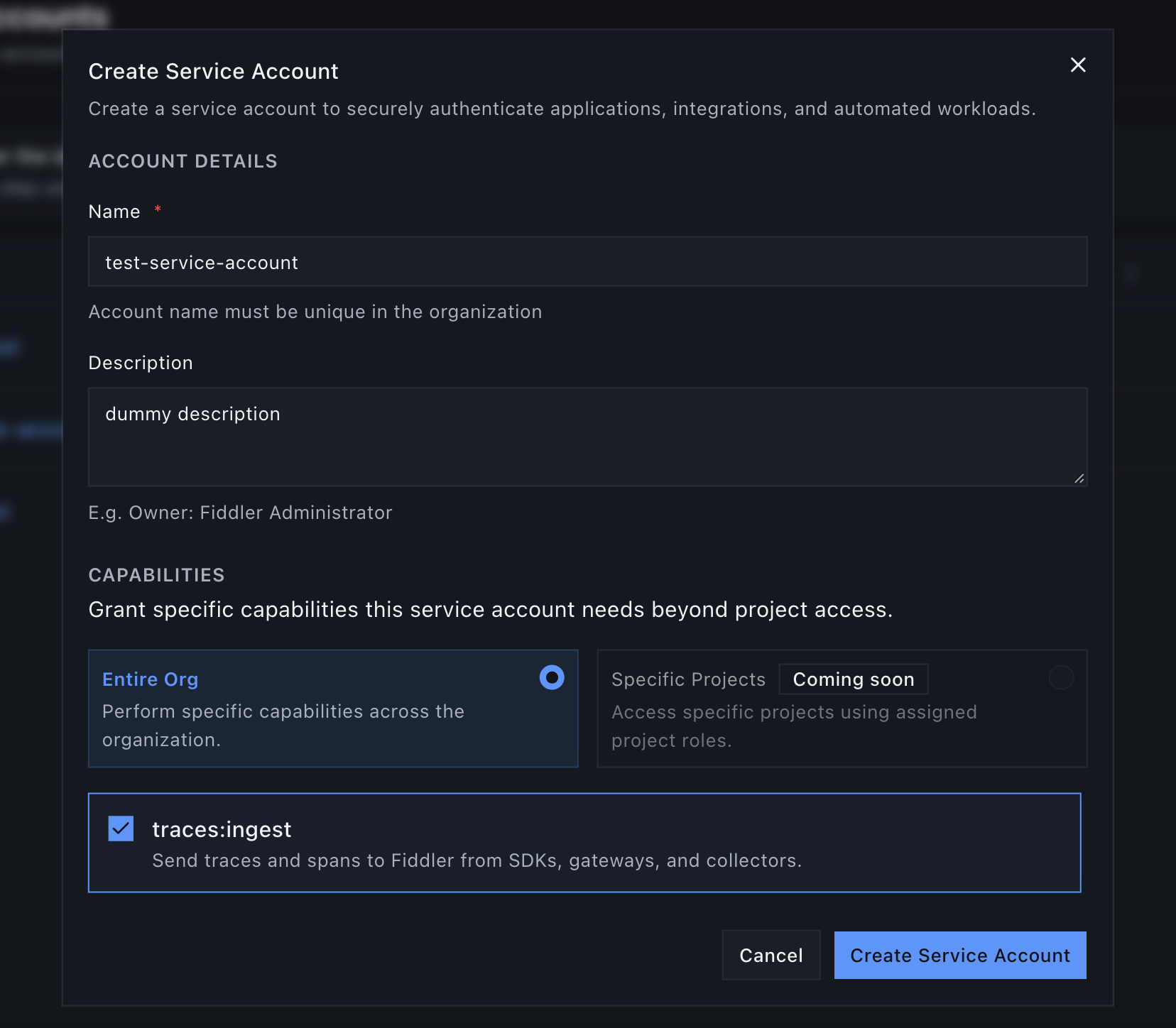
In the create dialog, Capabilities has two parts.
The Entire Org or Specific Projects choice sets where the service account applies.
The capability checkboxes, such as traces:ingest, set what it can do.
Entire Org is the only choice available today, and Specific Projects shows as coming soon.A capability is something a service account is allowed to do.
A service account can’t send traces until you grant it the traces:ingest capability, and its keys can use only the capabilities it has.
Capability
What it allows
traces:ingest
Send traces and spans to Fiddler from SDKs, gateways, and collectors
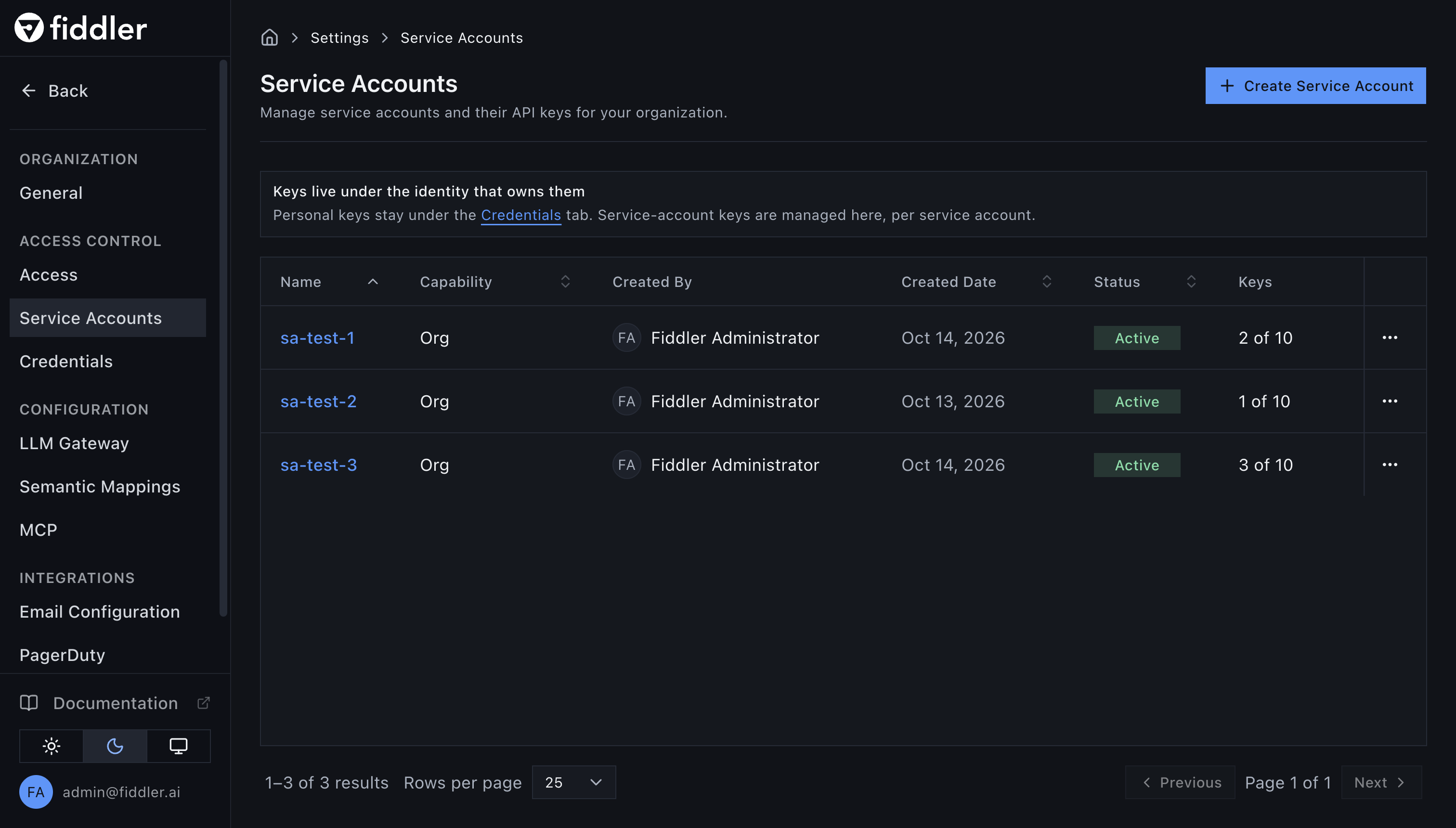
Go to Settings > Access Control > Service Accounts.
The Service Accounts page lists every service account in your organization.
2
Open the Create Dialog
Click Create Service Account.
3
Name the Service Account
Enter a Name that is unique in your organization, for example otel-collector-prod.
Names start with a letter and can contain letters, digits, spaces, hyphens, and underscores (up to 128 characters).
Optionally, add a Description, such as the team that owns the integration.
4
Grant a Capability
Under Capabilities, keep Entire Org selected and select traces:ingest.
Entire Org with traces:ingest: the resulting keys can send traces to every application in your organization.
5
Create
In the dialog, click Create Service Account.
The new service account appears in the list.
Use one service account for each workload and environment, so you can disable one integration without affecting others.
Name it after the workload and environment, such as <workload>-<environment>.
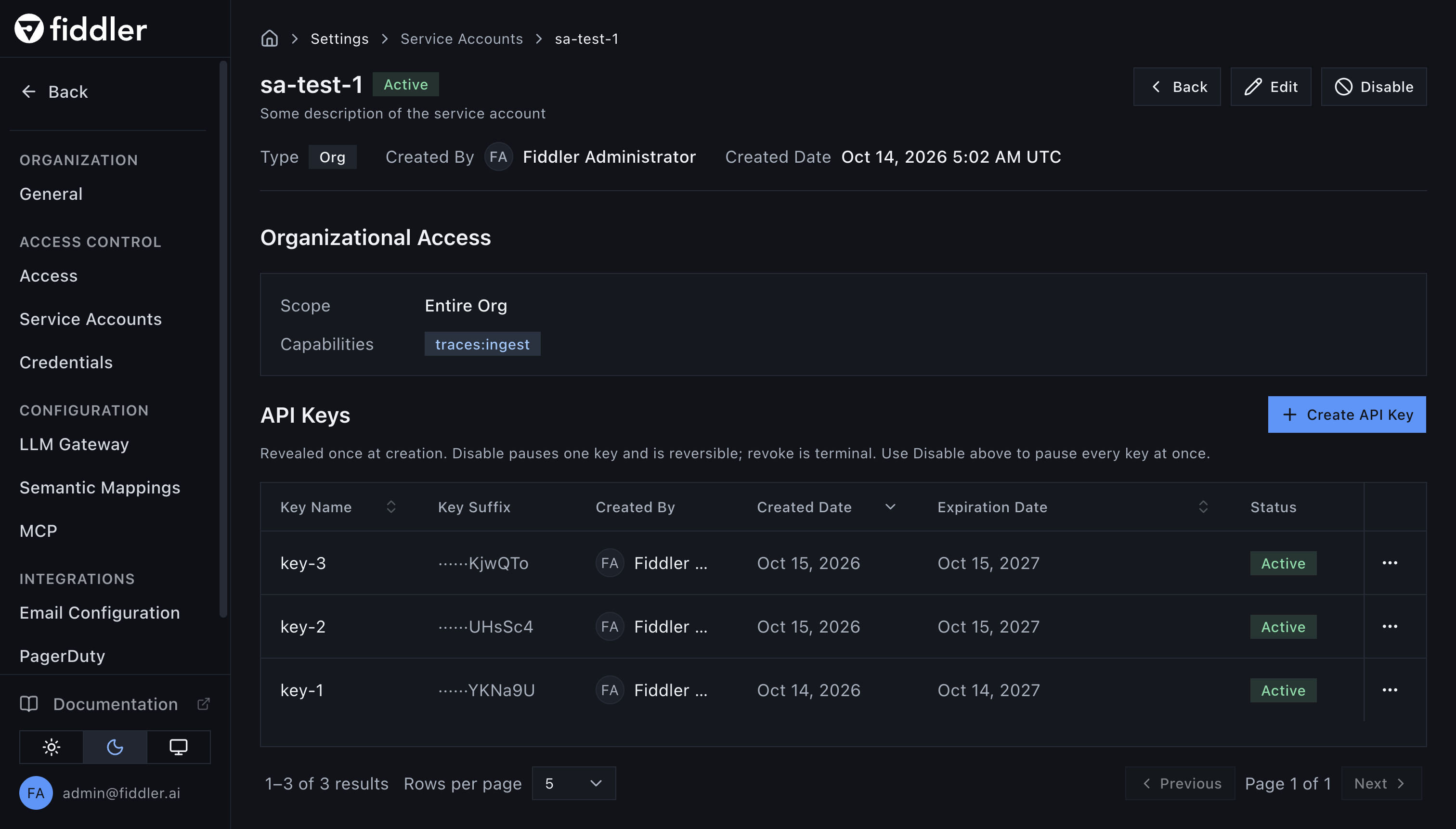
On the Service Accounts page, click the service account’s name.
The detail page shows its Capabilities and its API Keys.
The detail page shows each key's status, Key Suffix, and expiration. Keys that expire within 30 days show Expiring Soon.
2
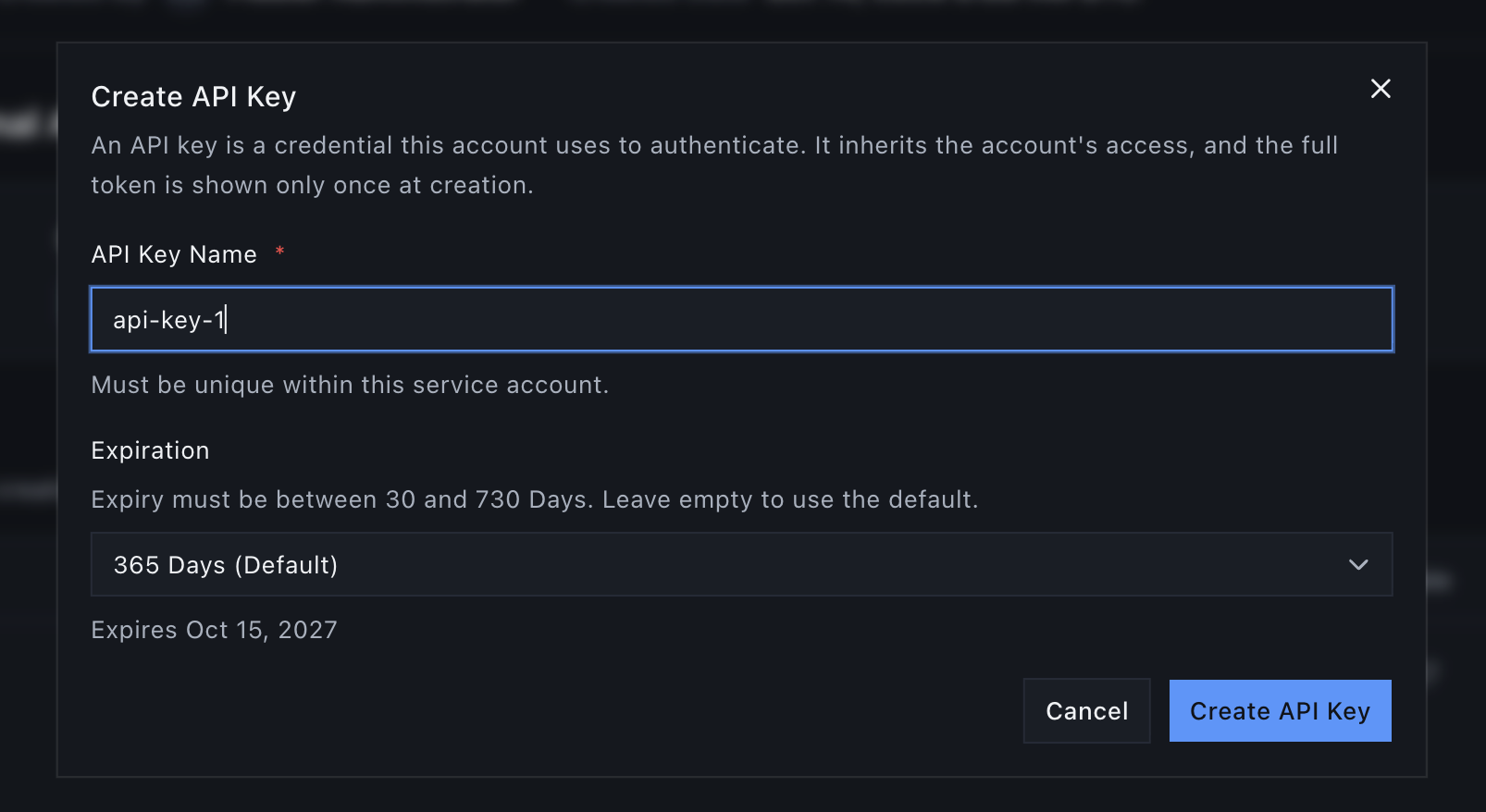
Name the Key
In API Keys, click Create API Key.
Enter an API Key Name that is unique within the service account.
Names follow the same rules as service account names.
3
Choose an Expiration
Select 30 Days, 90 Days, or 365 Days (the default), or select Custom to enter 30 to 730 days.
Choose the shortest lifetime you can rotate reliably.
The Create API Key dialog with a name and an expiration selected.
4
Copy the Key
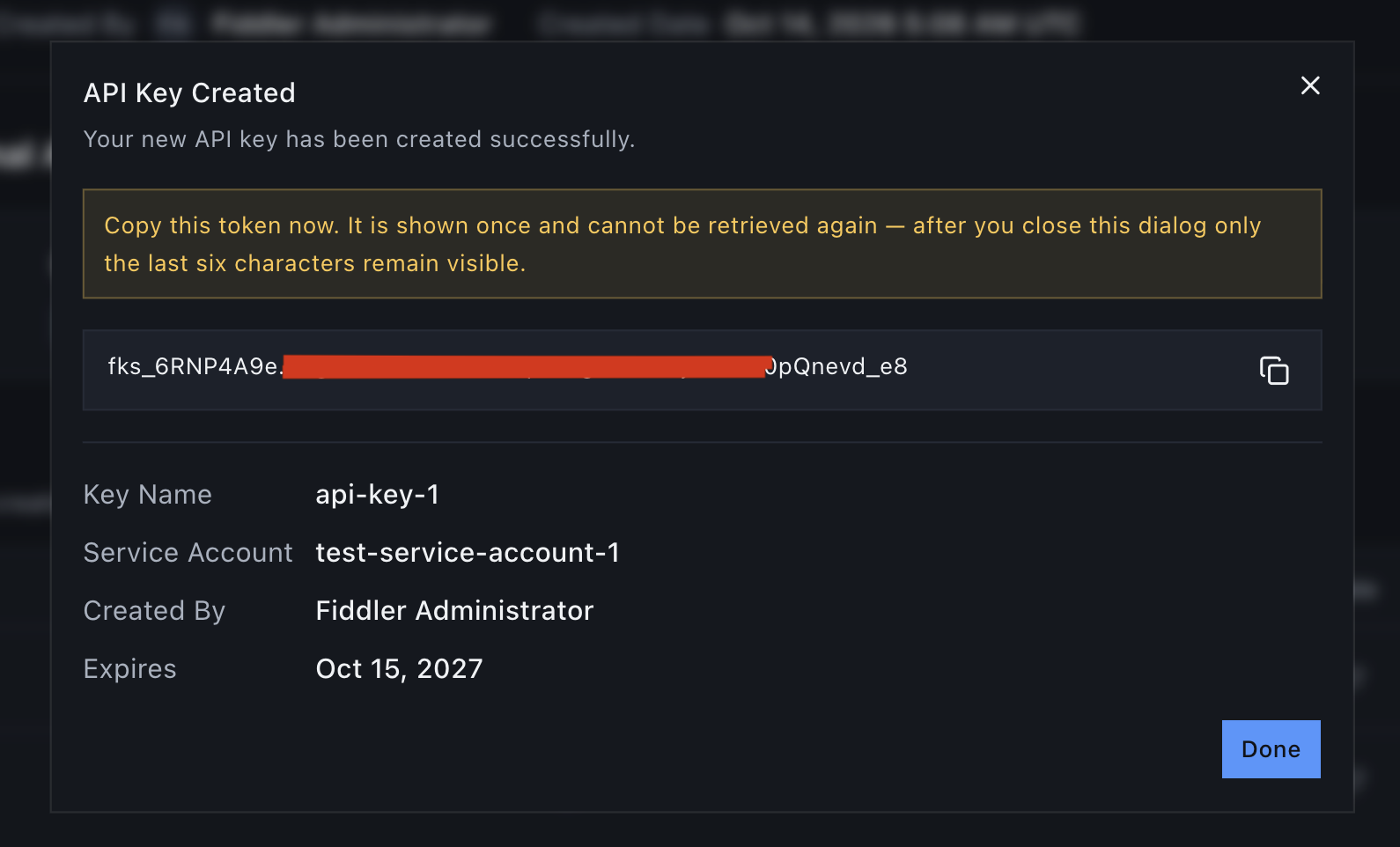
Fiddler shows the full key only once and can’t retrieve it later.
If you lose it, create a new key.
Click Create API Key.
In the API Key Created dialog, copy the key and store it in your secrets manager, then click Done.
Keep the fiddler-application-id header.
The key doesn’t choose the application.
To send to several applications with one key, see multi-application trace routing.To confirm that it works, send a test trace and check that it appears in the application in Fiddler.
If it doesn’t, see Troubleshooting.
Changes usually apply on the next request.
Allow up to 5 minutes for a disable or revoke to take full effect.
With multi-application trace routing, allow up to 10 minutes by default.
Add the fks_ prefix to your secret-scanning rules to catch leaks early.
A leaked key can read server information (version, feature flags, organization name) and list your organization’s application IDs, but it can’t read your monitored data.
If a key might have leaked, act right away:
Disable the exposed key.
If you don’t know which key leaked, disable the service account instead.
Create a new key and put it in your integration.
A new key doesn’t work while its service account is disabled.
If you disabled the service account, first disable every older key on it.
Enabling a service account restores every key that isn’t disabled on its own, including the leaked one.
Then enable the service account.
Revoke the exposed key.
Review recent traces in your applications for data you didn’t send.
Open the service account and click Edit.
You can change the name, the description, and the capabilities, then click Save.
A capability change applies to all of the service account’s keys.
A service account with no capabilities can’t send traces.
You can’t delete a service account.
To stop one, disable it: all of its keys stop working.
Enabling it again restores the keys that are still active and unexpired.Use the service account’s row menu on the Service Accounts page, or the button on its detail page.
Select Disable or Enable, then confirm.
Entire Org is the only choice. Limiting a service account to specific projects isn’t available yet.
traces:ingest is the only capability.
Service account keys can’t call the REST API or the Fiddler Python client, except to connect and send traces.
A service account key can only send traces. SDK features that call other Fiddler APIs, such as normalize_multimodal=True in the Fiddler OpenTelemetry SDK, are rejected with 403 Forbidden, and the SDK keeps the content inline.