
This capability is currently in public preview. It is available to every customer and Fiddler responds promptly to issues, but it is not yet covered by an SLA and its APIs may still change.
Overview
Annotations let you attach human evaluation scores directly to individual spans in the Explorer. Use them to review LLM outputs, flag quality issues, and build a human-labeled dataset alongside your automated evaluators. Each annotation records a name, a score type (numeric, boolean, categorical, or text), the score itself (in the type-appropriate field — see Score Types), and an optional Reason field (reasoning in the API) explaining the assessment. Annotations are stored as scores with source=human and are accessible through both the UI and the /v3/scores REST API.
Score Types
Every annotation also accepts an optional Reason field for free-text explanation of why the score was given.
Using the UI
Annotating a Span
1
Open the Explorer
Navigate to any GenAI Application Details page and select the Explorer tab.
2
Open the trace drawer
Click the View Trace icon on a span row to open the side drawer. The Annotate button appears in the top-right corner of the span detail panel.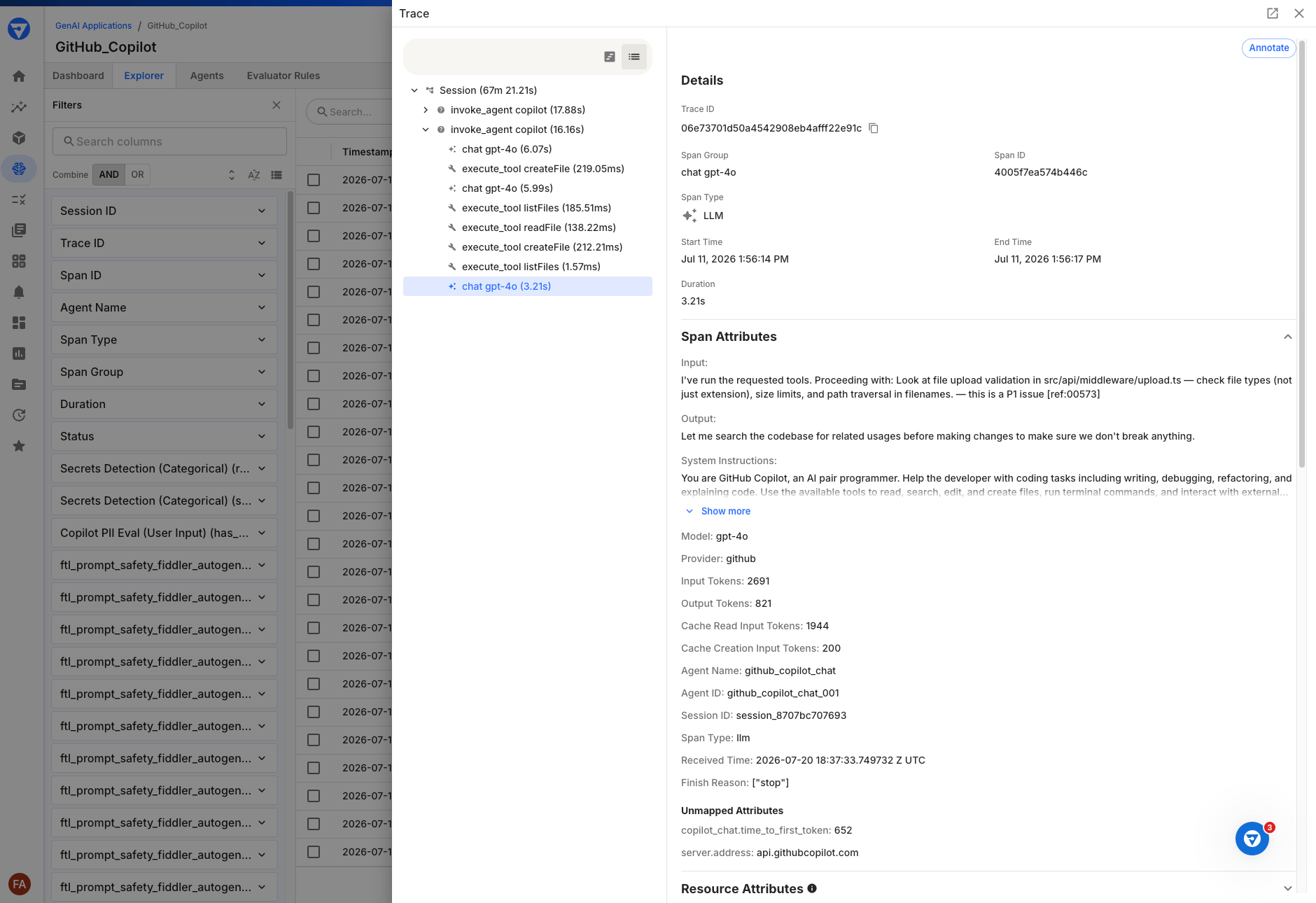
3
Fill in the annotation
Click Annotate to open the Add Annotation dialog. Enter a Name (used as the score identifier across spans), select an Annotation Type, provide the score Value, and optionally add a Reason.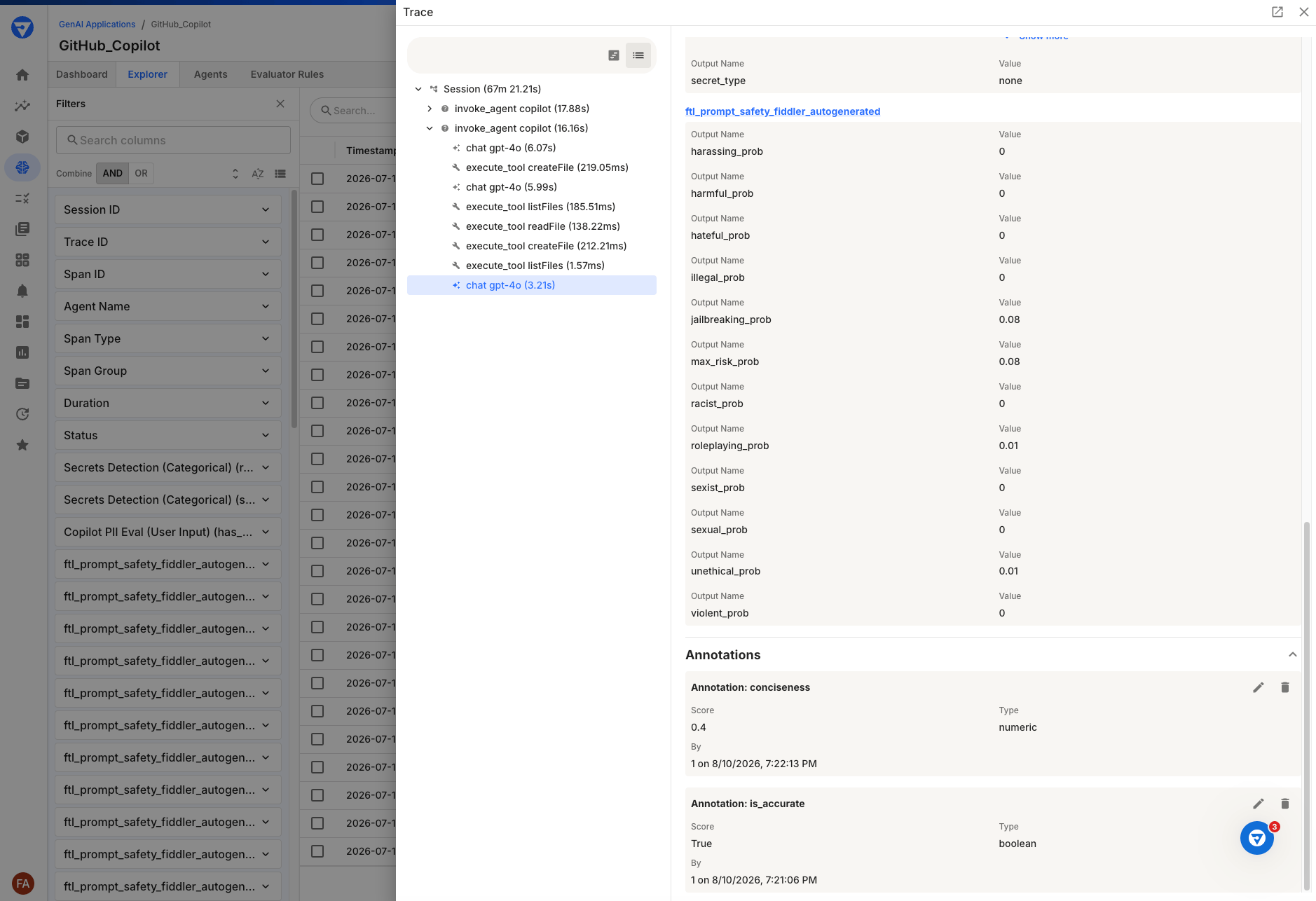
Use the same name on multiple spans to group scores — for example, annotating every span with a “correctness” score lets you compare correctness across your application.
4
Save
Click Add Annotation. The annotation appears immediately in the Annotations section of the span detail panel.
Viewing Annotations
Existing annotations appear in the Annotations accordion section at the bottom of the span detail panel. Each annotation card displays the score name, value, type, annotator, and timestamp.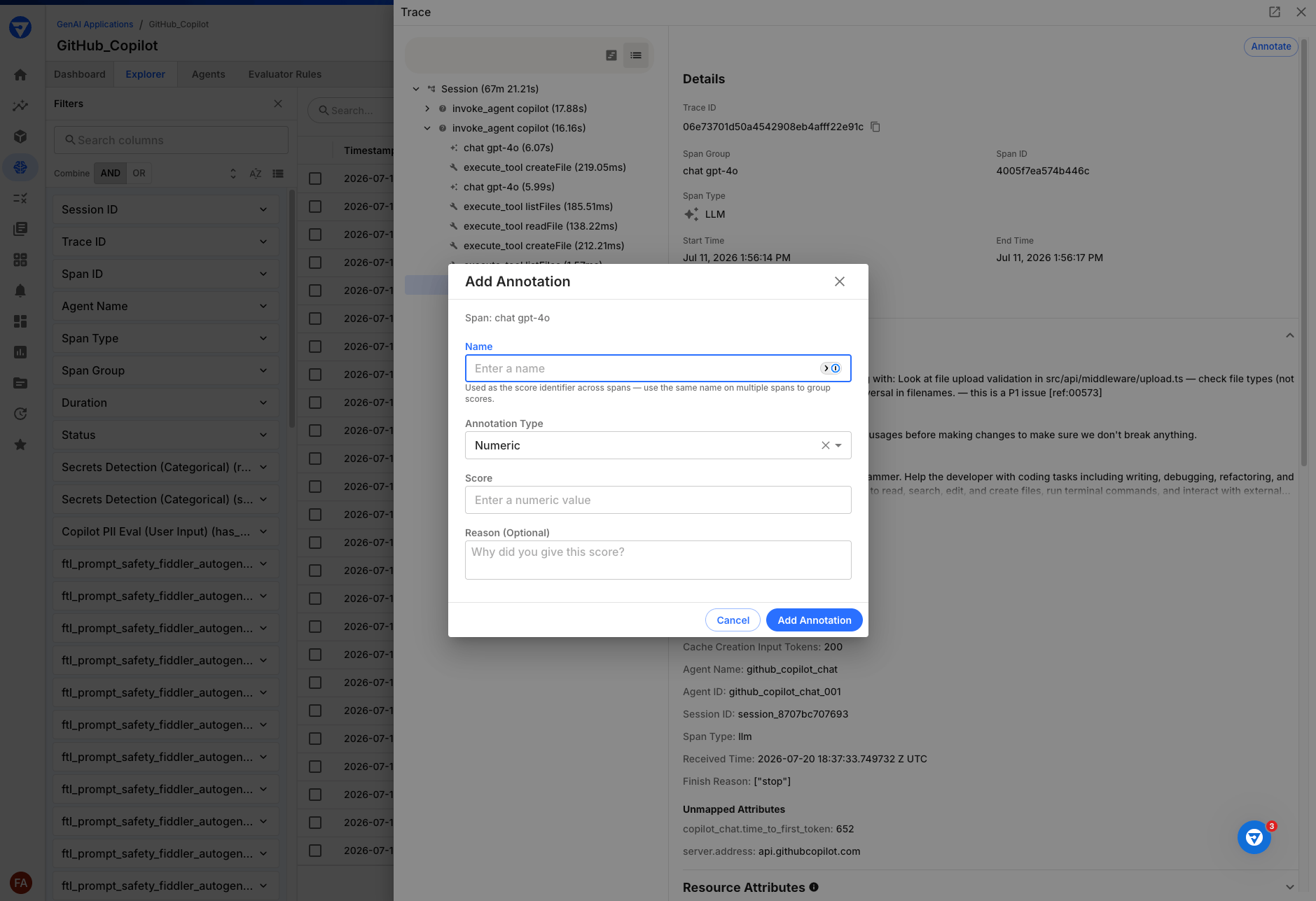
Editing and Deleting Annotations
- Click the edit (pencil) icon on an annotation card to update its value or reasoning. The score name and type cannot be changed — create a new annotation instead.
- Click the delete (trash) icon to remove an annotation. A confirmation dialog appears before deletion.
API Access
Annotations are stored as scores withsource=human via the /v3/scores API. You can create, list, update, and delete annotations programmatically.
Quick Example
Endpoints
Filter by
source=human to retrieve only human-created annotations. Evaluator-generated scores use source=evaluator and are read-only through this API.Related Resources
- Explorer — the span exploration surface where annotations are created
- Scores REST API — full API reference for creating and managing scores
- Custom Metrics for Agentic Applications — define custom metrics over the same span data using FQL
- Feature Maturity Definitions — what public preview means