
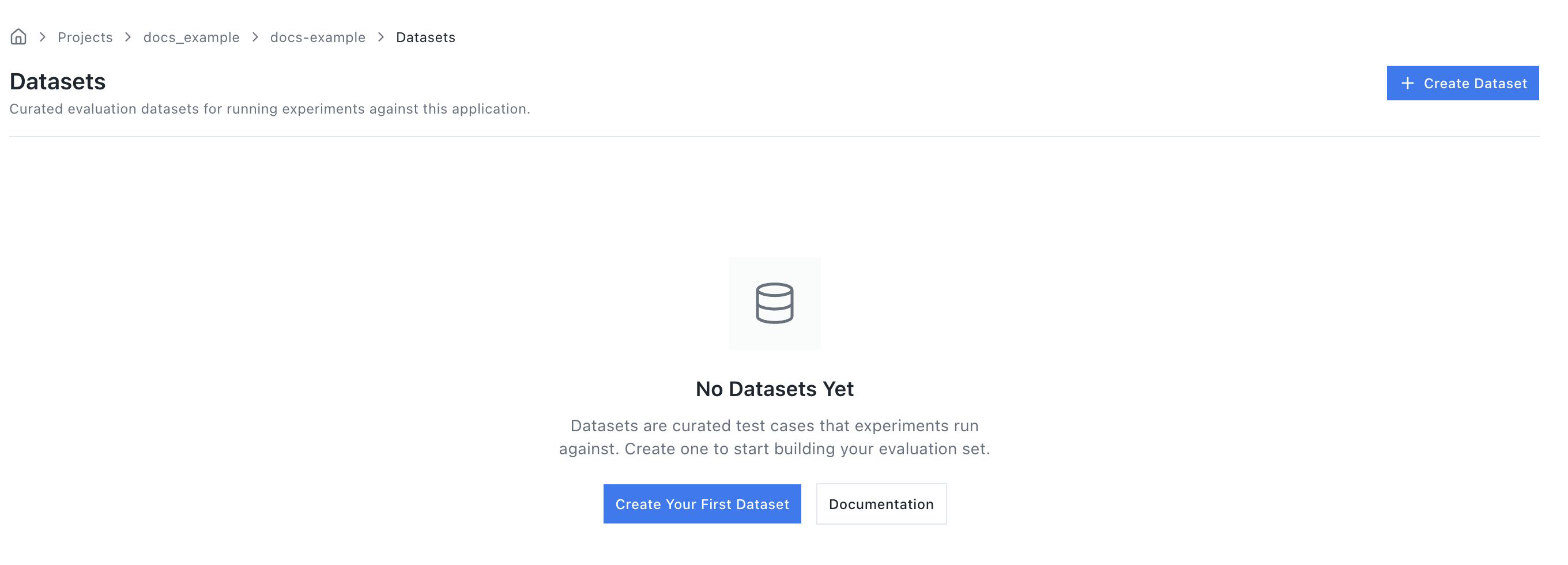
Datasets page of an application
Create a Dataset
- Click Create Dataset (or Create Your First Dataset when the application has no datasets).
- Enter a Name and, optionally, a Description.
- Click Create Dataset.
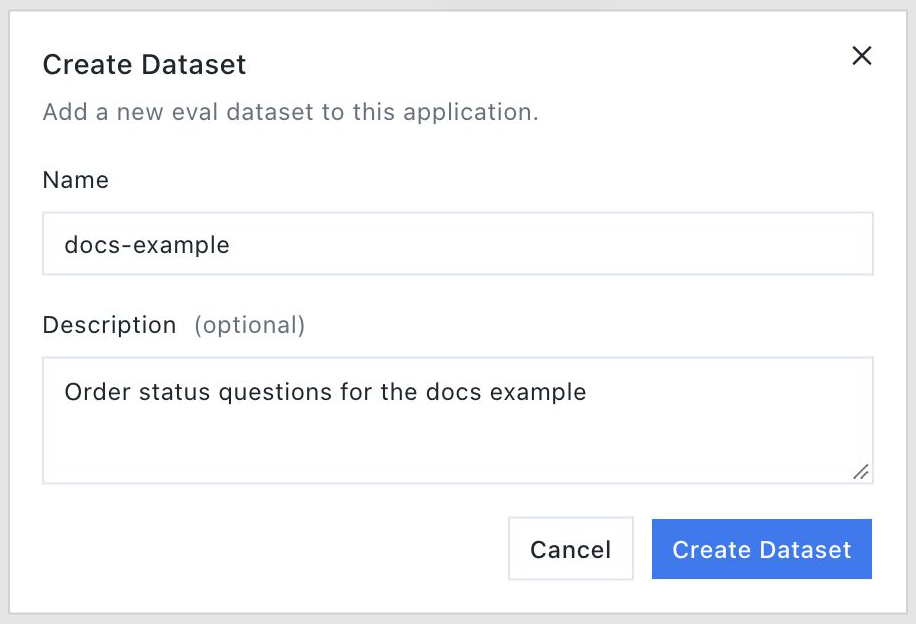
Create Dataset dialog
Upload Items From a CSV File
- Open the dataset and click Add Items. An empty dataset also shows Upload CSV. Both open the Upload Items dialog. You can add items only to the current version.
- In the Upload CSV step, drag and drop a CSV file or click to browse. Each upload can have up to 1,000 rows.
- In the Map Columns step, map each column to Inputs, Expected Outputs, Extras, Source Name, or Metadata. At least one column must map to Inputs. When the dataset already has items, Fiddler maps each column whose name matches a field of the existing items.
- In the Confirm Upload step, check the preview and click Upload N Items, where N is the number of items.
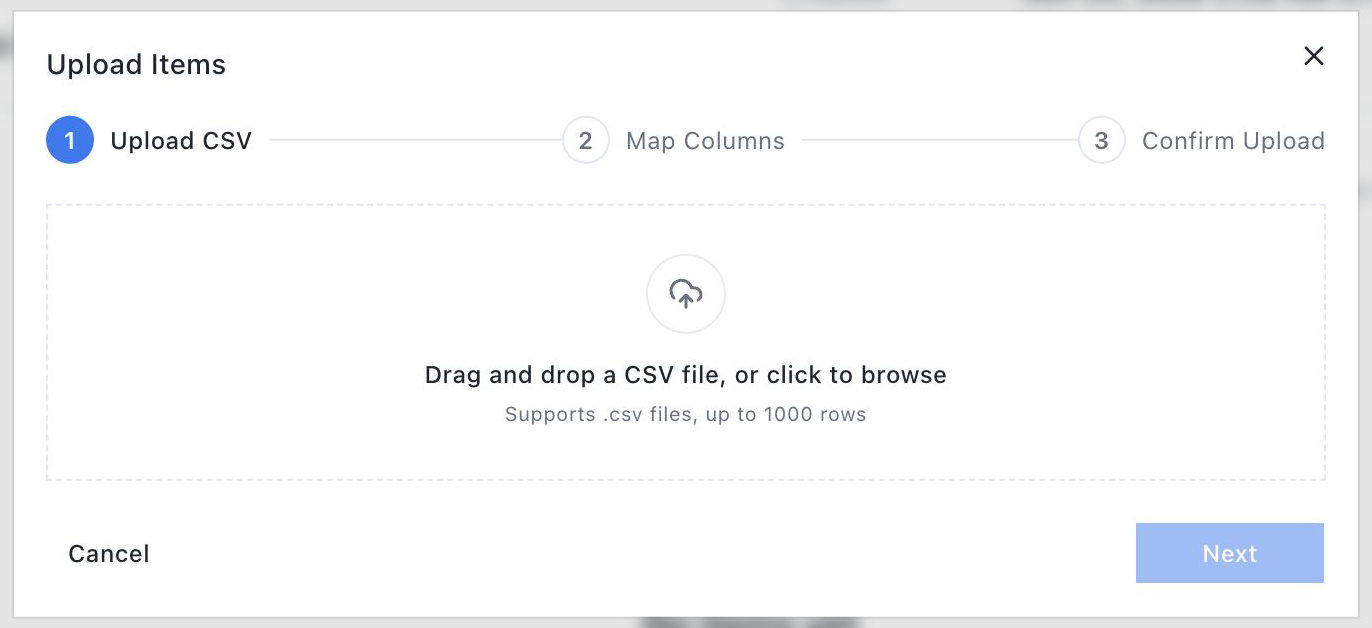
Upload CSV step
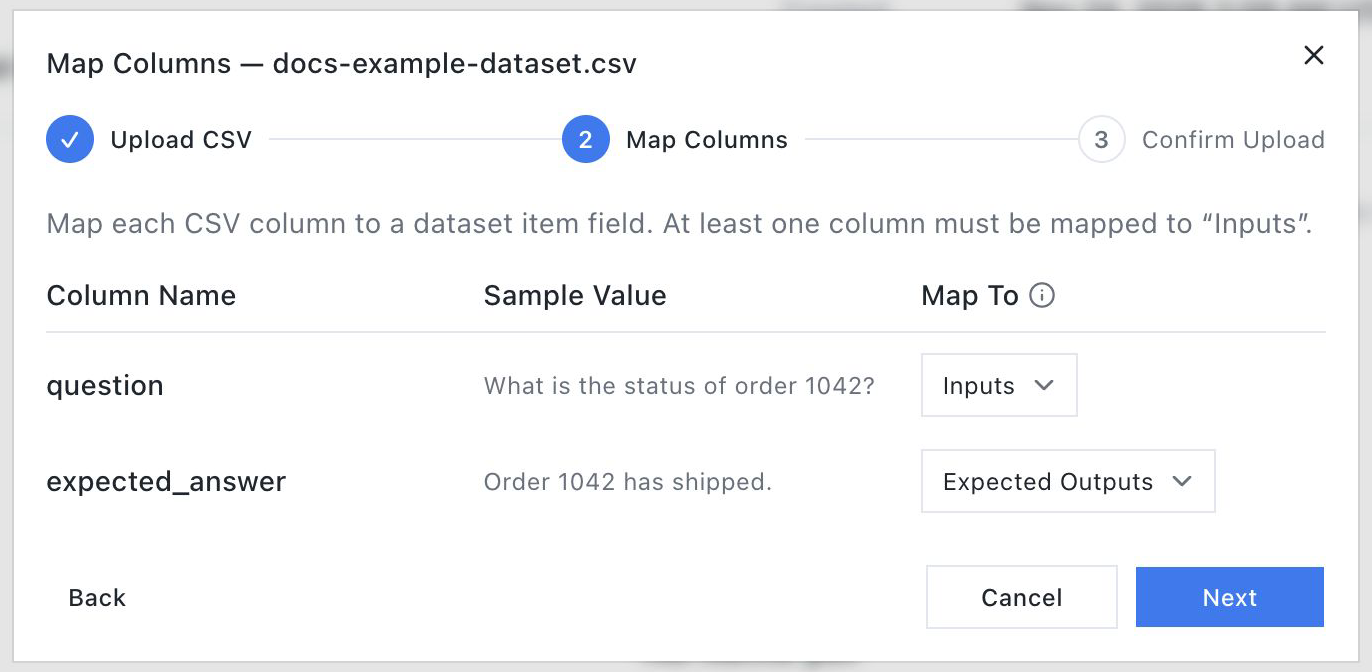
Map Columns step
Add Spans From the Explorer
You can also select spans in the Explorer and choose Add to Dataset; see Golden Datasets. The dialog has three steps: Choose Dataset, Map Fields, and Review.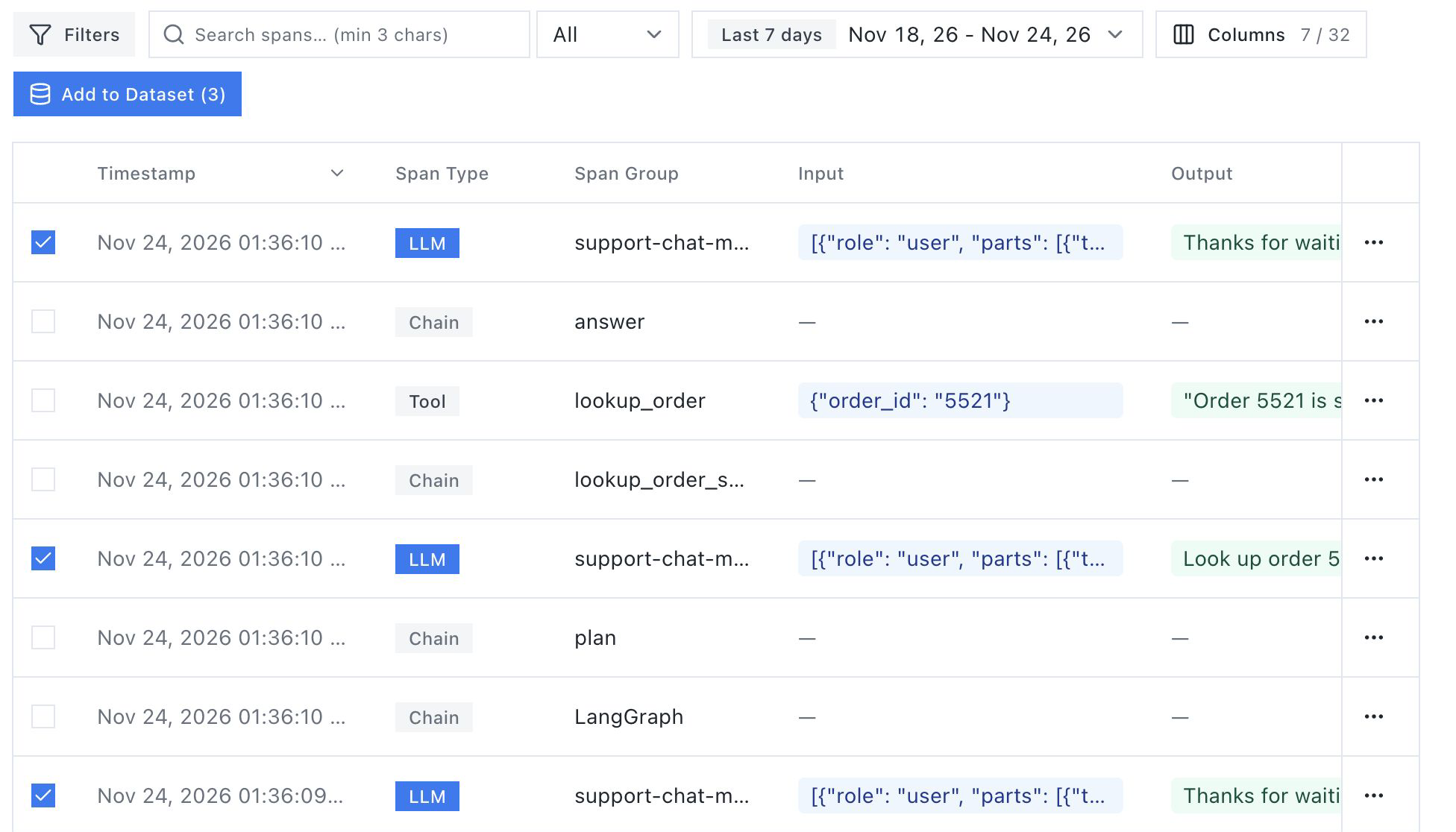
Add to Dataset in the Explorer toolbar
Browsing and Editing Dataset Versions
To see the items of a dataset, open Datasets in the sidebar of your application and select the dataset.- Version picker: The picker next to the items table lists the newest versions of the dataset (up to 50), grouped by day. The newest version is first and shows vN (current). When you select a past version, the page address changes. Thus, a link that you share opens the same version. To open an older version, use a link to it, for example the dataset link of an experiment.
- Past versions are read-only: When the page shows a past version, it shows Not the latest version · read-only and a View latest link. To add items, go to the current version.
- What changed: Next to the picker, Changes in vN has an information icon. Hover over the icon to see the number of items that the version created, updated, and deleted. The first version (v0) shows only that it is the empty starting version.
- Edit or delete an item: Click an item to open it. Click Edit to change its inputs, expected outputs, extras, and metadata as JSON. Click Delete to remove it, and then confirm. Each save makes a new version. A deleted item stays in the earlier versions. The history of the item shows each version that changed it. Select a version to see the item at that version. To go back, click Back to latest and edit.
- Conflicts: If another person saved the item while you edited it, Fiddler shows your changes next to the saved item. Click Save mine to save your changes, Discard mine to keep the saved item, or Keep editing to continue. Fiddler does not overwrite changes until you select an option.
- Run an experiment on a version: With the
fiddler-evalsSDK,evaluate()uses the version that thedatasetobject holds. To use an earlier version, load it withDataset.get_by_name(..., version=N)(see Running on a Past Version). With the REST API, a new experiment uses the current version of the dataset. To use an earlier version, setdataset_versionwhen you create the experiment. - Use the REST API: You can also list the versions, read the history of an item, and edit items in bulk.
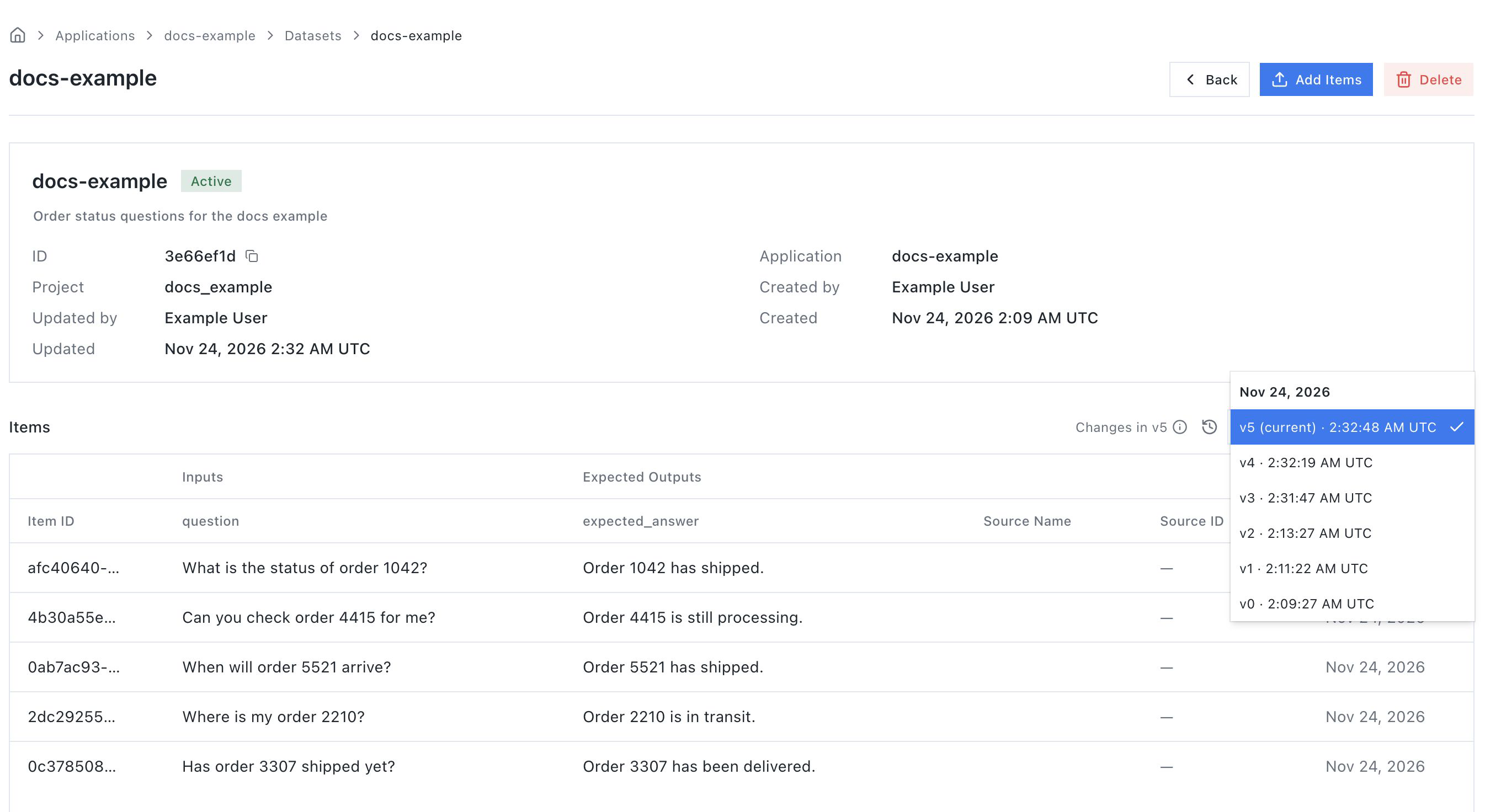
Version picker
Delete a Dataset
- In the Datasets list, open the actions menu of the dataset and click Delete, or click Delete on the page of the dataset.
- Type
delete. - Click Delete Dataset.
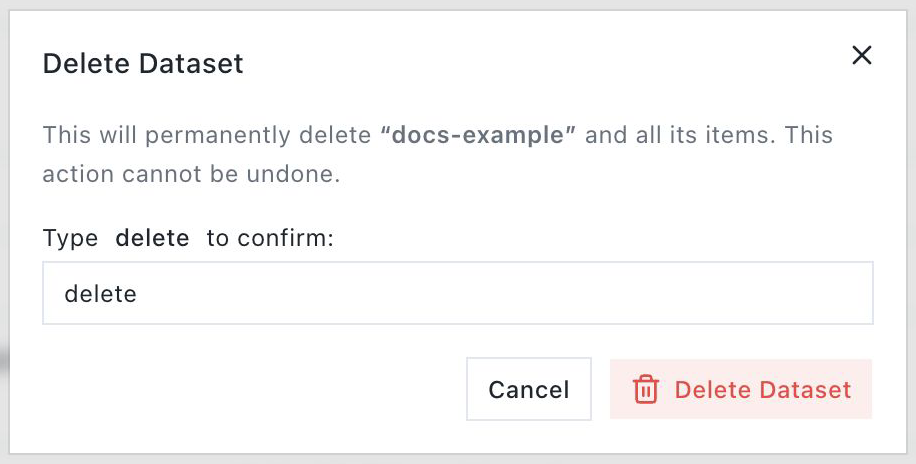
Delete Dataset dialog