Create, test, and delete alert rules that email you when a GenAI application metric crosses a threshold.
A GenAI alert rule watches one metric of one GenAI application
and emails you when the metric crosses a threshold.
Find rules under Alerts > GenAI Alert Rules.
You can also manage rules with the REST API.
Create a GenAI Alert Rule
Select Add Alert Rule, then complete the form’s steps:
1
Application
Pick one application.
Applications are grouped by project.
A rule covers the whole application.
2
Metric Configuration
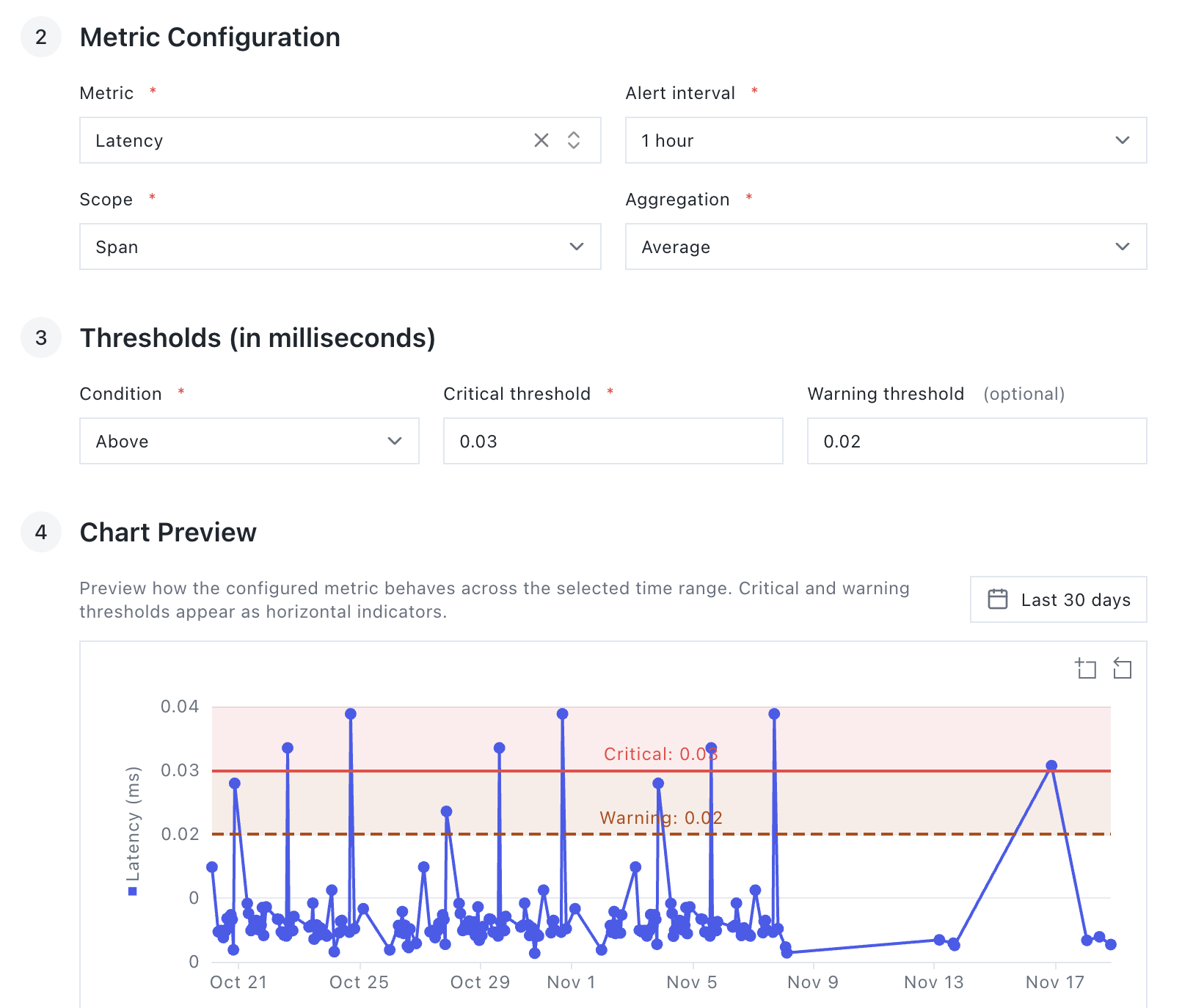
Select a Metric: Traffic, Token Count, Attribute, Latency, or an evaluator.
Each metric adds its own fields,
such as Token Type, Attribute, Rule, Output, or Aggregation.Select an Alert interval: 1 hour (default) or 1 day.Custom metrics and annotations can’t be used.
3
Thresholds
Set the Condition to Above (default) or Below.
Enter a Critical threshold (required)
and, optionally, a Warning threshold.
The warning threshold must be lower than the critical threshold for Above
and higher for Below.
Latency is in milliseconds.A value exactly equal to a threshold doesn’t trigger an alert.
4
Chart Preview
The preview plots the metric over a date range you pick (default: last 30 days),
with the thresholds drawn as lines.
It also counts how many points would have breached.
Evaluator metrics are plotted by evaluator calculation time.
Metric Configuration, Thresholds, and Chart Preview for a latency rule
5
Notification
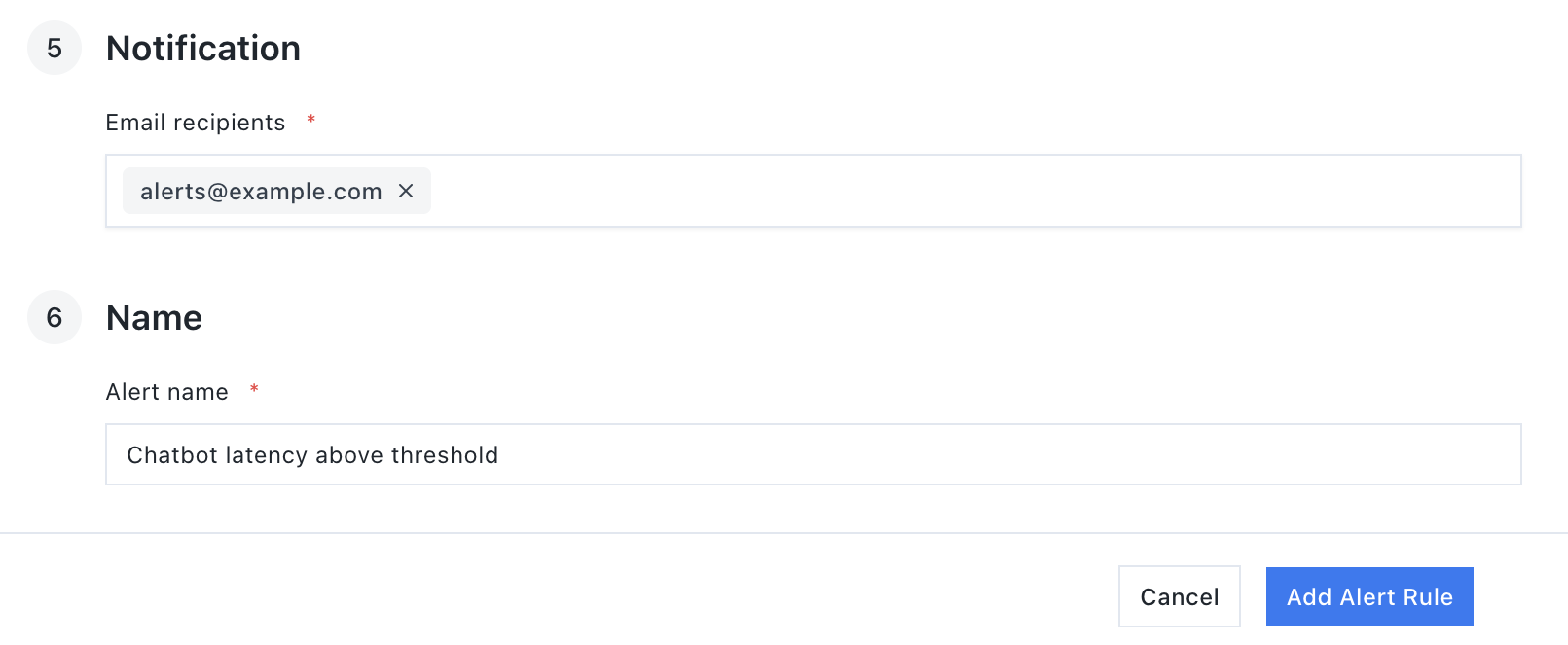
Add Email recipients:
type an address and press Enter.
6
Name
Enter an Alert name.
Notification and Name, the last two sections of the form
Then select Add Alert Rule.
In a GenAI chart, the Add alert rule item in a query’s menu
opens this form with the application and metric filled in.
When Fiddler Checks and Notifies
Fiddler checks hourly rules at the top of each hour
and daily rules at midnight UTC.Each check also re-reads recent completed windows:
the last 6 hours for hourly rules,
and the last 7 days for daily rules.
Late data can still trigger an alert.
A new rule’s first check evaluates these windows for the first time,
so it can alert on data from before you created the rule.Fiddler sends an email only when a window’s severity rises:
its first breach, or a change from warning to critical.
Manage Rules
Each row’s menu has these actions:
View Alert Rule Details: shows the rule, read-only.
Send Test Alert: sends a sample email with “[Test]” in the subject.
You can send up to 5 test alerts per minute and 30 per hour.
These limits are per user.
Copy Alert ID: copies the rule’s ID.
Delete: deletes the rule.
Rules can’t be edited or paused.
To change a rule, delete it and create a new one.
Deleting an evaluator rule also deletes the alert rules that use it.
Limitations
Email is the only notification channel.
PagerDuty, Slack, and webhooks aren’t supported.
A rule covers a whole application.
Thresholds are fixed values.
Permissions
GenAI alert rules use the same project-level Alerts permissions as predictive alert rules.
See Role-Based Access.