Instrument your LangChain V1 application with the Fiddler LangChain SDK in under 10 minutes.

What You’ll Learn

By completing this quick start, you’ll:
  • Set up monitoring for a LangChain V1 (langchain.agents.create_agent) application
  • Send your first traces to Fiddler
  • Verify data collection in the Fiddler dashboard
  • Understand basic conversation tracking
Before you begin, ensure you have:
  • Python 3.10 or higher (up to Python 3.14)
  • Valid Fiddler account with access to your instance
  • A LangChain V1 application built with langchain.agents.create_agent
  • Network connectivity to your Fiddler instance
Supported Python Versions:
  • Python 3.10-3.14
Framework Compatibility:
  • LangChain V1: langchain >= 1.0 (the create_agent / middleware API)
Core Dependencies:The SDK automatically installs these OpenTelemetry components:
  • opentelemetry-api
  • opentelemetry-sdk
  • opentelemetry-instrumentation
  • opentelemetry-exporter-otlp-proto-http
  • fiddler-otel (transitive — provides FiddlerClient)
1
Set Up Your Fiddler Application
  1. Create your application in Fiddler Log in to your Fiddler instance and navigate to GenAI Applications, then click Add Application and follow the onboarding wizard to create your application. GenAI Applications page with Add Application button
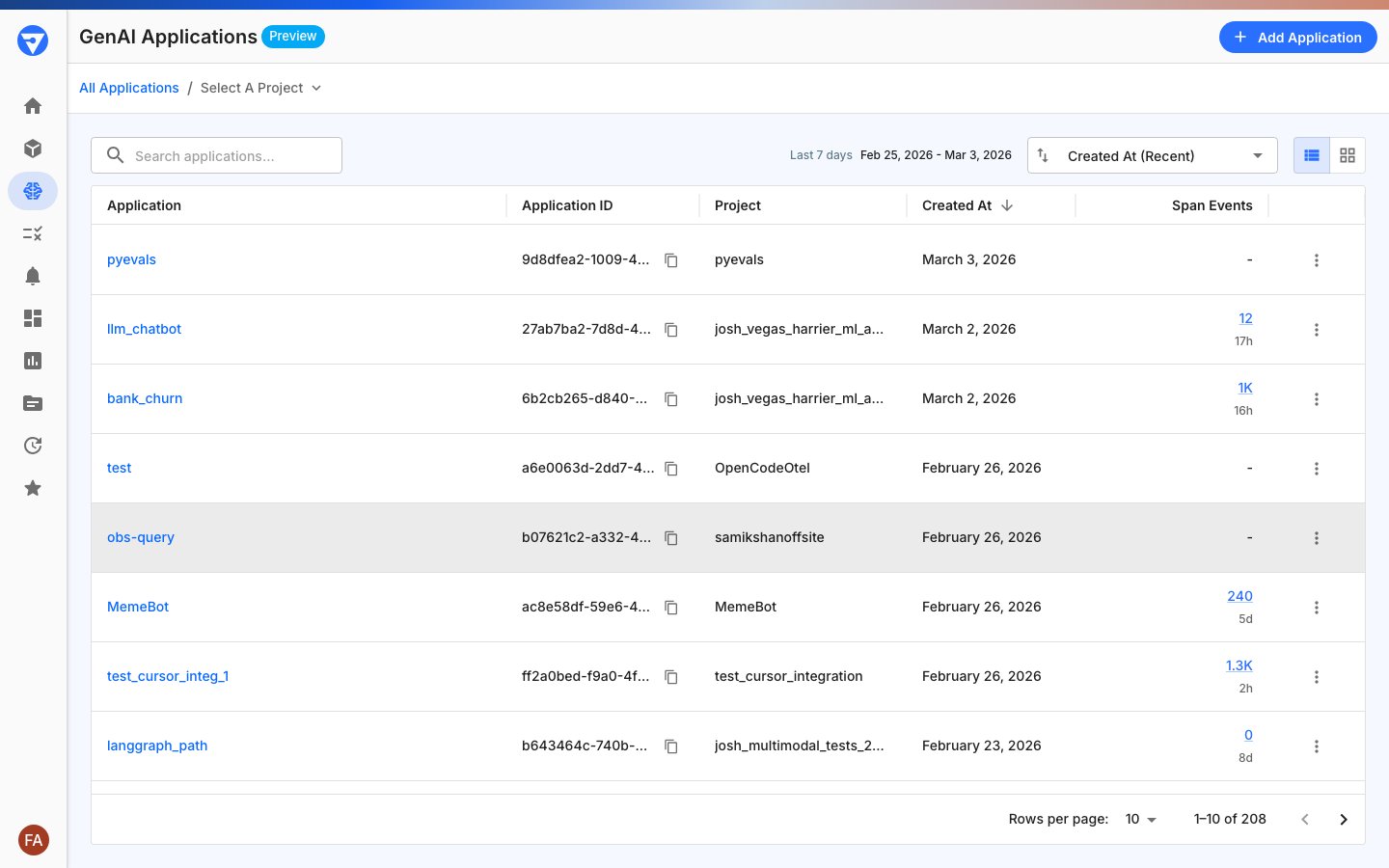
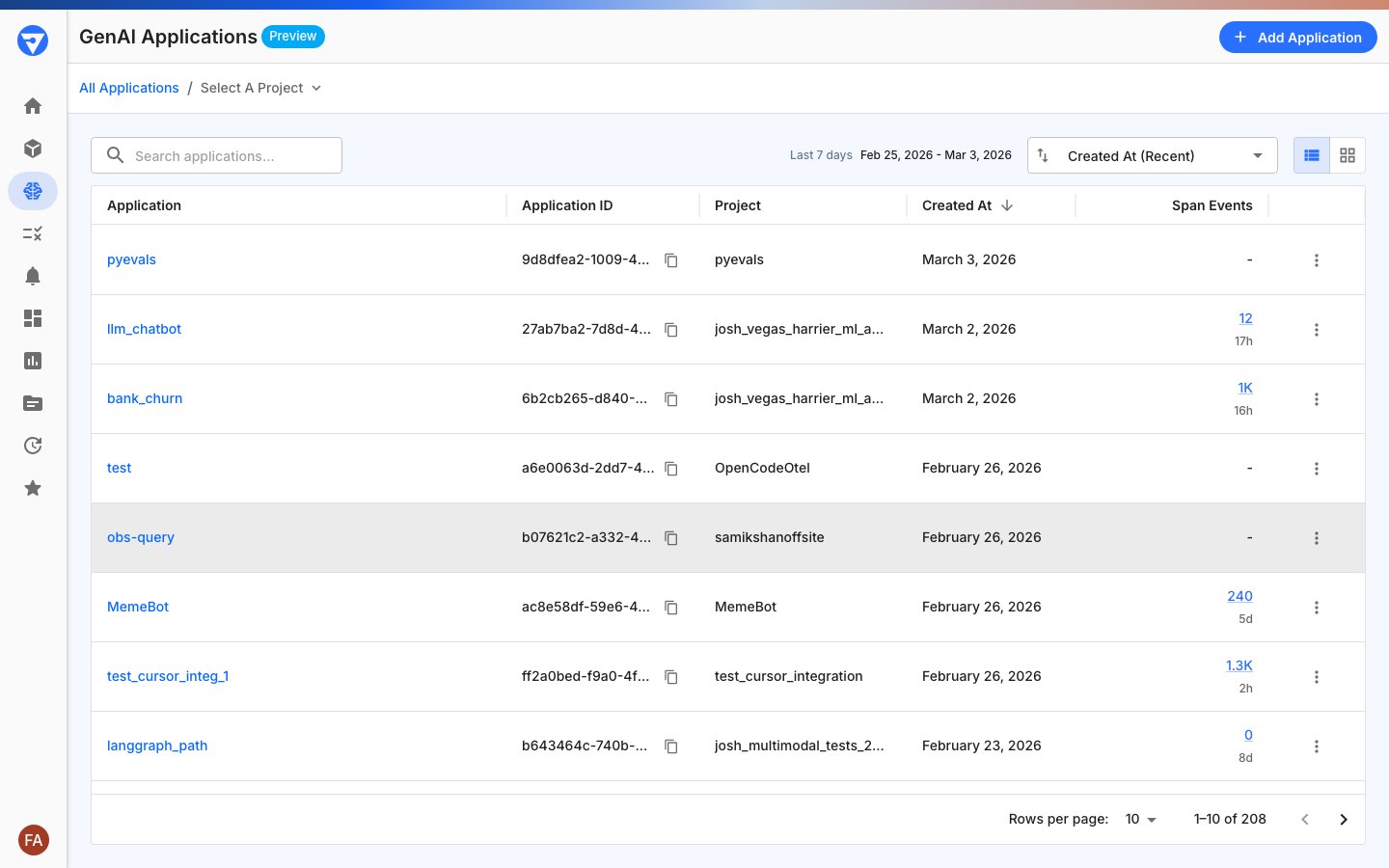
  2. Copy your Application ID After creating your application, copy the Application ID from the GenAI Applications page using the copy icon next to the ID. This must be a valid UUID4 format (for example, 550e8400-e29b-41d4-a716-446655440000). You’ll need this for Step 3. GenAI Applications page showing Application ID column with copy icons
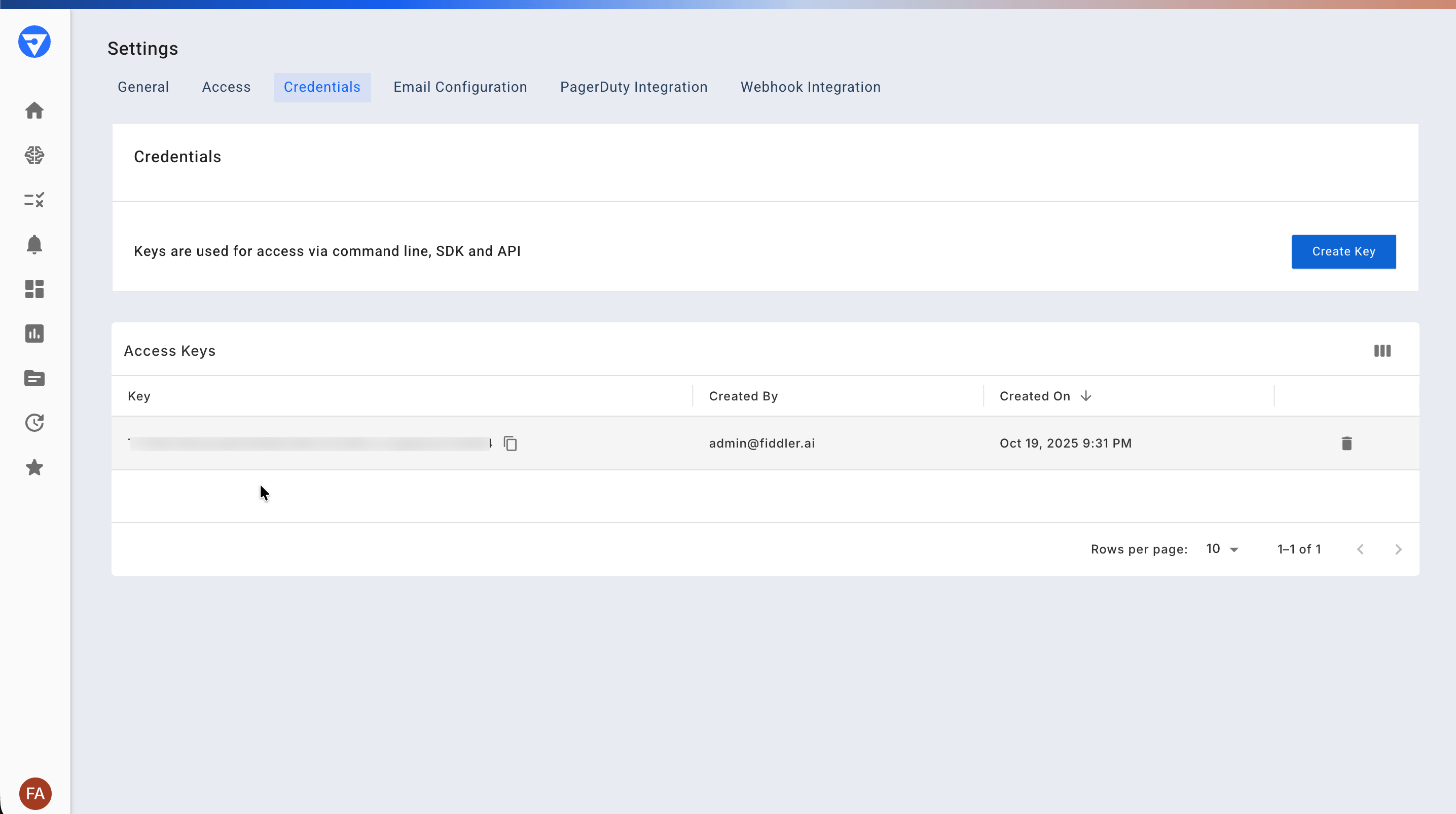
  3. Get Your Access Token Go to Settings > Credentials and copy your access token. You’ll need this for Step 3. Refer to the documentation for more details. Fiddler Settings- Credentials tab showing admin's access token
2
Install the Fiddler LangChain SDKFor the stable release, install the Fiddler LangChain SDK using pip:
pip install fiddler-langchain
3
Instrument Your ApplicationAdd the Fiddler LangChain SDK to your application with just a few lines of code. The instrumentor patches langchain.agents.create_agent so every agent created afterwards is traced automatically — no per-agent middleware configuration is required.
import langchain.agents
from fiddler_otel import FiddlerClient
from fiddler_langchain import FiddlerLangChainInstrumentor

# Initialize the FiddlerClient. Replace the placeholder values below.
fdl_client = FiddlerClient(
    application_id='<FIDDLER_APPLICATION_ID>',  # Application ID copied from UI in Step 1
    api_key='<FIDDLER_API_KEY>',                # Your access token
    url='<FIDDLER_URL>',                        # https://your-instance.fiddler.ai
)

# Instrument LangChain V1 — must run BEFORE you call create_agent()
instrumentor = FiddlerLangChainInstrumentor(client=fdl_client)
instrumentor.instrument()

# Use the module attribute so the patched create_agent is called.
# (If you prefer `from langchain.agents import create_agent`, call
# `instrument()` BEFORE that import.)
agent = langchain.agents.create_agent(
    model="openai:gpt-4o-mini",
    tools=[...],
    name="my_agent",  # used as the root span label in traces
)

# Your existing LangChain code runs normally
# Traces will automatically be sent to Fiddler
Add Context and Conversation TrackingThe main goal of context setting is to enrich the telemetry data sent to Fiddler:
from fiddler_langchain import set_llm_context, set_conversation_id
import uuid

# Attach descriptive context to a specific model — appears on its LLM spans.
set_llm_context(model, 'Customer support conversation')

# Set a conversation ID for tracking multi-turn conversations
set_conversation_id(str(uuid.uuid4()))
Manual middleware alternative. If you prefer not to use the auto-instrumentor, pass middleware=[FiddlerAgentMiddleware(client=client, agent_name="my_agent")] directly to each create_agent() call. See the FiddlerAgentMiddleware reference for details.
Need more control? This Quick Start uses auto-instrumentation, which traces every create_agent-based agent automatically. The SDK also supports per-component span attributes (add_span_attributes) and session attributes (add_session_attributes) for fine-grained metadata tagging.
4
Run a Complete Example
This example requires an OpenAI API key. You can create or find your key on the API keys page of your OpenAI account.
Here’s a complete working example to verify your setup:
import os
import uuid

import langchain.agents
from langchain_openai import ChatOpenAI
from langchain_core.tools import tool

from fiddler_otel import FiddlerClient
from fiddler_langchain import (
    FiddlerLangChainInstrumentor,
    set_conversation_id,
    set_llm_context,
)

# Initialize the FiddlerClient. Replace the placeholder values below.
fdl_client = FiddlerClient(
    application_id='<FIDDLER_APPLICATION_ID>',  # Application ID copied from UI in Step 1
    api_key='<FIDDLER_API_KEY>',                # Your access token
    url='<FIDDLER_URL>',                        # https://your-instance.fiddler.ai
)

# Instrument LangChain V1 — must run BEFORE create_agent()
instrumentor = FiddlerLangChainInstrumentor(client=fdl_client)
instrumentor.instrument()

# Build a simple agent
model = ChatOpenAI(model="gpt-4o-mini")

@tool
def echo(text: str) -> str:
    """Echo back the input text."""
    return text

agent = langchain.agents.create_agent(
    model=model,
    tools=[echo],
    name="quickstart_agent",
)

# Set descriptive context for this interaction
set_llm_context(model, "Quick start example conversation")

# Generate and set a conversation ID
conversation_id = str(uuid.uuid4())
set_conversation_id(conversation_id)

# Run your agent — automatically instrumented
result = agent.invoke({
    "messages": [{"role": "user", "content": "Hello! How are you?"}]
})

print("Response received:", result)
print("Conversation ID:", conversation_id)
Short-lived scripts: The SDK batches spans in memory and exports them on a schedule. If your script exits before the batch is sent, call fdl_client.shutdown() (or use with FiddlerClient(...) as client:) to flush pending spans. Long-running servers handle this automatically via atexit.
5
Verify Monitoring is Working
  1. Run your application using the example above or your own instrumented code
  2. Check the Fiddler dashboard: Navigate to GenAI Applications in your Fiddler instance
  3. Confirm active status: If Fiddler successfully receives telemetry, your application will show as Active GenAI application showing active status

Success CriteriaYou should see:
  • Application status changed to Active in the Fiddler dashboard
  • Trace data appearing within 1-2 minutes of running your example
  • Context labels match what you set in your code
  • Conversation ID visible in the trace details
Expected trace hierarchy for create_agent:
[Span] quickstart_agent     (Agent root - TYPE=agent)
  ├── [Span] gpt-4o-mini    (LLM call  - TYPE=llm)
  ├── [Span] echo           (Tool call - TYPE=tool)
  └── [Span] gpt-4o-mini    (LLM call  - TYPE=llm)
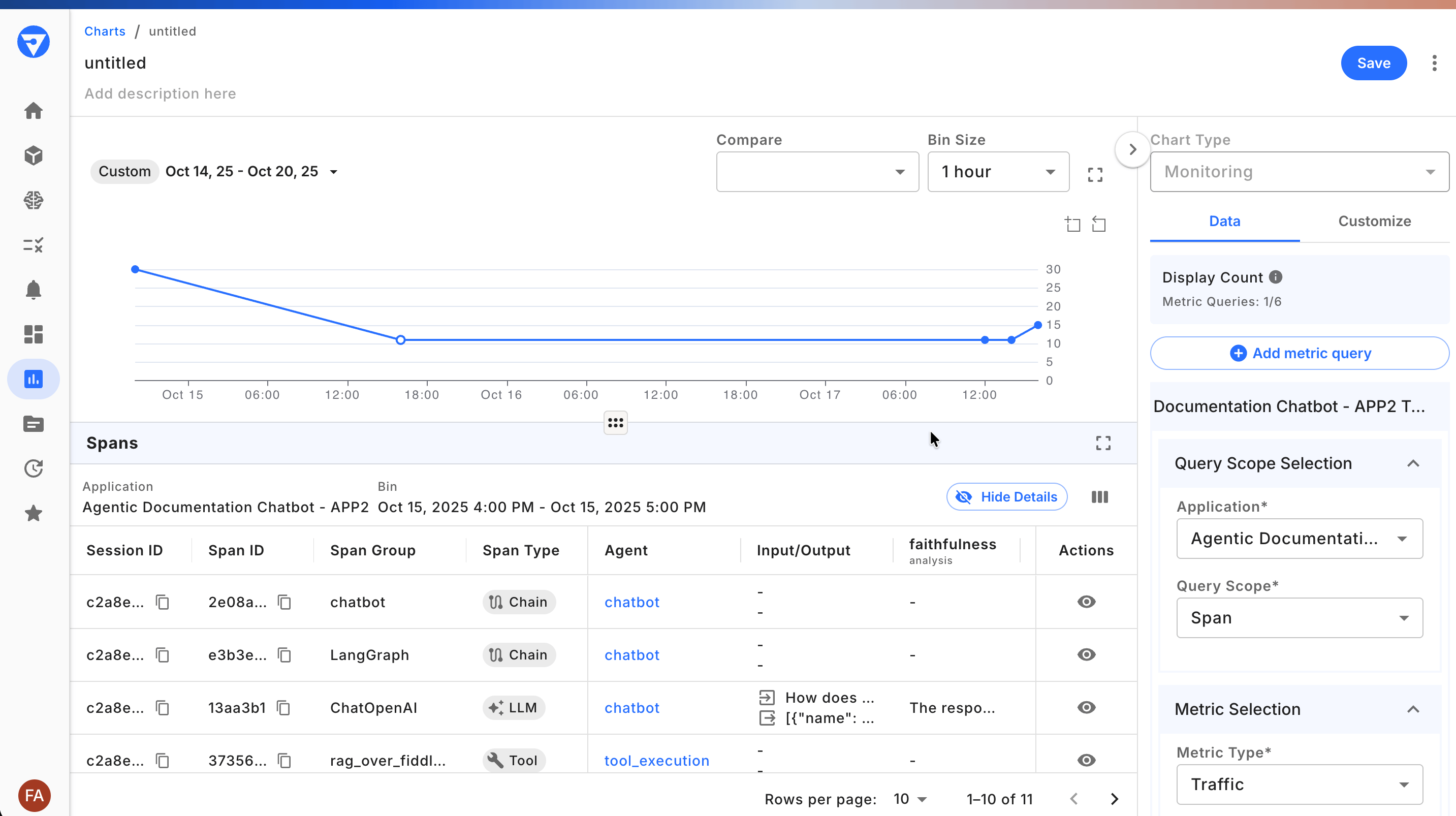
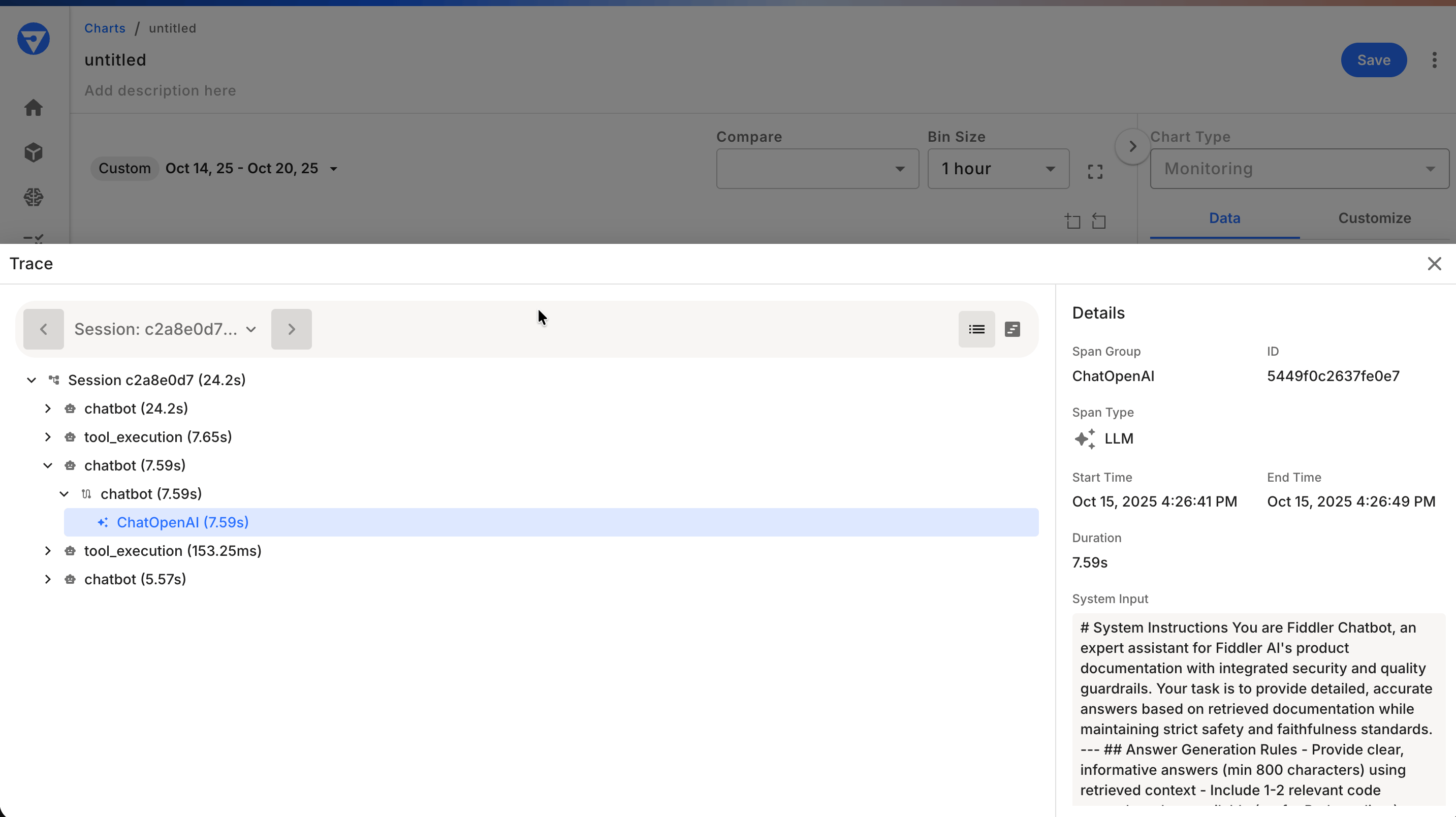
Event chart and spans list view pageAgent application span trace view

Grant Team Access (optional)

Provide access to other users by assigning teams and users to the project that contains your applications. Managing permissions through Teams is recommended as a best practice. For more access control details, refer to the Teams and Users Guide and the Role-based Access Guide.
  1. Open the Settings page and select the Access tab
  2. For both Users and Teams, select the “Edit” option to the right of the name
  3. Add appropriate team members with the required permission levels

Configuration Options

Basic Configuration

from fiddler_otel import FiddlerClient

fdl_client = FiddlerClient(
    application_id="your-app-id",  # Must be valid UUID4
    api_key="your-api-key",
    url="https://your-instance.fiddler.ai",
)

Advanced Configuration

Customize Limits for High-Volume Applications

Set limits for your events, spans, and associated attributes. This is helpful for tuning reporting data to manageable numbers for highly attributed and/or high-volume applications.
from opentelemetry.sdk.trace import SpanLimits
from fiddler_otel import FiddlerClient

custom_limits = SpanLimits(
    max_events=64,                  # Default: 32
    max_links=64,                   # Default: 32
    max_span_attributes=64,         # Default: 32
    max_event_attributes=64,        # Default: 32
    max_link_attributes=64,         # Default: 32
    max_span_attribute_length=4096, # Default: 2048
)

client = FiddlerClient(
    application_id="your-app-id",
    api_key="your-api-key",
    url="https://your-instance.fiddler.ai",
    span_limits=custom_limits,
)

Sampling Traffic

Set a specific sampling percentage for incoming data.
from opentelemetry.sdk.trace import sampling
from fiddler_otel import FiddlerClient

sampler = sampling.TraceIdRatioBased(0.1)  # Sample 10% of traces

client = FiddlerClient(
    application_id="your-app-id",
    api_key="your-api-key",
    url="https://your-instance.fiddler.ai",
    sampler=sampler,
)

Environment Variables for Batch Processing

Adjust the following environment variables that the FiddlerClient will use when processing the OpenTelemetry traffic.
import os

os.environ['OTEL_BSP_MAX_QUEUE_SIZE'] = '500'         # Default: 100
os.environ['OTEL_BSP_SCHEDULE_DELAY_MILLIS'] = '500'  # Default: 1000
os.environ['OTEL_BSP_MAX_EXPORT_BATCH_SIZE'] = '50'   # Default: 10
os.environ['OTEL_BSP_EXPORT_TIMEOUT'] = '10000'       # Default: 5000

Compression Options

The SDK supports data compression to help reduce the overall data volume transmitted over the network. This can help improve network latency.
from opentelemetry.exporter.otlp.proto.http.trace_exporter import Compression
from fiddler_otel import FiddlerClient

# Enable gzip compression (default, recommended for production)
client = FiddlerClient(
    application_id="your-app-id",
    api_key="your-api-key",
    url="https://your-instance.fiddler.ai",
    compression=Compression.Gzip,
)

Environment Variables Reference

Configure OpenTelemetry batch processor behavior through environment variables:
VariableDefaultDescription
OTEL_BSP_MAX_QUEUE_SIZE100Maximum spans in queue before export
OTEL_BSP_SCHEDULE_DELAY_MILLIS1000Delay between batch exports (milliseconds)
OTEL_BSP_MAX_EXPORT_BATCH_SIZE10Maximum spans exported per batch
OTEL_BSP_EXPORT_TIMEOUT5000Export timeout (milliseconds)
FIDDLER_API_KEY-Your Fiddler API key (recommended for production)
FIDDLER_APPLICATION_ID-Your application UUID4 (recommended for production)
FIDDLER_URL-Your Fiddler instance URL (recommended for production)

Adding Custom Attributes

fiddler-langchain exposes two helpers for tagging traces with business metadata:
from langchain_core.tools import tool
from langchain_openai import ChatOpenAI
from fiddler_langchain import add_session_attributes, add_span_attributes

# Session attributes — appear on every span in the current invocation
add_session_attributes("user_id", "alice@example.com")
add_session_attributes("environment", "production")

# Span attributes — only appear on spans for this specific component
model = ChatOpenAI(model="gpt-4o-mini")
add_span_attributes(model, department="AI_Engineering", agent_role="flight_assistant")

@tool
def book_flight(from_airport: str, to_airport: str) -> str:
    """Book a flight between two airports."""
    return f"Booked {from_airport} -> {to_airport}"

add_span_attributes(book_flight, third_party="acme_air", reward_points=10.2)
HelperScopeSpan attribute format
add_session_attributes(key, value)All spans in the invocationfiddler.session.user.{key}
add_span_attributes(node, **kwargs)Spans for that model / tool / retrieverfiddler.span.user.{key}

Async Agents

The instrumentation fully supports async agents. Use agent.ainvoke() instead of agent.invoke() — no additional configuration is needed:
import asyncio
import langchain.agents
from langchain_openai import ChatOpenAI
from fiddler_langchain import FiddlerLangChainInstrumentor
from fiddler_otel import FiddlerClient

client = FiddlerClient(api_key="...", application_id="...", url="...")
FiddlerLangChainInstrumentor(client=client).instrument()

agent = langchain.agents.create_agent(
    model=ChatOpenAI(model="gpt-4o-mini"),
    tools=[...],
    name="my_agent",
)

async def main():
    result = await agent.ainvoke({"messages": [{"role": "user", "content": "Hello!"}]})
    print(result)

asyncio.run(main())

Troubleshooting

Common Installation Issues

Problem: ModuleNotFoundError: No module named 'fiddler_langchain'
  • Solution: Install the package: pip install fiddler-langchain
Problem: Version conflicts with existing packages
  • Solution: Use a virtual environment or update conflicting packages

Common Configuration Issues

Problem: ValueError: application_id must be a valid UUID4
  • Solution: Ensure your Application ID is a valid UUID4 format (e.g., 550e8400-e29b-41d4-a716-446655440000)
Problem: ValueError: URL must have a valid scheme and netloc
  • Solution: Ensure your URL includes the protocol (e.g., https://your-instance.fiddler.ai)
Problem: Agents are created but no spans appear in Fiddler
  • Solution: Confirm instrumentor.instrument() is called before langchain.agents.create_agent(). The instrumentor patches the module attribute, so agents created prior to instrumentation are not traced. If you use from langchain.agents import create_agent, the local name binds to the unpatched function — either call instrument() before that import, or invoke the function as langchain.agents.create_agent(...).
Problem: Debugging trace generation
  • Solution: Enable console tracer for local debugging:
    fdl_client = FiddlerClient(
        application_id="your-app-id",
        api_key="your-api-key",
        url="https://your-instance.fiddler.ai",
        console_tracer=True  # Also prints spans to console; OTLP export to Fiddler still active
    )
    
console_tracer=True is additive — span data is printed to stdout and continues to be exported to Fiddler via OTLP. Setting this to True does not disable or suppress the OTLP export to Fiddler.

Verification Issues

Problem: Application not showing as “Active” in Fiddler
  • Solution: Check the following:
    1. Ensure your application executes instrumented code (the agent must be invoked)
    2. Verify that your Fiddler access token and application ID are correct
    3. Check network connectivity to your Fiddler instance
    4. Enable console_tracer=True to see if spans are being generated locally

Next Steps

Now that your application is instrumented:
  1. Explore the data: Check your Fiddler dashboard for traces, metrics, and performance insights
  2. Review the SDK reference: Check the Fiddler LangChain SDK Reference for complete documentation
  3. Optimize for production: Review configuration options for high-volume applications