
Overview
This integration allows your users to sign in to Fiddler using their existing Okta account, without needing a separate Fiddler password. Users are automatically provisioned on their first successful login — no manual invitations required.Prerequisites
Before starting, ensure you have:- Okta Administrator Access: Permissions to create and configure applications in your Okta organization.
- Fiddler AuthN Administrator Access: Org Owner role in Fiddler’s AuthN management console.
- Deployment Information: The hostname of your Fiddler deployment, e.g.
idpexample.dev.fiddler.ai.
Configuring Okta and Fiddler for Integration
1
Fiddler AuthN Console Sign-in
The URL to the Fiddler AuthN management console is your Fiddler instance base URL prepended with
authn-. For example, if your Fiddler base URL is https://idpexample.dev.fiddler.ai then you will access the AuthN management console at https://authn-idpexample.dev.fiddler.ai.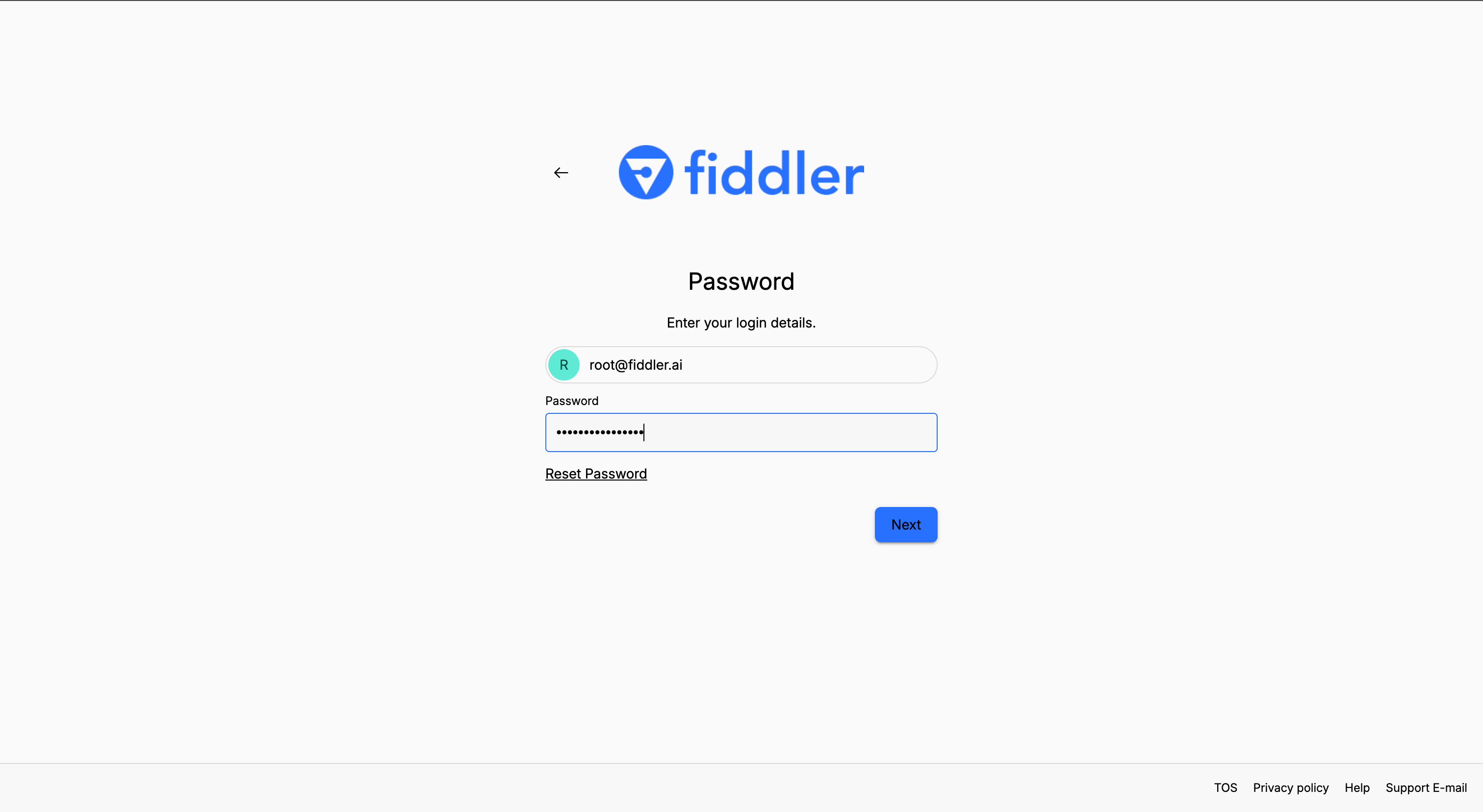
2
Select Your Organization
Ensure your organization is selected in the dropdown. You may see the fiddler organization, but this is reserved for system use and should not be edited. Here we are using the idpexample organization.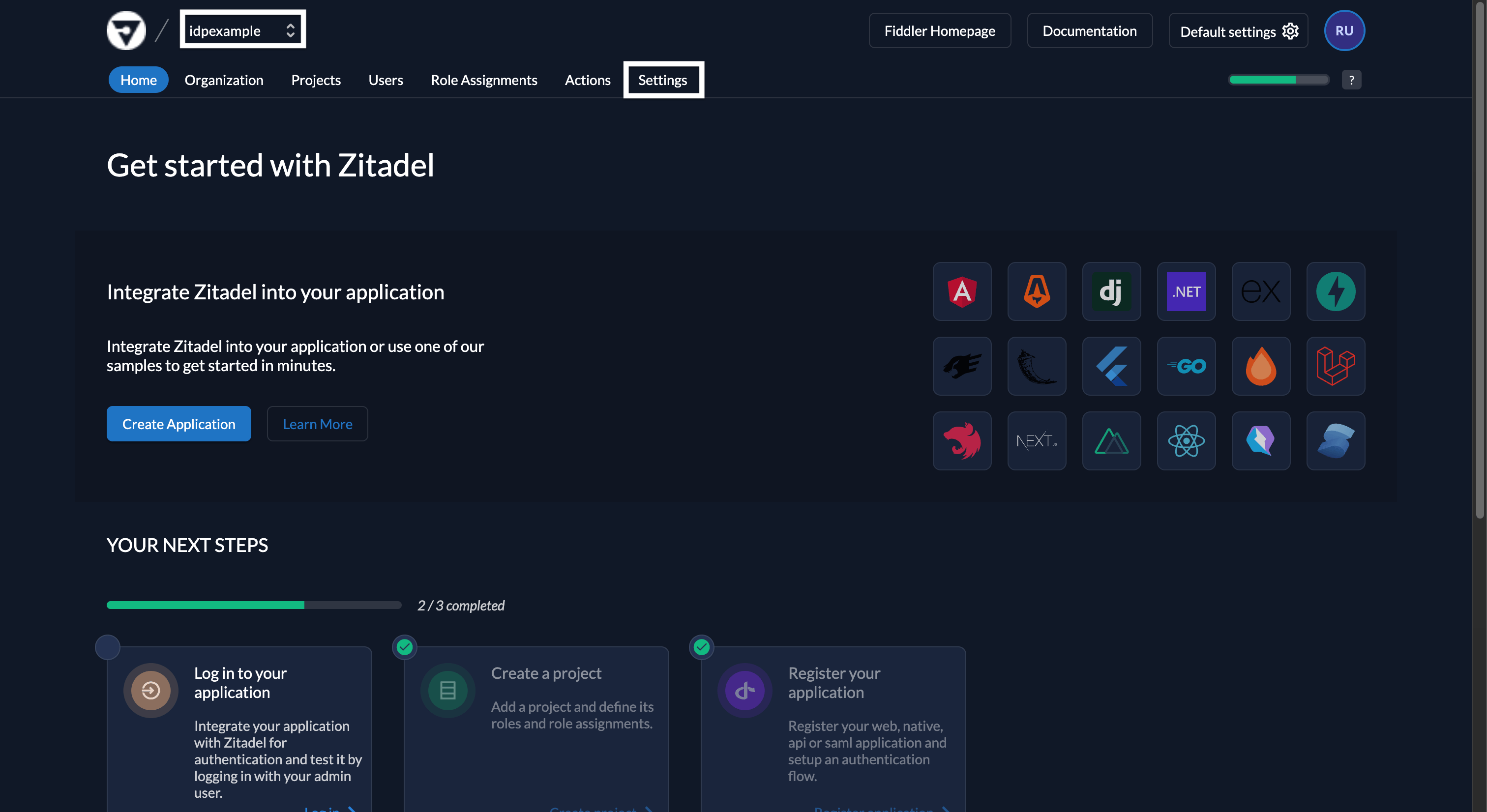
3
Navigate to Identity Providers in Settings
Select Settings tab from the top menu and then select Identity Providers from the left navigation menu.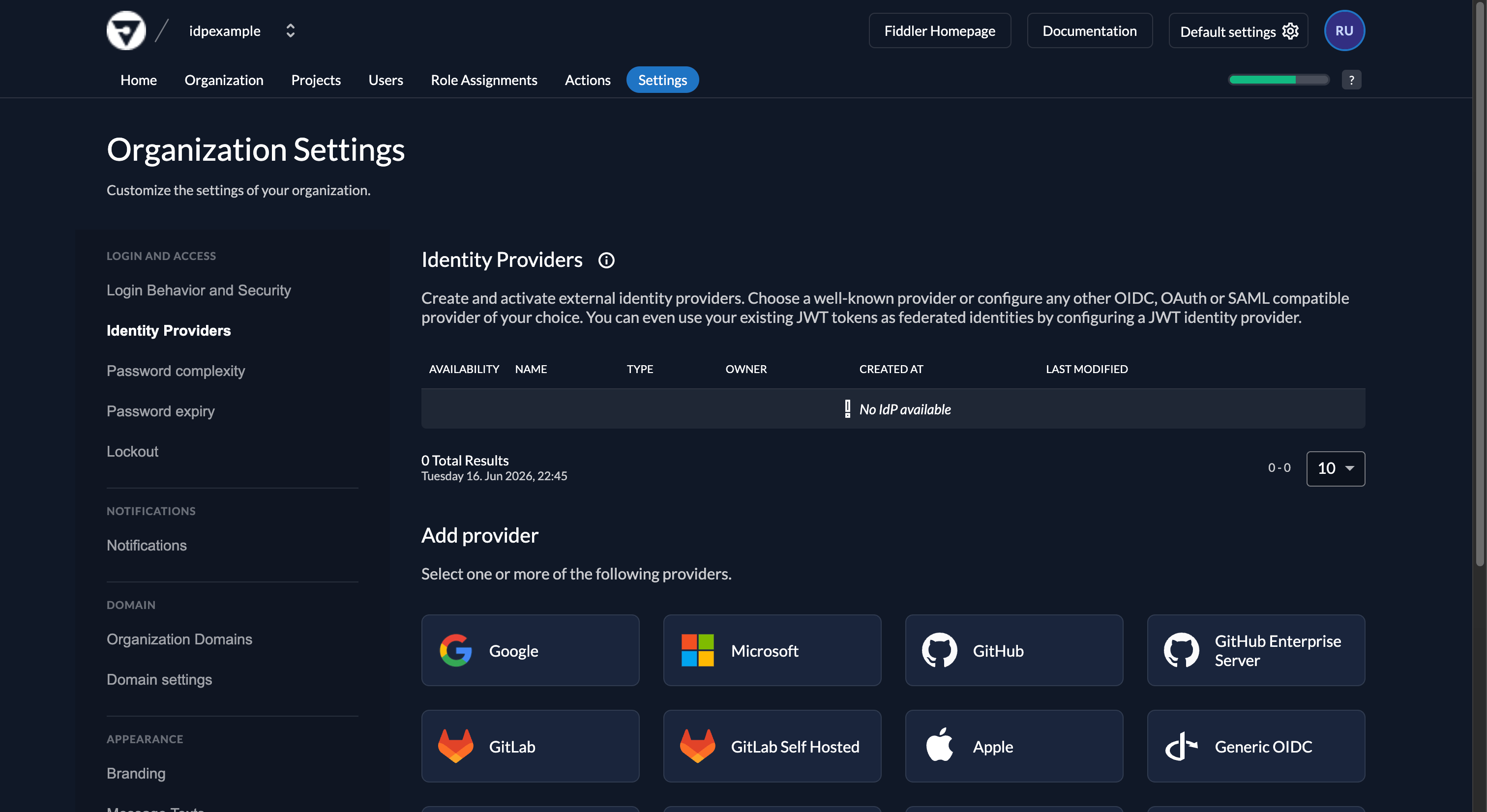
4
Add and Configure New SAML Provider
- Select the SAML option in the Add provider section, which brings up the Sign in with SAML form.
- Enter a name for the integration. This name is displayed on the SSO login button on the Fiddler sign-in page, so choose one your users will recognize.
- Paste the following placeholder value into the Metadata XML text area. AuthN needs it to generate the URLs used when you create the Okta app integration; you will replace it in a later step.
Placeholder Metadata XML value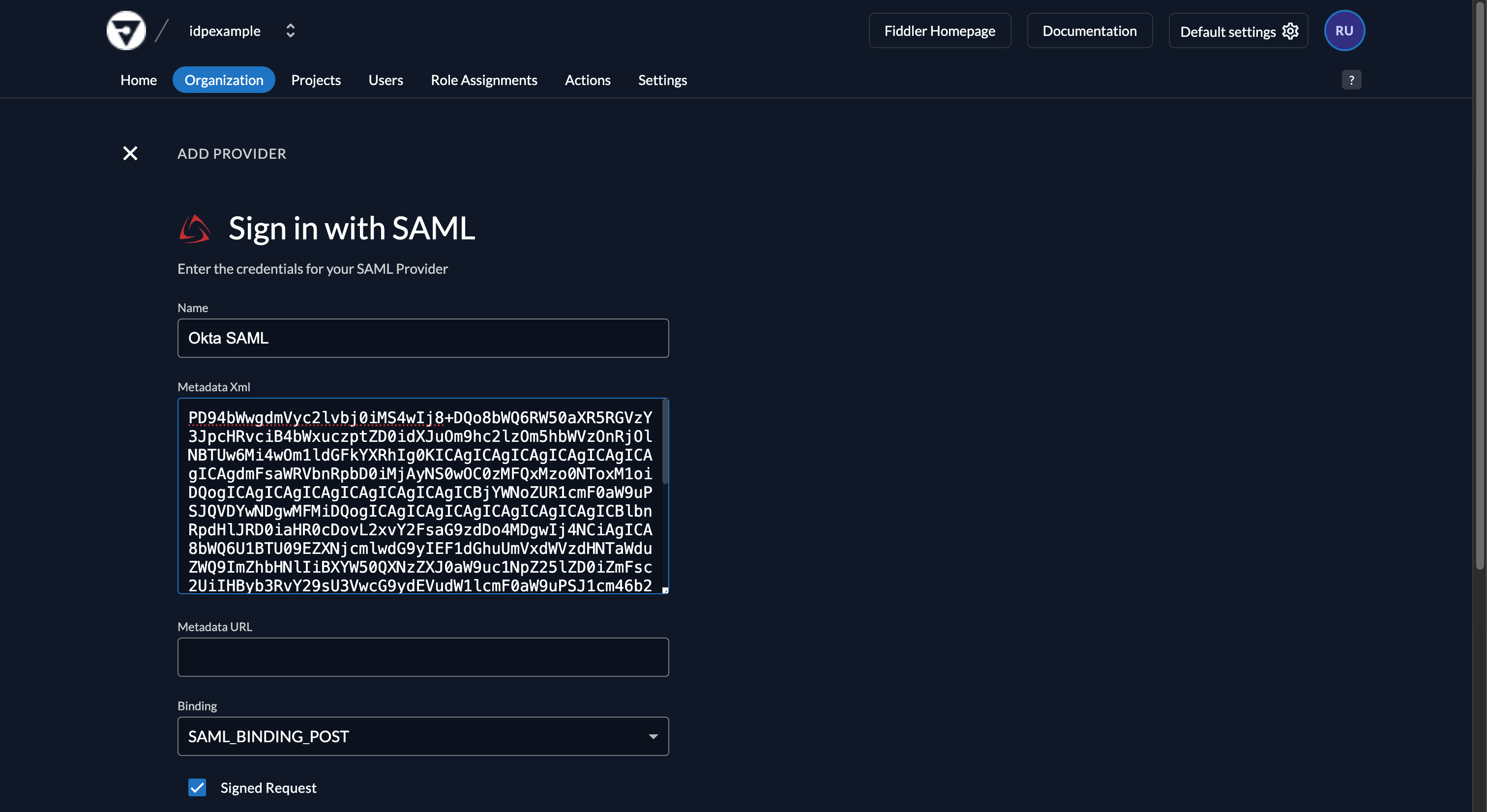
5
Save the SAML Provider
Select the Create button and then select the Save button. You will be returned to the Organization Settings page.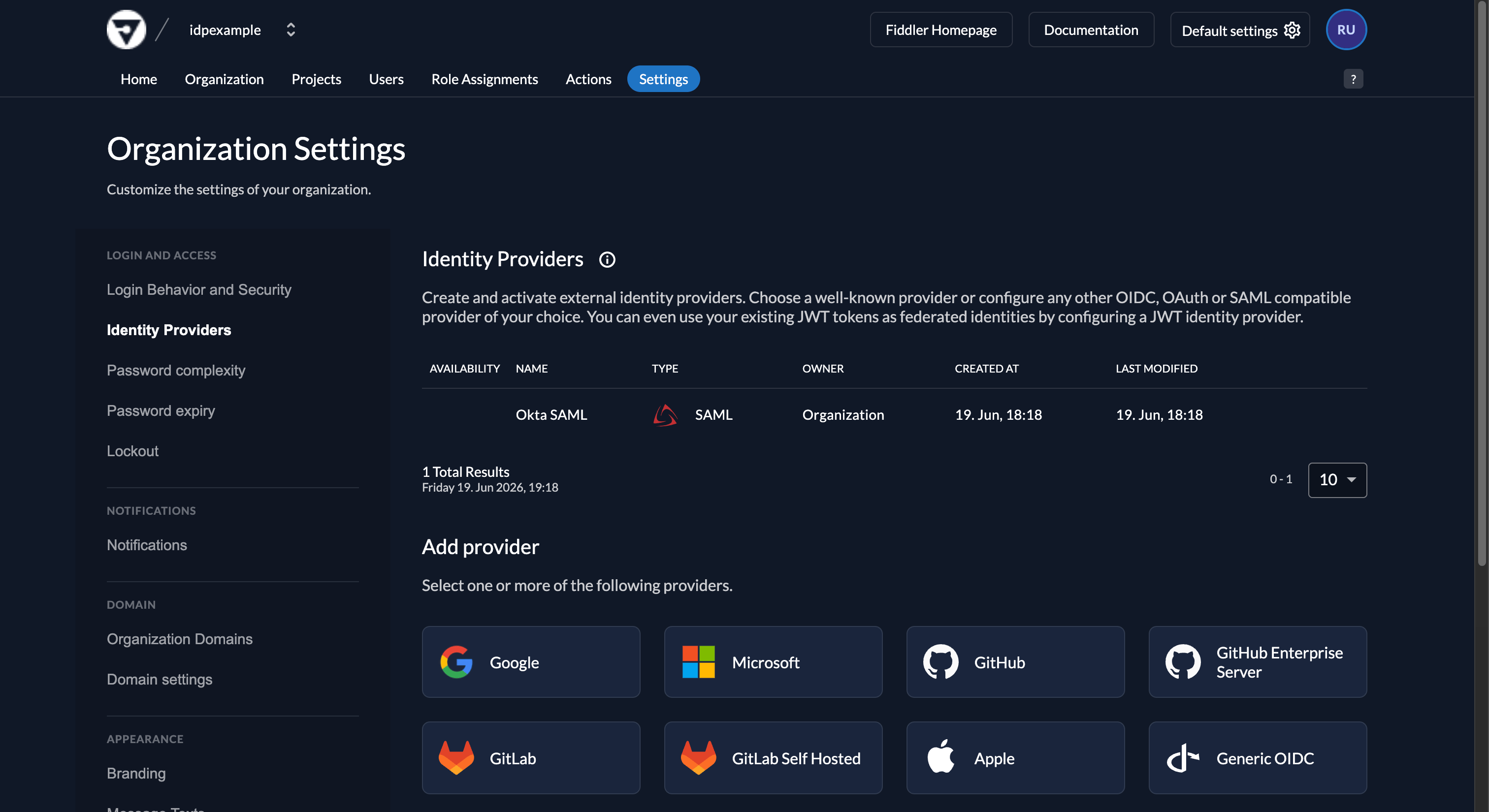
6
Copy the SAML URLs
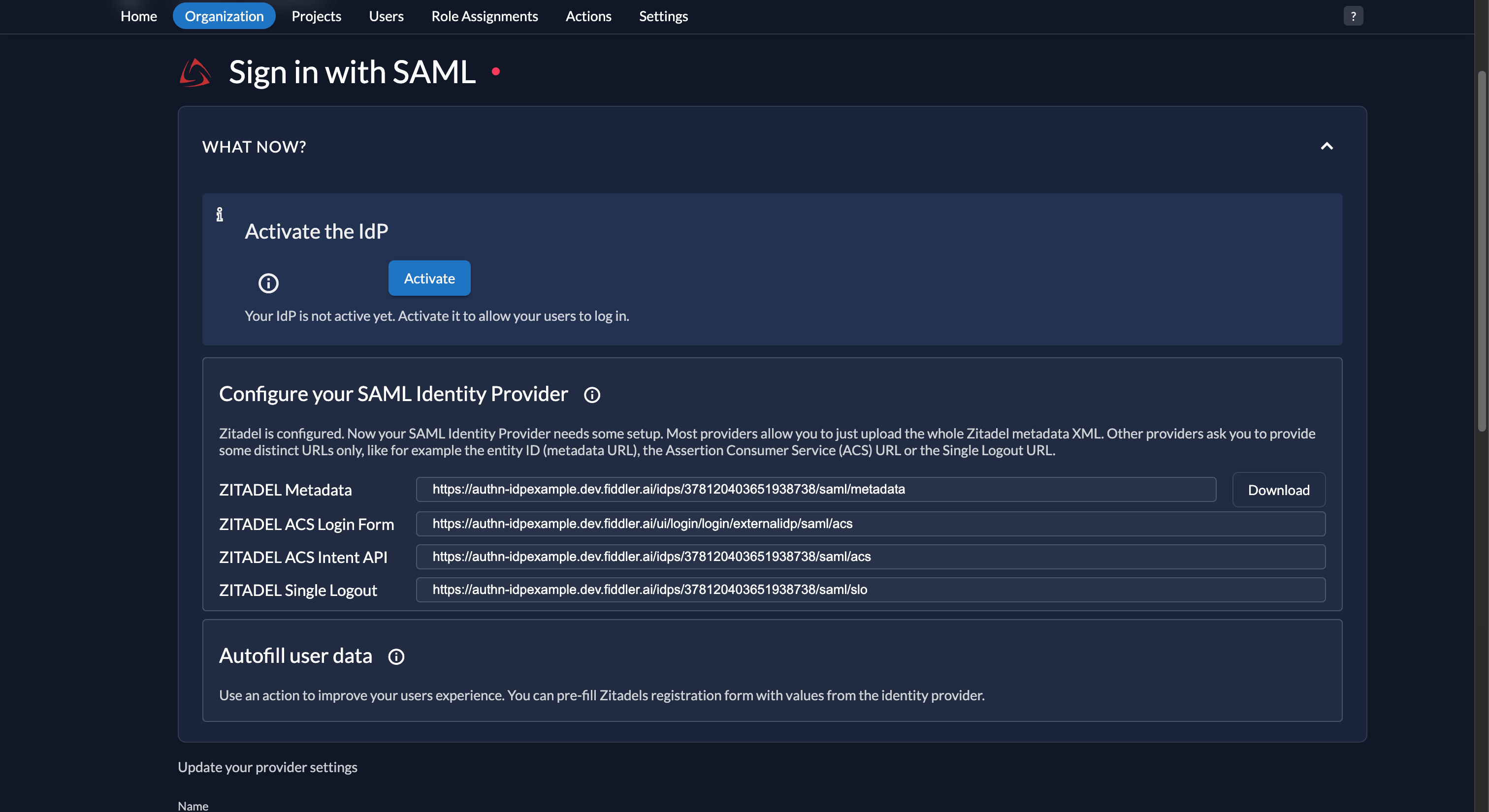
Select your IdP from the list. Four URLs are displayed — copy the following three for the Okta app integration steps:
- ZITADEL Metadata URL
- ZITADEL ACS Login Form URL
-
ZITADEL ACS Intent API URL
7
Create New App Integration in Okta
-
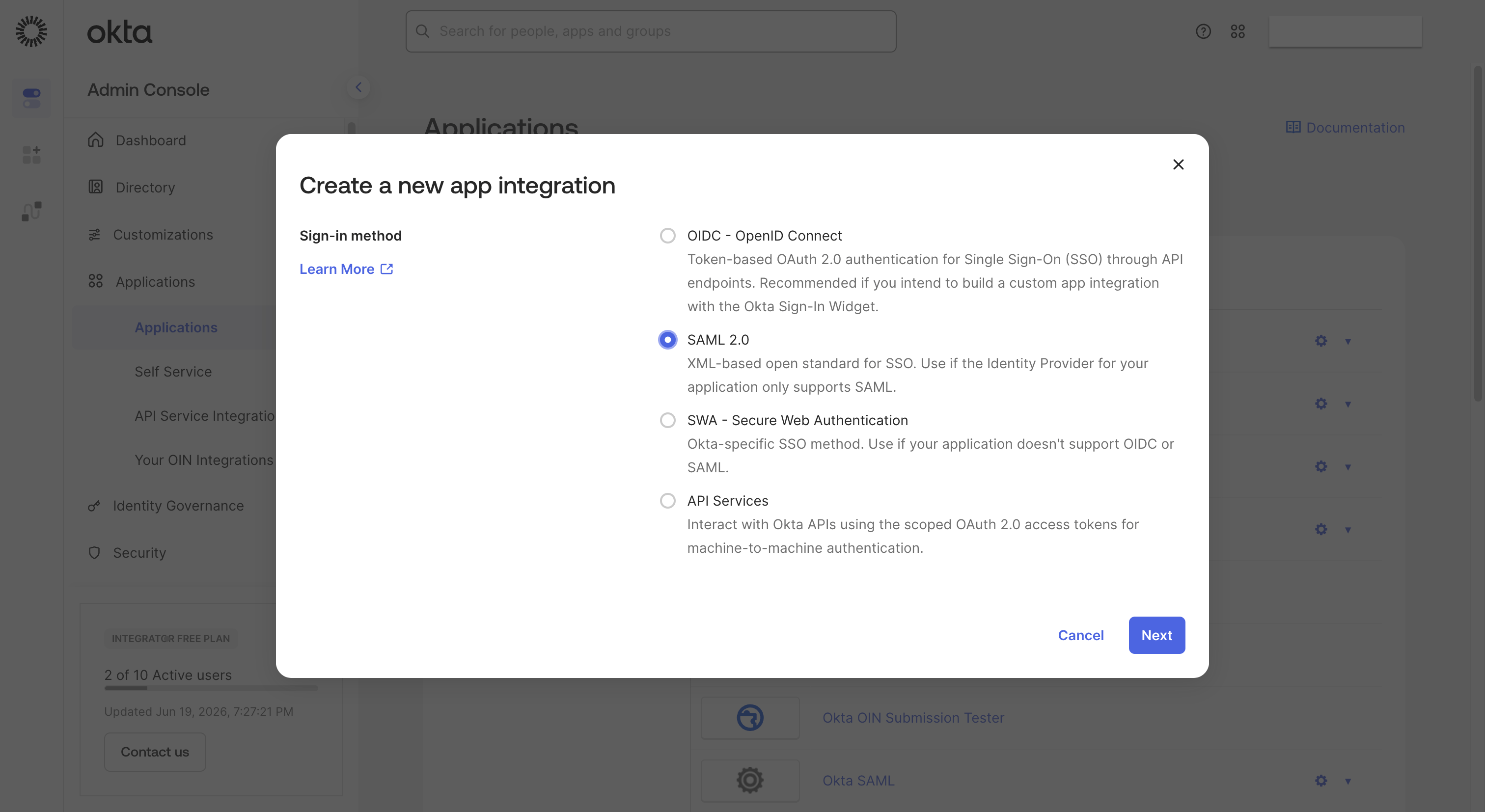
In the Okta admin console, navigate to Applications and select the Create App Integration button. Select SAML 2.0 for the Sign-in method, then select Next.
-
Enter a name for your application, e.g.
Fiddler IdP Example, and select Next.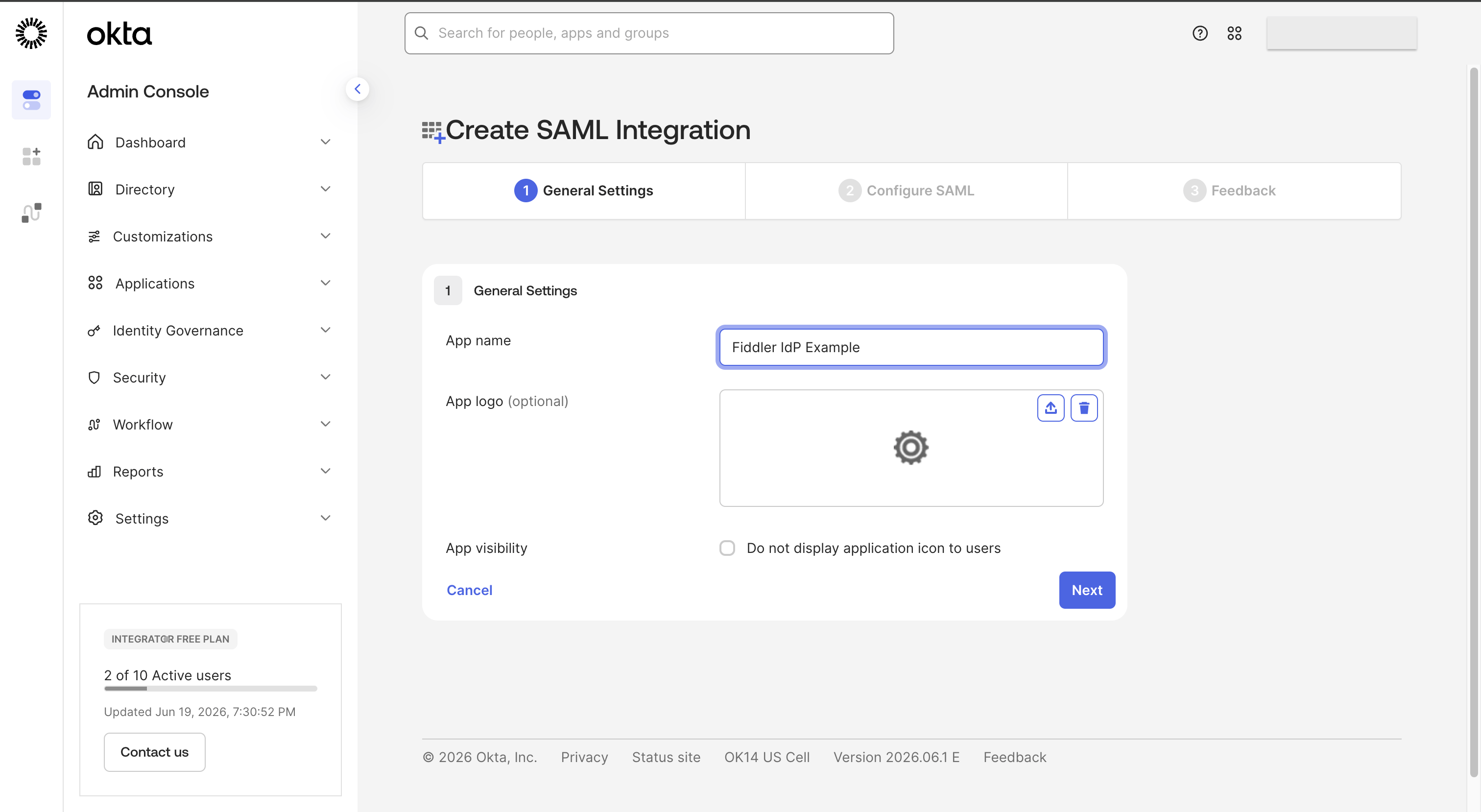
8
Configure the Okta App
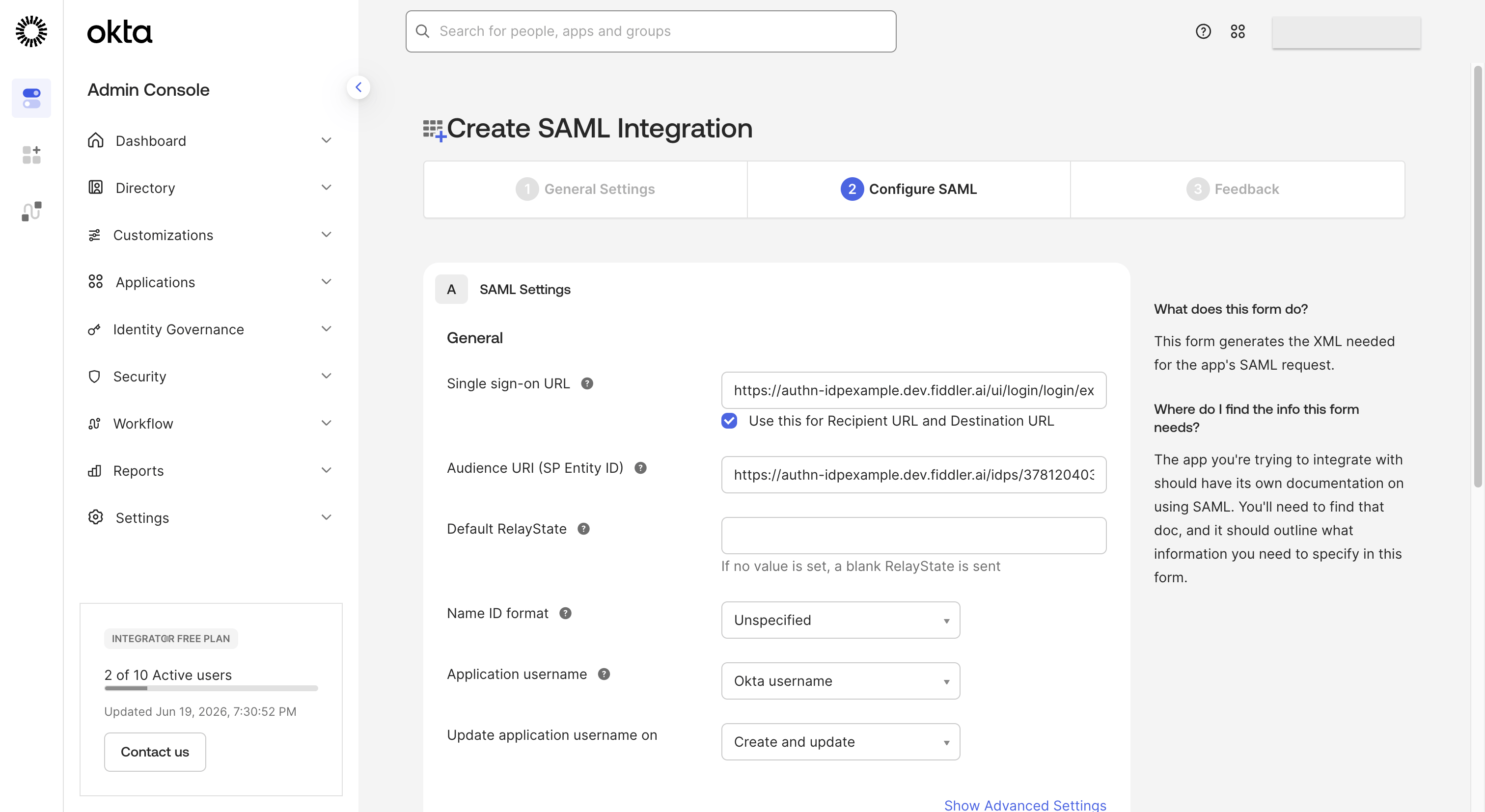
- Enter the ZITADEL ACS Login Form URL copied from the AuthN console into the Single sign-on URL text box. Ensure the Use this for Recipient URL and Destination URL checkbox is selected.
-
Enter the ZITADEL Metadata URL from the AuthN console into the Audience URI (SP Entity ID) text box.
- Expand the Advanced Settings section.
-
In the Other Requestable SSO URLs section, select the + Add Another button, enter the ZITADEL ACS Intent API URL copied from the AuthN console, and enter
0for the Index.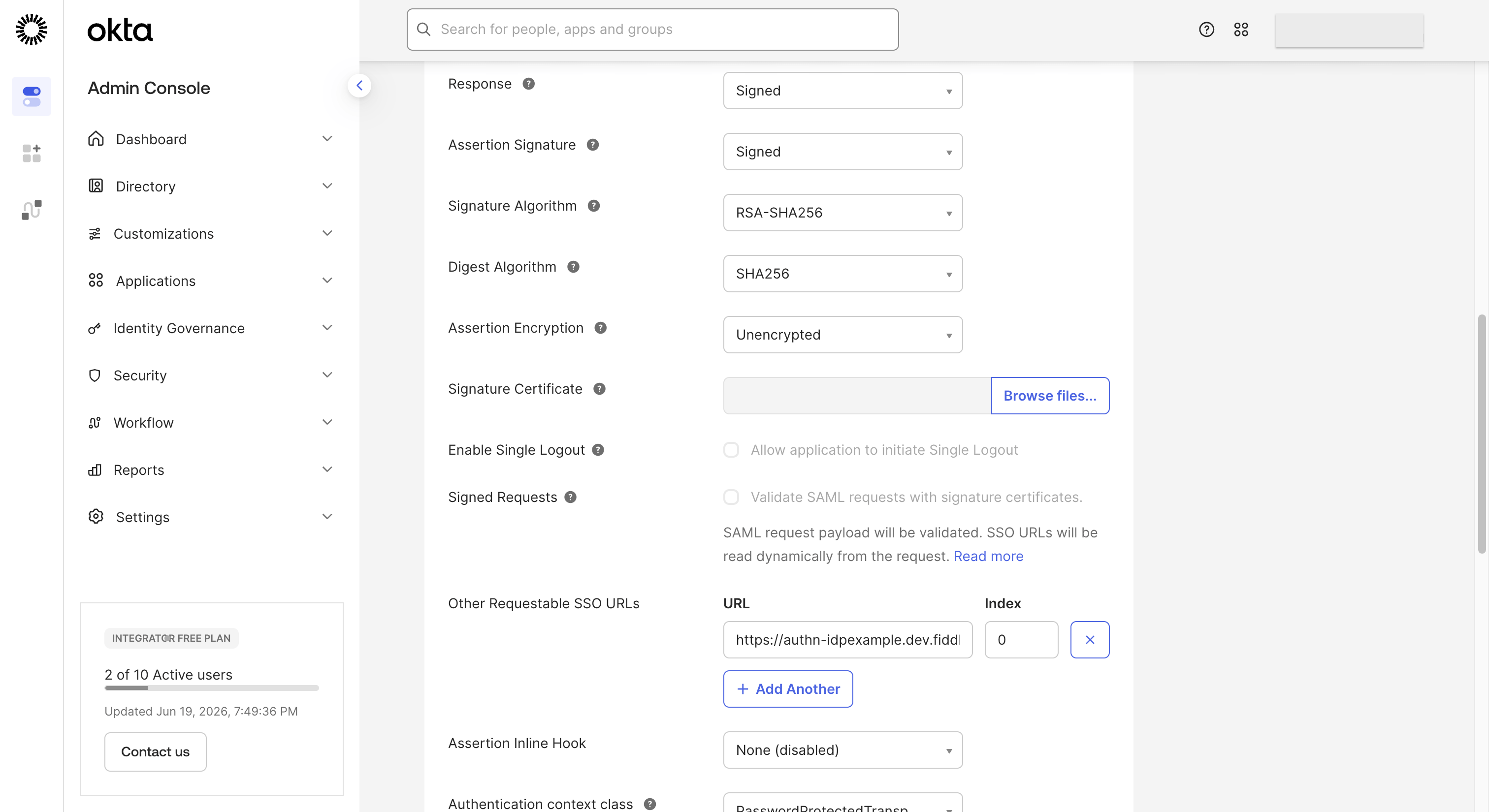
- Select Next, then select Finish to complete the application creation.
-
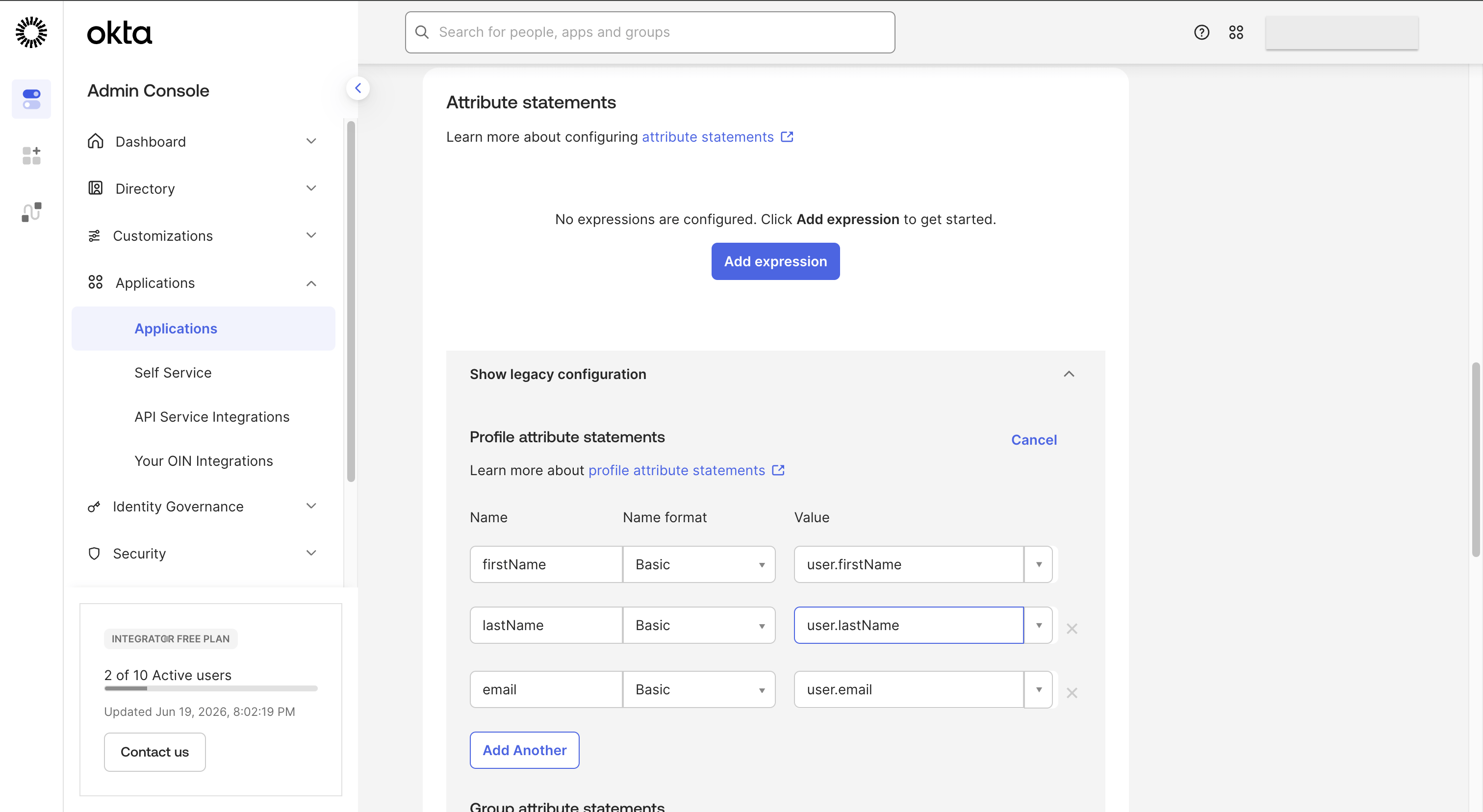
On the created application, go to the Sign On tab, then select Show legacy configuration under Attribute Statements. Add the following attributes with Name format set to Basic, then select Save:
- Name=
firstName, Value=user.firstName - Name=
lastName, Value=user.lastName - Name=
email, Value=user.email
- Name=
-
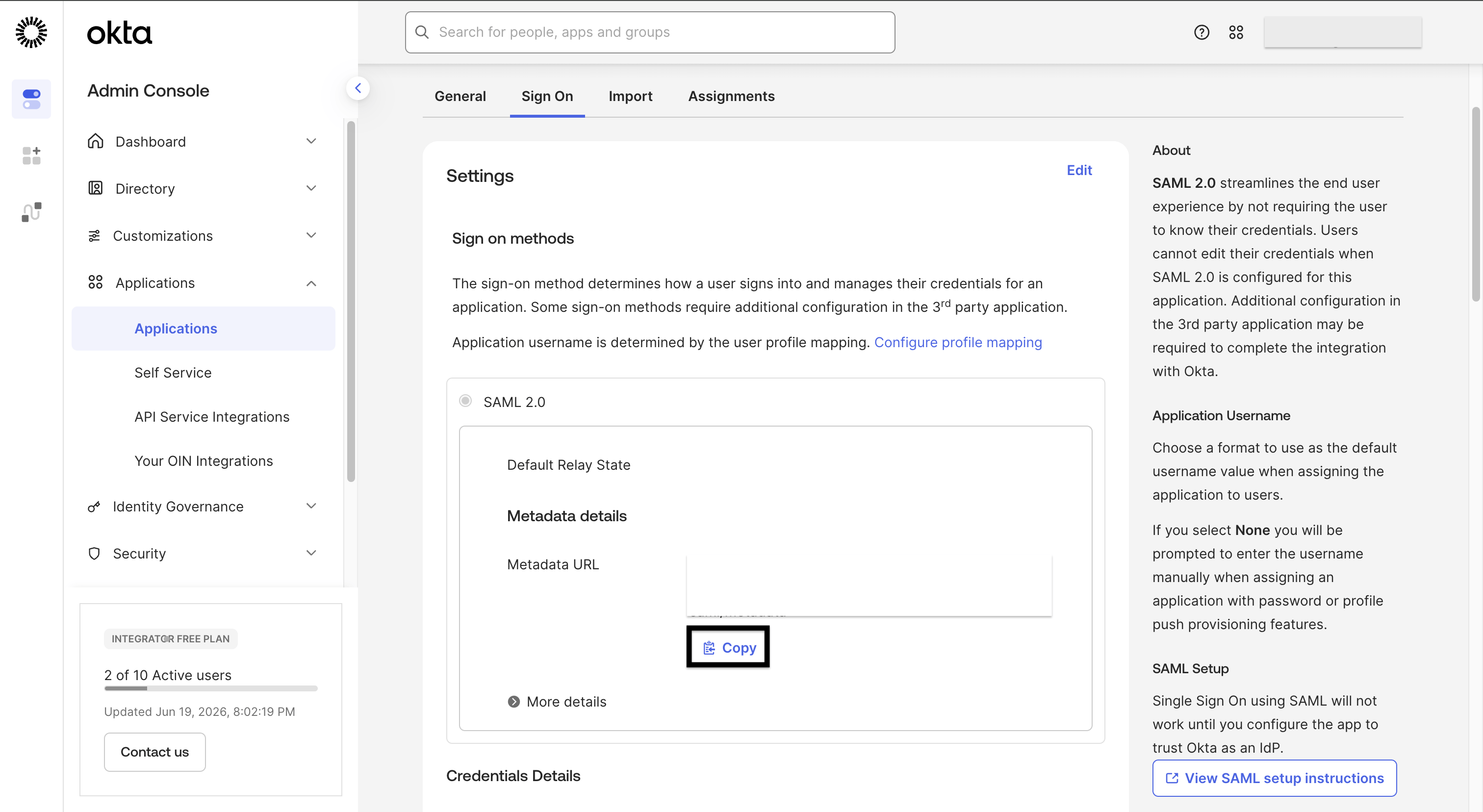
On the Sign On tab, go to Settings → Sign on methods → SAML 2.0 and copy the Metadata URL.
9
Replace the Placeholder Metadata XML
- Return to the identity provider form in the Fiddler AuthN console (where you left off in step 4 — Add and Configure New SAML Provider).
- Clear the Metadata XML text area.
-
Paste the Metadata URL copied from Okta into the Metadata URL text box.
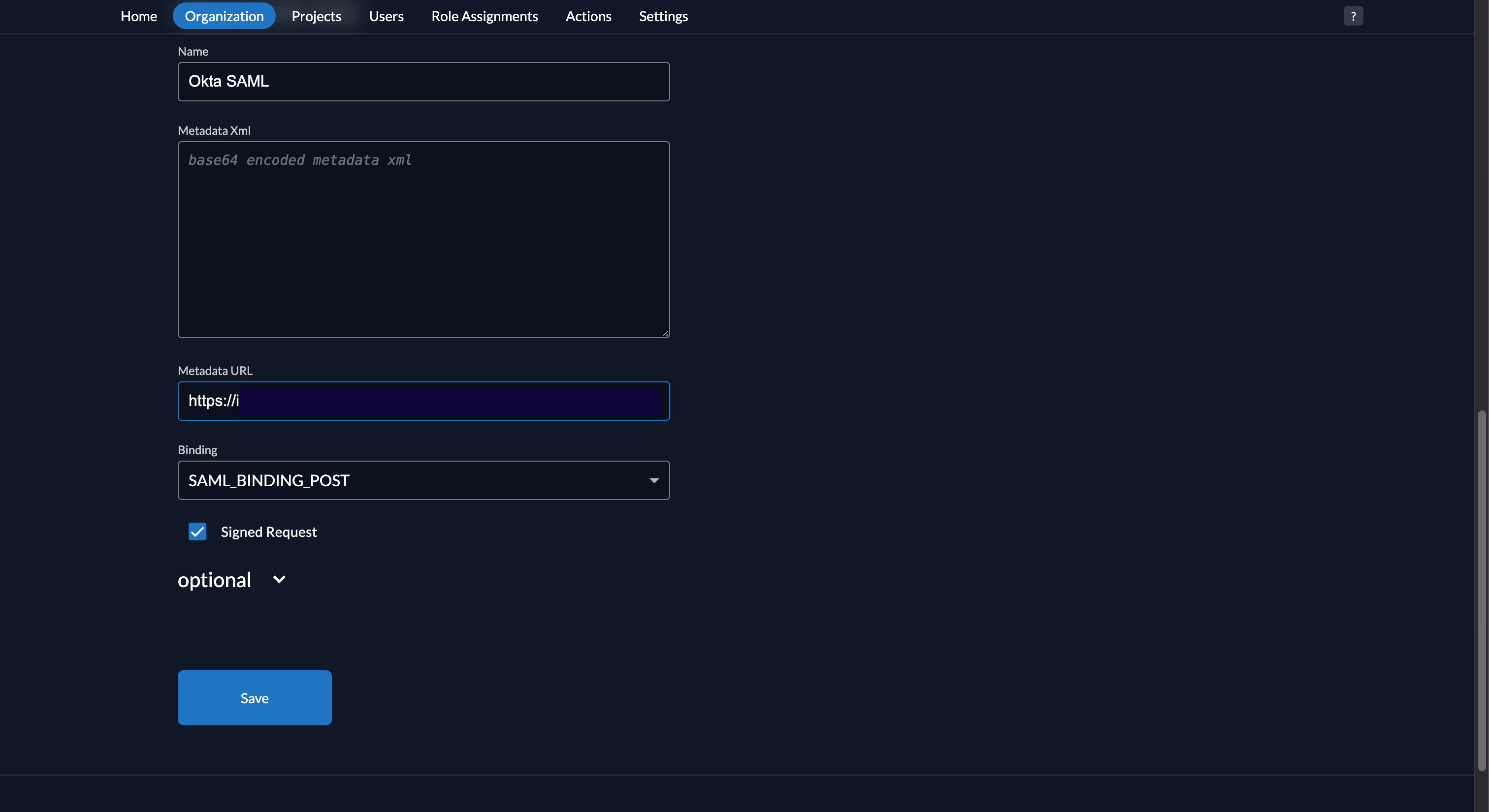
10
Configure Additional Parameters
- Expand the optional section.
- Ensure the Automatic create and Automatic update checkboxes are selected.
-
Set the Determines whether an identity will be prompted to be linked to an existing account dropdown to Check for existing Username.
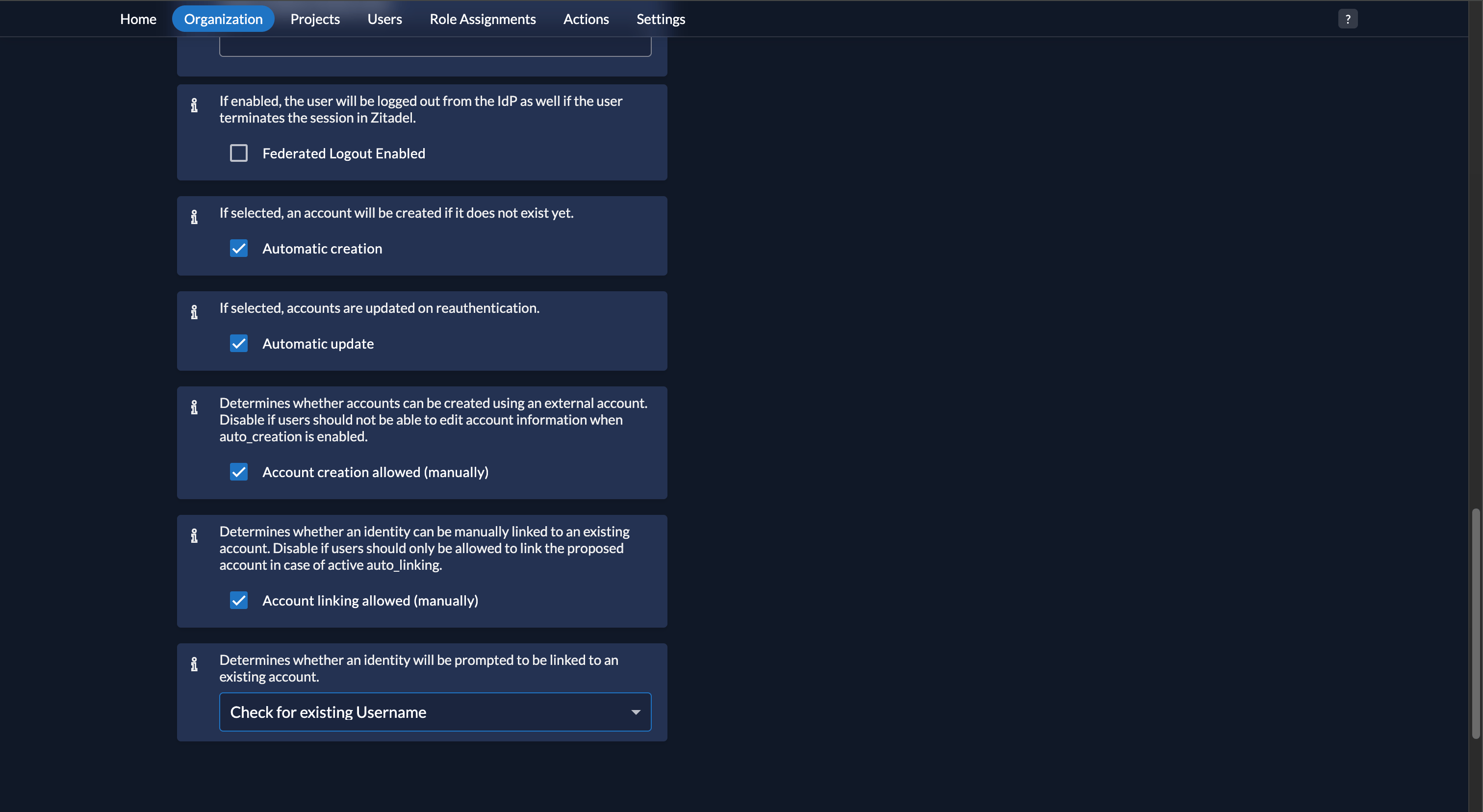
11
Save the Configuration Changes
Select the Save button. You will be returned to the Organization Settings page.
12
Activate the Okta SAML IdP
-
Select your IdP from the list and select the Activate button on the identity provider page.
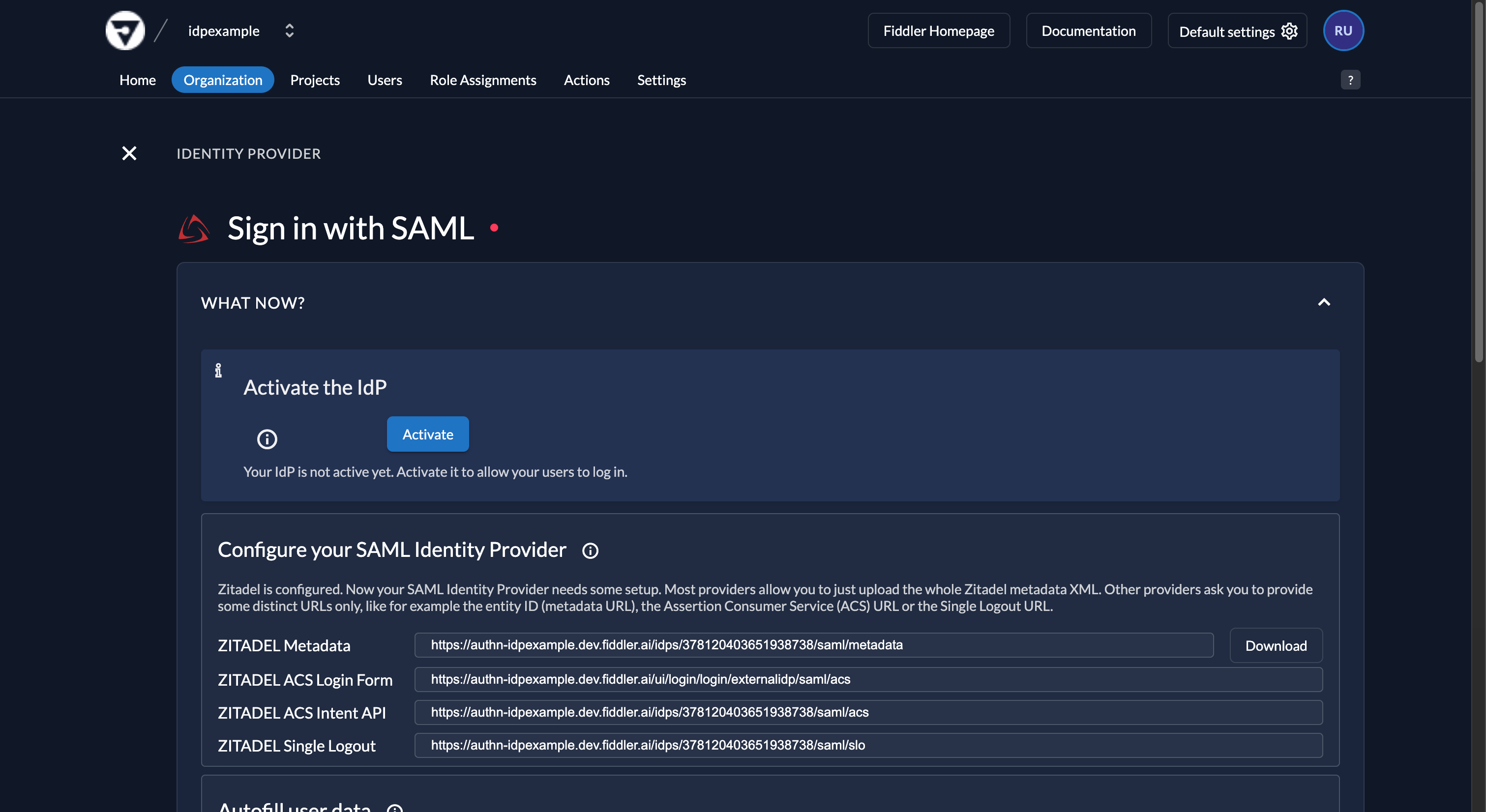
-
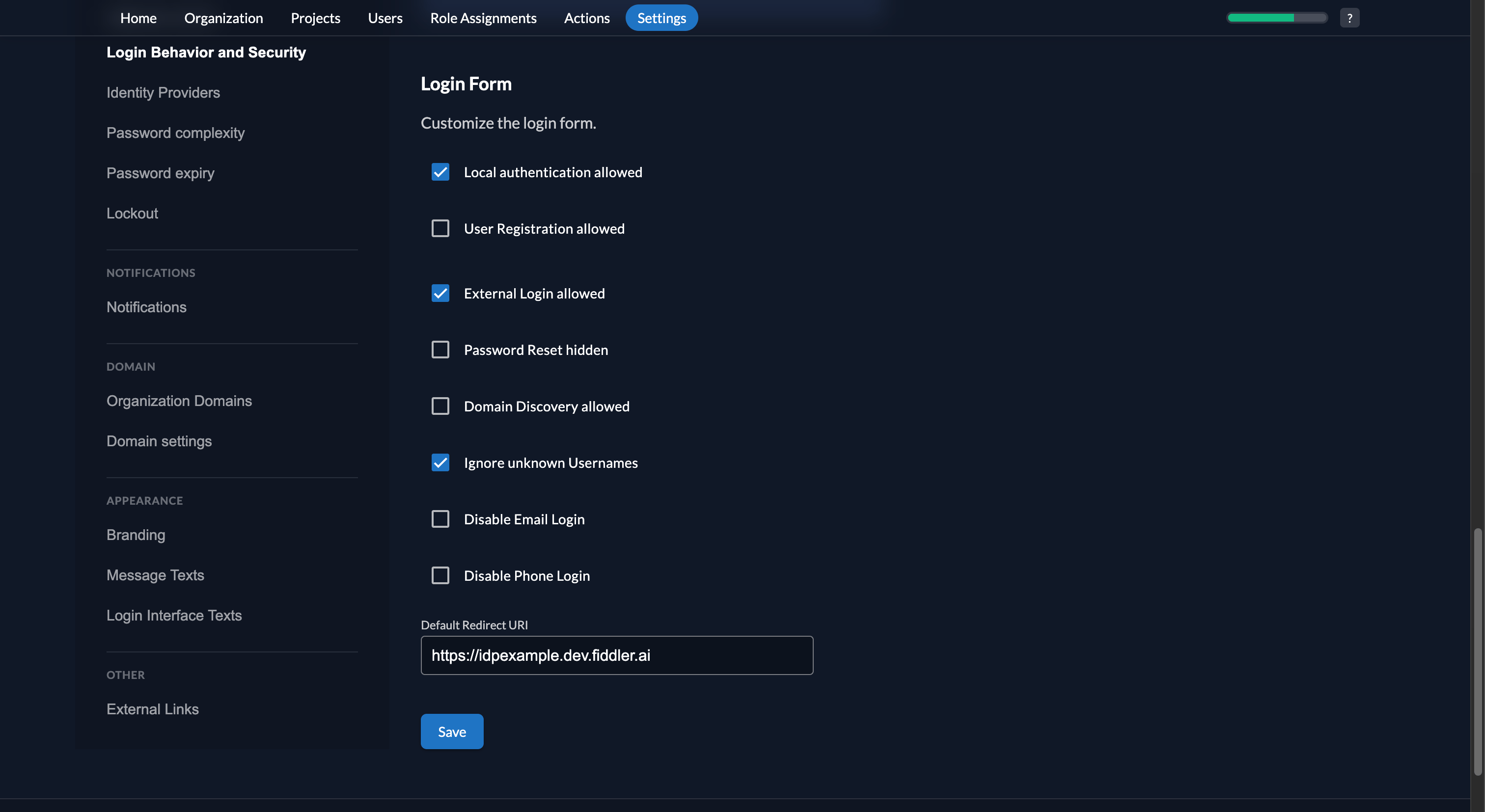
Close the settings and then select Login Behavior and Security from the left nav menu and ensure the External login allowed checkbox is selected.
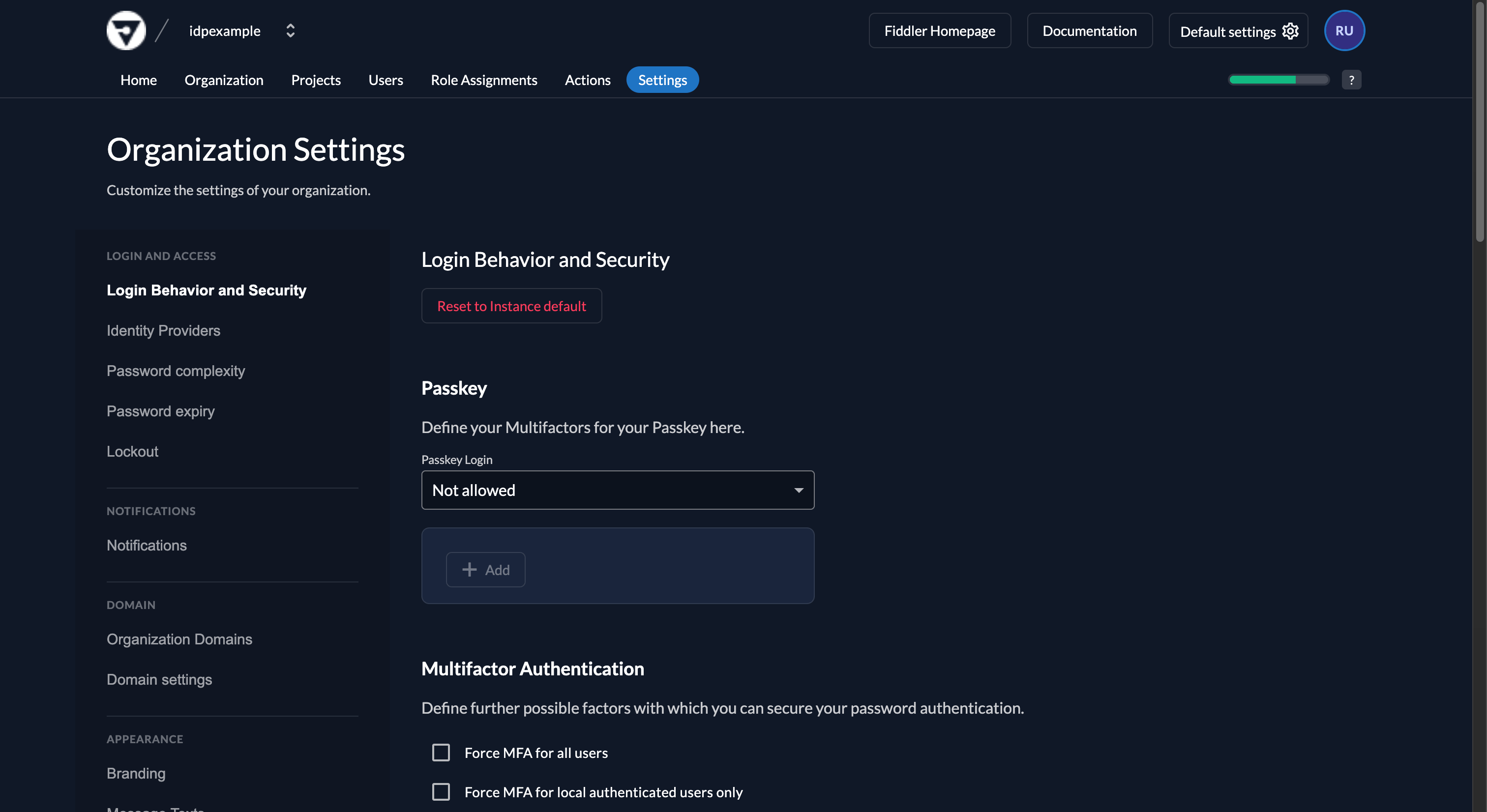
-
Select the Save button.
13
Create a Custom Action
Select the Actions tab from the top menu.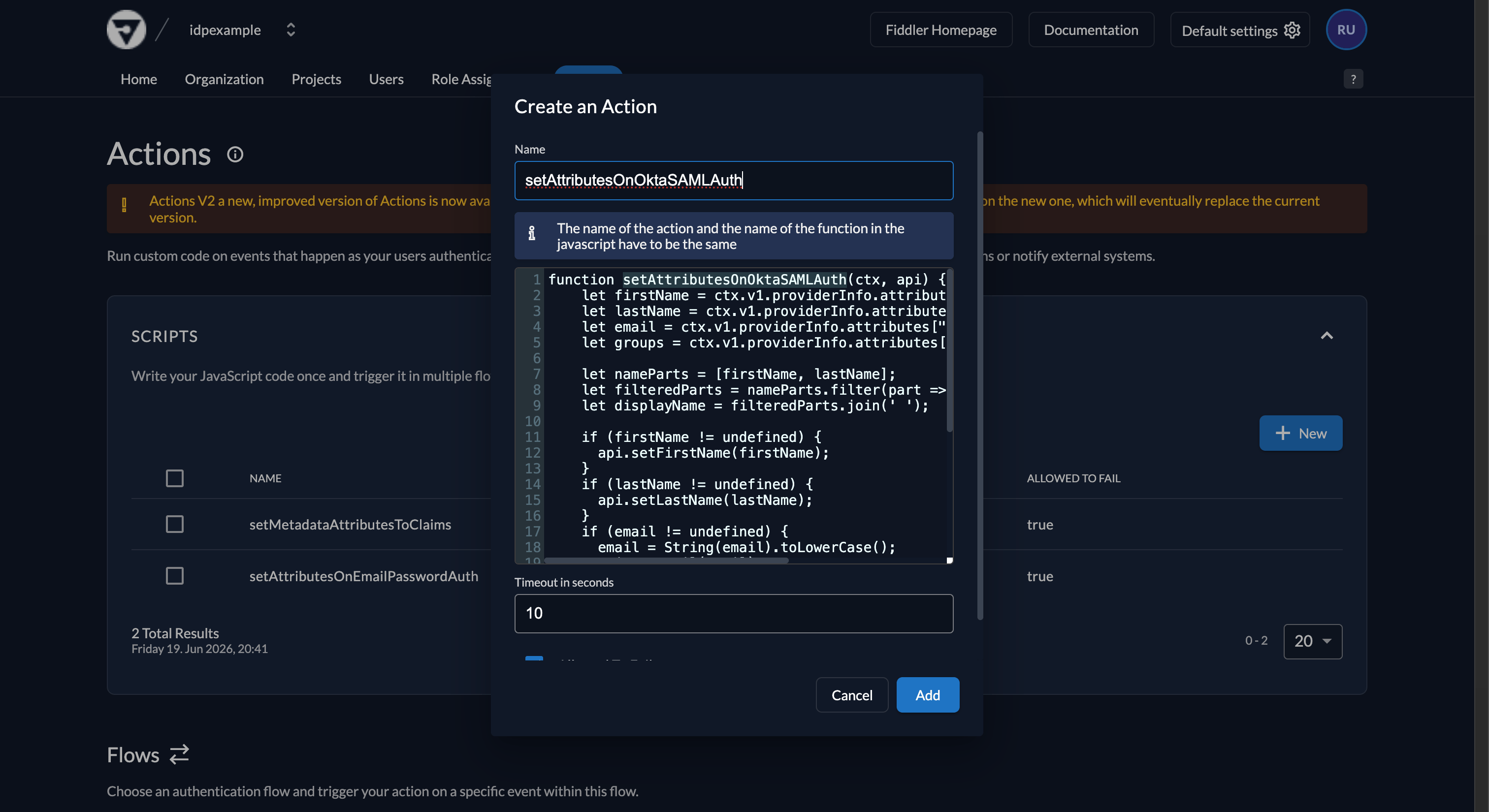
- Select the New button in the Scripts section to create a new action script.
- Copy the Okta SAML Action Script below and paste it into the script text area.
- Enter
setAttributesOnOktaSAMLAuthin the Name text box. - Select the Add button.
Okta SAML Action Script14
Configure the Action Trigger
Scroll down to the Flows section.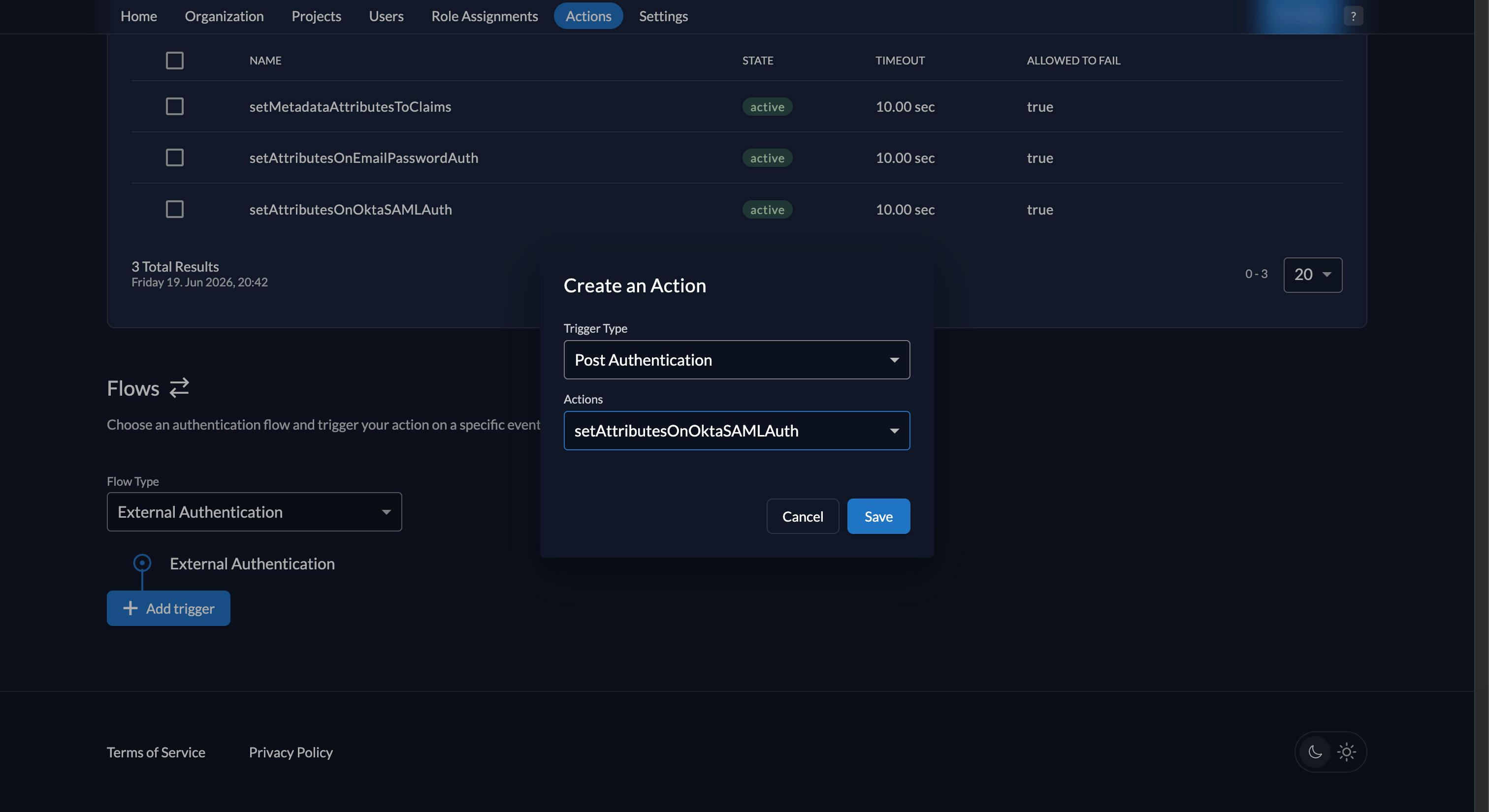
- Select the External Authentication option for the Flow Type dropdown.
- Select the + Add trigger button.
- Select the Post Authentication option for the Trigger Type dropdown.
- Select the setAttributesOnOktaSAMLAuth option for the Actions dropdown.
- Select the Save button.
15
Set the Organization SSO Authentication Type
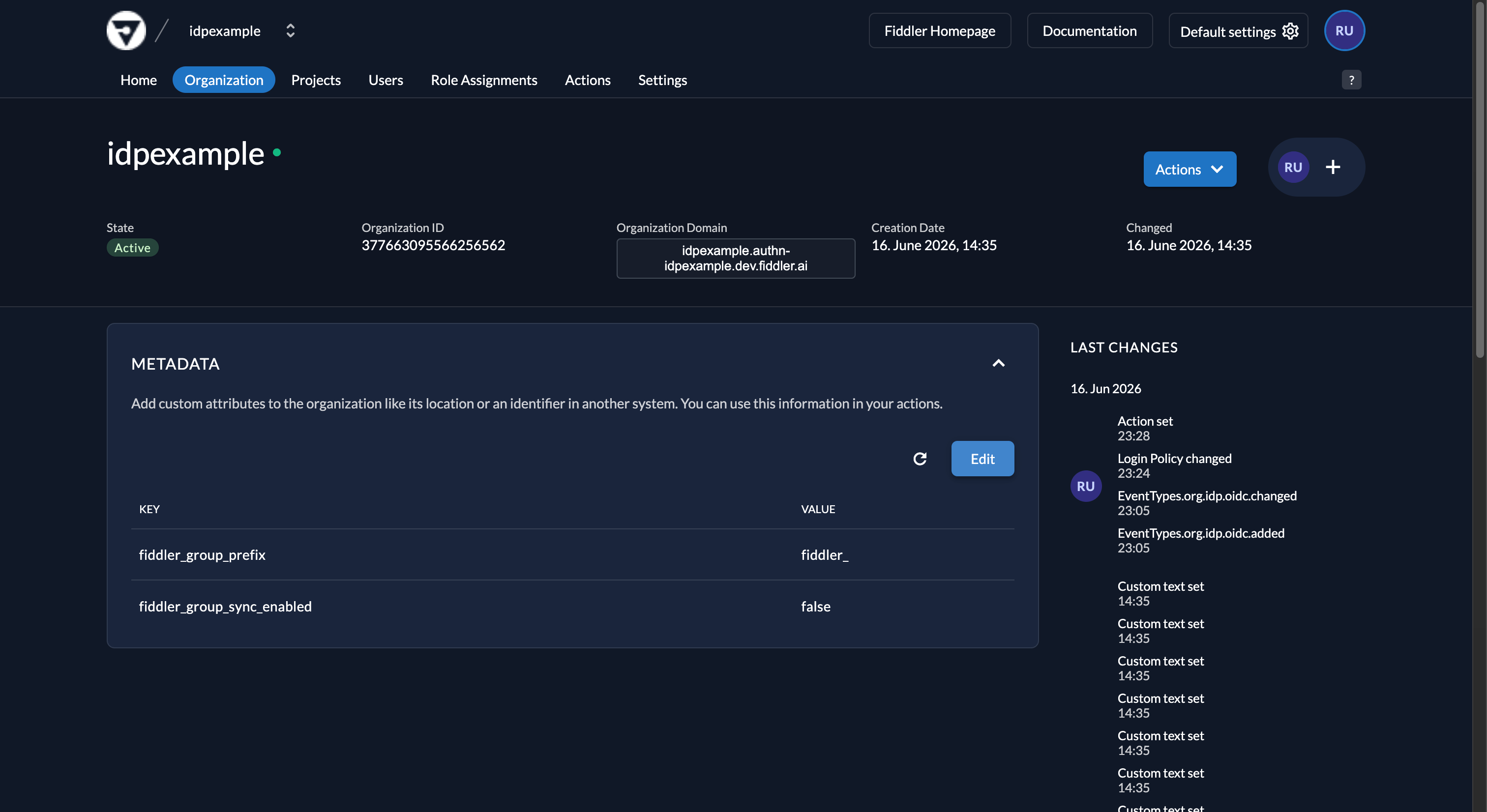
Add an organization metadata key so Fiddler can correctly identify and process this SSO connection. Set this once during setup.
-
Go to the Metadata section and select Edit.
-
Select the Add button, then enter the key
fiddler_sso_authentication_typewith the valueSSO:OKTA:SAML.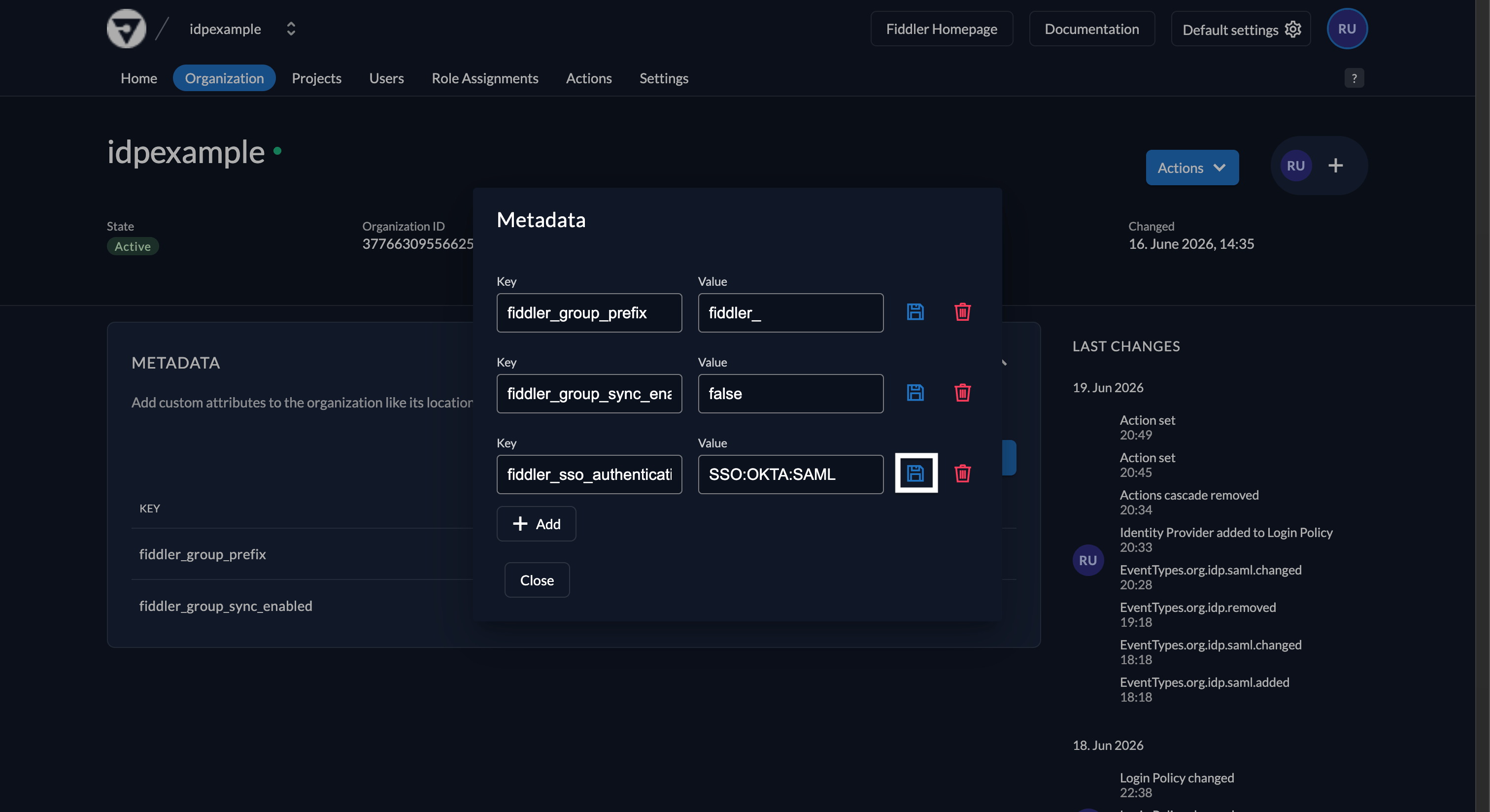
- Select the Save button next to the new entry.
16
Validate the Integration
Before validating, ensure your Okta user account is assigned to the new Okta application you created.
-
Open your Fiddler URL (e.g.
https://idpexample.dev.fiddler.ai). -
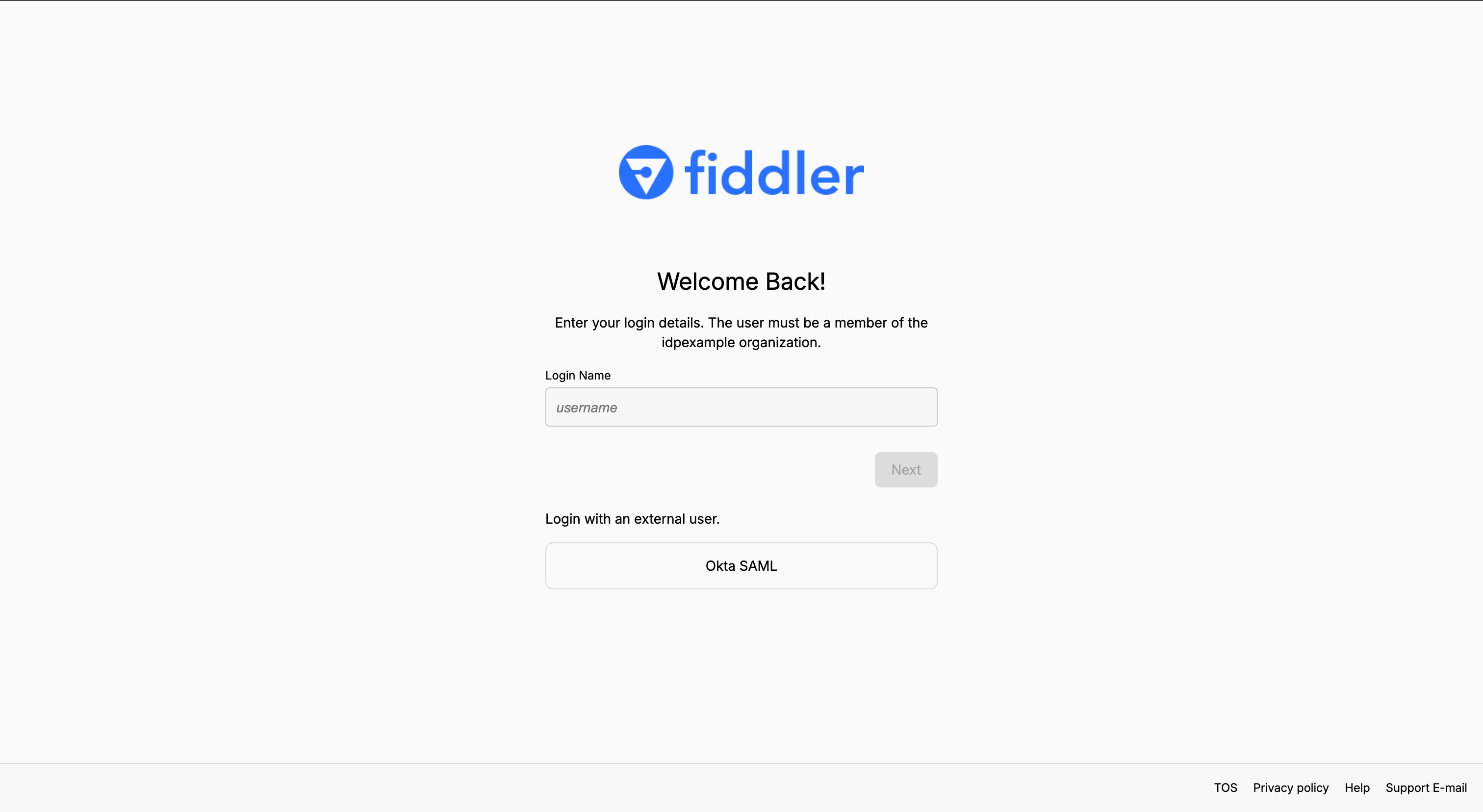
Ensure you see the Fiddler sign-in page and that it displays an SSO login button labeled with the name you configured (e.g. Okta SAML).
-
Select the button and confirm that the Fiddler application loads.
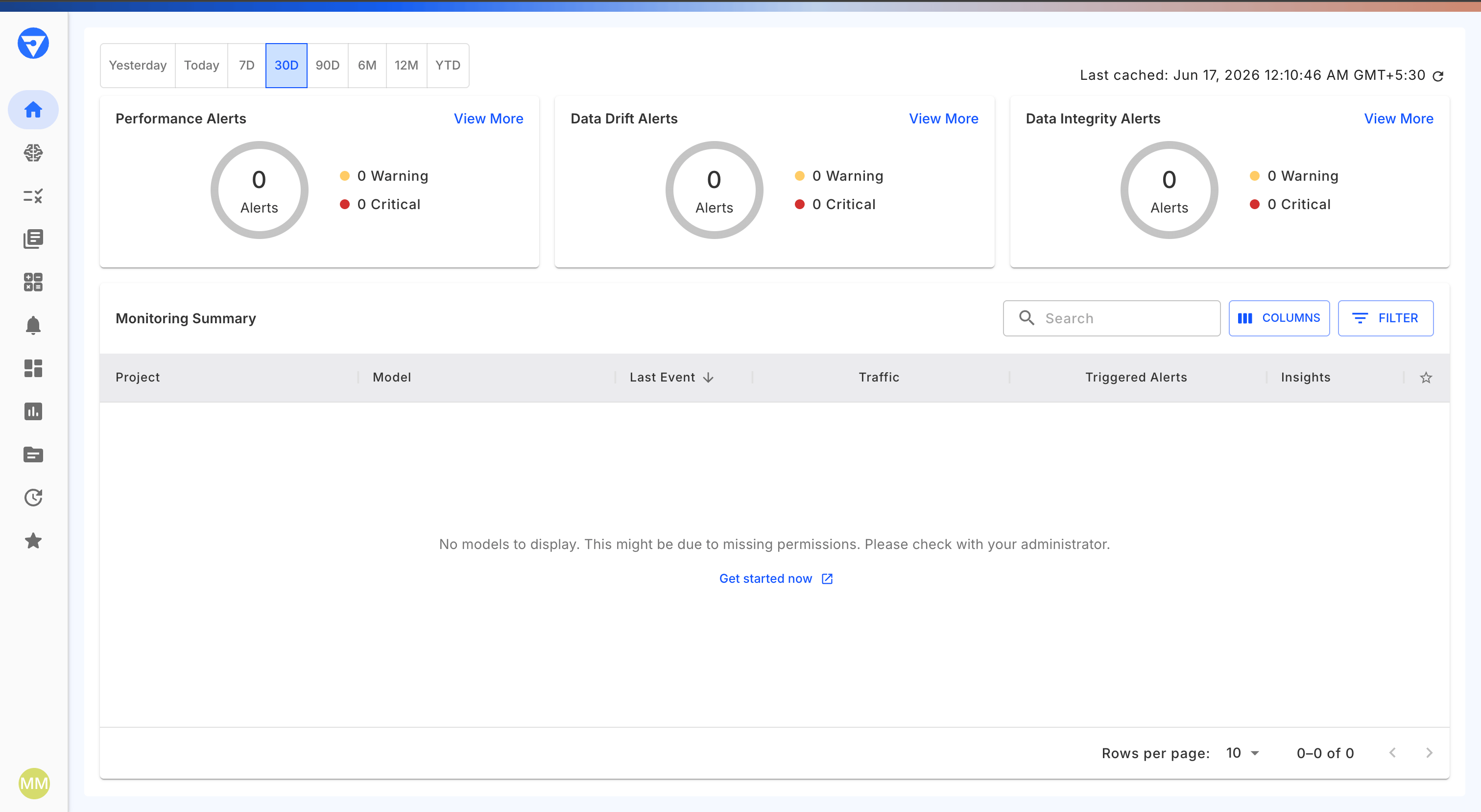
The first user to sign in to the Fiddler application is automatically assigned the Fiddler Org Admin role; subsequent members are Org Members by default.
Getting Help
If sign-in fails, check the Okta System Log (Reports → System Log) for the failed attempt and its reason. For Fiddler-side issues, see the SSO Authentication Guide. If the issue persists, contact your Fiddler representative with the specific error message.Important Notes
- Data Storage: Fiddler stores the following profile attributes from Okta: first name, last name, display name, email address, and group memberships (used to map users to Fiddler teams).
- API Access: For programmatic API access, users create an API key from the Credentials tab in Fiddler’s Settings page.
- Single Authentication Method: Users can only authenticate via either SSO or email authentication, not both.
Next Steps
After successful integration:- Train Users: Provide guidance on accessing Fiddler through Okta SSO.
- Configure Teams: Map your identity provider groups to Fiddler teams — see Mapping AD Groups to Fiddler Teams.
- Test Group Sync: Verify automatic group synchronization is working as expected.
- Monitor Usage: Review authentication logs and user access patterns.