Creating a Performance Chart

To create a Performance chart, follow these steps:
  • Navigate to the Charts tab in your Fiddler AI instance
  • Click on the Add Chart button on the top right
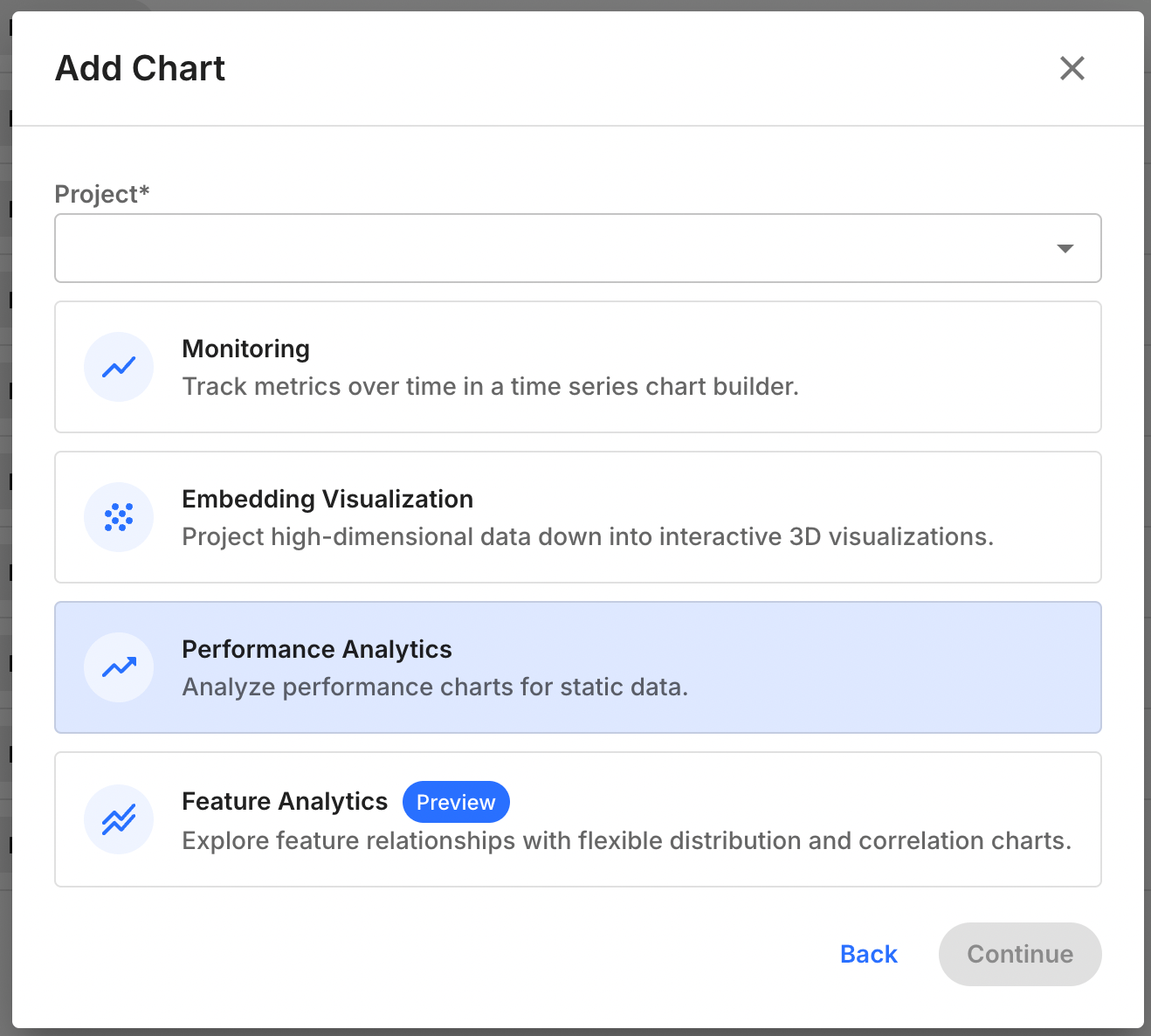
  • In the modal, Select the project that has a model with Custom features
  • Select Performance Analytics
Add Chart modal dialog

Available Performance charts

Model taskAvailable Chart(s)
Binary classification<p>- Confusion Matrix<br>- ROC<br>- Precision Recall<br>- Calibration Plot Charts</p>
Multi-class Classification- Confusion Matrix
Regression<p>- Prediction Scatterplot<br>- Error Distribution</p>
Ranking / LLM / Not SetNot available

Available right side controls

ParameterValue
ModelList of models in the project
VersionList of versions for the selected model
EnvironmentProduction or Pre-Production
DatasetDisplayed only if Pre-Production is selected. List of pre-production env uploaded for the model version.
VisualList of possible performance visualization depending on the model task.
Segment<p>- Selecting a saved segment<br>- Defining an applied (on the fly) segment. This applied segment isn’t saved (unless specifically required by the user) and is applied for analysis purposes.</p>
Max Sample size<p>Integer representing the maximum number of rows used for computing the chart, up to 500,000. If the data selected has less rows, we will use all the available rows with non null target and output(s).<br>Fiddler select the <code>n</code> first number of rows from the selected slice.<br><br><em>Note: Clickhouse is configured using multiple shards, which means slightly different results can be observed if data is only selected on a specific shard (usually when little observation are queried).</em></p>

Available in-chart controls

ControlModel TaskValue
Time range selectionAllSelecting start time and end time or time label for production data. Default to last 30 days
Positive class thresholdBinary classificationSelecting threshold applied for computation / visualization. Default to 0.5
Displayed labelsMulti-class ClassificationSelecting the labels to display on the confusion matrix (up to 12). Default to the 12 first labels

Saving the Chart

Once you’re satisfied with your visualization, you can save the chart. This chart can then be added to a Dashboard. This allows you to revisit the Performance visualization at any time easily either directly going to the Chart or to the dashboard.