
Automated Setup Available: We now provide an automated script that simplifies the VPC endpoint creation process. For most users, we recommend using the AWS VPC Endpoint Automation Script instead of this manual process. This guide remains available for reference, troubleshooting, and those who prefer manual configuration. If you use the script, set
dns.enabled: false in its configuration and create the sign-in hostname’s private hosted zone as described in Step 7.Fiddler Customers must complete these steps only after the Fiddler team has completed the customer’s private-link-based environment deployment.
How It Works
Your Fiddler environment serves two hostnames, and both must resolve to your VPC endpoint’s private IP addresses through the DNS your clients use. Clients that use the VPC’s Amazon-provided DNS get this from the steps below. If your clients use your own DNS servers (a custom DHCP option set, on-premises, or VPN), forward queries for both hostnames to a Route 53 Resolver inbound endpoint in the VPC:
AWS allows only one private DNS name per endpoint service, so the endpoint covers the application hostname and the sign-in hostname needs its own private hosted zone. Neither hostname resolves publicly, and both must be used exactly as provided: the TLS certificate, the sign-in service, and the SSO URLs are bound to these names, so a CNAME from your own domain will not work.
Prerequisites
Send to Fiddler:- The AWS account ID of every account that will create an endpoint (for example, one per environment such as DEV and QA). Fiddler allowlists each account on the endpoint service. VPC and subnet IDs are not needed.
- The endpoint service name (
com.amazonaws.vpce.<region>.vpce-svc-...) - Your two hostnames
- The AWS region of your Fiddler environment
- A VPC in the same region as your Fiddler environment
- The VPC CIDR range
- IAM permissions to create VPC endpoints, security groups, and Route 53 private hosted zones
- DNS resolution and DNS hostnames enabled on the VPC (required for endpoint private DNS and private hosted zones)
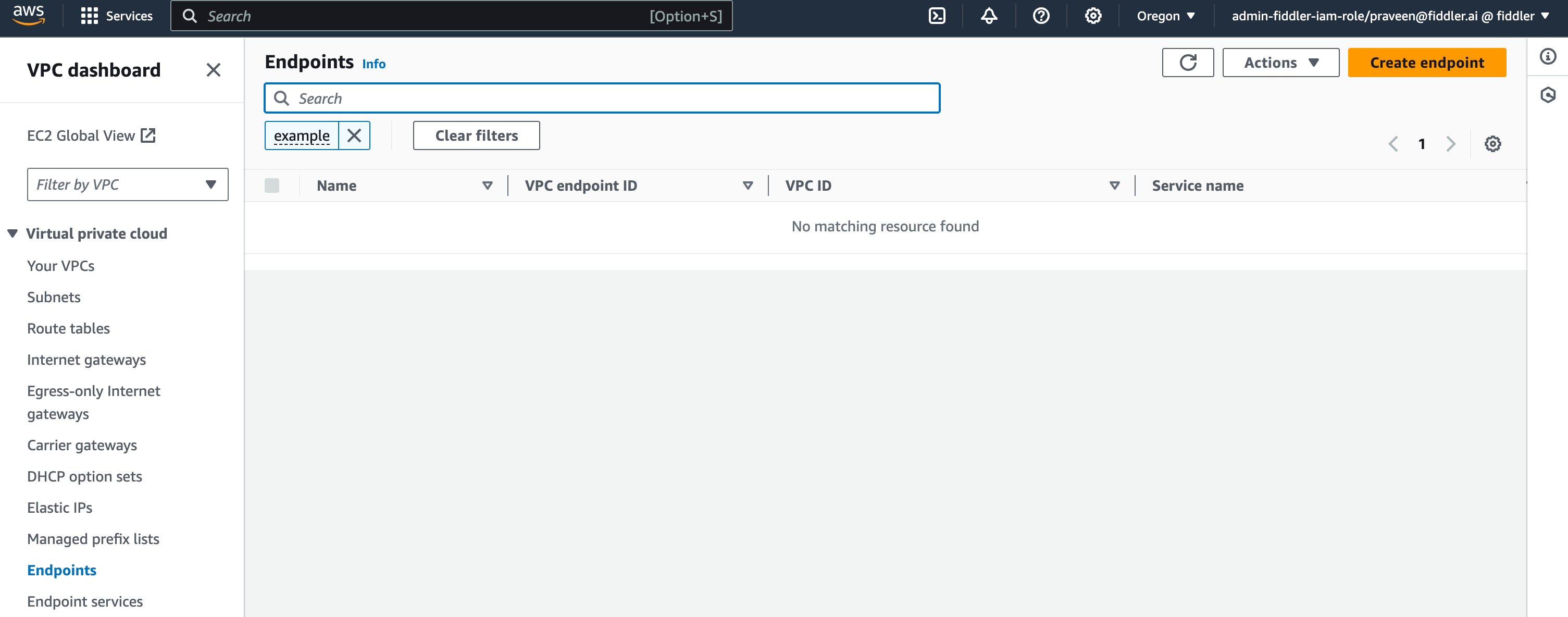
Step 1: Navigate to the AWS VPC Console
- Log in to your AWS Management Console
- Navigate to the VPC service
- In the left navigation panel, click on “Endpoints”
- Click the Create endpoint button
Step 2: Configure the Fiddler Endpoint Service
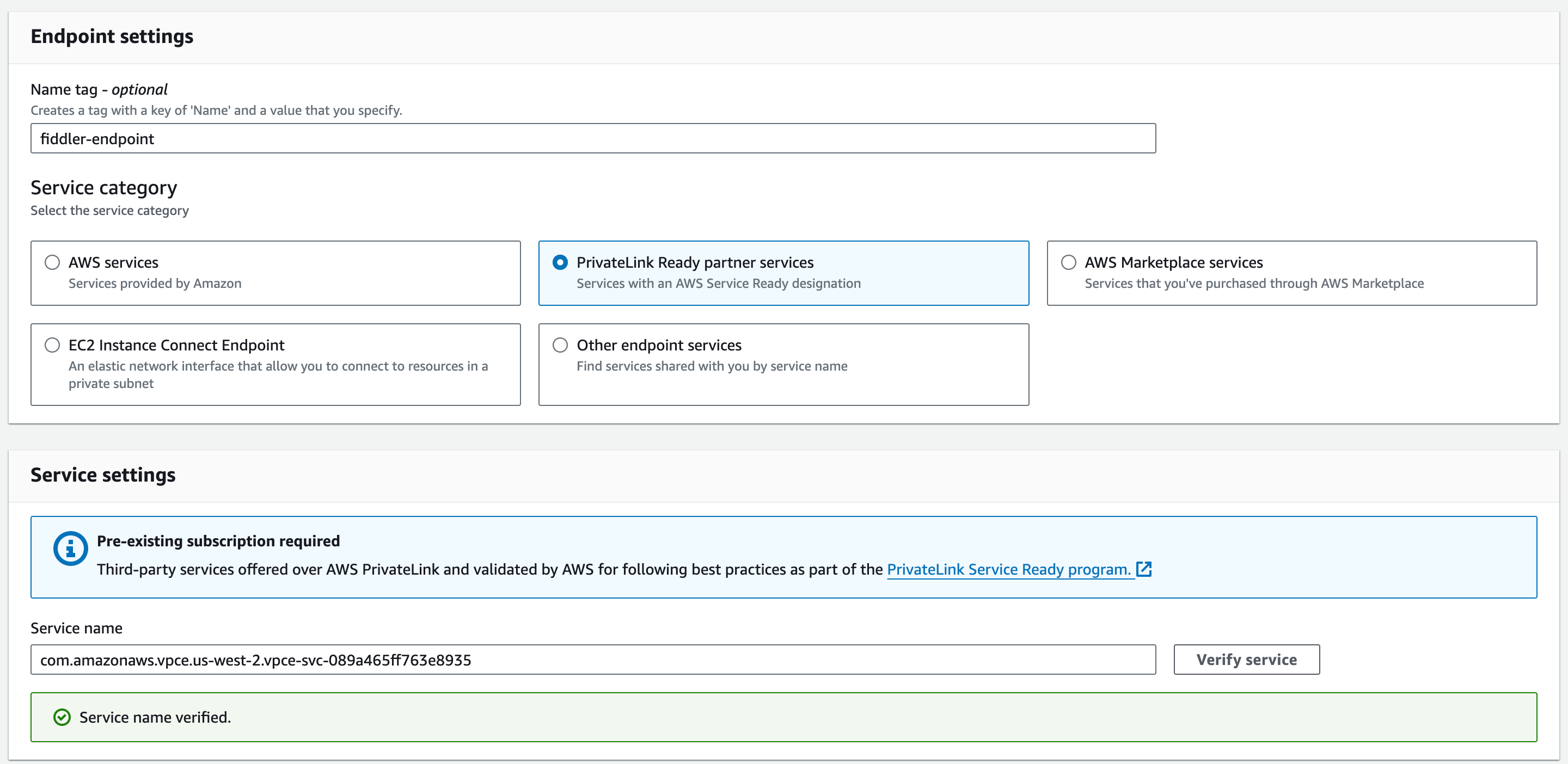
- Enter a descriptive name tag for your endpoint
- Select “PrivateLink Ready partner services” from the service categories
- Enter the Fiddler-provided service name
- Click Verify Service to confirm the service details
Step 3: Select VPC and Subnets
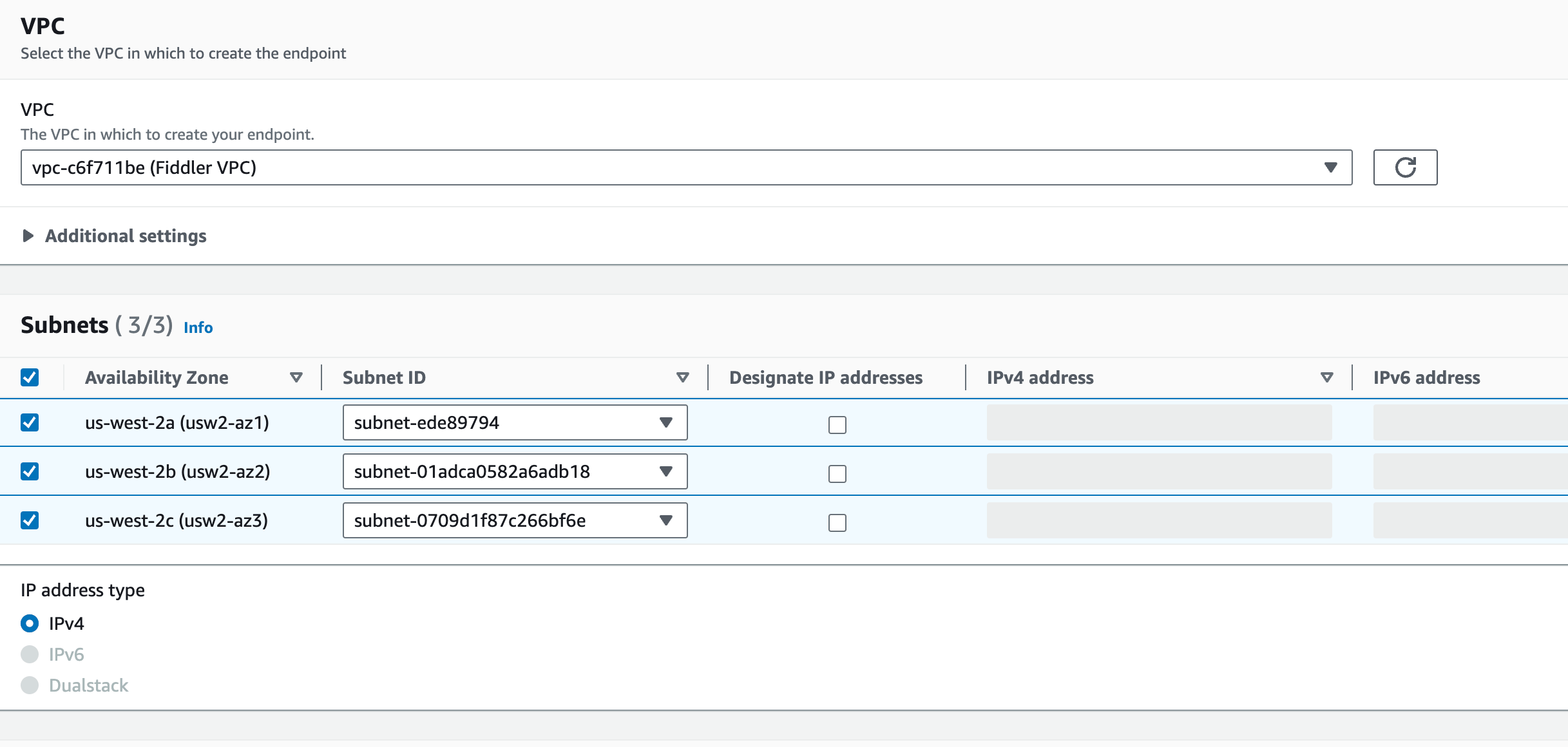
- Select your VPC from the dropdown
- Choose all subnets where your client applications are running
- Ensure the selected subnets have appropriate routing within your VPC to the endpoint
Step 4: Configure Security Group
- Create a new security group if one doesn’t exist
- Add an inbound rule to allow:
- Port: 443 (HTTPS)
- Source: Your VPC CIDR range
- Select the security group ID to associate with the endpoint
Example security group configuration:
- Inbound rule: TCP 443 from VPC CIDR
- Outbound rule: All traffic (default)

Step 5: Create the Endpoint
- Review all configuration settings
- Click Create endpoint to initiate the endpoint creation
- Wait for the endpoint status to change to “Available”
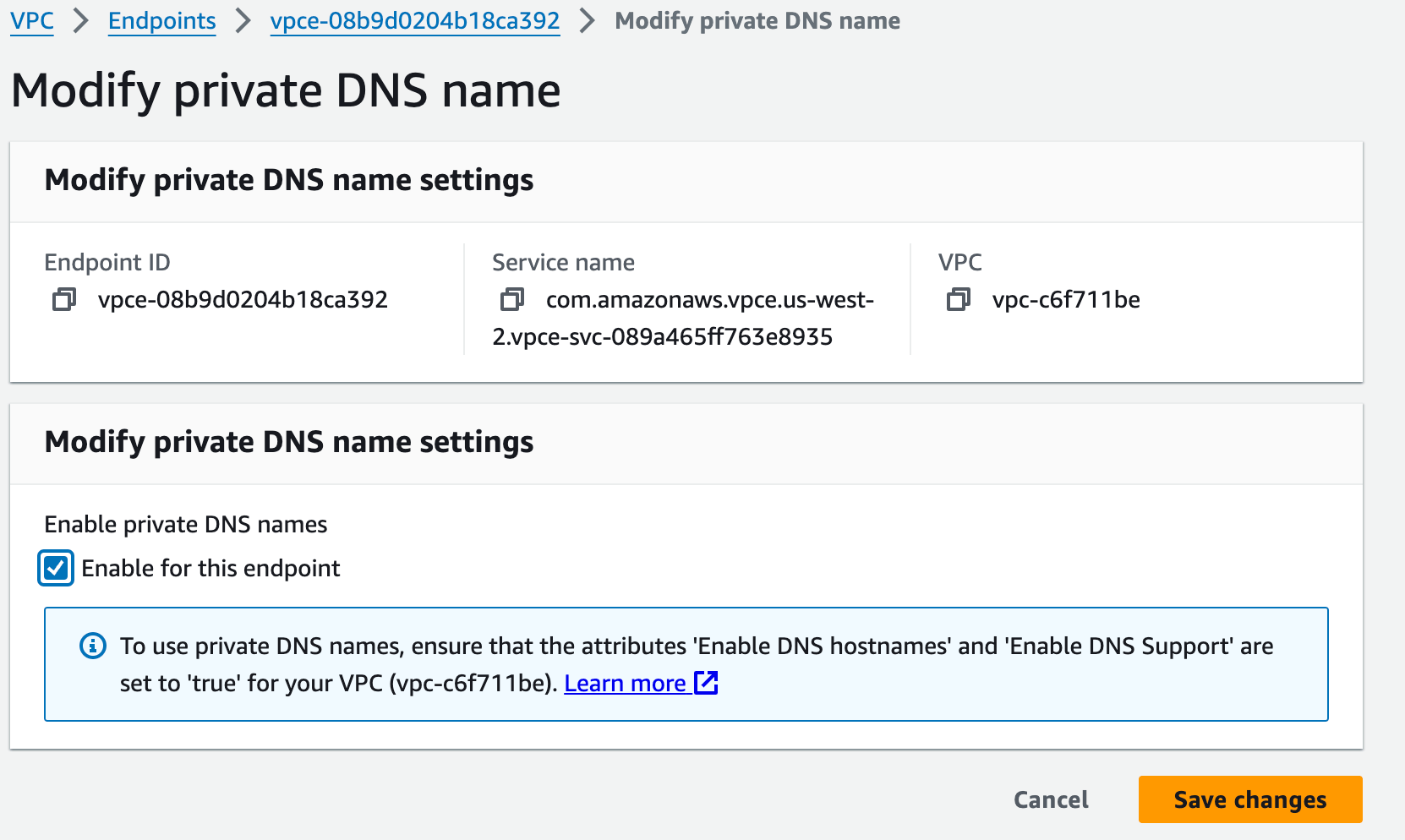
Step 6: Enable Private DNS for the Application Hostname
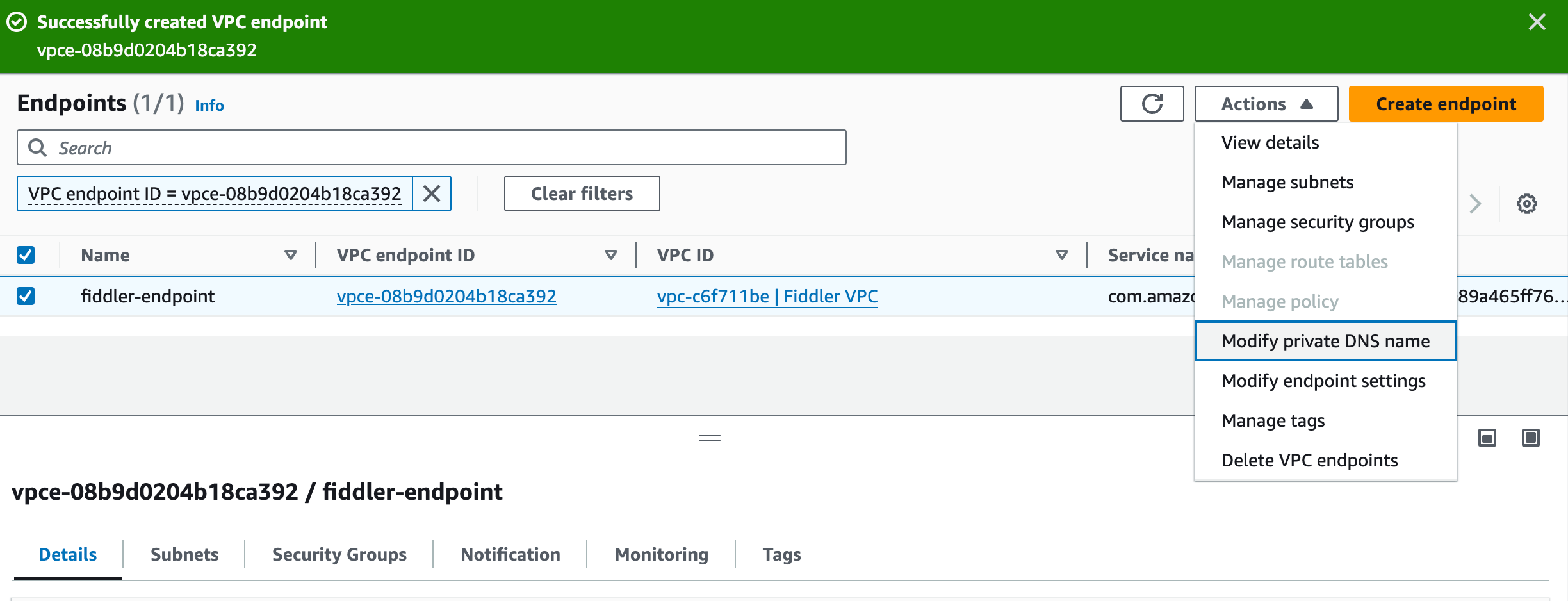
- Select the newly created endpoint
- From the Actions menu, choose “Modify private DNS name”
- Enable private DNS names by checking the “Enable for this endpoint” checkbox
- Click Save changes
<customer-subdomain>.cloud.fiddler.ai to the endpoint inside this VPC. No hosted zone or record is needed for this hostname.
Step 7: Create the Private Hosted Zone for the Sign-In Hostname
- In the Route 53 console, choose Hosted zones, then Create hosted zone
- Set Domain name to your sign-in hostname exactly:
authn-<customer-subdomain>.cloud.fiddler.ai - Set Type to Private hosted zone and associate the VPC that contains the endpoint
- Click Create hosted zone
- In the new zone, click Create record and configure:
- Record name: leave blank (the zone apex)
- Record type: A
- Alias: enabled
- Route traffic to: Alias to VPC endpoint, your region, then select the endpoint’s regional DNS name (the entry without an Availability Zone,
vpce-<id>-<suffix>.vpce-svc-<id>.<region>.vpce.amazonaws.com)
- Click Create records
Step 8: Verify Configuration
From a host in the VPC:-
Both hostnames resolve to private IP addresses in your VPC:
-
The sign-in service responds:
A
200confirms DNS, the security group, and the TLS certificate end to end. -
Open
https://<customer-subdomain>.cloud.fiddler.aiin a browser and sign in.
Connecting Additional VPCs or Accounts
Repeat Steps 1–7 in each VPC that needs access, after sending Fiddler the AWS account ID if it is a new account. Every VPC gets its own endpoint, its own private DNS setting, and its own sign-in private hosted zone whose alias record points to that VPC’s endpoint. Do not associate another VPC’s sign-in zone: its record points to the other VPC’s endpoint. All endpoints connect to the same Fiddler environment.Single Sign-On
If your organization signs in through SSO, your identity provider’s Fiddler application uses URLs on the sign-in hostname (https://authn-<customer-subdomain>.cloud.fiddler.ai/...). Configure them by following the guide for your provider, for example Microsoft Entra ID SAML.
If Fiddler moves you to a new environment with a different subdomain, the SSO URLs change with it. Fiddler provides the new Identifier (Entity ID) and Reply URLs; add them to your identity provider’s Fiddler application before the first sign-in on the new environment.
Troubleshooting
If the issue persists, contact Fiddler support with your endpoint ID, AWS account ID, and the output of the Step 8 checks.
Next Steps
- For automated setup, see the AWS VPC Endpoint Automation Script
- Set up monitoring for the VPL connection
- Review security best practices