imagesMultimodal Evaluators

Build evaluators that analyze images and documents alongside text using CustomJudge with vision-capable models. This cookbook covers common document processing pipeline monitoring scenarios.

Use this cookbook when: You need to verify that a GenAI application correctly extracted, summarized, or described content from images or documents.

Time to complete: ~25 minutes

circle-info

Prerequisites

  • Fiddler account with API access

  • Vision-capable model configured in LLM Gateway:

    • Fiddler-hosted: fiddler/ministral3-8b (available by default)

    • Third-party: Configure provider credentials (OpenAI, Anthropic, etc.)

  • pip install fiddler-evals requests

Tip: When using Fiddler-hosted models, use the Test Connection button on the LLM Gateway page to warm up the model before running evaluations. This reduces cold-start latency on your first requests.

circle-exclamation

Example 1: Document Extraction Verification

This example verifies that data extracted from a table matches the source document.

1

Connect to Fiddler and Load Helper

import base64
import json
from pathlib import Path

import requests
from fiddler_evals import init
from fiddler_evals.evaluators import CustomJudge

URL = 'https://your-org.fiddler.ai'
TOKEN = 'your-access-token'

init(url=URL, token=TOKEN)

def load_document(source: str) -> tuple[str, str]:
    """
    Load a document from a file path or URL.

    :param source: Local file path or HTTP(S) URL
    :returns: Tuple of (base64_data, mime_type)
    """
    mime_types = {
        '.pdf': 'application/pdf',
        '.jpg': 'image/jpeg',
        '.jpeg': 'image/jpeg',
        '.png': 'image/png',
        '.gif': 'image/gif',
        '.webp': 'image/webp',
    }

    if source.startswith(('http://', 'https://')):
        headers = {'User-Agent': 'FiddlerEvals/1.0'}
        response = requests.get(source, headers=headers, timeout=10)
        response.raise_for_status()
        content = response.content
        ext = Path(source).suffix.lower()
    else:
        path = Path(source)
        ext = path.suffix.lower()
        content = path.read_bytes()

    mime_type = mime_types.get(ext, 'application/octet-stream')
    b64_data = base64.b64encode(content).decode('utf-8')

    return b64_data, mime_type
circle-exclamation
circle-info

Base64 Payload Size — Base64 representation adds ~33% to the original file size. A 20KB image becomes ~27KB in the API request. Keep this overhead in mind when working near size limits.

2

Create the Extraction Verification Judge

This evaluator compares extracted fields against the source document:

extraction_judge = CustomJudge(
    prompt_template="""
        You are verifying data extraction accuracy. Compare the extracted data
        against the source document and determine if the extraction is correct.
        Verify fields "metric" and "outputType" accurately match the source document.

        Respond with:
        - extraction_accurate: True if all extracted fields match the source document
        - errors_found: Briefly list any extraction errors, or "None" if accurate

        Source Document:
        {{ document }}

        Extracted Data:
        {{ extracted_data }}
    """,
    output_fields={
        'extraction_accurate': {'type': 'boolean'},
        'errors_found': {'type': 'string'},
    },
    model='fiddler/ministral3-8b',
)
3

Evaluate the Extraction

Load a sample document and verify the extracted data:
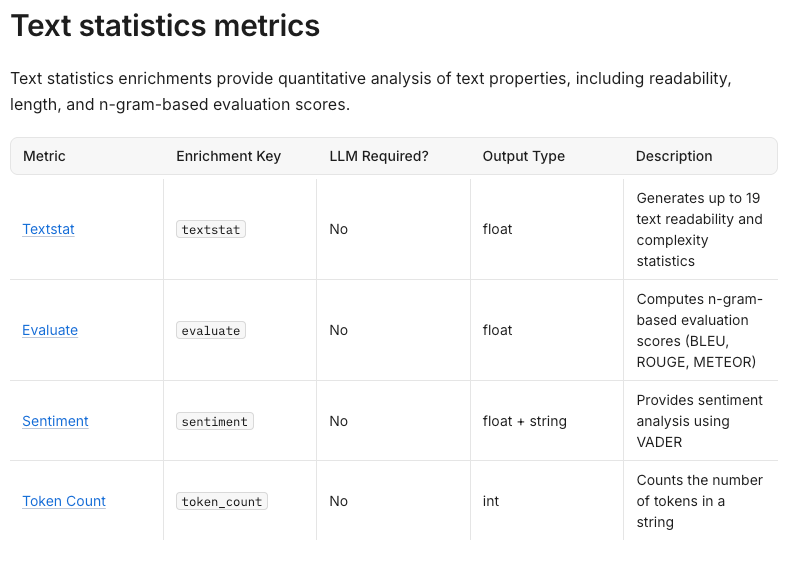
Text Statistics metrics table showing Textstat, Evaluate, Sentiment, and Token Count evaluators with their respective output types
Sample document: Text Statistics evaluators table
# Load the document
b64_data, mime_type = load_document('https://media.githubusercontent.com/media/fiddler-labs/fiddler-examples/main/cookbooks/assets/multimodal-text-statistics-table.png')

# Extracted data to verify against the source document
#   only 1 of 4 rows shown, as a 'bad extraction'
extracted_json = [{'metric': 'Textstat', 'outputType': 'float'}]

scores = extraction_judge.score(
    inputs={
        'document': [
            {
                'media_type': mime_type,
                'encoding': 'base64',
                'data': b64_data,
            }
        ],
        'extracted_data': json.dumps(extracted_json),
    }
)

scores_dict = {s.name: s for s in scores}
print(f'Extraction accurate: {scores_dict["extraction_accurate"].value}')
print(f'Errors found: {scores_dict["errors_found"].label}')

# Example output:
# Extraction accurate: 0.0
# Errors found: Incomplete extraction: Missing 'Evaluate', 'Sentiment', and 'Token Count' metrics. The 'outputType' for 'Textstat' is correct, but the extraction only includes one entry instead of all four metrics listed in the source document.

Example 2: Document Summarization Faithfulness

This example verifies that a summary accurately represents the source document.

The source document for this example (Fiddler Platform Release 26.7 notes).
1

Create the Summarization Judge

2

Evaluate the Summary

Example Output:

circle-info

Scaling Up — For batch evaluation across datasets, see Running RAG Experiments at Scale which demonstrates the evaluate() function for efficient processing.


Tips

Stay Within Size Limits

Context
Limit

Production Monitoring

10 MB per span

Evals SDK

20 MB per request

Fiddler Ministral (context window)

32K tokens (~25KB images recommended)

Fiddler Ministral (PDF pages)

8 pages max

Fiddler Ministral (images)

8 images max

Optimize Large Documents

  • Compress images before encoding — reduce resolution if full quality isn't needed

  • Split large PDFs — evaluate sections separately if exceeding page limits

  • Use appropriate DPI — higher DPI means larger file sizes but better text recognition

Use Multiple Images

Fiddler Ministral supports up to 8 images per evaluation. To evaluate content with multiple images, add a separate template variable for each image in your prompt template (e.g., {{ image_1 }}, {{ image_2 }}) and pass each as a structured input list following the same format as Example 1's document field.


Next Steps


Questions? Talkarrow-up-right to a product expert or requestarrow-up-right a demo.

💡 Need help? Contact us at [email protected]envelope.