
Try It (and Switch Back)
- Open it: add
preview.to the front of your usual Fiddler address — for example,preview.your-company.cloud.fiddler.ai— and sign in as usual. - Switch back: remove
preview.from the address. (There’s no in-app toggle — you just edit the URL.)
Find Your Way Around
The left sidebar replaces the old top bar (light and dark themes available) and has two parts:- Top — your selected application or model. Pick one with the selector at the top of the sidebar, and its own pages appear right below it. For a GenAI application, these include Overview, Explorer, and Evaluator Rules. For an ML model, these include Overview, Dashboard, Schema, and Baselines. They stay put as you work, so you move between them without going back to a list. This is the biggest change — and the biggest click-saver.
- Below — Workspace. The org-wide areas: Projects, Applications, Dashboards, Charts, Alerts, and more. Depending on your organization, Workspace can also include Mission Control (a cross-project overview for leadership, formerly “Executive Dashboard”) and a Predictive Models list.
The items you see depend on your organization’s settings and your permissions,
so your sidebar may differ from the screenshots on this page.

The redesigned left sidebar. Top: your selected application and its own pages. Below, under Workspace: the org-wide areas. Your sidebar may differ.
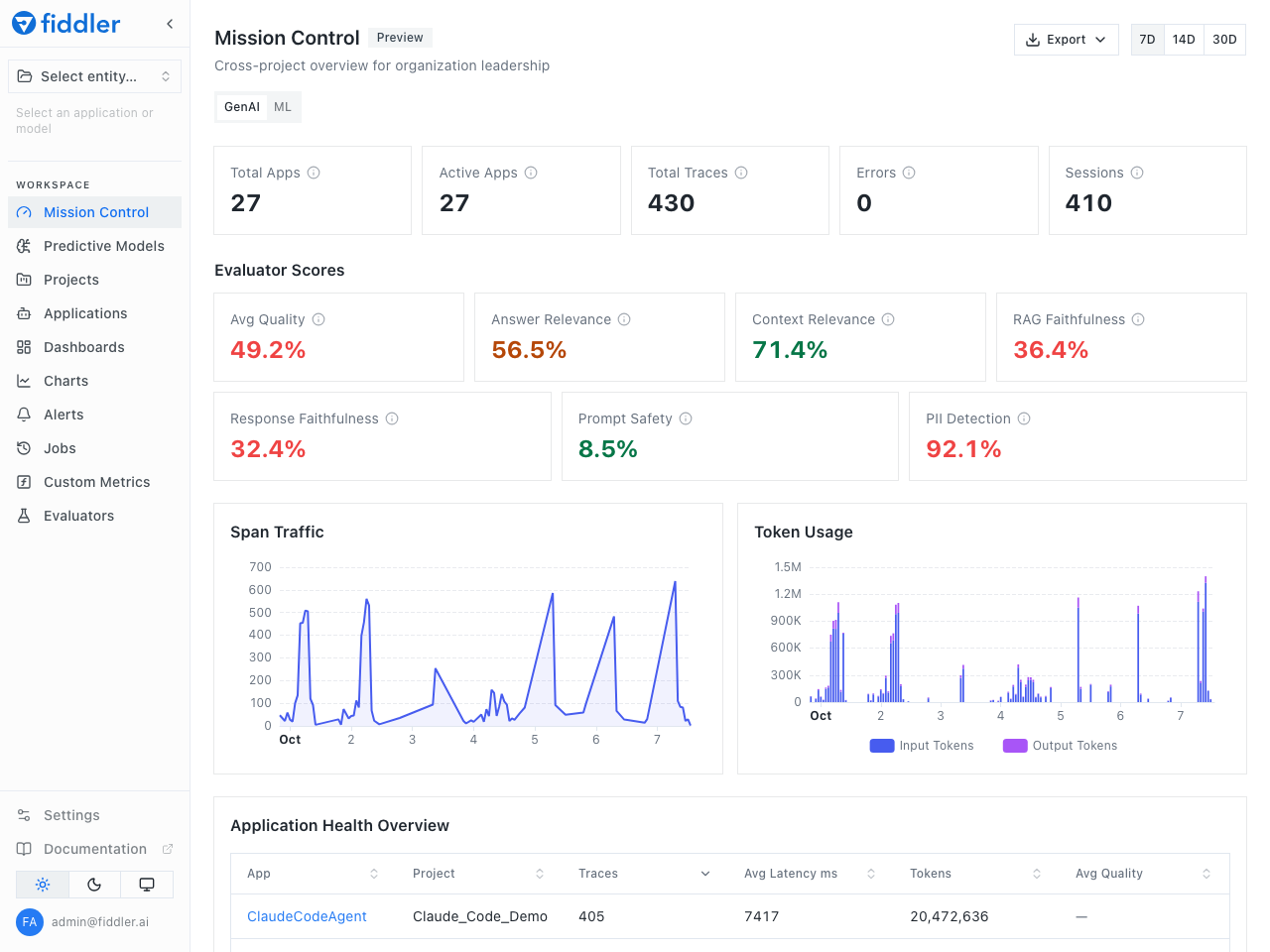
Mission Control, with separate GenAI and ML views of your whole organization. Your sidebar may differ.
Monitoring ML Models
- Open a model: go to Projects, open a project, and select the model. If your organization has it turned on, the Predictive Models list under Workspace shows all your models in one place.
- Investigate a change: open a monitoring chart and click any data point. A Root Cause Analysis panel opens below the chart, with Events, Analyze, Data Drift, and Data Integrity tabs.
- Add a model: open an ML project and select Add Model.
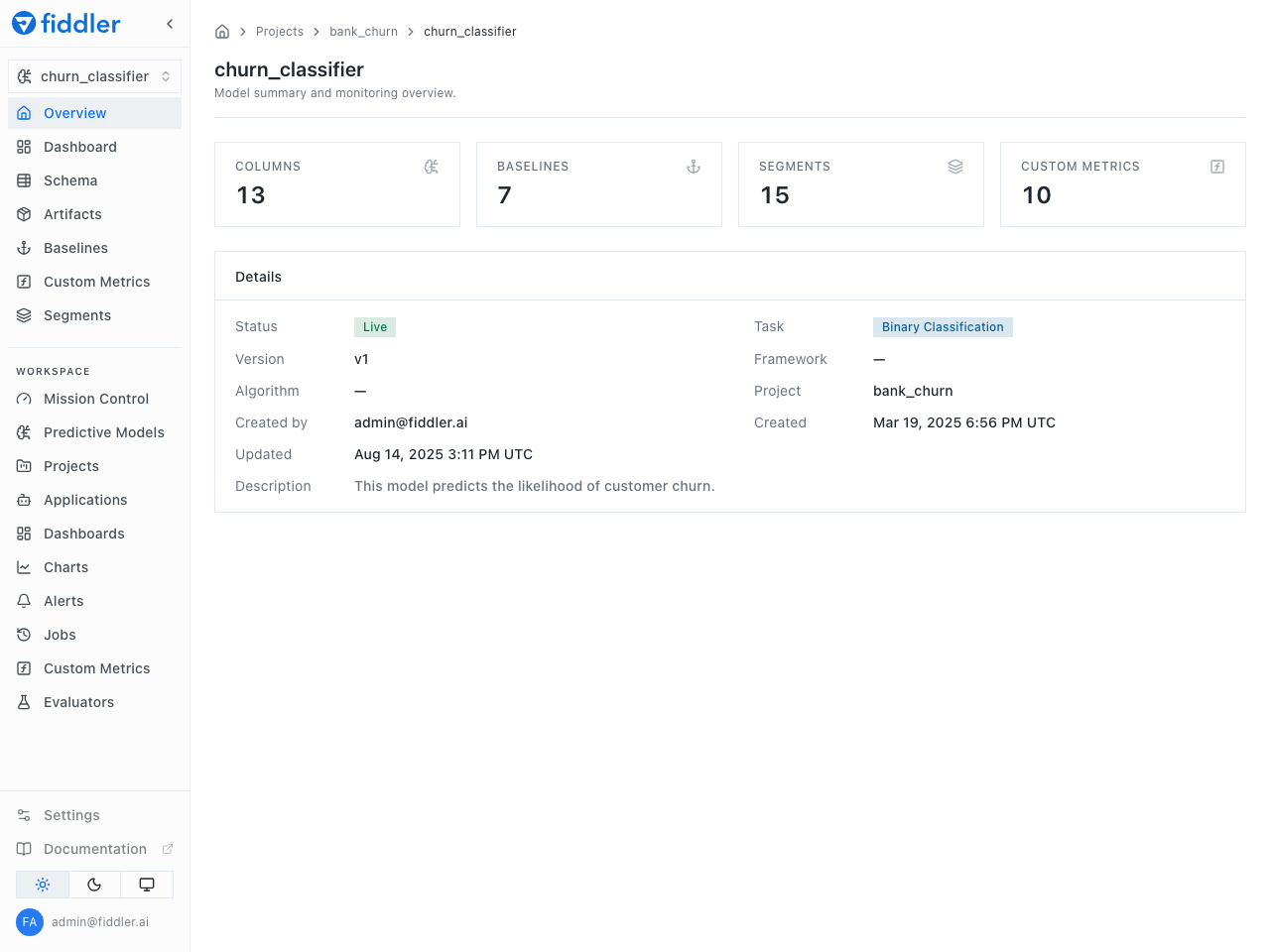
An ML model selected: the model's own pages on top, the org-wide Workspace areas below. Your sidebar may differ.
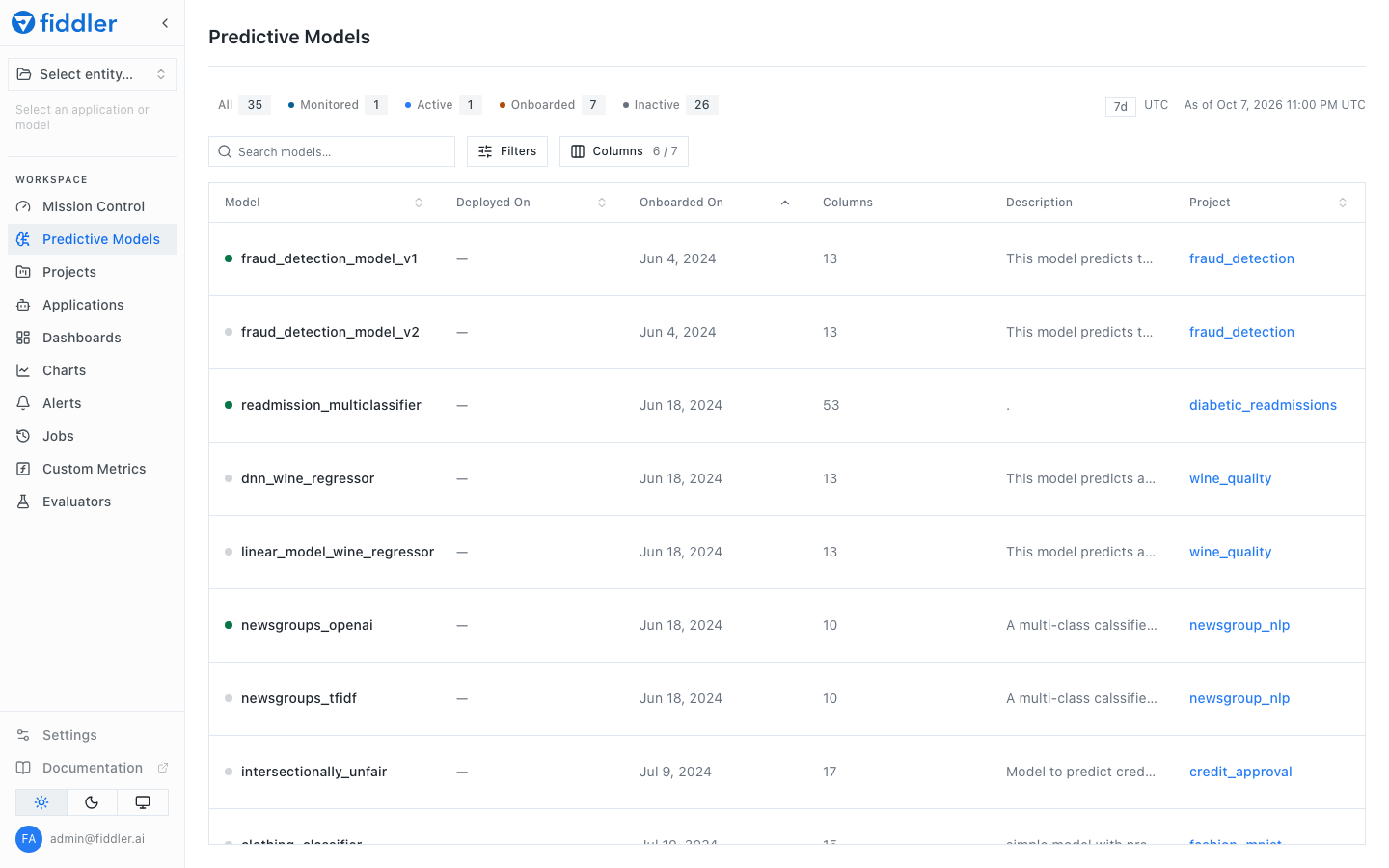
The Predictive Models list. Your sidebar may differ.
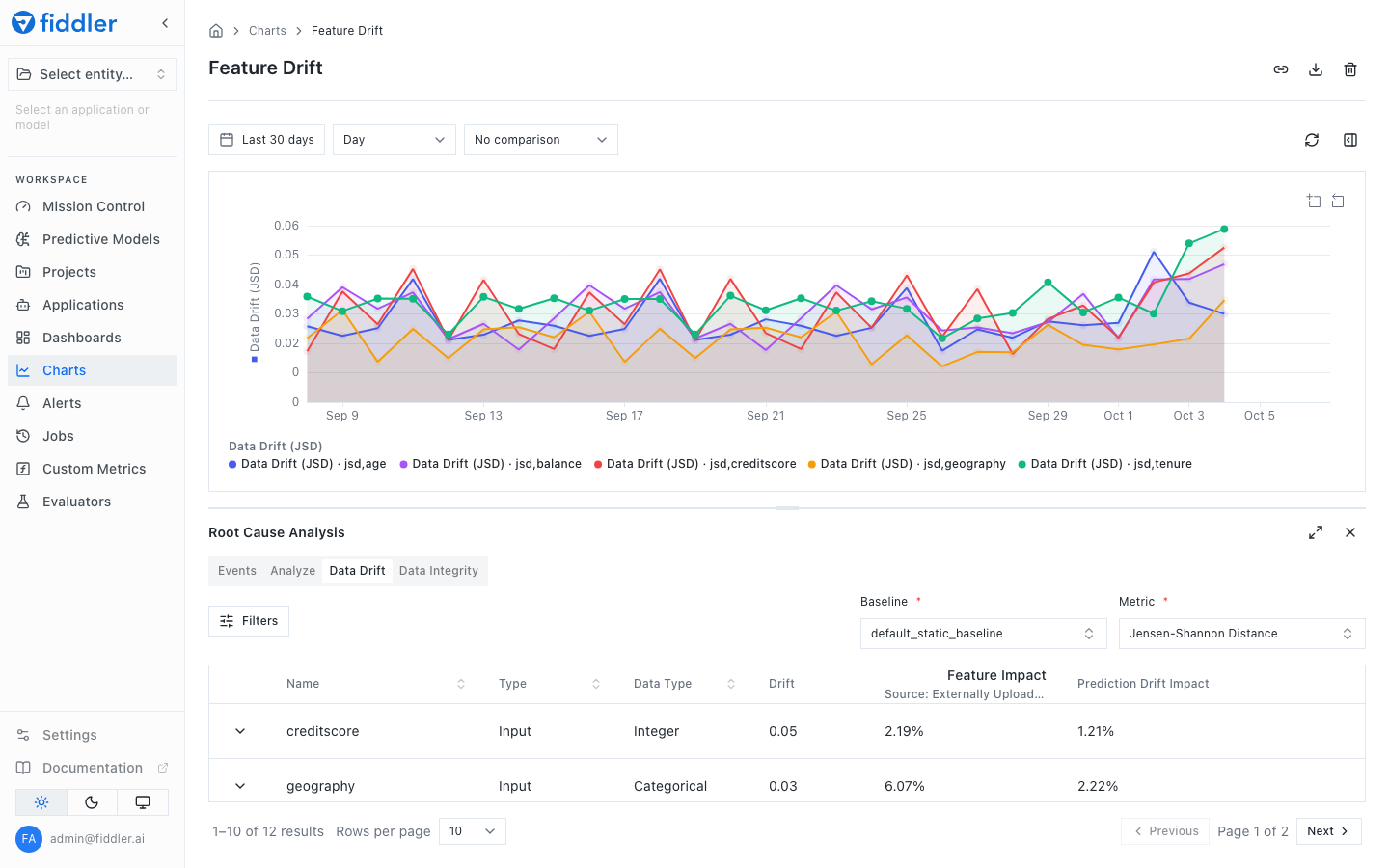
Clicking a data point on a drift chart opens the Root Cause Analysis panel. The Data Drift tab ranks inputs by how much they drifted. Your sidebar may differ.
Settings
Settings has four groups: Organization, Access Control, Configuration, and Integrations. API keys are under Settings → Credentials.What’s Not in the Preview Yet
For these, use your current Fiddler (removepreview. from the address):
- Saved views: Bookmarks
- Setting up ML models: draft models
- Viewing ML models: a model’s Environments tab
- GenAI applications: the Enrichments tab
Tell Us What You Think
Your feedback shapes the final release — share it with your Fiddler Customer Success Manager.Optional preview — features and layout may change; the product name is not final.