> ## Documentation Index
> Fetch the complete documentation index at: https://docs.fiddler.ai/llms.txt
> Use this file to discover all available pages before exploring further.
# Microsoft Entra ID SAML
> Learn how to configure Fiddler with Microsoft Entra ID (formerly Azure AD) for Single Sign-On (SSO) using the Security Assertion Markup Language (SAML) protocol.
## Overview
This integration allows your users to sign in to Fiddler using their existing Microsoft Entra ID account, without needing a separate Fiddler password. Users are automatically provisioned on their first successful login — no manual invitations required. Entra ID group memberships can be synchronized to Fiddler teams.
## Prerequisites
Before starting, ensure you have:
* **Microsoft Entra ID Administrator Access**: Permissions to create enterprise applications and configure single sign-on in your Entra ID tenant.
* **Fiddler AuthN Administrator Access**: Org Owner role in Fiddler's AuthN management console.
* **Deployment Information**: The hostname of your Fiddler deployment, e.g. `idpexample.dev.fiddler.ai`.
* **Entra ID P1 or P2 License** (group sync only): required to assign groups to the enterprise application. Mandatory for [cloud-native group sync](#cloud-native-groups); [on-premises-synced groups](#on-premises-synced-groups) can avoid it by using the *Security groups* claim scope. Not needed for basic SSO.
## Configuring Microsoft Entra ID and Fiddler for Integration
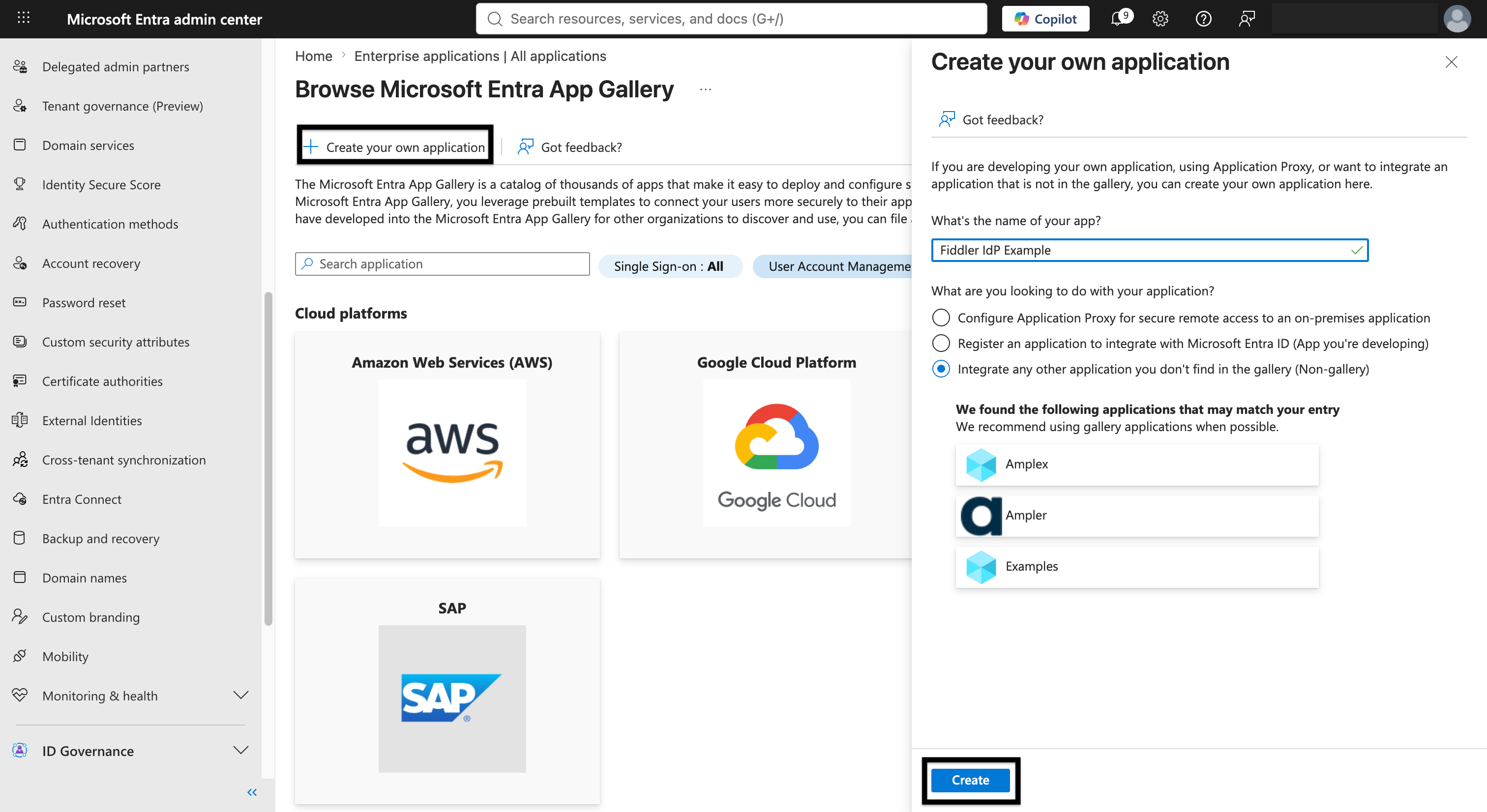
1. In the [Microsoft Entra admin center](https://entra.microsoft.com/), go to *Entra ID → Enterprise applications* and select *New application*.
2. Select *Create your own application*.
3. Enter a name, e.g. `Fiddler IdP Example`, select *Integrate any other application you don't find in the gallery (Non-gallery)*, then select *Create*.
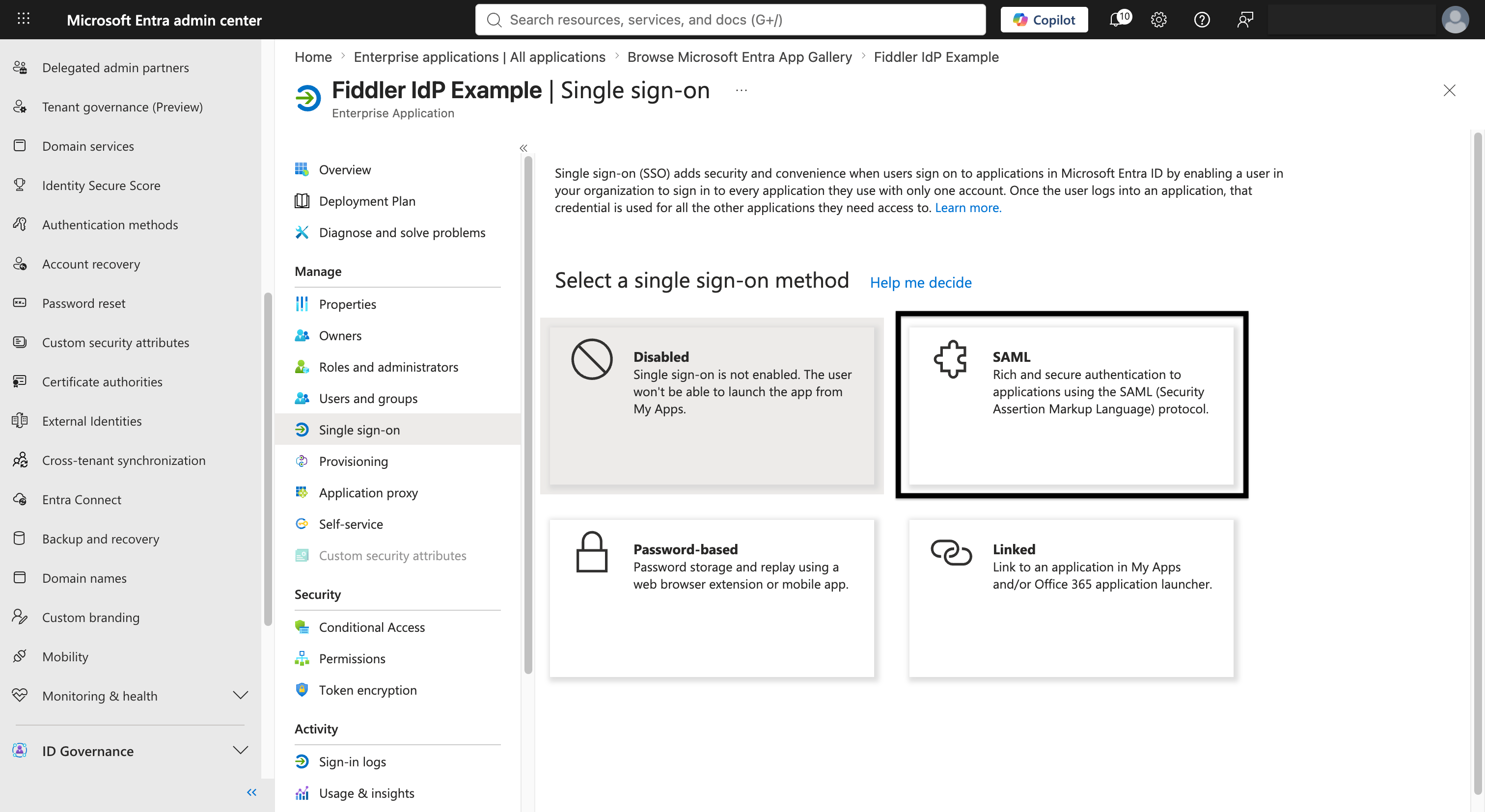
 4. In the created application, go to *Single sign-on* and select *SAML* as the single sign-on method.
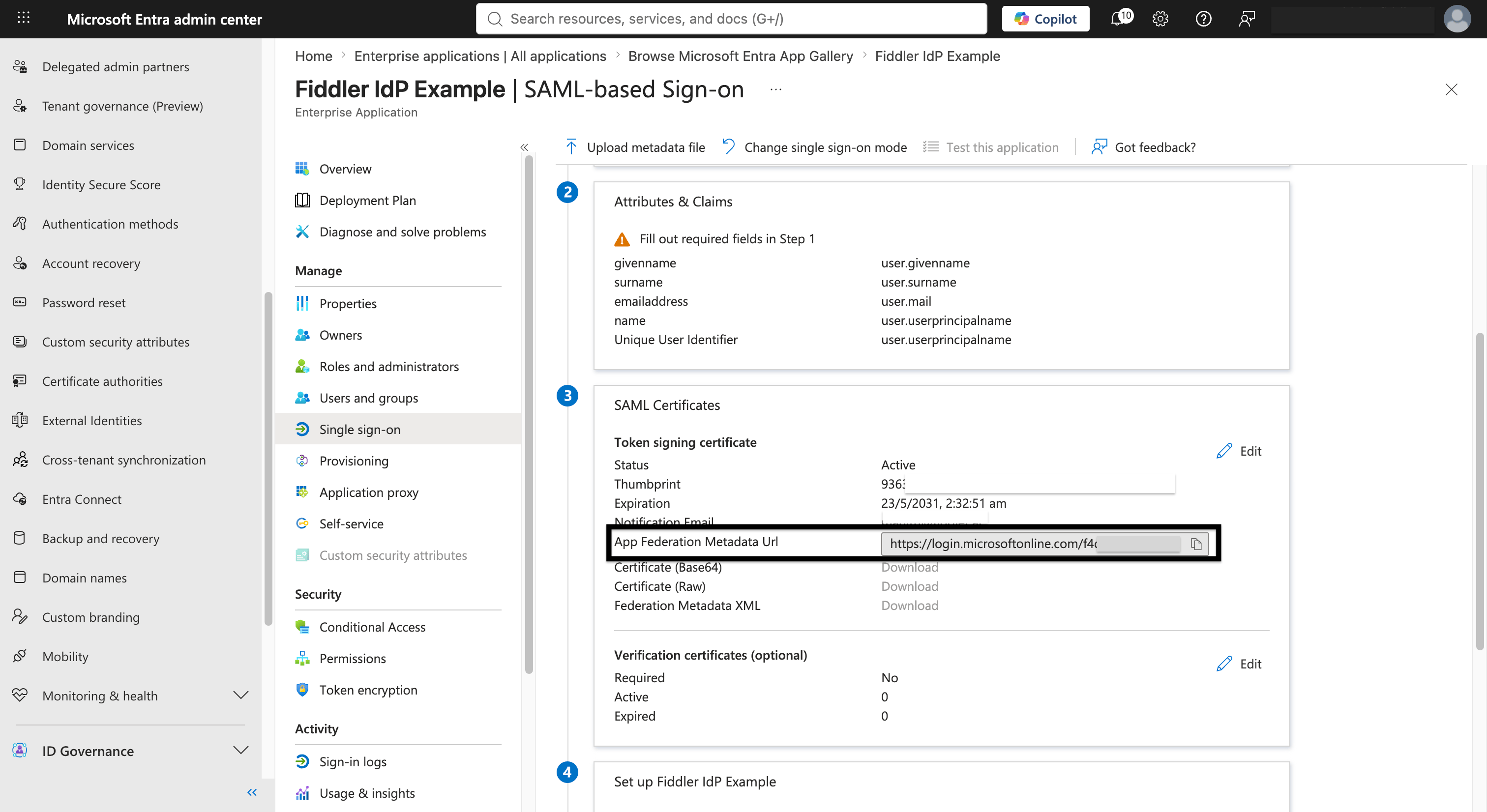
 5. Under *SAML Certificates*, confirm a certificate is present, then copy the *App Federation Metadata Url*. You will use it to create the identity provider in the Fiddler AuthN console.
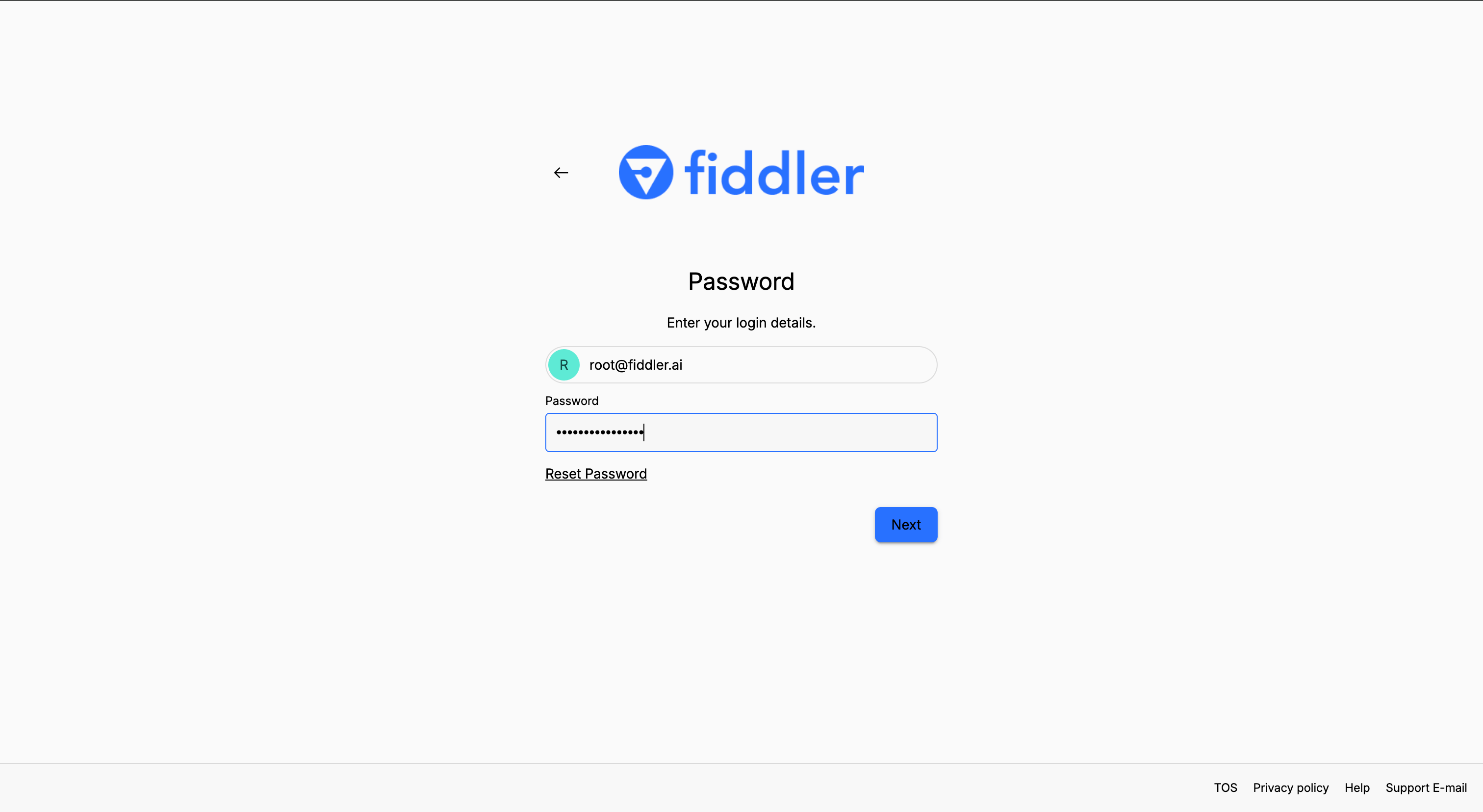
 The URL to the Fiddler AuthN management console is your Fiddler instance base URL prepended with `authn-`. For example, if your Fiddler base URL is `https://idpexample.dev.fiddler.ai` then you will access the AuthN management console at `https://authn-idpexample.dev.fiddler.ai`.
Sign in using the AuthN console Org Owner user account credentials provided by your Fiddler representative.
The URL to the Fiddler AuthN management console is your Fiddler instance base URL prepended with `authn-`. For example, if your Fiddler base URL is `https://idpexample.dev.fiddler.ai` then you will access the AuthN management console at `https://authn-idpexample.dev.fiddler.ai`.
Sign in using the AuthN console Org Owner user account credentials provided by your Fiddler representative.
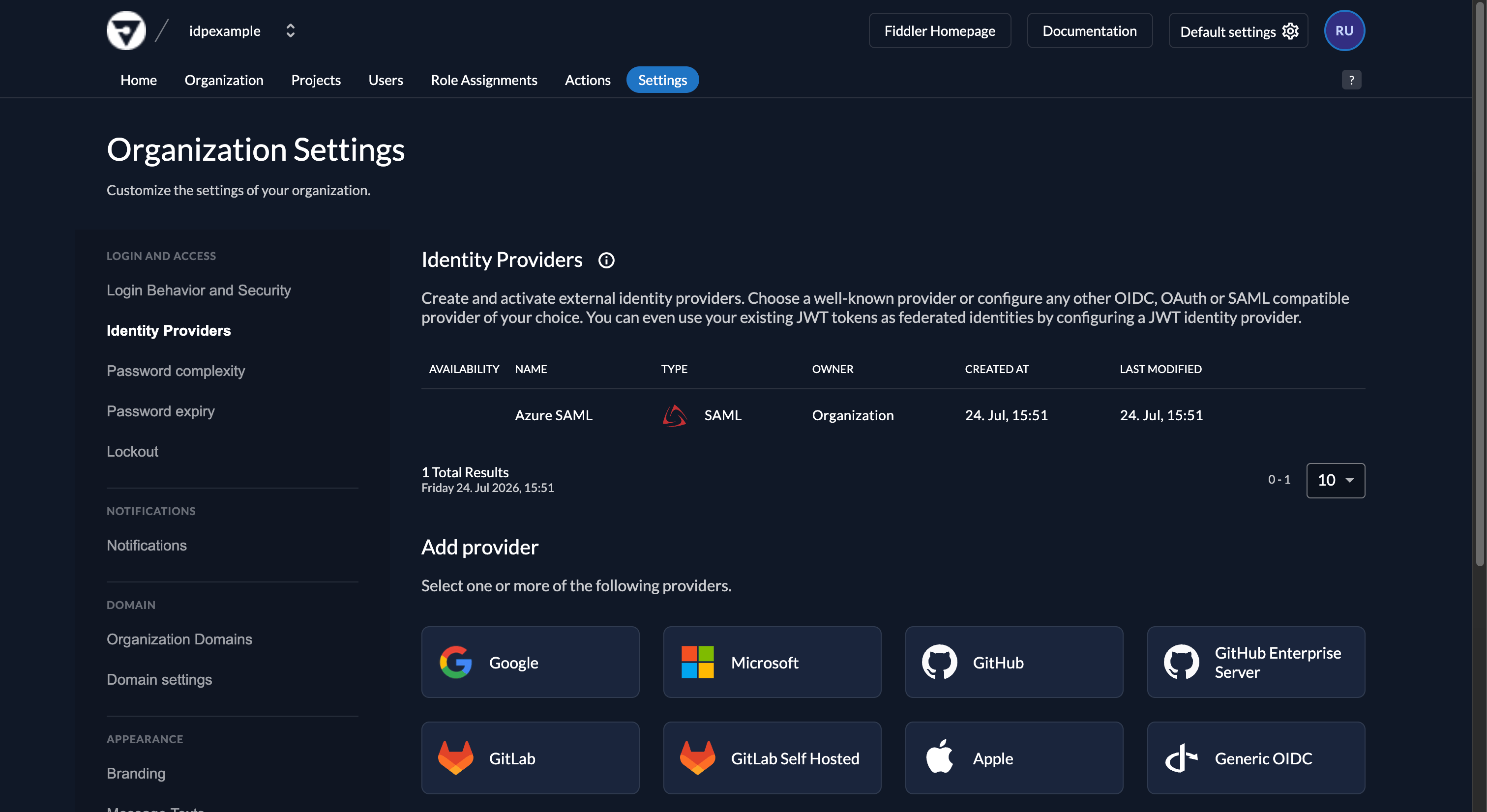
 Ensure your organization is selected in the dropdown. You may see the *fiddler* organization, but this is reserved for system use and should not be edited. Here we are using the *idpexample* organization.
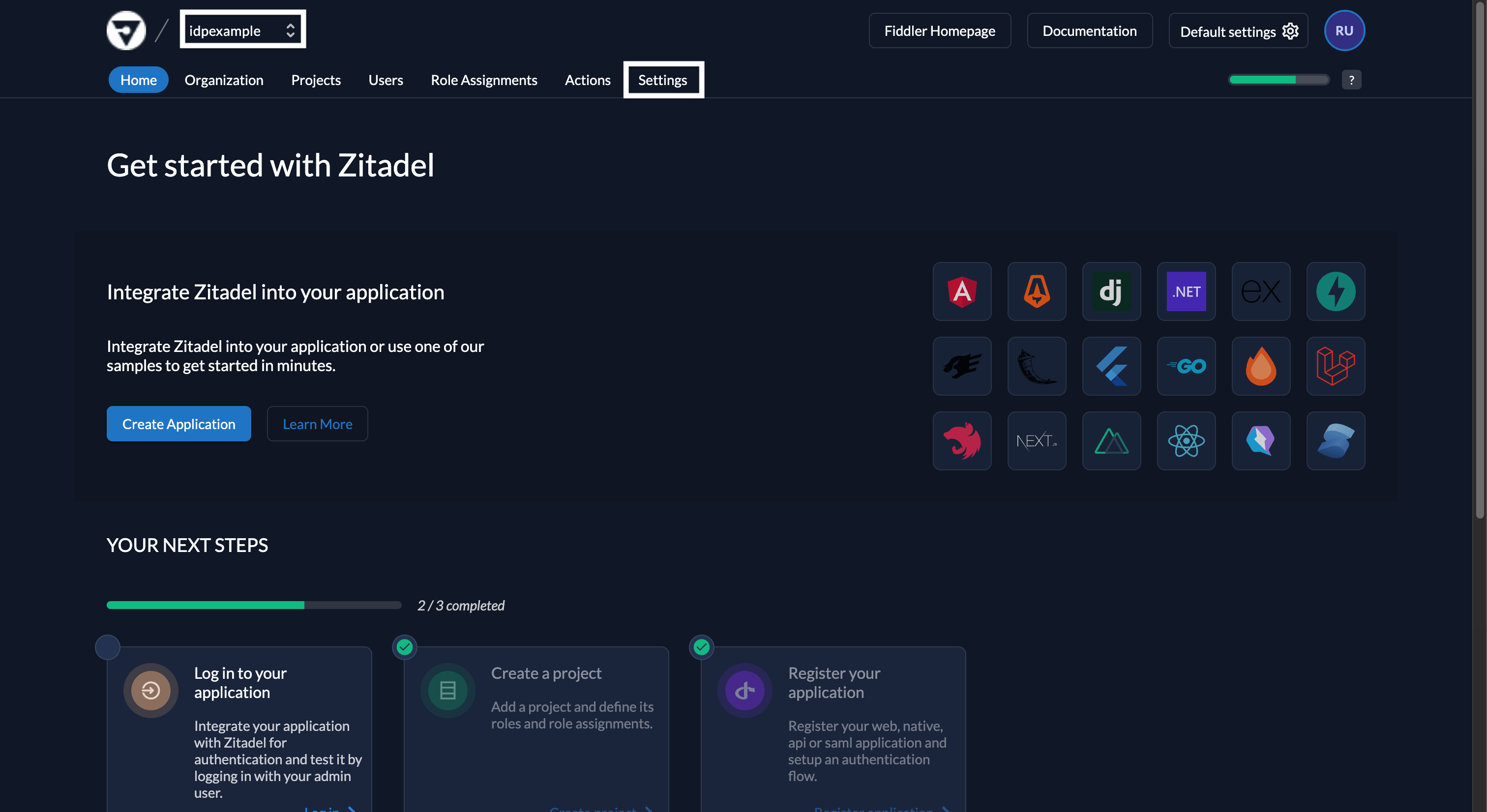 Select *Settings* tab from the top menu and then select *Identity Providers* from the left navigation menu.
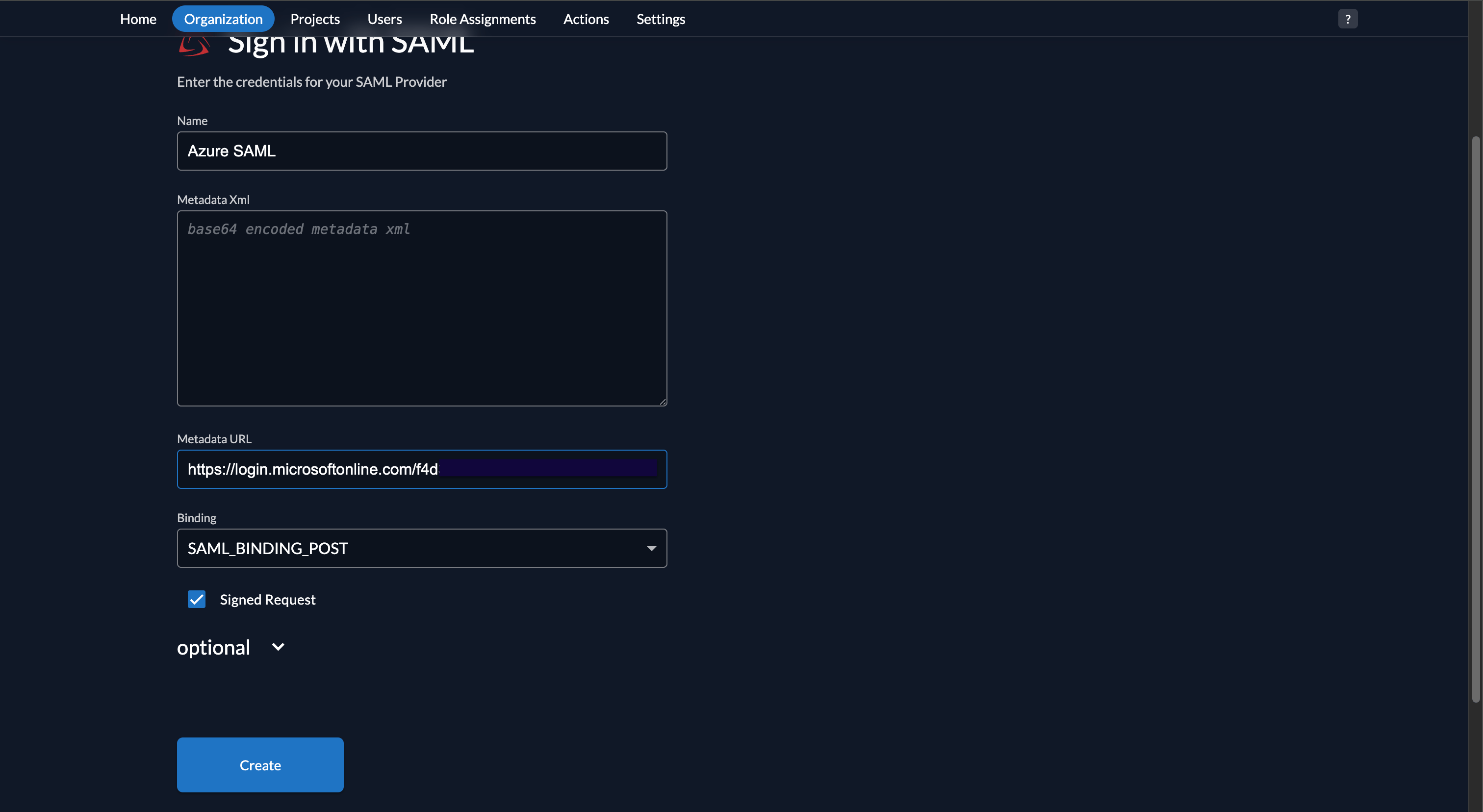
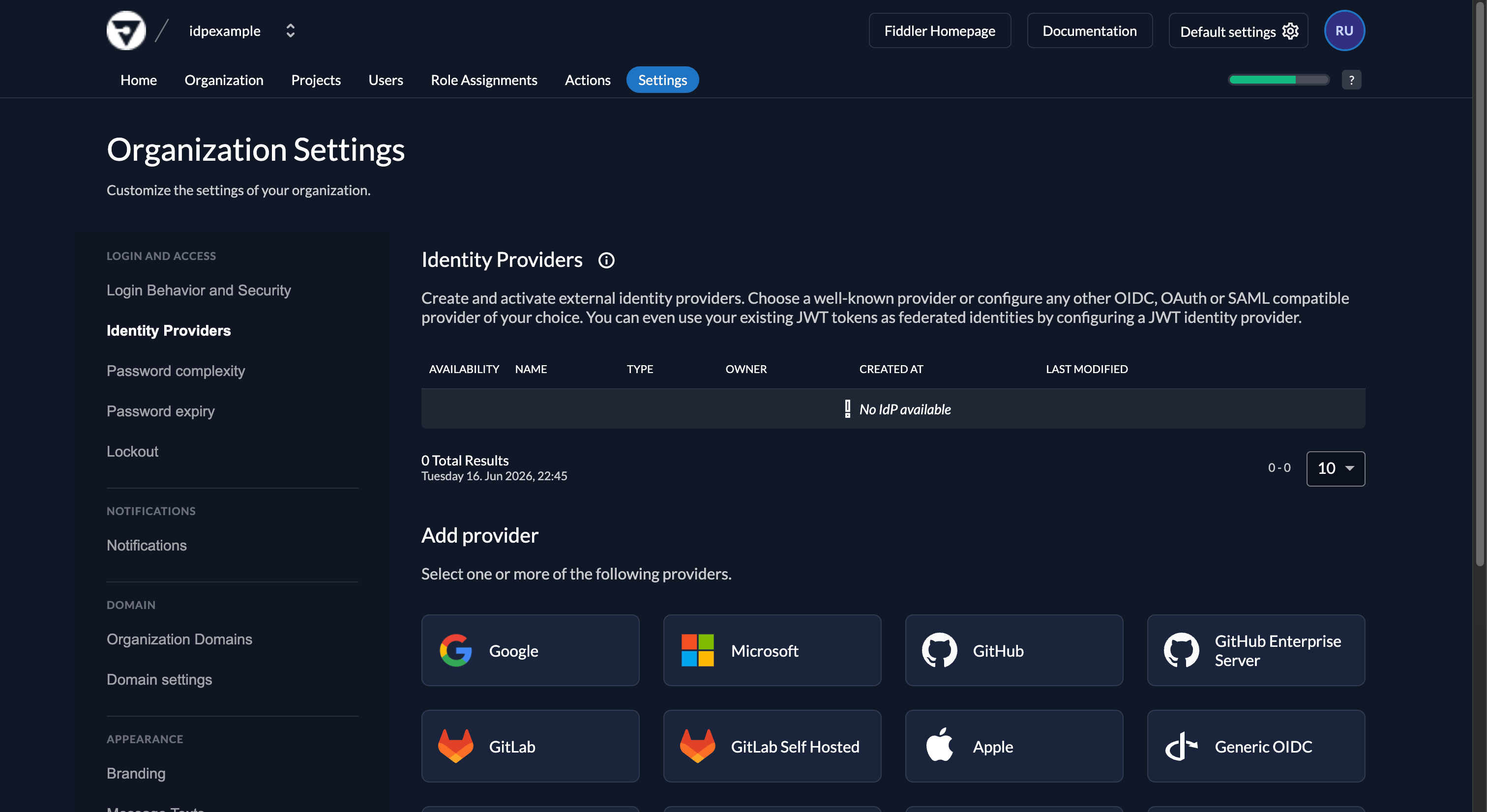 1. Select the *SAML* option in the *Add provider* section, which brings up the Sign in with SAML form.
2. Enter a name for the integration. This name is displayed on the SSO login button on the Fiddler sign-in page, so choose one your users will recognize.
3. Paste the *App Federation Metadata Url* copied from Entra ID into the *Metadata URL* text box.
4. Ensure the *Binding* dropdown is set to *SAML\_POST\_BINDING* and the *Signed Request* checkbox is selected — the preselected defaults.
1. Select the *SAML* option in the *Add provider* section, which brings up the Sign in with SAML form.
2. Enter a name for the integration. This name is displayed on the SSO login button on the Fiddler sign-in page, so choose one your users will recognize.
3. Paste the *App Federation Metadata Url* copied from Entra ID into the *Metadata URL* text box.
4. Ensure the *Binding* dropdown is set to *SAML\_POST\_BINDING* and the *Signed Request* checkbox is selected — the preselected defaults.
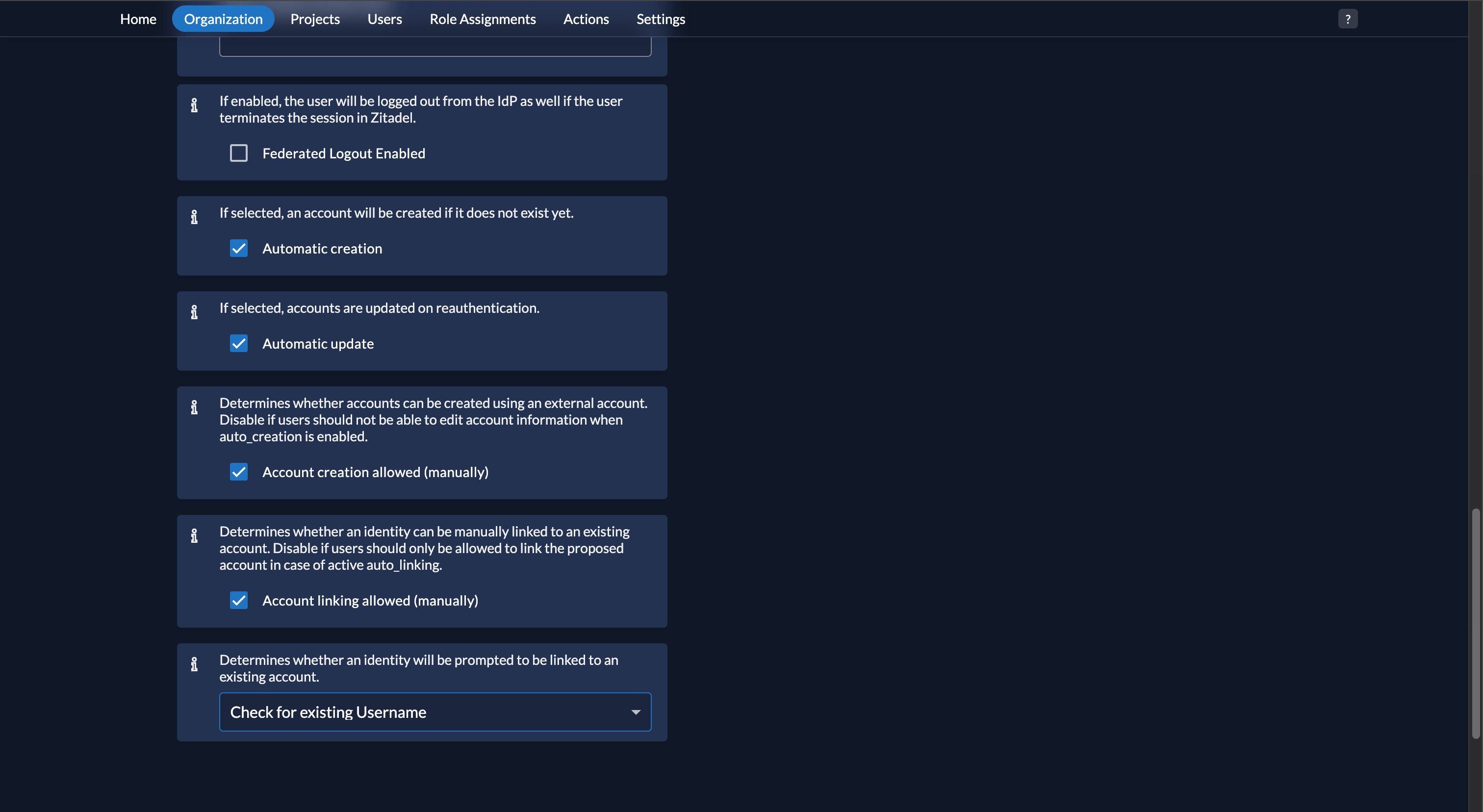
 1. Expand the *optional* section.
2. Ensure the *Automatic create* and *Automatic update* checkboxes are selected.
3. Set the *Determines whether an identity will be prompted to be linked to an existing account* dropdown to *Check for existing Username*.
1. Expand the *optional* section.
2. Ensure the *Automatic create* and *Automatic update* checkboxes are selected.
3. Set the *Determines whether an identity will be prompted to be linked to an existing account* dropdown to *Check for existing Username*.
 Select the *Create* button and then select the *Save* button. You will be returned to the Organization Settings page.
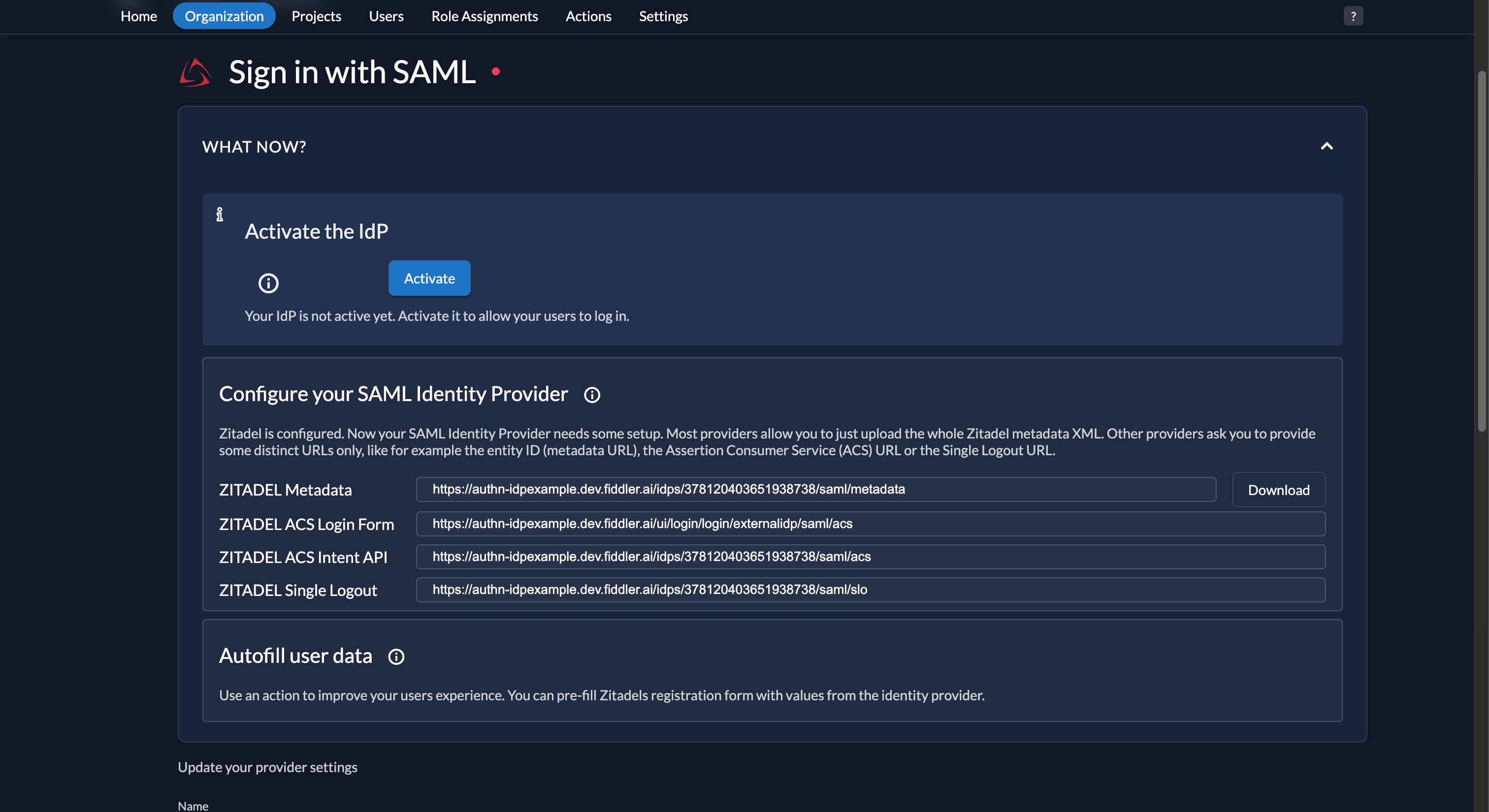
 Select your IdP from the list. Four URLs are displayed — copy the following three for the Entra ID configuration steps:
* ZITADEL Metadata URL
* ZITADEL ACS Login Form URL
* ZITADEL ACS Intent API URL
Select your IdP from the list. Four URLs are displayed — copy the following three for the Entra ID configuration steps:
* ZITADEL Metadata URL
* ZITADEL ACS Login Form URL
* ZITADEL ACS Intent API URL
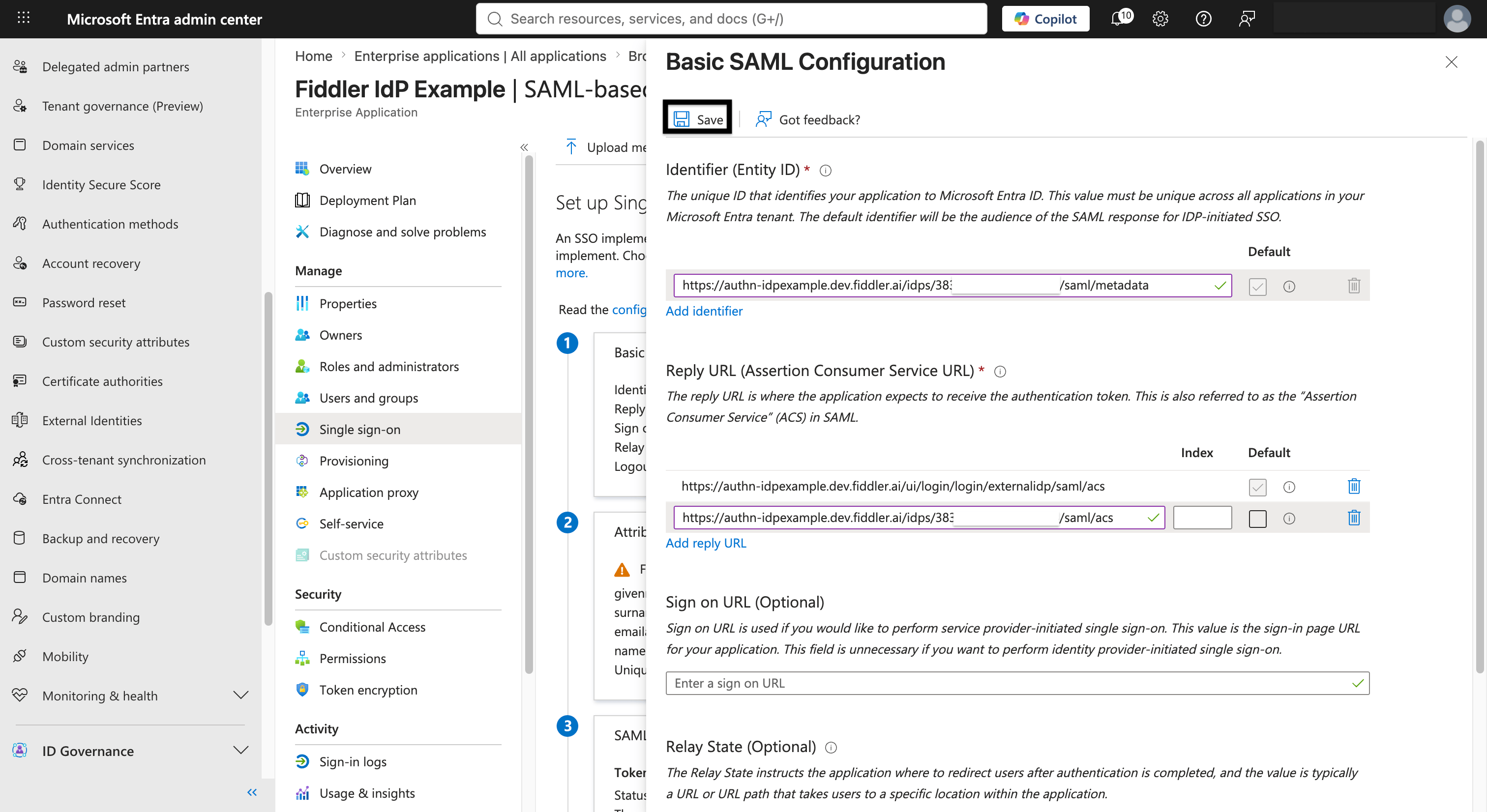
 1. In the Entra admin center, return to the enterprise application and go to *Single sign-on*.
2. In the *Basic SAML Configuration* section, select *Edit* and enter the following values copied from the AuthN console:
1. *Identifier (Entity ID)*: the *ZITADEL Metadata URL*.
2. *Reply URL (Assertion Consumer Service URL)*: the *ZITADEL ACS Login Form URL*. Select *Add reply URL* and also add the *ZITADEL ACS Intent API URL*. Leave *Index* blank for both — Entra ID routes responses by the ACS URL specified in the SAML request.
3. Select *Save*.
1. In the Entra admin center, return to the enterprise application and go to *Single sign-on*.
2. In the *Basic SAML Configuration* section, select *Edit* and enter the following values copied from the AuthN console:
1. *Identifier (Entity ID)*: the *ZITADEL Metadata URL*.
2. *Reply URL (Assertion Consumer Service URL)*: the *ZITADEL ACS Login Form URL*. Select *Add reply URL* and also add the *ZITADEL ACS Intent API URL*. Leave *Index* blank for both — Entra ID routes responses by the ACS URL specified in the SAML request.
3. Select *Save*.
 4. Return to the Fiddler AuthN console and refresh the metadata now that Entra ID has finalized the application: go to *Settings → Identity Providers*, select your identity provider, clear the prefilled *Metadata XML* value, re-paste the *App Federation Metadata Url* into the *Metadata URL* field, and select *Save*.
Do not skip this refresh. The metadata you fetched earlier was served before Entra ID activated the application's signing certificate, so the provider is holding tenant-level certificates and sign-in fails with `Errors.Intent.ResponseInvalid` — see [Getting Help](#getting-help).
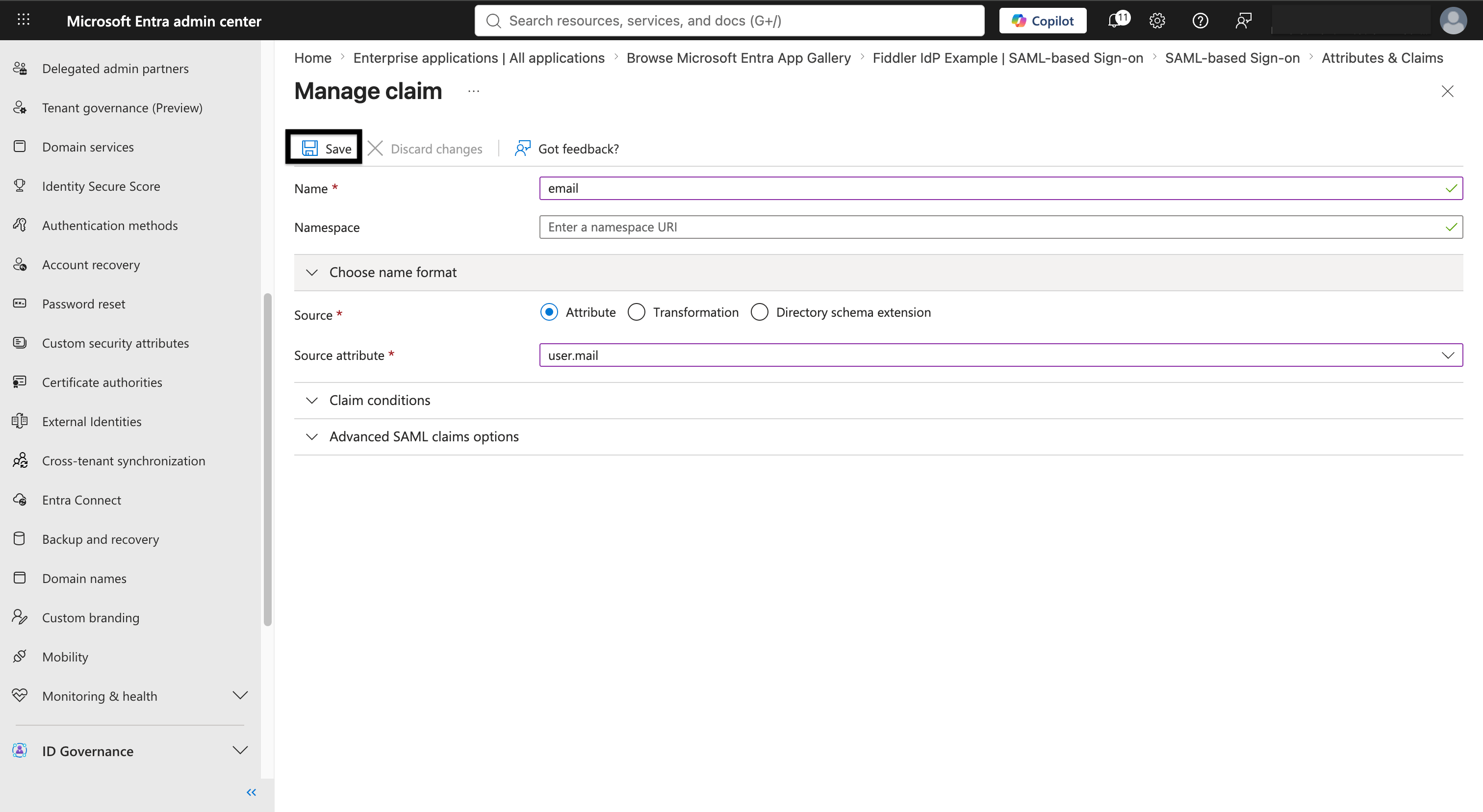
Entra ID's default SAML claims use long URI-style names. Add short claim names matching what the Fiddler action script expects.
1. In the *Attributes & Claims* section, select *Edit*.
2. Select *Add new claim* and create the following claims, leaving *Namespace* blank for each:
1. Name=`email`, Source attribute=`user.mail`
2. Name=`firstName`, Source attribute=`user.givenname`
3. Name=`lastName`, Source attribute=`user.surname`
4. Return to the Fiddler AuthN console and refresh the metadata now that Entra ID has finalized the application: go to *Settings → Identity Providers*, select your identity provider, clear the prefilled *Metadata XML* value, re-paste the *App Federation Metadata Url* into the *Metadata URL* field, and select *Save*.
Do not skip this refresh. The metadata you fetched earlier was served before Entra ID activated the application's signing certificate, so the provider is holding tenant-level certificates and sign-in fails with `Errors.Intent.ResponseInvalid` — see [Getting Help](#getting-help).
Entra ID's default SAML claims use long URI-style names. Add short claim names matching what the Fiddler action script expects.
1. In the *Attributes & Claims* section, select *Edit*.
2. Select *Add new claim* and create the following claims, leaving *Namespace* blank for each:
1. Name=`email`, Source attribute=`user.mail`
2. Name=`firstName`, Source attribute=`user.givenname`
3. Name=`lastName`, Source attribute=`user.surname`
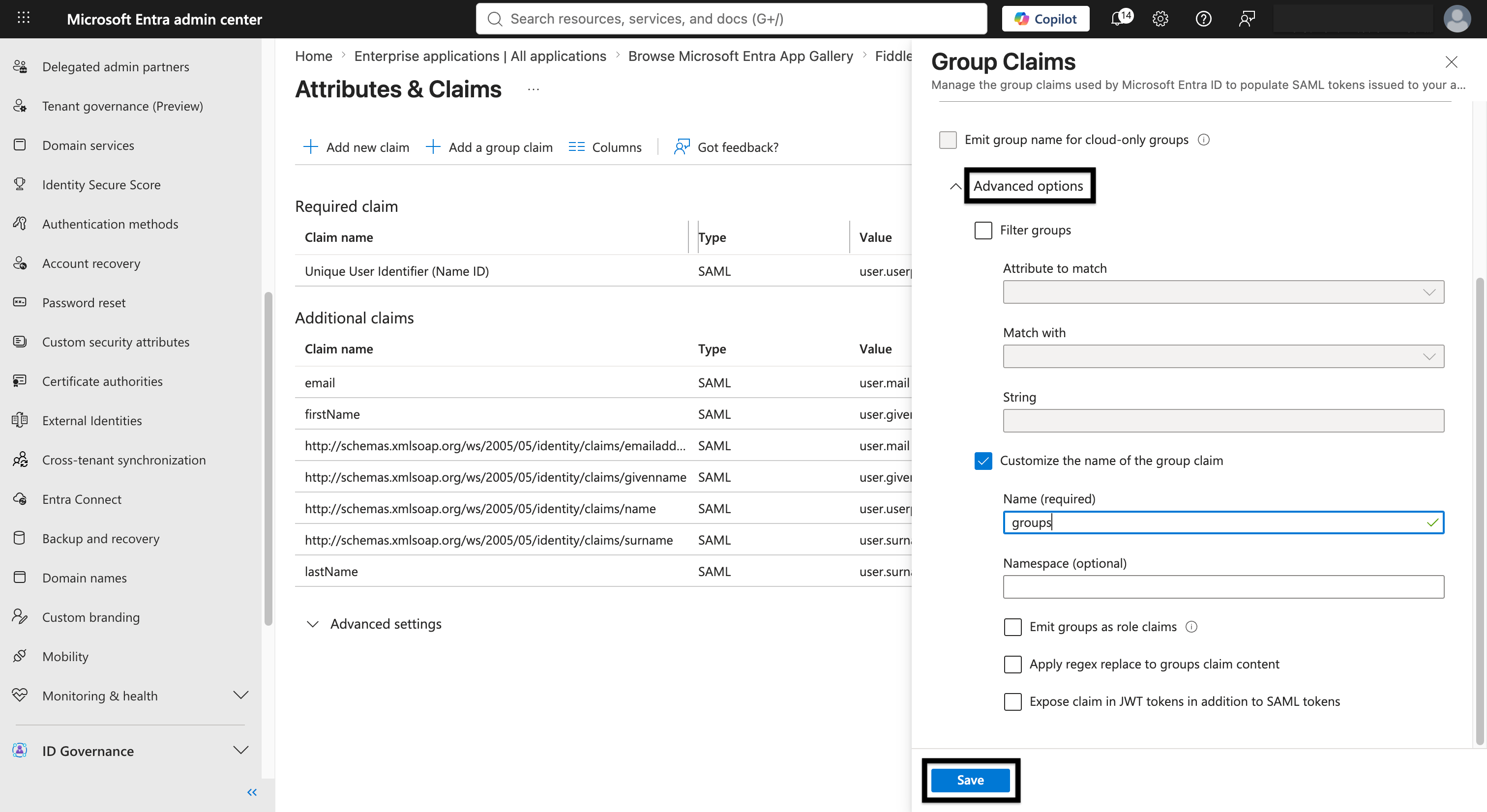
 3. Select *Add a group claim*, choose *Groups assigned to the application*, and leave *Source attribute* as *Group ID*. Expand *Advanced options*, select *Customize the name of the group claim*, and set *Name* to `groups` (leave *Namespace* blank), then select *Save*. By default Entra emits group IDs (GUIDs); to emit the group **names** that Fiddler maps to teams, complete [Enable Group Sync](#enable-group-sync) below.
 In the application, go to *Users and groups* and assign the users and groups that should have access to Fiddler. Unassigned users cannot sign in. Assigning groups (rather than individual users) requires an Entra ID P1 or P2 license.
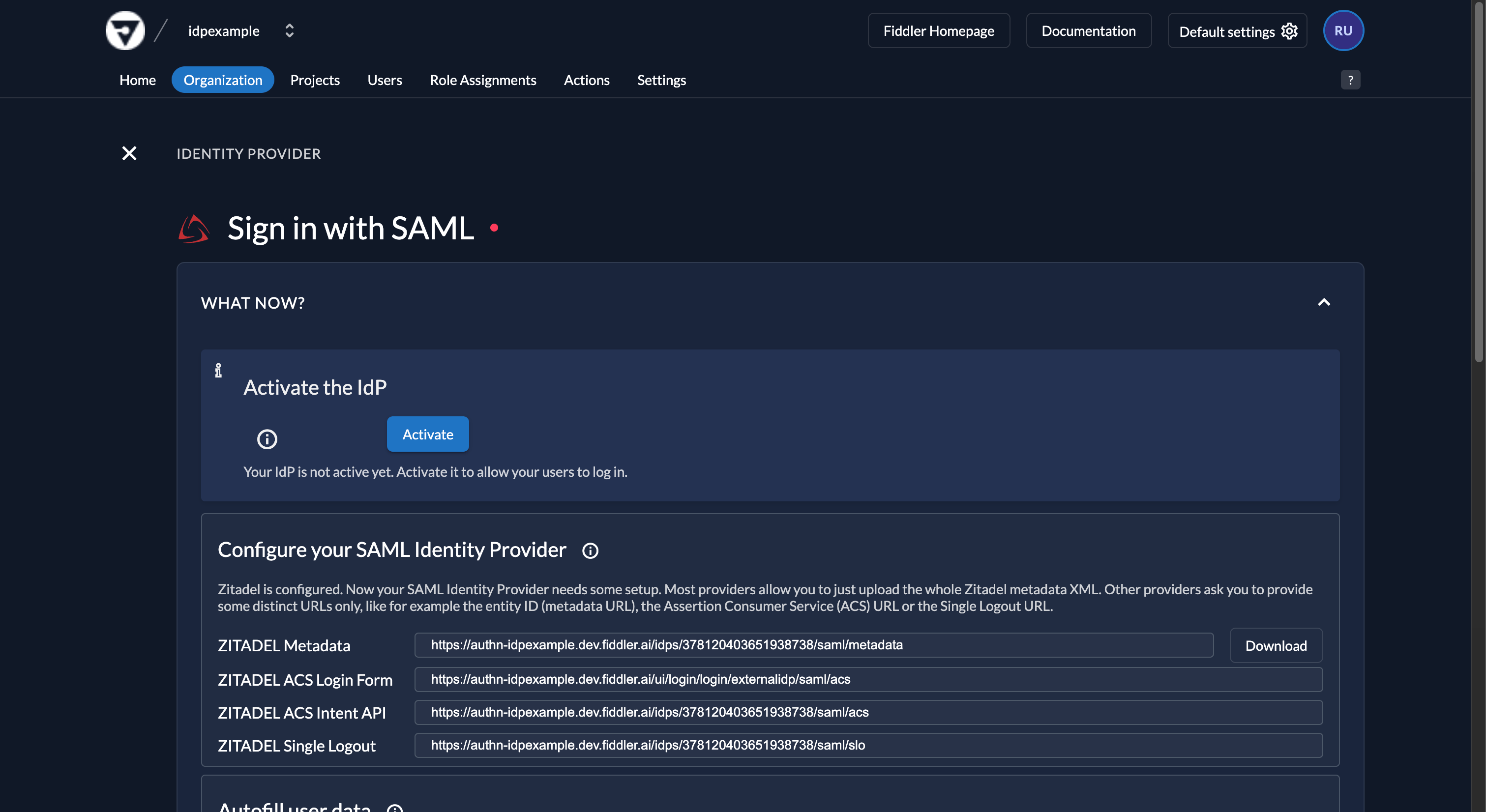
1. Return to the Fiddler AuthN console, go to *Settings → Identity Providers*, select your IdP from the list, and select the *Activate* button on the identity provider page.
In the application, go to *Users and groups* and assign the users and groups that should have access to Fiddler. Unassigned users cannot sign in. Assigning groups (rather than individual users) requires an Entra ID P1 or P2 license.
1. Return to the Fiddler AuthN console, go to *Settings → Identity Providers*, select your IdP from the list, and select the *Activate* button on the identity provider page.
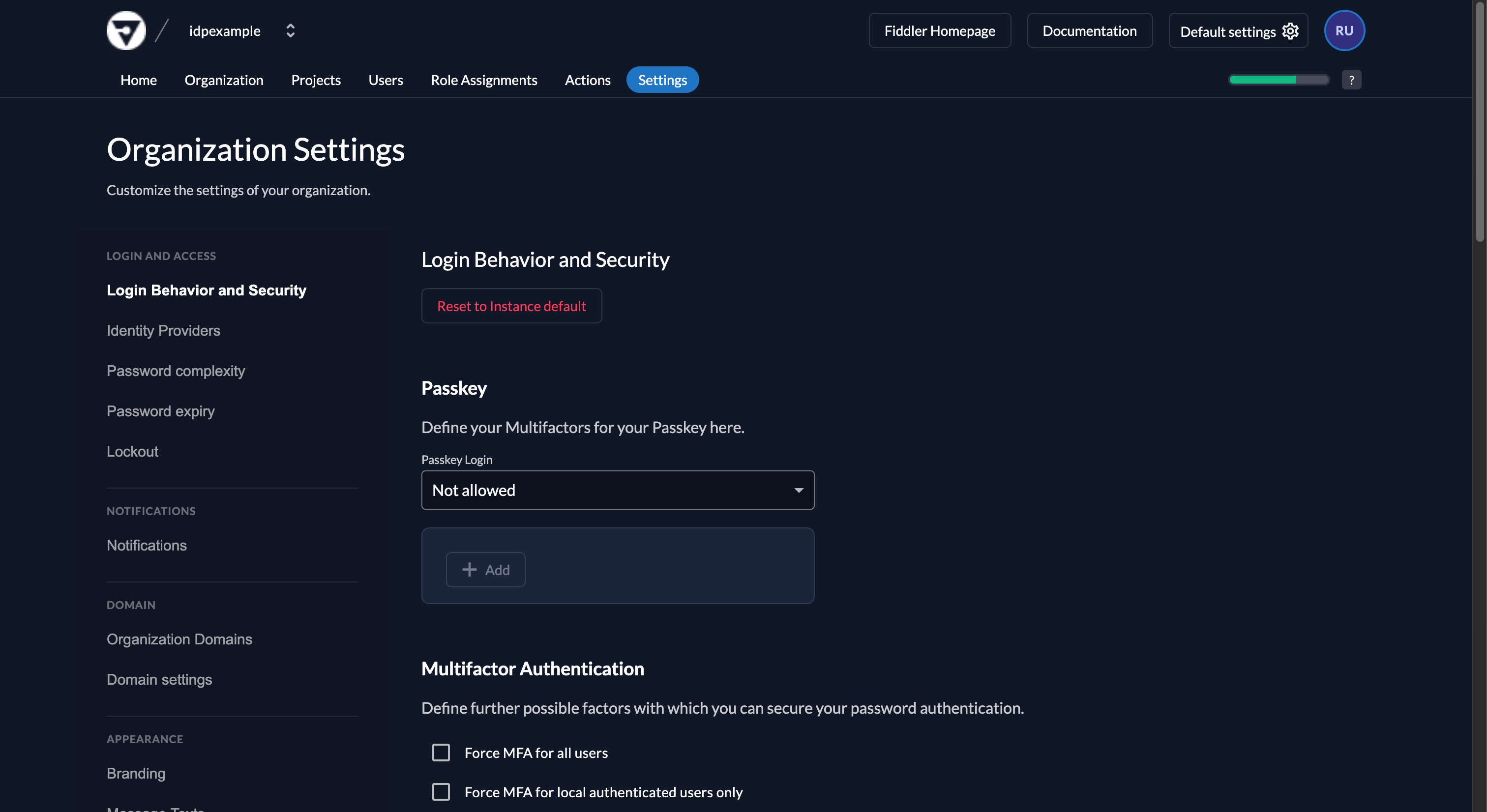
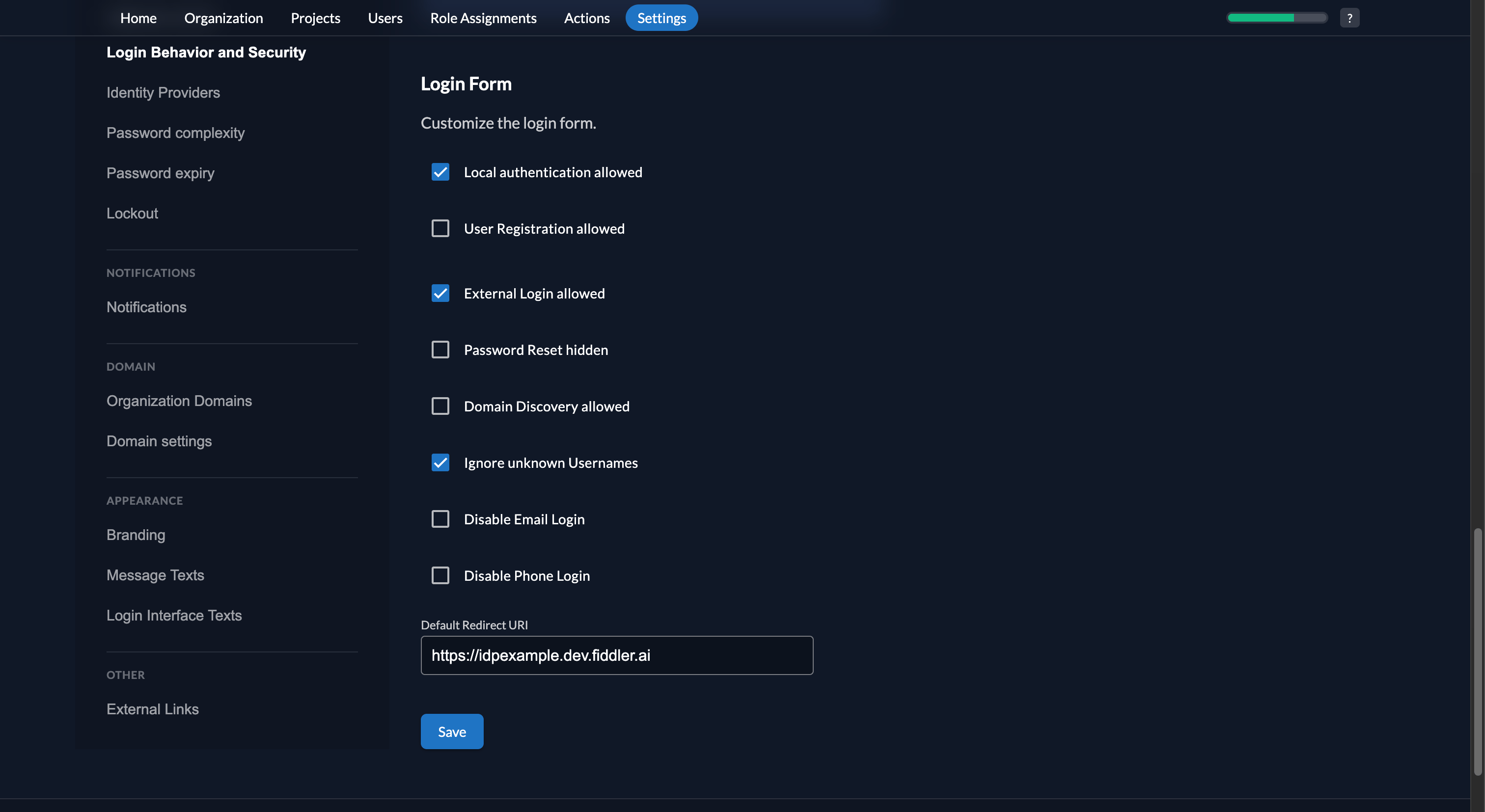
 2. Close the settings and then select *Login Behavior and Security* from the left nav menu and ensure the *External login allowed* checkbox is selected.
 3. Select the *Save* button.
 Select the *Actions* tab from the top menu.
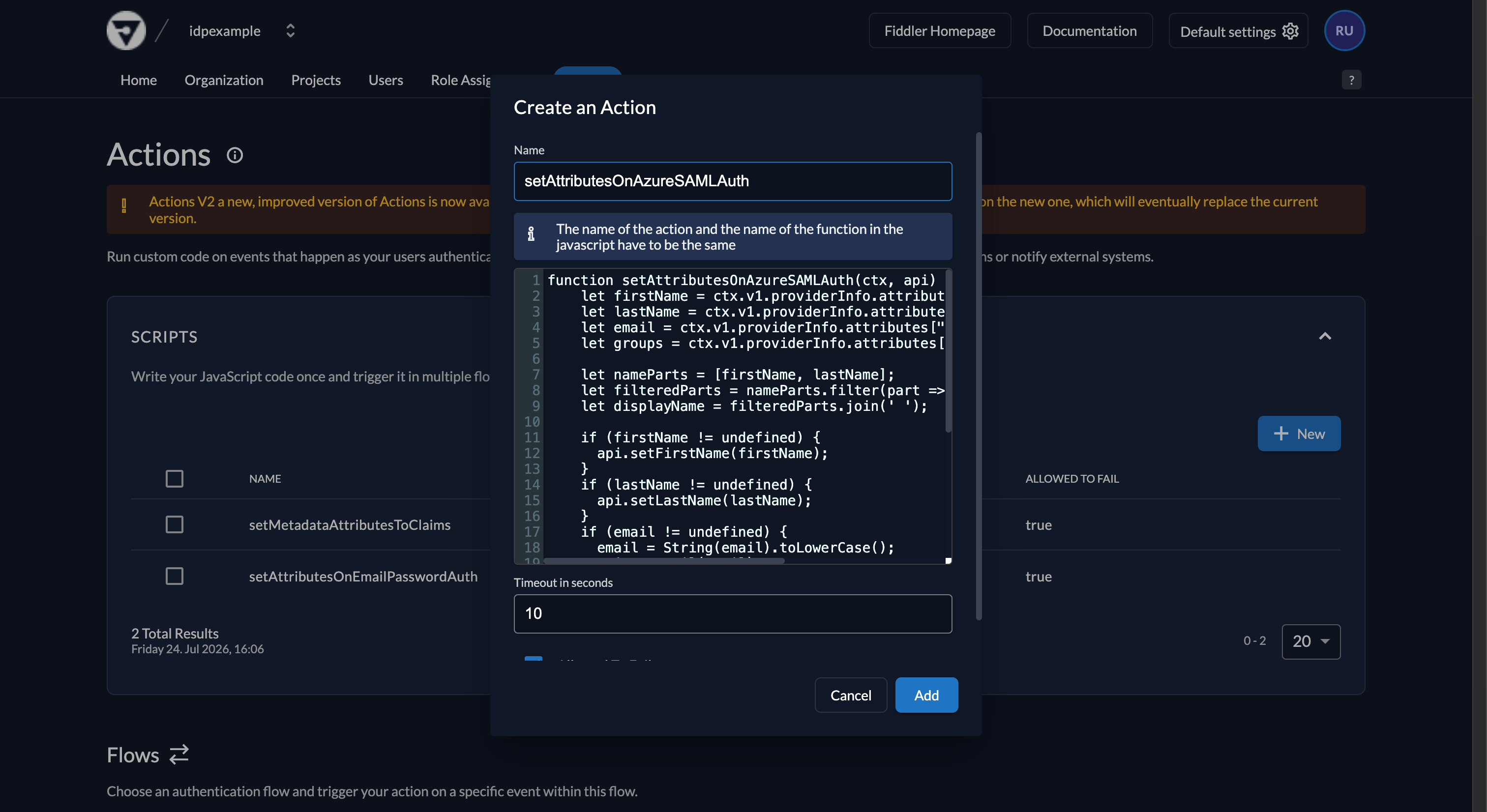 1. Select the *New* button in the *Scripts* section to create a new action script.
2. Copy the *Microsoft Entra ID SAML Action Script* below and paste it into the script text area.
3. Enter `setAttributesOnAzureSAMLAuth` in the *Name* text box.
4. Select the *Add* button.
**File:** `Microsoft Entra ID SAML Action Script`
```javascript theme={null}
function setAttributesOnAzureSAMLAuth(ctx, api) {
let firstName = ctx.v1.providerInfo.attributes["firstName"];
let lastName = ctx.v1.providerInfo.attributes["lastName"];
let email = ctx.v1.providerInfo.attributes["email"];
let groups = ctx.v1.providerInfo.attributes["groups"];
let nameParts = [firstName, lastName];
let filteredParts = nameParts.filter(part => part);
let displayName = filteredParts.join(' ');
if (firstName != undefined) {
api.setFirstName(firstName);
}
if (lastName != undefined) {
api.setLastName(lastName);
}
if (email != undefined) {
email = String(email).toLowerCase();
api.setEmail(email);
api.setEmailVerified(true);
api.setPreferredUsername(email);
}
if (displayName) {
api.setDisplayName(displayName);
}
api.v1.user.appendMetadata('fiddler_authentication_type', 'SSO:AZURE:SAML');
if (groups === null || groups === undefined) {
groups = []
}
api.v1.user.appendMetadata('fiddler_groups', groups);
}
```
Scroll down to the *Flows* section.
1. Select the *New* button in the *Scripts* section to create a new action script.
2. Copy the *Microsoft Entra ID SAML Action Script* below and paste it into the script text area.
3. Enter `setAttributesOnAzureSAMLAuth` in the *Name* text box.
4. Select the *Add* button.
**File:** `Microsoft Entra ID SAML Action Script`
```javascript theme={null}
function setAttributesOnAzureSAMLAuth(ctx, api) {
let firstName = ctx.v1.providerInfo.attributes["firstName"];
let lastName = ctx.v1.providerInfo.attributes["lastName"];
let email = ctx.v1.providerInfo.attributes["email"];
let groups = ctx.v1.providerInfo.attributes["groups"];
let nameParts = [firstName, lastName];
let filteredParts = nameParts.filter(part => part);
let displayName = filteredParts.join(' ');
if (firstName != undefined) {
api.setFirstName(firstName);
}
if (lastName != undefined) {
api.setLastName(lastName);
}
if (email != undefined) {
email = String(email).toLowerCase();
api.setEmail(email);
api.setEmailVerified(true);
api.setPreferredUsername(email);
}
if (displayName) {
api.setDisplayName(displayName);
}
api.v1.user.appendMetadata('fiddler_authentication_type', 'SSO:AZURE:SAML');
if (groups === null || groups === undefined) {
groups = []
}
api.v1.user.appendMetadata('fiddler_groups', groups);
}
```
Scroll down to the *Flows* section.
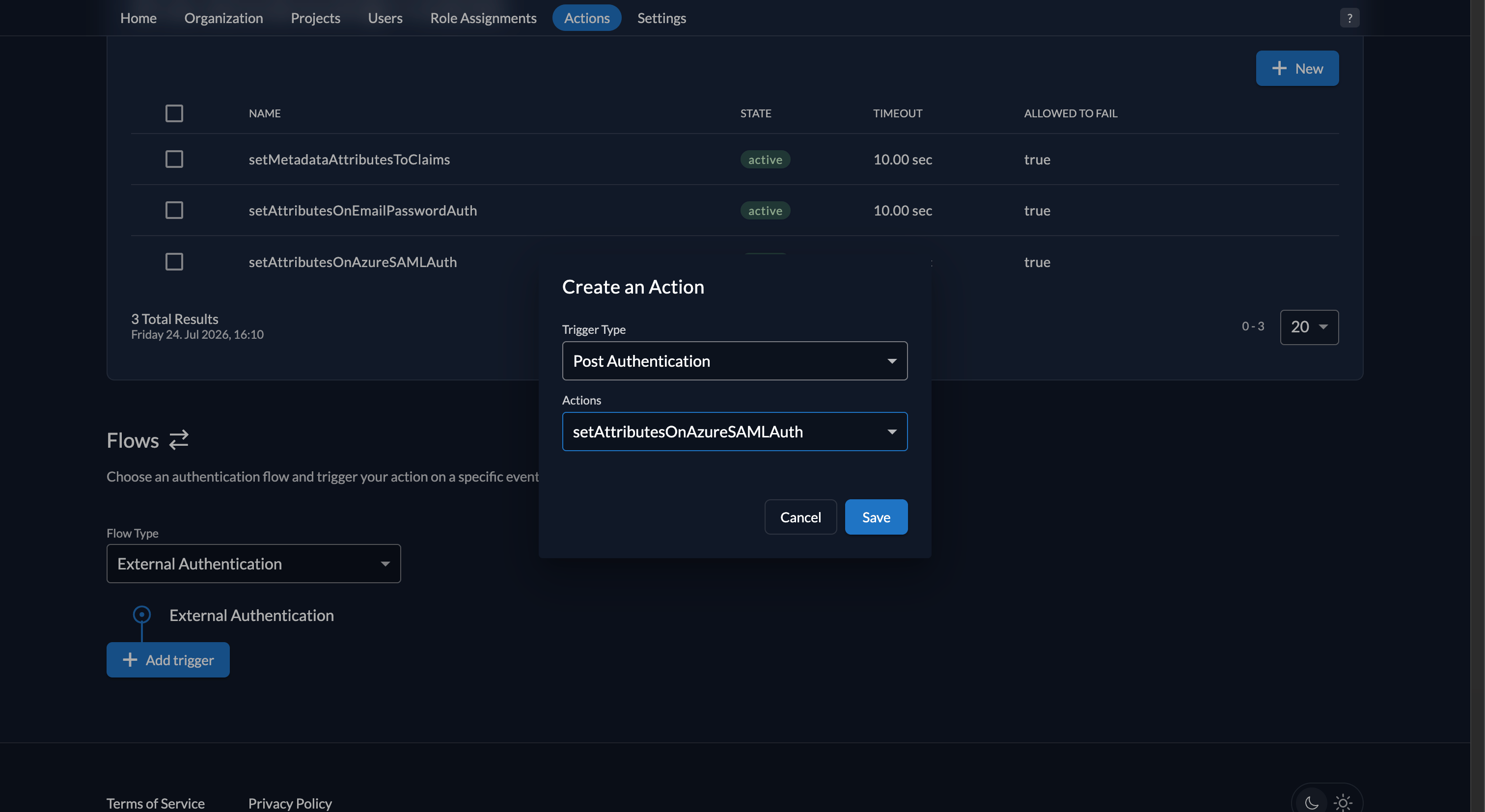 1. Select the *External Authentication* option for the *Flow Type* dropdown.
2. Select the *+ Add trigger* button.
3. Select the *Post Authentication* option for the *Trigger Type* dropdown.
4. Select the *setAttributesOnAzureSAMLAuth* option for the *Actions* dropdown.
5. Select the *Save* button.
Add an organization metadata key so Fiddler can correctly identify and process this SSO connection. Set this once during setup.
1. Go to the *Metadata* section and select *Edit*.
1. Select the *External Authentication* option for the *Flow Type* dropdown.
2. Select the *+ Add trigger* button.
3. Select the *Post Authentication* option for the *Trigger Type* dropdown.
4. Select the *setAttributesOnAzureSAMLAuth* option for the *Actions* dropdown.
5. Select the *Save* button.
Add an organization metadata key so Fiddler can correctly identify and process this SSO connection. Set this once during setup.
1. Go to the *Metadata* section and select *Edit*.
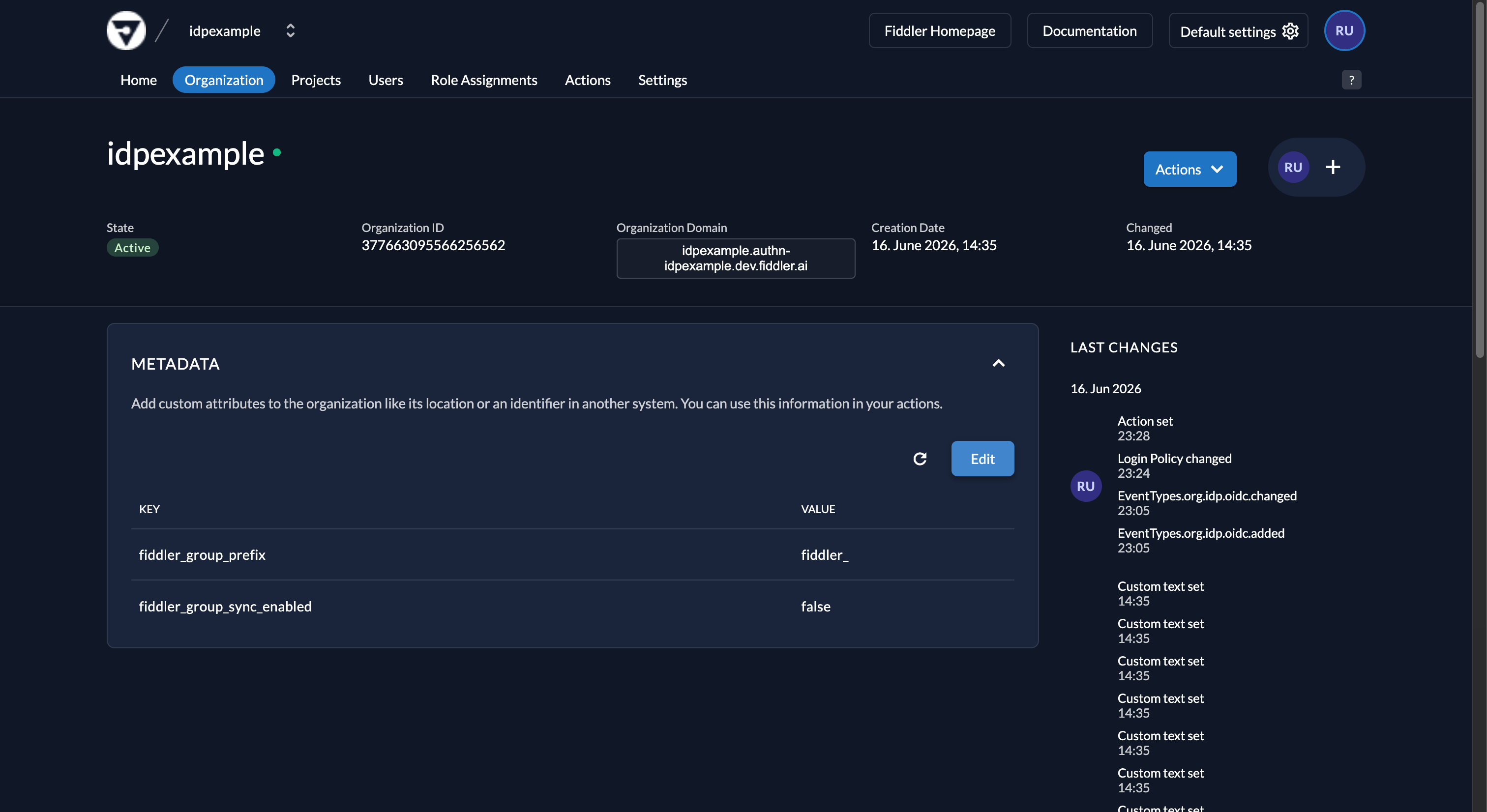 2. Select the *Add* button, then enter the key `fiddler_sso_authentication_type` with the value `SSO:AZURE:SAML`.
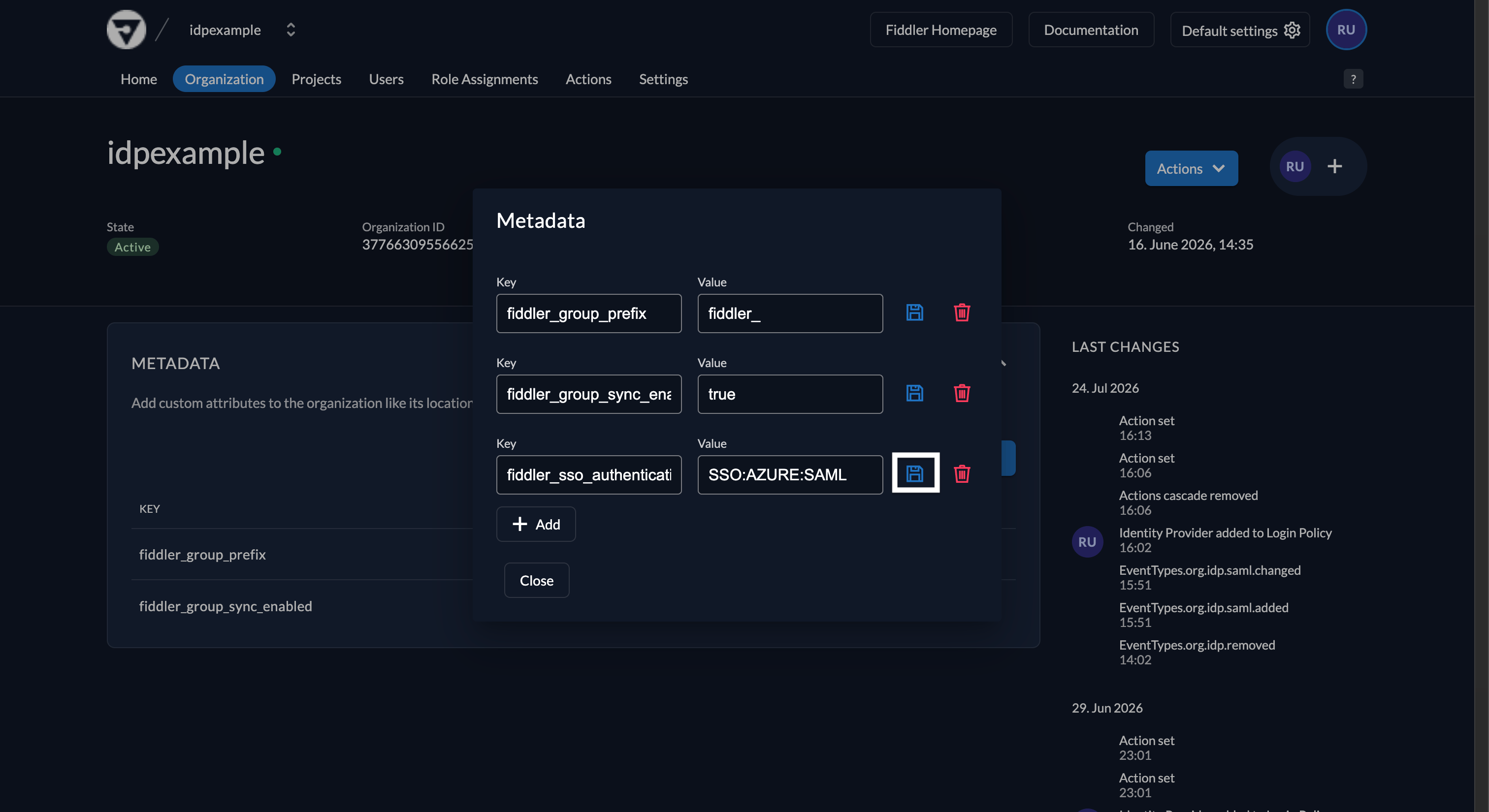 3. Select the *Save* button next to the new entry.
Before validating, ensure your Entra ID account is assigned to the enterprise application you created.
1. Open your Fiddler URL (e.g. `https://idpexample.dev.fiddler.ai`).
2. Ensure you see the Fiddler sign-in page and that it displays an SSO login button labeled with the name you configured (e.g. *Entra ID SAML*).
3. Select the *Save* button next to the new entry.
Before validating, ensure your Entra ID account is assigned to the enterprise application you created.
1. Open your Fiddler URL (e.g. `https://idpexample.dev.fiddler.ai`).
2. Ensure you see the Fiddler sign-in page and that it displays an SSO login button labeled with the name you configured (e.g. *Entra ID SAML*).
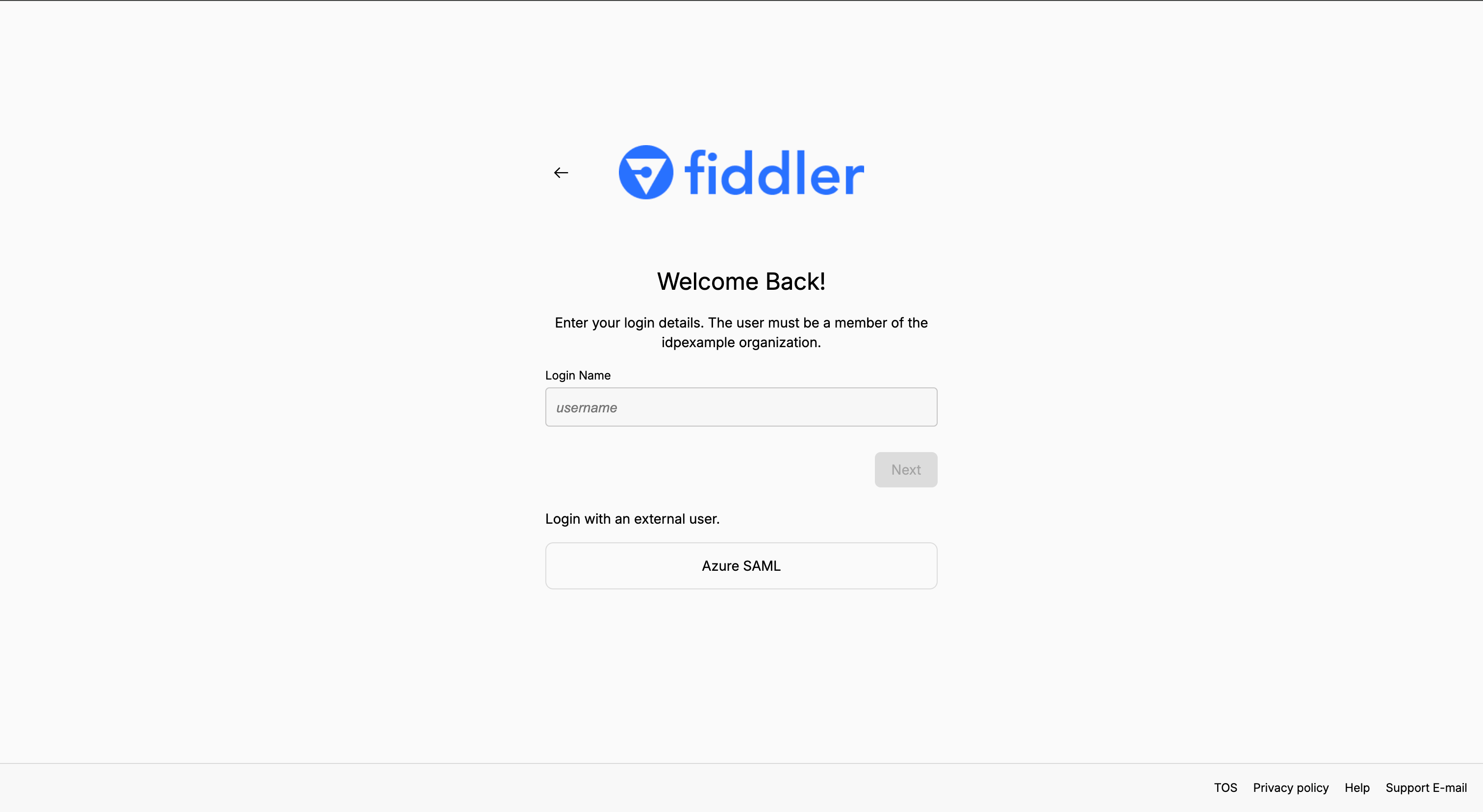 3. Select the button and confirm that the Fiddler application loads.
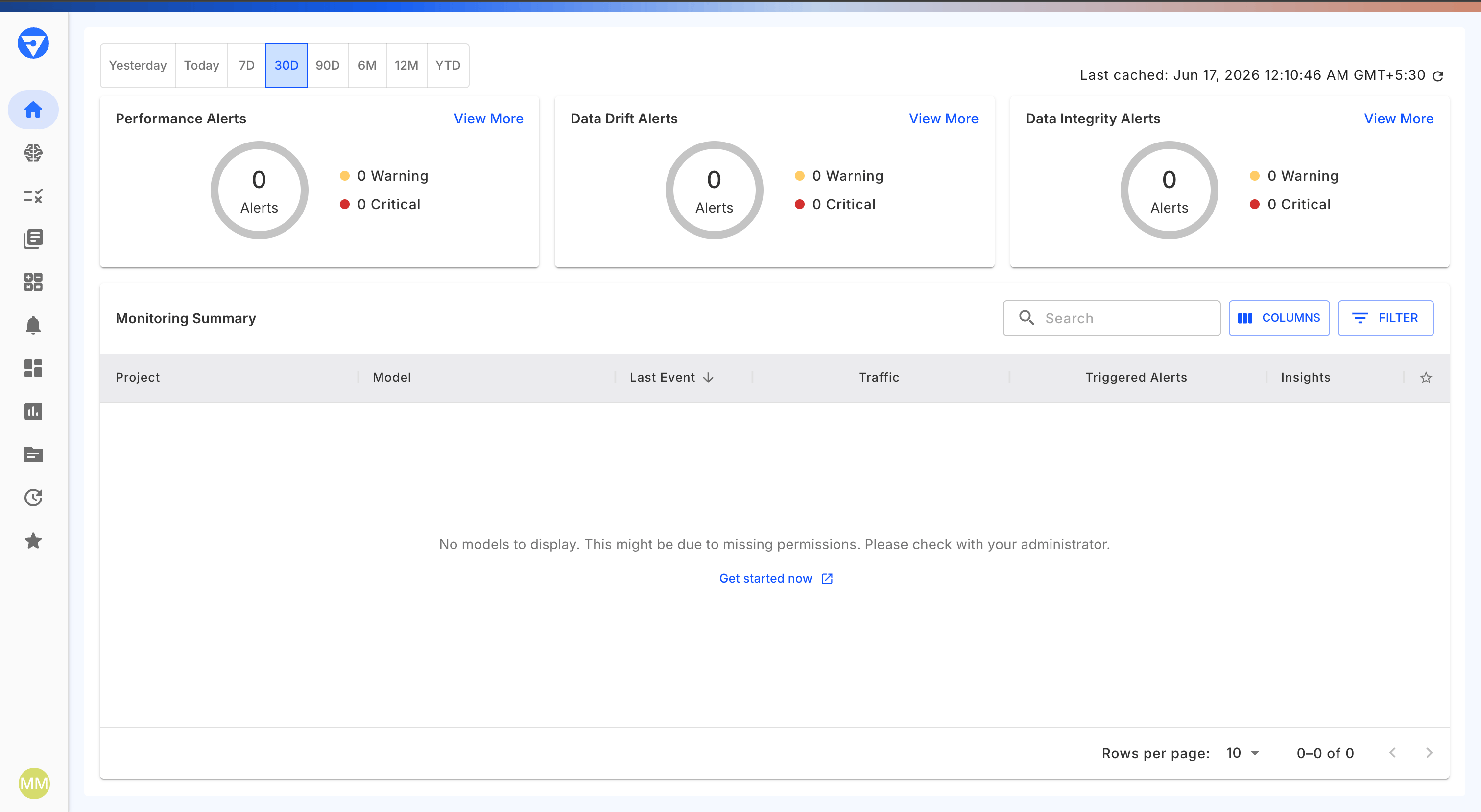 The first user to sign in to the Fiddler application is automatically assigned the Fiddler Org Admin role; subsequent members are Org Members by default.
## Enable Group Sync
Fiddler maps identity provider group **names** (with a configurable prefix) to Fiddler teams and roles — see [Mapping AD Groups to Fiddler Teams](/reference/access-control/mapping-ad-groups-to-fiddler-teams) for the naming convention. By default, Entra ID emits group **IDs** (GUIDs) in the SAML assertion, which Fiddler cannot map — so group sync requires emitting group display names.
### Cloud-Native Groups
1. In the enterprise application, go to *Users and groups* and assign the groups that should be sent to Fiddler. Only groups assigned to the application are returned, and each user must be a **direct** member — nested group memberships are not emitted.
2. In *Single sign-on → Attributes & Claims*, open the `groups` claim and set *Source attribute* to *Cloud-only group display names*.
3. Select *Save*.
### On-Premises-Synced Groups
For groups synced from on-premises AD via Microsoft Entra Connect (version 1.2.70 or later), set the group claim's *Source attribute* to *sAMAccountName*. In a hybrid setup with both synced and cloud-only groups, also select the *Emit group name for cloud-only groups* checkbox.
Without a P1 or P2 license, groups cannot be assigned to the application. In that case, set the group claim scope to *Security groups* instead of *Groups assigned to the application* — this requires no group assignment or premium license, but emits **all** of the user's synced groups rather than only those scoped to the application.
Entra ID emits at most 150 groups in a SAML assertion. Beyond that, Entra ID replaces the group values with an overage claim linking to Microsoft Graph, which Fiddler cannot resolve — group sync stops, even though a group claim is still present in the assertion. Scoping the claim to groups assigned to the application keeps you well under this limit.
## Rotating the SAML Signing Certificate
Entra ID signs SAML assertions with a certificate that expires (three years by default). When it expires, users can no longer sign in via SSO until a new certificate is active and Fiddler has refreshed the federation metadata.
1. In the enterprise application, go to *Single sign-on → SAML Certificates* and select *Edit*.
2. Select *New Certificate*, then *Save*.
3. When ready to cut over, make the new certificate active (*Make certificate active*).
4. In the Fiddler AuthN console, open the Entra ID SAML identity provider, clear the prefilled *Metadata XML* value, re-paste the *App Federation Metadata Url* into the *Metadata URL* field, and select *Save* so Fiddler fetches the metadata containing the new signing certificate.
5. Validate sign-in immediately after the cutover.
## Getting Help
If sign-in fails, review the Entra ID sign-in logs (*Entra ID → Monitoring & health → Sign-in logs*) for the failed attempt and its reason. Common Entra error codes:
* `AADSTS50105` — the user is not assigned to the application. Assign the user (or their group) to the enterprise application.
* `AADSTS50011` — the reply URL does not match. Verify the *Reply URL* values exactly match the *ZITADEL ACS Login Form URL* and *ZITADEL ACS Intent API URL* from the AuthN console.
* `AADSTS700016` — the application was not found. Verify the *Identifier (Entity ID)* exactly matches the *ZITADEL Metadata URL*, character for character.
* `AADSTS750054` — the SAML request was not present in the request. Verify the *Binding* is set to *SAML\_POST\_BINDING* in the AuthN console provider settings.
If sign-in fails with a **Response invalid** error (`Errors.Intent.ResponseInvalid` — "cannot validate signature on Assertion" in the AuthN service logs), the identity provider is holding Entra ID's tenant-level certificates: the metadata was fetched before Entra ID activated the application's signing certificate. In the AuthN console, open the identity provider, clear the prefilled *Metadata XML* value, re-paste the *App Federation Metadata Url* into the *Metadata URL* field, and select *Save* to refresh the metadata, then retry sign-in.
For Fiddler-side issues, see the [SSO Authentication Guide](/reference/access-control/sso-authentication-guide). If the issue persists, contact your Fiddler representative with the specific error message.
## Important Notes
* **Data Storage**: Fiddler stores the following profile attributes from Entra ID: first name, last name, display name, email address, and group memberships (used to map users to Fiddler teams).
* **API Access**: For programmatic API access, users create an API key from the *Credentials* tab in Fiddler's *Settings* page.
* **Single Authentication Method**: Users can only authenticate via either SSO or email authentication, not both.
* **Certificate Expiration**: The Entra ID SAML signing certificate expires. Track the expiry date and rotate it before it lapses — see [Rotating the SAML Signing Certificate](#rotating-the-saml-signing-certificate).
* **Guest Accounts**: Entra ID guest users carry an external UPN (containing `#EXT#`); Fiddler uses the `email` attribute as the username instead, so ensure guest accounts have their *Mail* attribute populated.
## Next Steps
After successful integration:
* **Train Users**: Provide guidance on accessing Fiddler through Microsoft Entra ID SSO.
* **Configure Teams**: Map your Entra ID groups to Fiddler teams — see [Mapping AD Groups to Fiddler Teams](/reference/access-control/mapping-ad-groups-to-fiddler-teams).
* **Test Group Sync**: Verify automatic group synchronization is working as expected.
* **Monitor Usage**: Review authentication logs and set a reminder for signing certificate expiration.
The first user to sign in to the Fiddler application is automatically assigned the Fiddler Org Admin role; subsequent members are Org Members by default.
## Enable Group Sync
Fiddler maps identity provider group **names** (with a configurable prefix) to Fiddler teams and roles — see [Mapping AD Groups to Fiddler Teams](/reference/access-control/mapping-ad-groups-to-fiddler-teams) for the naming convention. By default, Entra ID emits group **IDs** (GUIDs) in the SAML assertion, which Fiddler cannot map — so group sync requires emitting group display names.
### Cloud-Native Groups
1. In the enterprise application, go to *Users and groups* and assign the groups that should be sent to Fiddler. Only groups assigned to the application are returned, and each user must be a **direct** member — nested group memberships are not emitted.
2. In *Single sign-on → Attributes & Claims*, open the `groups` claim and set *Source attribute* to *Cloud-only group display names*.
3. Select *Save*.
### On-Premises-Synced Groups
For groups synced from on-premises AD via Microsoft Entra Connect (version 1.2.70 or later), set the group claim's *Source attribute* to *sAMAccountName*. In a hybrid setup with both synced and cloud-only groups, also select the *Emit group name for cloud-only groups* checkbox.
Without a P1 or P2 license, groups cannot be assigned to the application. In that case, set the group claim scope to *Security groups* instead of *Groups assigned to the application* — this requires no group assignment or premium license, but emits **all** of the user's synced groups rather than only those scoped to the application.
Entra ID emits at most 150 groups in a SAML assertion. Beyond that, Entra ID replaces the group values with an overage claim linking to Microsoft Graph, which Fiddler cannot resolve — group sync stops, even though a group claim is still present in the assertion. Scoping the claim to groups assigned to the application keeps you well under this limit.
## Rotating the SAML Signing Certificate
Entra ID signs SAML assertions with a certificate that expires (three years by default). When it expires, users can no longer sign in via SSO until a new certificate is active and Fiddler has refreshed the federation metadata.
1. In the enterprise application, go to *Single sign-on → SAML Certificates* and select *Edit*.
2. Select *New Certificate*, then *Save*.
3. When ready to cut over, make the new certificate active (*Make certificate active*).
4. In the Fiddler AuthN console, open the Entra ID SAML identity provider, clear the prefilled *Metadata XML* value, re-paste the *App Federation Metadata Url* into the *Metadata URL* field, and select *Save* so Fiddler fetches the metadata containing the new signing certificate.
5. Validate sign-in immediately after the cutover.
## Getting Help
If sign-in fails, review the Entra ID sign-in logs (*Entra ID → Monitoring & health → Sign-in logs*) for the failed attempt and its reason. Common Entra error codes:
* `AADSTS50105` — the user is not assigned to the application. Assign the user (or their group) to the enterprise application.
* `AADSTS50011` — the reply URL does not match. Verify the *Reply URL* values exactly match the *ZITADEL ACS Login Form URL* and *ZITADEL ACS Intent API URL* from the AuthN console.
* `AADSTS700016` — the application was not found. Verify the *Identifier (Entity ID)* exactly matches the *ZITADEL Metadata URL*, character for character.
* `AADSTS750054` — the SAML request was not present in the request. Verify the *Binding* is set to *SAML\_POST\_BINDING* in the AuthN console provider settings.
If sign-in fails with a **Response invalid** error (`Errors.Intent.ResponseInvalid` — "cannot validate signature on Assertion" in the AuthN service logs), the identity provider is holding Entra ID's tenant-level certificates: the metadata was fetched before Entra ID activated the application's signing certificate. In the AuthN console, open the identity provider, clear the prefilled *Metadata XML* value, re-paste the *App Federation Metadata Url* into the *Metadata URL* field, and select *Save* to refresh the metadata, then retry sign-in.
For Fiddler-side issues, see the [SSO Authentication Guide](/reference/access-control/sso-authentication-guide). If the issue persists, contact your Fiddler representative with the specific error message.
## Important Notes
* **Data Storage**: Fiddler stores the following profile attributes from Entra ID: first name, last name, display name, email address, and group memberships (used to map users to Fiddler teams).
* **API Access**: For programmatic API access, users create an API key from the *Credentials* tab in Fiddler's *Settings* page.
* **Single Authentication Method**: Users can only authenticate via either SSO or email authentication, not both.
* **Certificate Expiration**: The Entra ID SAML signing certificate expires. Track the expiry date and rotate it before it lapses — see [Rotating the SAML Signing Certificate](#rotating-the-saml-signing-certificate).
* **Guest Accounts**: Entra ID guest users carry an external UPN (containing `#EXT#`); Fiddler uses the `email` attribute as the username instead, so ensure guest accounts have their *Mail* attribute populated.
## Next Steps
After successful integration:
* **Train Users**: Provide guidance on accessing Fiddler through Microsoft Entra ID SSO.
* **Configure Teams**: Map your Entra ID groups to Fiddler teams — see [Mapping AD Groups to Fiddler Teams](/reference/access-control/mapping-ad-groups-to-fiddler-teams).
* **Test Group Sync**: Verify automatic group synchronization is working as expected.
* **Monitor Usage**: Review authentication logs and set a reminder for signing certificate expiration.