> ## Documentation Index
> Fetch the complete documentation index at: https://docs.fiddler.ai/llms.txt
> Use this file to discover all available pages before exploring further.
# PagerDuty
> Discover how customer churn prediction works with Fiddler’s AI observability platform. Follow our example to detect and diagnose issues step by step.
Fiddler offers powerful alerting tools for monitoring models. By integrating with
PagerDuty services, you gain the ability to trigger PagerDuty events within your monitoring
workflow.
> 📘 If your organization has already integrated with PagerDuty, then you may skip to the [Setup: In Fiddler](#setup-in-fiddler) section to learn more about setting up PagerDuty within Fiddler.
### Setup: In PagerDuty
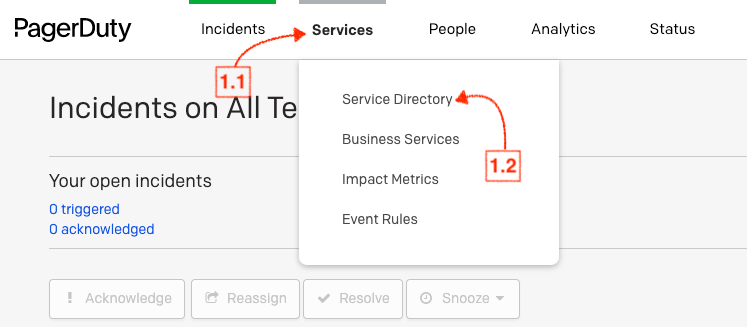
1. Within your PagerDuty Team, navigate to **Services** → **Service Directory**.
 2. Within the Service Directory:
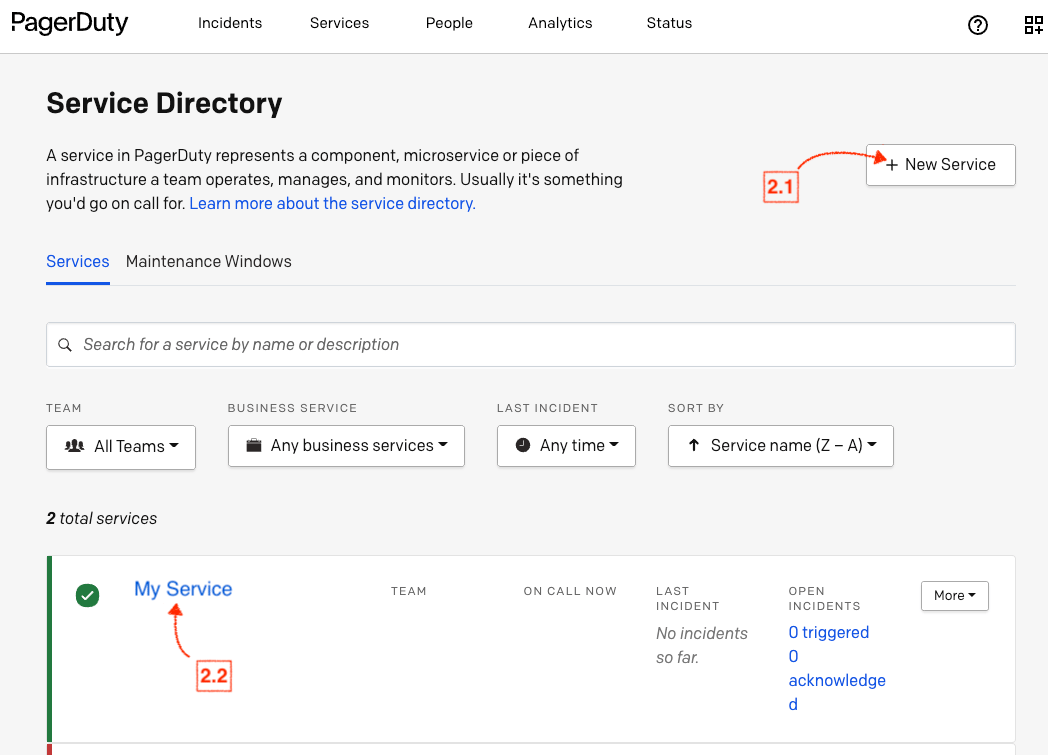
* If you are creating a new service for integration, select **+New Service** and follow the prompts to create your service.
* Click the **name of the service** you want to integrate with.
2. Within the Service Directory:
* If you are creating a new service for integration, select **+New Service** and follow the prompts to create your service.
* Click the **name of the service** you want to integrate with.
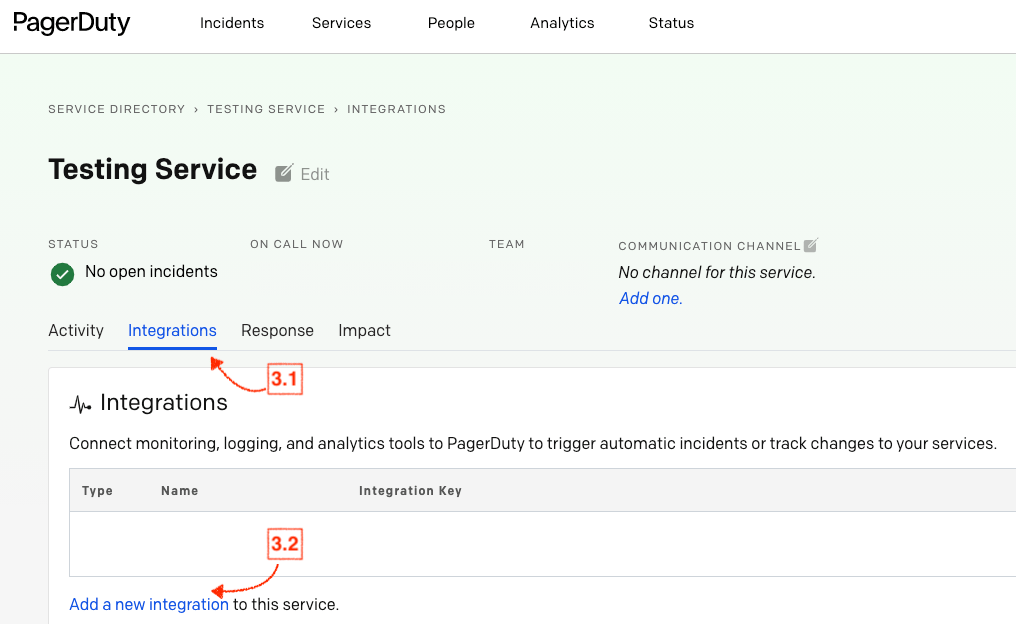
 3. Navigate to **Integrations** within your service, and select **Add a new integration to this service**.
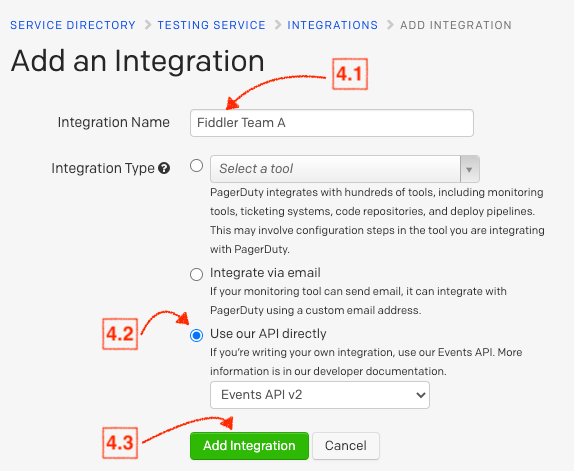
 4. Enter an **Integration Name**, and under **Integration Type** select the option **Use our API directly**. Then, select the **Add Integration** button to save your new integration. You will be redirected to the Integrations page for your service.
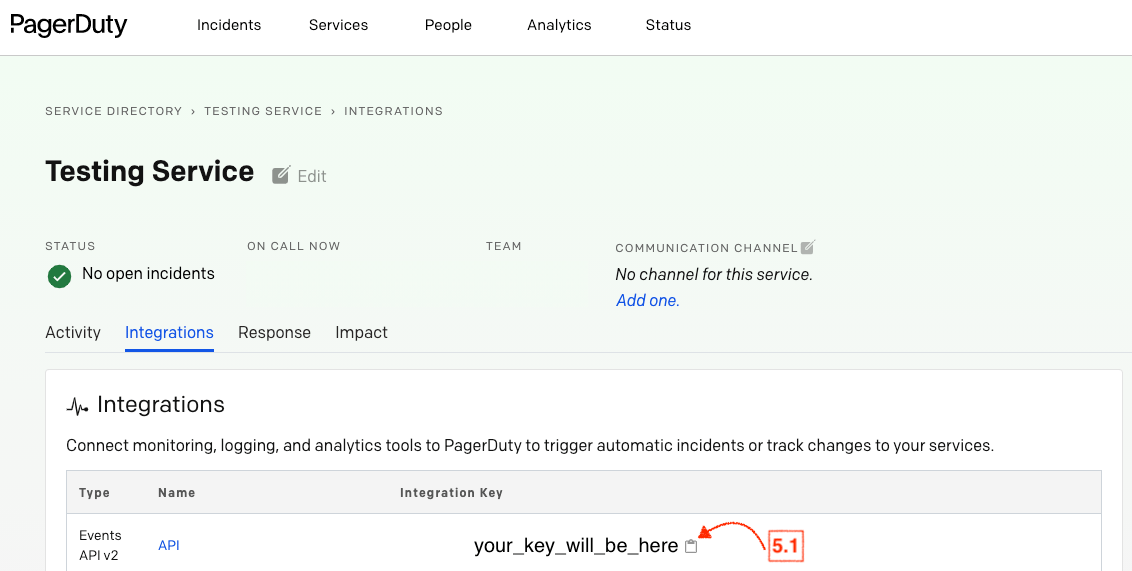
 5. Copy the **Integration Key** for your new integration.
 ### Setup: In Fiddler
1. Within **Fiddler**, navigate to the **Settings** page, and then to the **PagerDuty Integration** menu. If your organization **already has a PagerDuty service integrated with Fiddler**, you will be able to find it in the list of services.
### Setup: In Fiddler
1. Within **Fiddler**, navigate to the **Settings** page, and then to the **PagerDuty Integration** menu. If your organization **already has a PagerDuty service integrated with Fiddler**, you will be able to find it in the list of services.
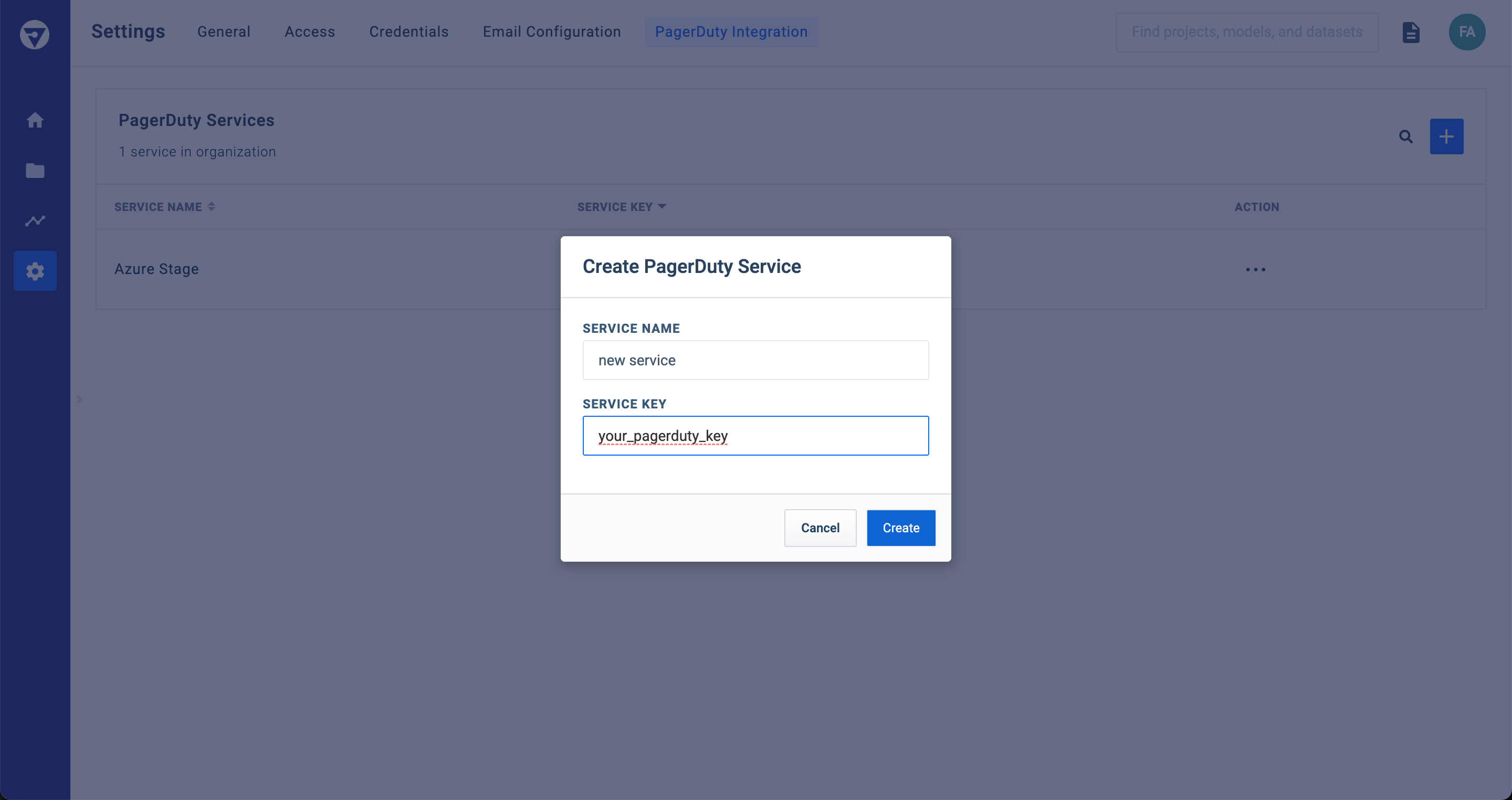
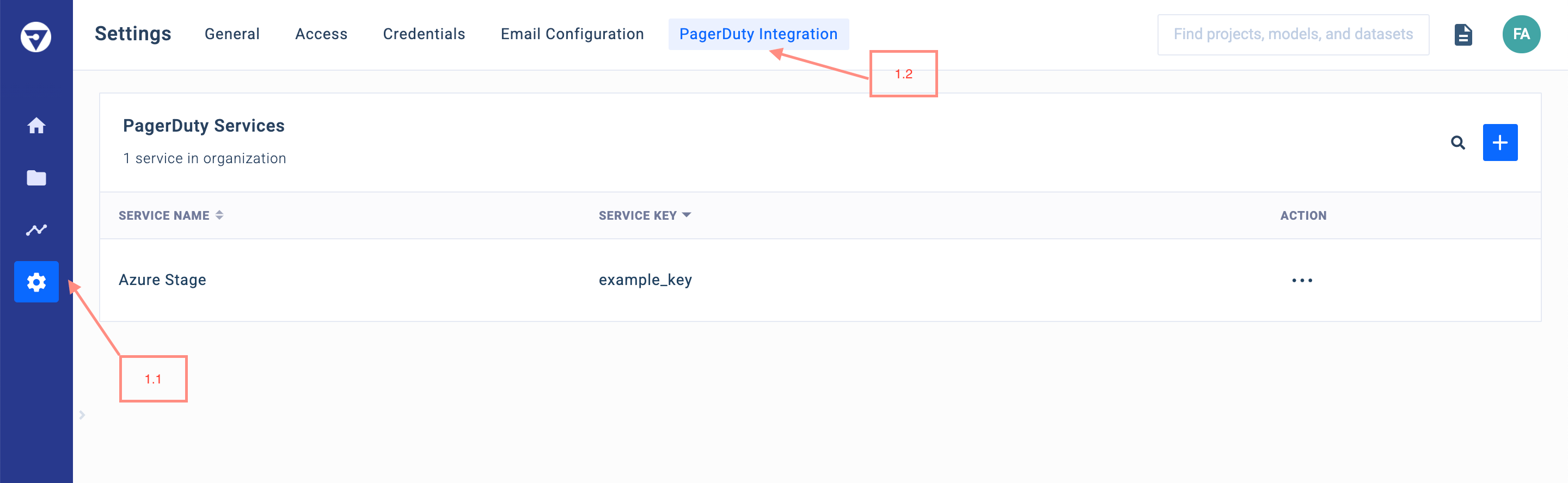 2. If you are looking to integrate with a new service, select the **`+`** box on the top right. Then, enter the name of your service, as well as the Integration Key copied from the end of the [Setup: In PagerDuty](#setup-in-pagerduty) section above. After creation, confirm that your new entry is now in the list of available services.
 > 🚧 Creating, editing, and deleting these services is an **ADMINISTRATOR**-only privilege. Please contact an **ADMINISTRATOR** within your organization to set up any new PagerDuty services
### PagerDuty Alerts in Fiddler
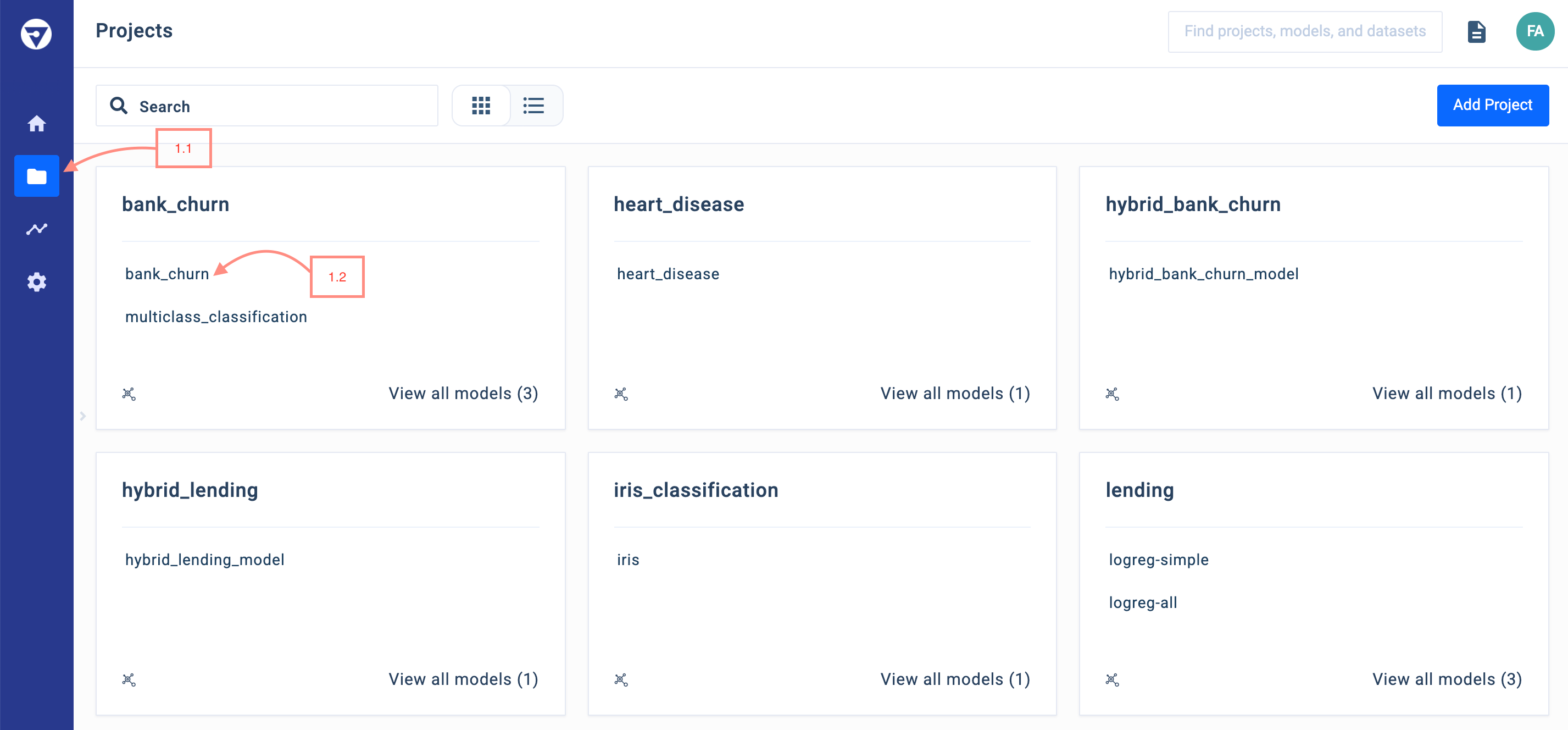
1. Within the **Projects** page, select the model you wish to use with PagerDuty.
> 🚧 Creating, editing, and deleting these services is an **ADMINISTRATOR**-only privilege. Please contact an **ADMINISTRATOR** within your organization to set up any new PagerDuty services
### PagerDuty Alerts in Fiddler
1. Within the **Projects** page, select the model you wish to use with PagerDuty.
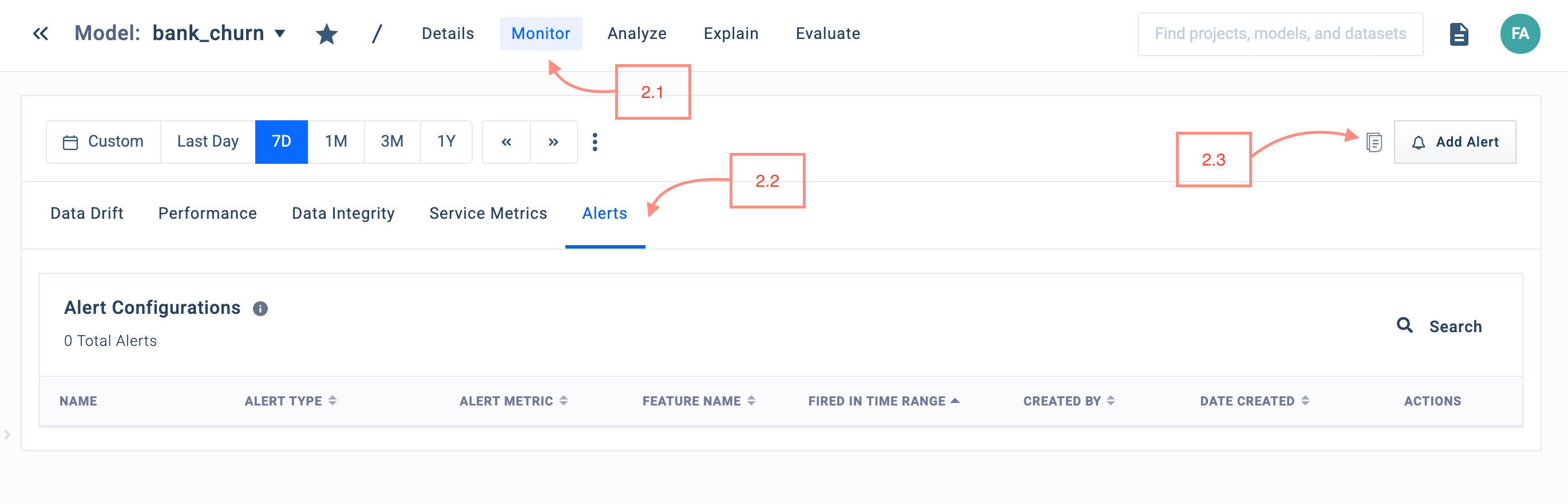
 2. Select **Monitor** → **Alerts** → **Add Alert**.
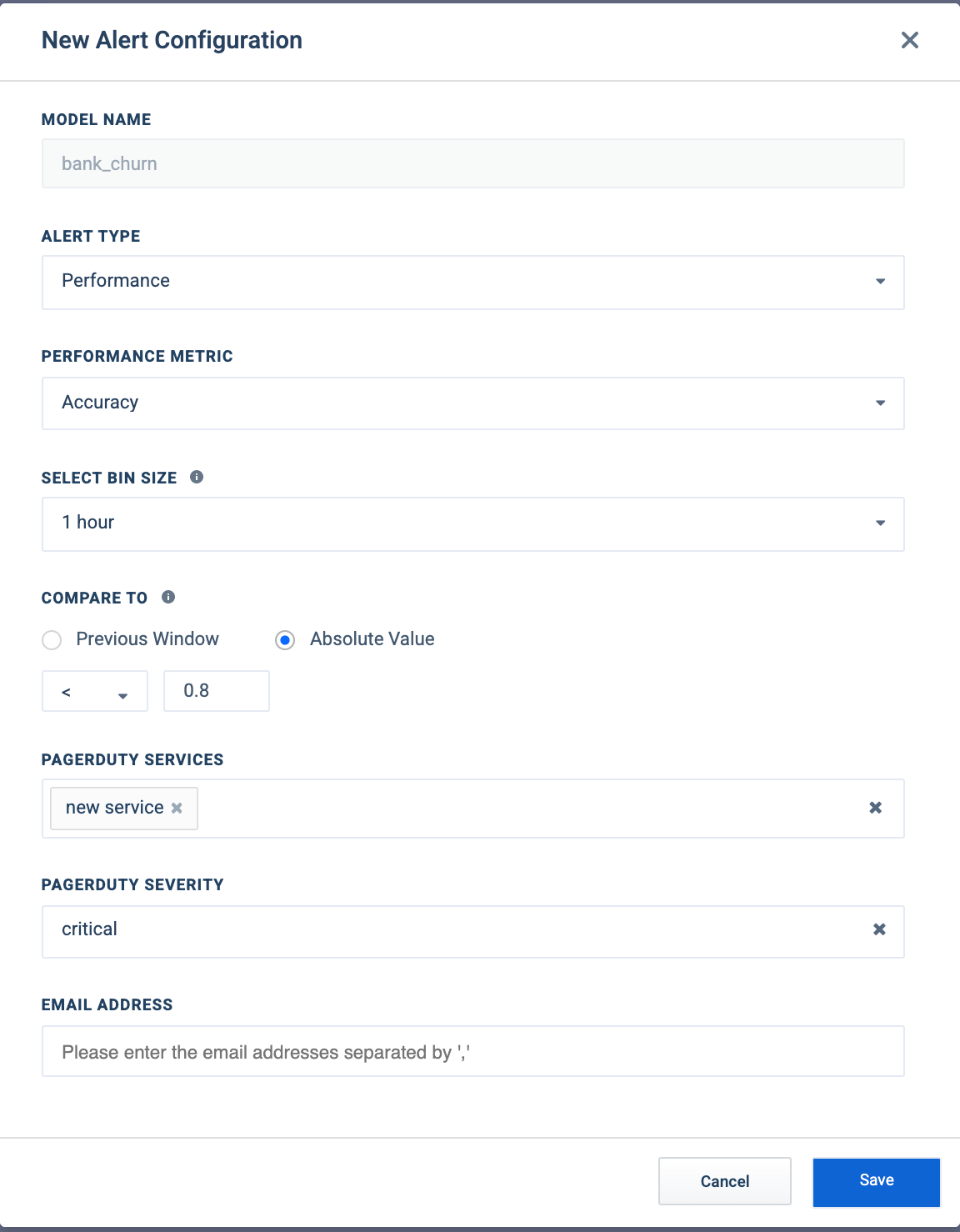
 3. Enter the condition you would like to alert on, and under **PagerDuty Services**, select all services you would like the alert to trigger for. Additionally, select the **Severity** of this alert, and hit **Save**.
 4. After creation, the alert will now trigger for the specified PagerDuty services.
> 📘 Info
>
> Check out the [alerts documentation](/developers/python-client-guides/alerts-with-fiddler-client) for more information on setting up alerts.
### FAQ
**Can Fiddler integrate with multiple PagerDuty services?**
* Yes. So long as the service is present within **Settings** → **PagerDuty Services**, anyone within your organization can select that service to be a recipient for an alert.
4. After creation, the alert will now trigger for the specified PagerDuty services.
> 📘 Info
>
> Check out the [alerts documentation](/developers/python-client-guides/alerts-with-fiddler-client) for more information on setting up alerts.
### FAQ
**Can Fiddler integrate with multiple PagerDuty services?**
* Yes. So long as the service is present within **Settings** → **PagerDuty Services**, anyone within your organization can select that service to be a recipient for an alert.