> ## Documentation Index
> Fetch the complete documentation index at: https://docs.fiddler.ai/llms.txt
> Use this file to discover all available pages before exploring further.
# LangChain SDK Quick Start
> Monitor AI agent behavior in LangChain V1 applications. The Fiddler LangChain SDK provides real-time observability for `create_agent`-based workflows and middleware pipelines.
Instrument your LangChain V1 application with the Fiddler LangChain SDK in under 10 minutes.
## What You'll Learn
By completing this quick start, you'll:
* Set up monitoring for a LangChain V1 (`langchain.agents.create_agent`) application
* Send your first traces to Fiddler
* Verify data collection in the Fiddler dashboard
* Understand basic conversation tracking
**Before you begin, ensure you have**:
* **Python 3.10** or higher (up to Python 3.14)
* **Valid Fiddler account** with access to your instance
* **A LangChain V1 application** built with `langchain.agents.create_agent`
* **Network connectivity** to your Fiddler instance
**Supported Python Versions:**
* Python 3.10-3.14
**Framework Compatibility:**
* **LangChain V1:** `langchain >= 1.0` (the `create_agent` / middleware API)
**Core Dependencies:**
The SDK automatically installs these OpenTelemetry components:
* `opentelemetry-api`
* `opentelemetry-sdk`
* `opentelemetry-instrumentation`
* `opentelemetry-exporter-otlp-proto-http`
* `fiddler-otel` (transitive — provides `FiddlerClient`)
**Set Up Your Fiddler Application**
1. **Create your application in Fiddler**
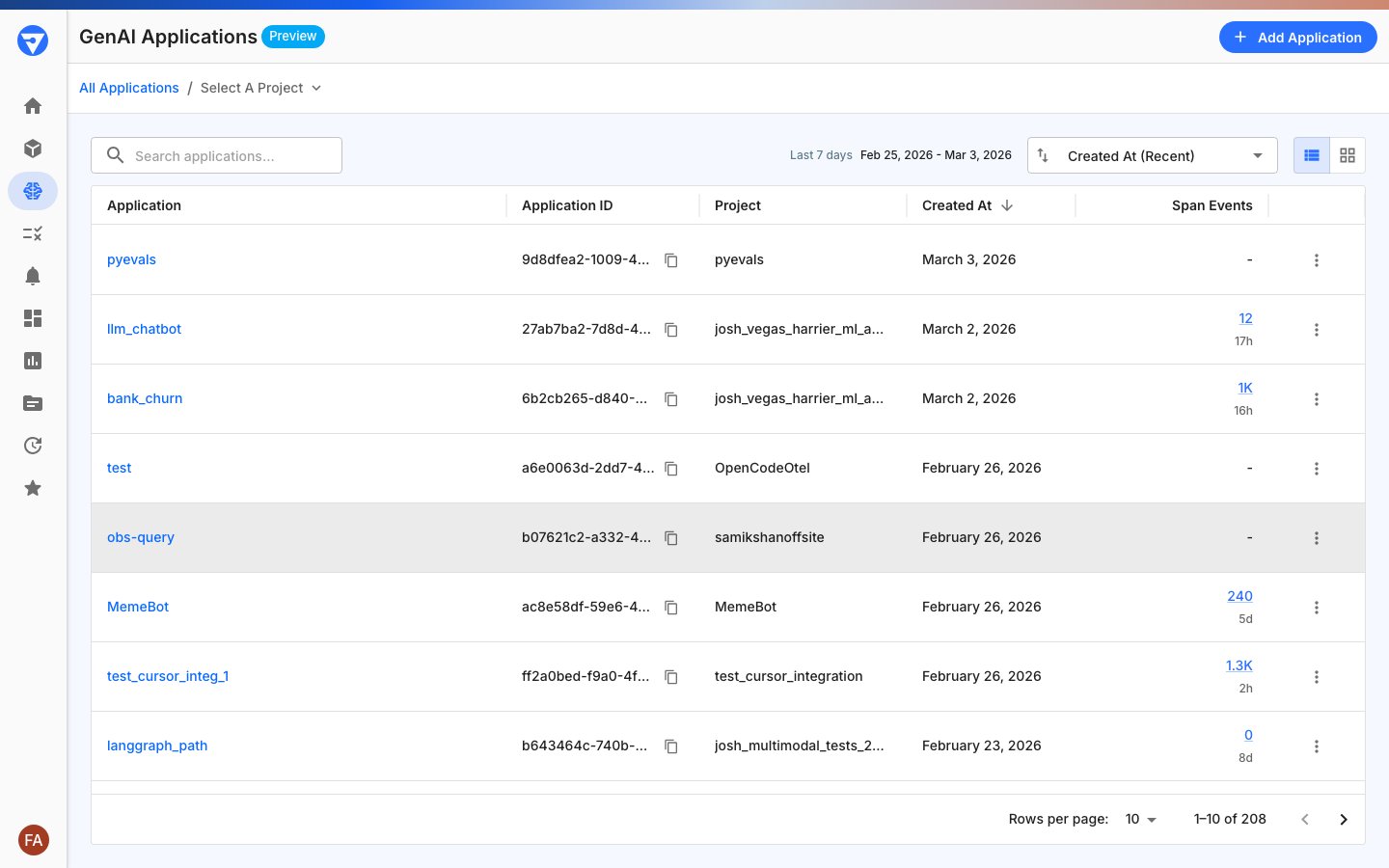
Log in to your Fiddler instance and navigate to **GenAI Applications**, then click **Add Application** and follow the onboarding wizard to create your application.
 2. **Copy your Application ID**
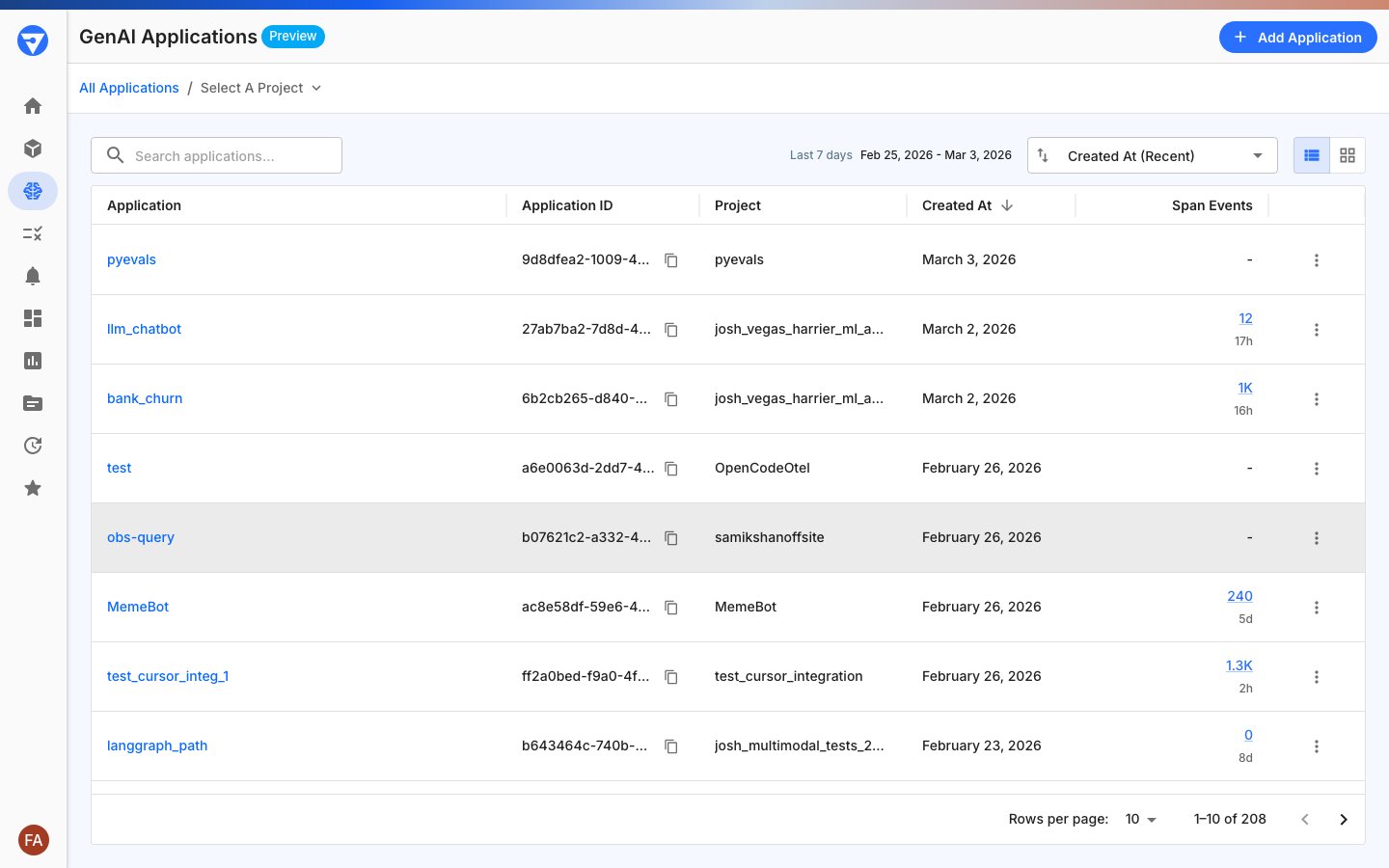
After creating your application, copy the **Application ID** from the GenAI Applications page using the copy icon next to the ID. This must be a valid UUID4 format (for example, `550e8400-e29b-41d4-a716-446655440000`). You'll need this for Step 3.
2. **Copy your Application ID**
After creating your application, copy the **Application ID** from the GenAI Applications page using the copy icon next to the ID. This must be a valid UUID4 format (for example, `550e8400-e29b-41d4-a716-446655440000`). You'll need this for Step 3.
 3. **Get Your Access Token**
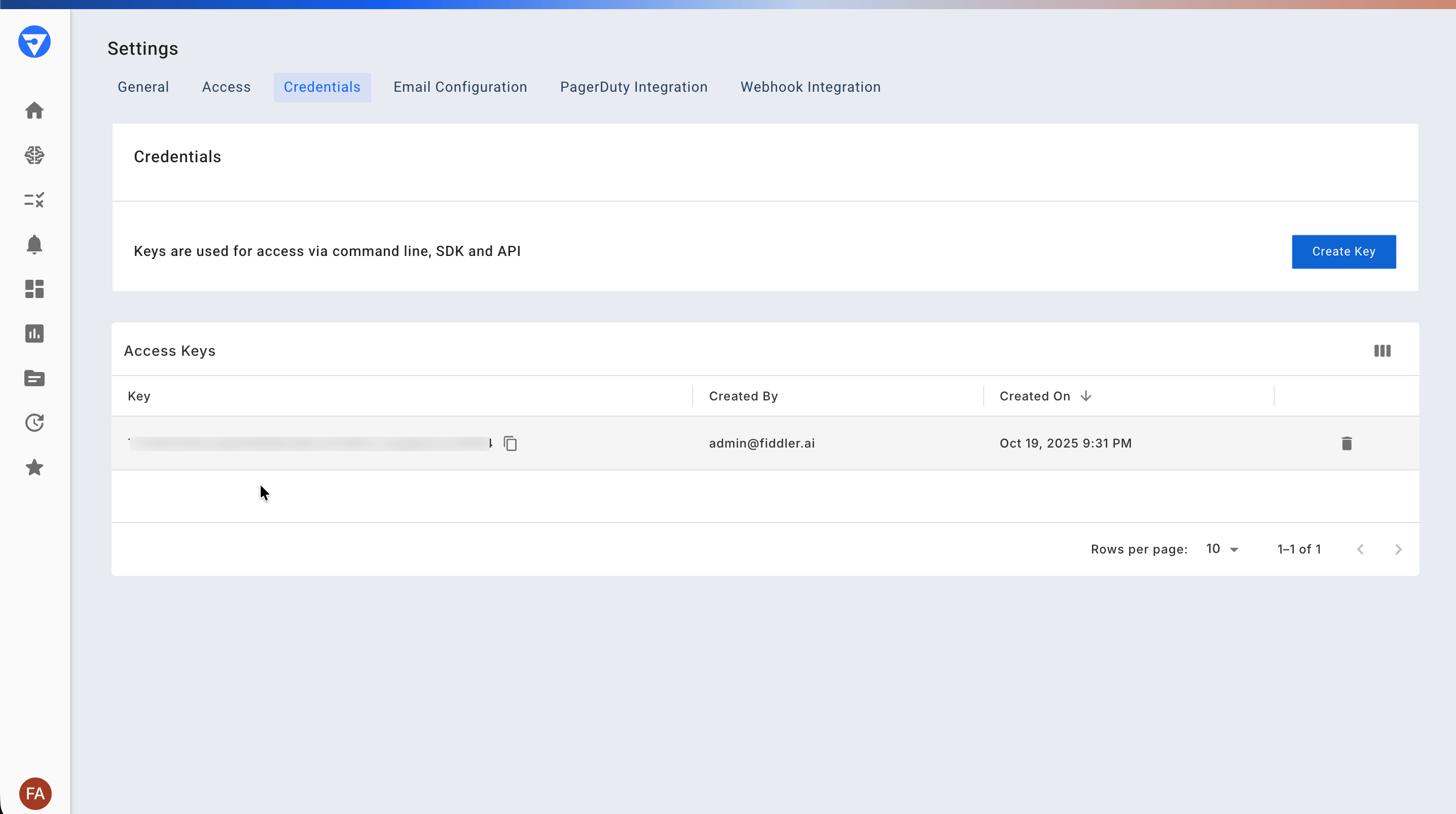
Go to **Settings** > **Credentials** and copy your access token. You'll need this for Step 3. Refer to the [documentation](/reference/administration/settings#credentials) for more details.
3. **Get Your Access Token**
Go to **Settings** > **Credentials** and copy your access token. You'll need this for Step 3. Refer to the [documentation](/reference/administration/settings#credentials) for more details.
 **Install the Fiddler LangChain SDK**
For the stable release, install the Fiddler LangChain SDK using pip:
```bash theme={null}
pip install fiddler-langchain
```
**Instrument Your Application**
Add the Fiddler LangChain SDK to your application with just a few lines of code. The instrumentor patches `langchain.agents.create_agent` so every agent created afterwards is traced automatically — no per-agent middleware configuration is required.
```python theme={null}
import langchain.agents
from fiddler_otel import FiddlerClient
from fiddler_langchain import FiddlerLangChainInstrumentor
# Initialize the FiddlerClient. Replace the placeholder values below.
fdl_client = FiddlerClient(
application_id='', # Application ID copied from UI in Step 1
api_key='', # Your access token
url='', # https://your-instance.fiddler.ai
)
# Instrument LangChain V1 — must run BEFORE you call create_agent()
instrumentor = FiddlerLangChainInstrumentor(client=fdl_client)
instrumentor.instrument()
# Use the module attribute so the patched create_agent is called.
# (If you prefer `from langchain.agents import create_agent`, call
# `instrument()` BEFORE that import.)
agent = langchain.agents.create_agent(
model="openai:gpt-4o-mini",
tools=[...],
name="my_agent", # used as the root span label in traces
)
# Your existing LangChain code runs normally
# Traces will automatically be sent to Fiddler
```
**Add Context and Conversation Tracking**
The main goal of context setting is to enrich the telemetry data sent to Fiddler:
```python theme={null}
from fiddler_langchain import set_llm_context, set_conversation_id
import uuid
# Attach descriptive context to a specific model — appears on its LLM spans.
set_llm_context(model, 'Customer support conversation')
# Set a conversation ID for tracking multi-turn conversations
set_conversation_id(str(uuid.uuid4()))
```
**Manual middleware alternative.** If you prefer not to use the auto-instrumentor, pass `middleware=[FiddlerAgentMiddleware(client=client, agent_name="my_agent")]` directly to each `create_agent()` call. See the [FiddlerAgentMiddleware](/sdk-api/langchain/fiddler-agent-middleware) reference for details.
**Need more control?** This Quick Start uses auto-instrumentation, which traces every `create_agent`-based agent automatically. The SDK also supports per-component span attributes (`add_span_attributes`) and session attributes (`add_session_attributes`) for fine-grained metadata tagging.
**Run a Complete Example**
This example requires an OpenAI API key. You can create or find your key on the [API keys page](https://platform.openai.com/api-keys) of your OpenAI account.
Here's a complete working example to verify your setup:
```python theme={null}
import os
import uuid
import langchain.agents
from langchain_openai import ChatOpenAI
from langchain_core.tools import tool
from fiddler_otel import FiddlerClient
from fiddler_langchain import (
FiddlerLangChainInstrumentor,
set_conversation_id,
set_llm_context,
)
# Initialize the FiddlerClient. Replace the placeholder values below.
fdl_client = FiddlerClient(
application_id='', # Application ID copied from UI in Step 1
api_key='', # Your access token
url='', # https://your-instance.fiddler.ai
)
# Instrument LangChain V1 — must run BEFORE create_agent()
instrumentor = FiddlerLangChainInstrumentor(client=fdl_client)
instrumentor.instrument()
# Build a simple agent
model = ChatOpenAI(model="gpt-4o-mini")
@tool
def echo(text: str) -> str:
"""Echo back the input text."""
return text
agent = langchain.agents.create_agent(
model=model,
tools=[echo],
name="quickstart_agent",
)
# Set descriptive context for this interaction
set_llm_context(model, "Quick start example conversation")
# Generate and set a conversation ID
conversation_id = str(uuid.uuid4())
set_conversation_id(conversation_id)
# Run your agent — automatically instrumented
result = agent.invoke({
"messages": [{"role": "user", "content": "Hello! How are you?"}]
})
print("Response received:", result)
print("Conversation ID:", conversation_id)
```
**Short-lived scripts:** The SDK batches spans in memory and exports them on a schedule. If your script exits before the batch is sent, call `fdl_client.shutdown()` (or use `with FiddlerClient(...) as client:`) to flush pending spans. Long-running servers handle this automatically via `atexit`.
**Verify Monitoring is Working**
1. **Run your application** using the example above or your own instrumented code
2. **Check the Fiddler dashboard:** Navigate to **GenAI Applications** in your Fiddler instance
3. **Confirm active status:** If Fiddler successfully receives telemetry, your application will show as **Active**
**Install the Fiddler LangChain SDK**
For the stable release, install the Fiddler LangChain SDK using pip:
```bash theme={null}
pip install fiddler-langchain
```
**Instrument Your Application**
Add the Fiddler LangChain SDK to your application with just a few lines of code. The instrumentor patches `langchain.agents.create_agent` so every agent created afterwards is traced automatically — no per-agent middleware configuration is required.
```python theme={null}
import langchain.agents
from fiddler_otel import FiddlerClient
from fiddler_langchain import FiddlerLangChainInstrumentor
# Initialize the FiddlerClient. Replace the placeholder values below.
fdl_client = FiddlerClient(
application_id='', # Application ID copied from UI in Step 1
api_key='', # Your access token
url='', # https://your-instance.fiddler.ai
)
# Instrument LangChain V1 — must run BEFORE you call create_agent()
instrumentor = FiddlerLangChainInstrumentor(client=fdl_client)
instrumentor.instrument()
# Use the module attribute so the patched create_agent is called.
# (If you prefer `from langchain.agents import create_agent`, call
# `instrument()` BEFORE that import.)
agent = langchain.agents.create_agent(
model="openai:gpt-4o-mini",
tools=[...],
name="my_agent", # used as the root span label in traces
)
# Your existing LangChain code runs normally
# Traces will automatically be sent to Fiddler
```
**Add Context and Conversation Tracking**
The main goal of context setting is to enrich the telemetry data sent to Fiddler:
```python theme={null}
from fiddler_langchain import set_llm_context, set_conversation_id
import uuid
# Attach descriptive context to a specific model — appears on its LLM spans.
set_llm_context(model, 'Customer support conversation')
# Set a conversation ID for tracking multi-turn conversations
set_conversation_id(str(uuid.uuid4()))
```
**Manual middleware alternative.** If you prefer not to use the auto-instrumentor, pass `middleware=[FiddlerAgentMiddleware(client=client, agent_name="my_agent")]` directly to each `create_agent()` call. See the [FiddlerAgentMiddleware](/sdk-api/langchain/fiddler-agent-middleware) reference for details.
**Need more control?** This Quick Start uses auto-instrumentation, which traces every `create_agent`-based agent automatically. The SDK also supports per-component span attributes (`add_span_attributes`) and session attributes (`add_session_attributes`) for fine-grained metadata tagging.
**Run a Complete Example**
This example requires an OpenAI API key. You can create or find your key on the [API keys page](https://platform.openai.com/api-keys) of your OpenAI account.
Here's a complete working example to verify your setup:
```python theme={null}
import os
import uuid
import langchain.agents
from langchain_openai import ChatOpenAI
from langchain_core.tools import tool
from fiddler_otel import FiddlerClient
from fiddler_langchain import (
FiddlerLangChainInstrumentor,
set_conversation_id,
set_llm_context,
)
# Initialize the FiddlerClient. Replace the placeholder values below.
fdl_client = FiddlerClient(
application_id='', # Application ID copied from UI in Step 1
api_key='', # Your access token
url='', # https://your-instance.fiddler.ai
)
# Instrument LangChain V1 — must run BEFORE create_agent()
instrumentor = FiddlerLangChainInstrumentor(client=fdl_client)
instrumentor.instrument()
# Build a simple agent
model = ChatOpenAI(model="gpt-4o-mini")
@tool
def echo(text: str) -> str:
"""Echo back the input text."""
return text
agent = langchain.agents.create_agent(
model=model,
tools=[echo],
name="quickstart_agent",
)
# Set descriptive context for this interaction
set_llm_context(model, "Quick start example conversation")
# Generate and set a conversation ID
conversation_id = str(uuid.uuid4())
set_conversation_id(conversation_id)
# Run your agent — automatically instrumented
result = agent.invoke({
"messages": [{"role": "user", "content": "Hello! How are you?"}]
})
print("Response received:", result)
print("Conversation ID:", conversation_id)
```
**Short-lived scripts:** The SDK batches spans in memory and exports them on a schedule. If your script exits before the batch is sent, call `fdl_client.shutdown()` (or use `with FiddlerClient(...) as client:`) to flush pending spans. Long-running servers handle this automatically via `atexit`.
**Verify Monitoring is Working**
1. **Run your application** using the example above or your own instrumented code
2. **Check the Fiddler dashboard:** Navigate to **GenAI Applications** in your Fiddler instance
3. **Confirm active status:** If Fiddler successfully receives telemetry, your application will show as **Active**
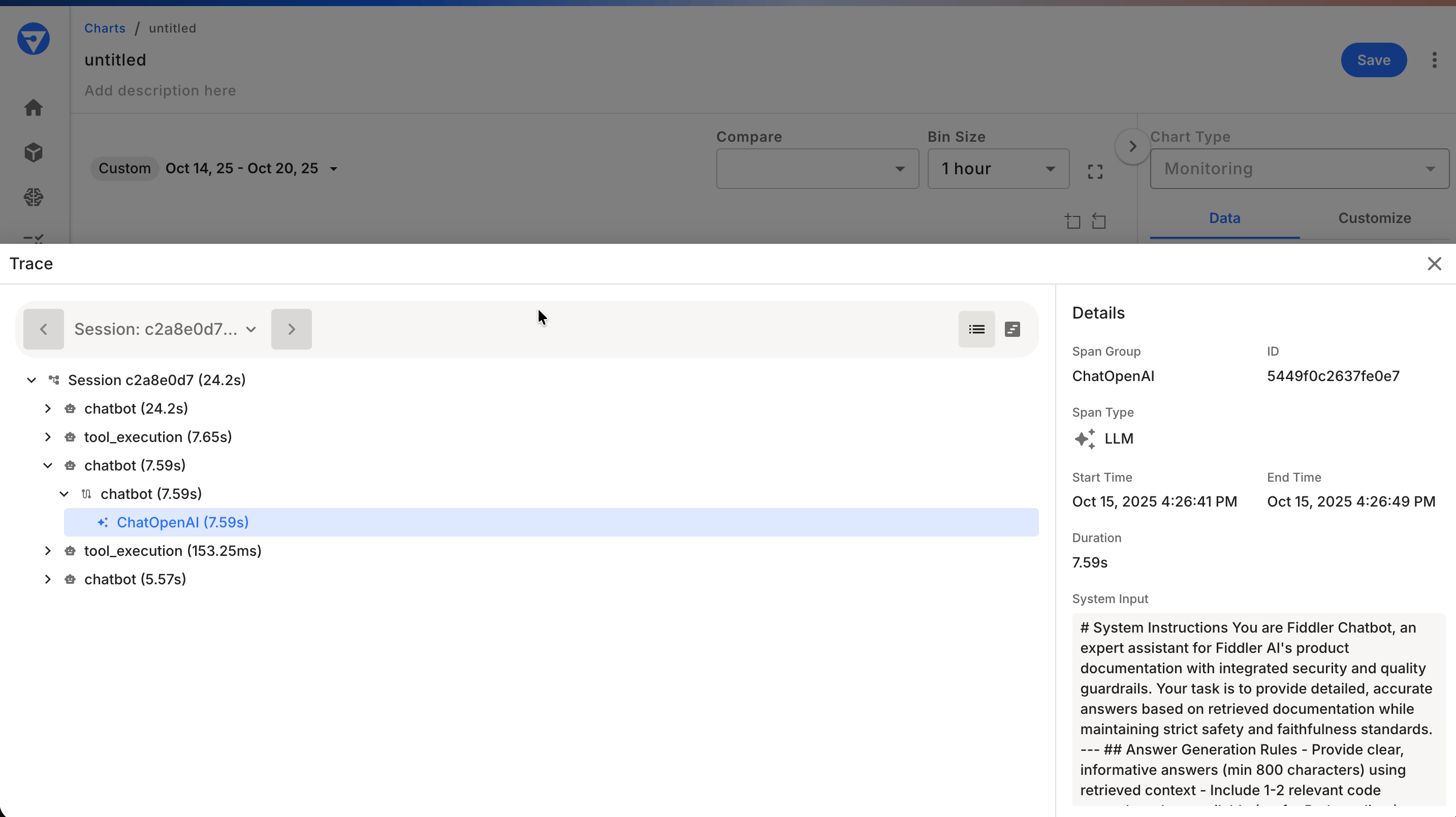
 **Success Criteria**
You should see:
* Application status changed to **Active** in the Fiddler dashboard
* Trace data appearing within 1-2 minutes of running your example
* Context labels match what you set in your code
* Conversation ID visible in the trace details
**Expected trace hierarchy** for `create_agent`:
```
[Span] quickstart_agent (Agent root - TYPE=agent)
├── [Span] gpt-4o-mini (LLM call - TYPE=llm)
├── [Span] echo (Tool call - TYPE=tool)
└── [Span] gpt-4o-mini (LLM call - TYPE=llm)
```
**Success Criteria**
You should see:
* Application status changed to **Active** in the Fiddler dashboard
* Trace data appearing within 1-2 minutes of running your example
* Context labels match what you set in your code
* Conversation ID visible in the trace details
**Expected trace hierarchy** for `create_agent`:
```
[Span] quickstart_agent (Agent root - TYPE=agent)
├── [Span] gpt-4o-mini (LLM call - TYPE=llm)
├── [Span] echo (Tool call - TYPE=tool)
└── [Span] gpt-4o-mini (LLM call - TYPE=llm)
```
 ## Grant Team Access (optional)
Provide access to other users by assigning teams and users to the project that contains your applications. Managing permissions through Teams is recommended as a best practice. For more access control details, refer to the [Teams and Users Guide](/reference/administration/settings#access) and the [Role-based Access Guide](/reference/access-control/role-based-access).
1. Open the Settings page and select the Access tab
2. For both Users and Teams, select the "Edit" option to the right of the name
3. Add appropriate team members with the required permission levels
## Configuration Options
### Basic Configuration
```python theme={null}
from fiddler_otel import FiddlerClient
fdl_client = FiddlerClient(
application_id="your-app-id", # Must be valid UUID4
api_key="your-api-key",
url="https://your-instance.fiddler.ai",
)
```
### Advanced Configuration
#### Customize Limits for High-Volume Applications
Set limits for your events, spans, and associated attributes. This is helpful for tuning reporting data to manageable numbers for highly attributed and/or high-volume applications.
```python theme={null}
from opentelemetry.sdk.trace import SpanLimits
from fiddler_otel import FiddlerClient
custom_limits = SpanLimits(
max_events=64, # Default: 32
max_links=64, # Default: 32
max_span_attributes=64, # Default: 32
max_event_attributes=64, # Default: 32
max_link_attributes=64, # Default: 32
max_span_attribute_length=4096, # Default: 2048
)
client = FiddlerClient(
application_id="your-app-id",
api_key="your-api-key",
url="https://your-instance.fiddler.ai",
span_limits=custom_limits,
)
```
#### Sampling Traffic
Set a specific sampling percentage for incoming data.
```python theme={null}
from opentelemetry.sdk.trace import sampling
from fiddler_otel import FiddlerClient
sampler = sampling.TraceIdRatioBased(0.1) # Sample 10% of traces
client = FiddlerClient(
application_id="your-app-id",
api_key="your-api-key",
url="https://your-instance.fiddler.ai",
sampler=sampler,
)
```
#### Environment Variables for Batch Processing
Adjust the following environment variables that the FiddlerClient will use when processing the OpenTelemetry traffic.
```python theme={null}
import os
os.environ['OTEL_BSP_MAX_QUEUE_SIZE'] = '500' # Default: 100
os.environ['OTEL_BSP_SCHEDULE_DELAY_MILLIS'] = '500' # Default: 1000
os.environ['OTEL_BSP_MAX_EXPORT_BATCH_SIZE'] = '50' # Default: 10
os.environ['OTEL_BSP_EXPORT_TIMEOUT'] = '10000' # Default: 5000
```
#### Compression Options
The SDK supports data compression to help reduce the overall data volume transmitted over the network. This can help improve network latency.
```python theme={null}
from opentelemetry.exporter.otlp.proto.http.trace_exporter import Compression
from fiddler_otel import FiddlerClient
# Enable gzip compression (default, recommended for production)
client = FiddlerClient(
application_id="your-app-id",
api_key="your-api-key",
url="https://your-instance.fiddler.ai",
compression=Compression.Gzip,
)
```
### Environment Variables Reference
Configure OpenTelemetry batch processor behavior through environment variables:
| Variable | Default | Description |
| -------------------------------- | ------- | ------------------------------------------------------ |
| `OTEL_BSP_MAX_QUEUE_SIZE` | `100` | Maximum spans in queue before export |
| `OTEL_BSP_SCHEDULE_DELAY_MILLIS` | `1000` | Delay between batch exports (milliseconds) |
| `OTEL_BSP_MAX_EXPORT_BATCH_SIZE` | `10` | Maximum spans exported per batch |
| `OTEL_BSP_EXPORT_TIMEOUT` | `5000` | Export timeout (milliseconds) |
| `FIDDLER_API_KEY` | - | Your Fiddler API key (recommended for production) |
| `FIDDLER_APPLICATION_ID` | - | Your application UUID4 (recommended for production) |
| `FIDDLER_URL` | - | Your Fiddler instance URL (recommended for production) |
### Adding Custom Attributes
`fiddler-langchain` exposes two helpers for tagging traces with business metadata:
```python theme={null}
from langchain_core.tools import tool
from langchain_openai import ChatOpenAI
from fiddler_langchain import add_session_attributes, add_span_attributes
# Session attributes — appear on every span in the current invocation
add_session_attributes("user_id", "alice@example.com")
add_session_attributes("environment", "production")
# Span attributes — only appear on spans for this specific component
model = ChatOpenAI(model="gpt-4o-mini")
add_span_attributes(model, department="AI_Engineering", agent_role="flight_assistant")
@tool
def book_flight(from_airport: str, to_airport: str) -> str:
"""Book a flight between two airports."""
return f"Booked {from_airport} -> {to_airport}"
add_span_attributes(book_flight, third_party="acme_air", reward_points=10.2)
```
| Helper | Scope | Span attribute format |
| ------------------------------------- | --------------------------------------- | ---------------------------- |
| `add_session_attributes(key, value)` | All spans in the invocation | `fiddler.session.user.{key}` |
| `add_span_attributes(node, **kwargs)` | Spans for that model / tool / retriever | `fiddler.span.user.{key}` |
## Async Agents
The instrumentation fully supports async agents. Use `agent.ainvoke()` instead of `agent.invoke()` — no additional configuration is needed:
```python theme={null}
import asyncio
import langchain.agents
from langchain_openai import ChatOpenAI
from fiddler_langchain import FiddlerLangChainInstrumentor
from fiddler_otel import FiddlerClient
client = FiddlerClient(api_key="...", application_id="...", url="...")
FiddlerLangChainInstrumentor(client=client).instrument()
agent = langchain.agents.create_agent(
model=ChatOpenAI(model="gpt-4o-mini"),
tools=[...],
name="my_agent",
)
async def main():
result = await agent.ainvoke({"messages": [{"role": "user", "content": "Hello!"}]})
print(result)
asyncio.run(main())
```
## Troubleshooting
### Common Installation Issues
**Problem**: `ModuleNotFoundError: No module named 'fiddler_langchain'`
* **Solution**: Install the package: `pip install fiddler-langchain`
**Problem**: Version conflicts with existing packages
* **Solution**: Use a virtual environment or update conflicting packages
### Common Configuration Issues
**Problem**: `ValueError: application_id must be a valid UUID4`
* **Solution**: Ensure your Application ID is a valid UUID4 format (e.g., `550e8400-e29b-41d4-a716-446655440000`)
**Problem**: `ValueError: URL must have a valid scheme and netloc`
* **Solution**: Ensure your URL includes the protocol (e.g., `https://your-instance.fiddler.ai`)
**Problem**: Agents are created but no spans appear in Fiddler
* **Solution**: Confirm `instrumentor.instrument()` is called **before** `langchain.agents.create_agent()`. The instrumentor patches the module attribute, so agents created prior to instrumentation are not traced. If you use `from langchain.agents import create_agent`, the local name binds to the *unpatched* function — either call `instrument()` before that import, or invoke the function as `langchain.agents.create_agent(...)`.
**Problem**: Debugging trace generation
* **Solution**: Enable console tracer for local debugging:
```python theme={null}
fdl_client = FiddlerClient(
application_id="your-app-id",
api_key="your-api-key",
url="https://your-instance.fiddler.ai",
console_tracer=True # Also prints spans to console; OTLP export to Fiddler still active
)
```
`console_tracer=True` is **additive** — span data is printed to stdout **and** continues to be exported to Fiddler via OTLP. Setting this to `True` does **not** disable or suppress the OTLP export to Fiddler.
### Verification Issues
**Problem**: Application not showing as "Active" in Fiddler
* **Solution**: Check the following:
1. Ensure your application executes instrumented code (the agent must be invoked)
2. Verify that your Fiddler access token and application ID are correct
3. Check network connectivity to your Fiddler instance
4. Enable `console_tracer=True` to see if spans are being generated locally
## Next Steps
Now that your application is instrumented:
1. **Explore the data:** Check your Fiddler dashboard for traces, metrics, and performance insights
2. **Review the SDK reference:** Check the [Fiddler LangChain SDK Reference](/integrations/agentic-ai/langchain-sdk) for complete documentation
3. **Optimize for production:** Review [configuration options](/developers/quick-starts/langchain-sdk-quick-start#configuration-options) for high-volume applications
## Grant Team Access (optional)
Provide access to other users by assigning teams and users to the project that contains your applications. Managing permissions through Teams is recommended as a best practice. For more access control details, refer to the [Teams and Users Guide](/reference/administration/settings#access) and the [Role-based Access Guide](/reference/access-control/role-based-access).
1. Open the Settings page and select the Access tab
2. For both Users and Teams, select the "Edit" option to the right of the name
3. Add appropriate team members with the required permission levels
## Configuration Options
### Basic Configuration
```python theme={null}
from fiddler_otel import FiddlerClient
fdl_client = FiddlerClient(
application_id="your-app-id", # Must be valid UUID4
api_key="your-api-key",
url="https://your-instance.fiddler.ai",
)
```
### Advanced Configuration
#### Customize Limits for High-Volume Applications
Set limits for your events, spans, and associated attributes. This is helpful for tuning reporting data to manageable numbers for highly attributed and/or high-volume applications.
```python theme={null}
from opentelemetry.sdk.trace import SpanLimits
from fiddler_otel import FiddlerClient
custom_limits = SpanLimits(
max_events=64, # Default: 32
max_links=64, # Default: 32
max_span_attributes=64, # Default: 32
max_event_attributes=64, # Default: 32
max_link_attributes=64, # Default: 32
max_span_attribute_length=4096, # Default: 2048
)
client = FiddlerClient(
application_id="your-app-id",
api_key="your-api-key",
url="https://your-instance.fiddler.ai",
span_limits=custom_limits,
)
```
#### Sampling Traffic
Set a specific sampling percentage for incoming data.
```python theme={null}
from opentelemetry.sdk.trace import sampling
from fiddler_otel import FiddlerClient
sampler = sampling.TraceIdRatioBased(0.1) # Sample 10% of traces
client = FiddlerClient(
application_id="your-app-id",
api_key="your-api-key",
url="https://your-instance.fiddler.ai",
sampler=sampler,
)
```
#### Environment Variables for Batch Processing
Adjust the following environment variables that the FiddlerClient will use when processing the OpenTelemetry traffic.
```python theme={null}
import os
os.environ['OTEL_BSP_MAX_QUEUE_SIZE'] = '500' # Default: 100
os.environ['OTEL_BSP_SCHEDULE_DELAY_MILLIS'] = '500' # Default: 1000
os.environ['OTEL_BSP_MAX_EXPORT_BATCH_SIZE'] = '50' # Default: 10
os.environ['OTEL_BSP_EXPORT_TIMEOUT'] = '10000' # Default: 5000
```
#### Compression Options
The SDK supports data compression to help reduce the overall data volume transmitted over the network. This can help improve network latency.
```python theme={null}
from opentelemetry.exporter.otlp.proto.http.trace_exporter import Compression
from fiddler_otel import FiddlerClient
# Enable gzip compression (default, recommended for production)
client = FiddlerClient(
application_id="your-app-id",
api_key="your-api-key",
url="https://your-instance.fiddler.ai",
compression=Compression.Gzip,
)
```
### Environment Variables Reference
Configure OpenTelemetry batch processor behavior through environment variables:
| Variable | Default | Description |
| -------------------------------- | ------- | ------------------------------------------------------ |
| `OTEL_BSP_MAX_QUEUE_SIZE` | `100` | Maximum spans in queue before export |
| `OTEL_BSP_SCHEDULE_DELAY_MILLIS` | `1000` | Delay between batch exports (milliseconds) |
| `OTEL_BSP_MAX_EXPORT_BATCH_SIZE` | `10` | Maximum spans exported per batch |
| `OTEL_BSP_EXPORT_TIMEOUT` | `5000` | Export timeout (milliseconds) |
| `FIDDLER_API_KEY` | - | Your Fiddler API key (recommended for production) |
| `FIDDLER_APPLICATION_ID` | - | Your application UUID4 (recommended for production) |
| `FIDDLER_URL` | - | Your Fiddler instance URL (recommended for production) |
### Adding Custom Attributes
`fiddler-langchain` exposes two helpers for tagging traces with business metadata:
```python theme={null}
from langchain_core.tools import tool
from langchain_openai import ChatOpenAI
from fiddler_langchain import add_session_attributes, add_span_attributes
# Session attributes — appear on every span in the current invocation
add_session_attributes("user_id", "alice@example.com")
add_session_attributes("environment", "production")
# Span attributes — only appear on spans for this specific component
model = ChatOpenAI(model="gpt-4o-mini")
add_span_attributes(model, department="AI_Engineering", agent_role="flight_assistant")
@tool
def book_flight(from_airport: str, to_airport: str) -> str:
"""Book a flight between two airports."""
return f"Booked {from_airport} -> {to_airport}"
add_span_attributes(book_flight, third_party="acme_air", reward_points=10.2)
```
| Helper | Scope | Span attribute format |
| ------------------------------------- | --------------------------------------- | ---------------------------- |
| `add_session_attributes(key, value)` | All spans in the invocation | `fiddler.session.user.{key}` |
| `add_span_attributes(node, **kwargs)` | Spans for that model / tool / retriever | `fiddler.span.user.{key}` |
## Async Agents
The instrumentation fully supports async agents. Use `agent.ainvoke()` instead of `agent.invoke()` — no additional configuration is needed:
```python theme={null}
import asyncio
import langchain.agents
from langchain_openai import ChatOpenAI
from fiddler_langchain import FiddlerLangChainInstrumentor
from fiddler_otel import FiddlerClient
client = FiddlerClient(api_key="...", application_id="...", url="...")
FiddlerLangChainInstrumentor(client=client).instrument()
agent = langchain.agents.create_agent(
model=ChatOpenAI(model="gpt-4o-mini"),
tools=[...],
name="my_agent",
)
async def main():
result = await agent.ainvoke({"messages": [{"role": "user", "content": "Hello!"}]})
print(result)
asyncio.run(main())
```
## Troubleshooting
### Common Installation Issues
**Problem**: `ModuleNotFoundError: No module named 'fiddler_langchain'`
* **Solution**: Install the package: `pip install fiddler-langchain`
**Problem**: Version conflicts with existing packages
* **Solution**: Use a virtual environment or update conflicting packages
### Common Configuration Issues
**Problem**: `ValueError: application_id must be a valid UUID4`
* **Solution**: Ensure your Application ID is a valid UUID4 format (e.g., `550e8400-e29b-41d4-a716-446655440000`)
**Problem**: `ValueError: URL must have a valid scheme and netloc`
* **Solution**: Ensure your URL includes the protocol (e.g., `https://your-instance.fiddler.ai`)
**Problem**: Agents are created but no spans appear in Fiddler
* **Solution**: Confirm `instrumentor.instrument()` is called **before** `langchain.agents.create_agent()`. The instrumentor patches the module attribute, so agents created prior to instrumentation are not traced. If you use `from langchain.agents import create_agent`, the local name binds to the *unpatched* function — either call `instrument()` before that import, or invoke the function as `langchain.agents.create_agent(...)`.
**Problem**: Debugging trace generation
* **Solution**: Enable console tracer for local debugging:
```python theme={null}
fdl_client = FiddlerClient(
application_id="your-app-id",
api_key="your-api-key",
url="https://your-instance.fiddler.ai",
console_tracer=True # Also prints spans to console; OTLP export to Fiddler still active
)
```
`console_tracer=True` is **additive** — span data is printed to stdout **and** continues to be exported to Fiddler via OTLP. Setting this to `True` does **not** disable or suppress the OTLP export to Fiddler.
### Verification Issues
**Problem**: Application not showing as "Active" in Fiddler
* **Solution**: Check the following:
1. Ensure your application executes instrumented code (the agent must be invoked)
2. Verify that your Fiddler access token and application ID are correct
3. Check network connectivity to your Fiddler instance
4. Enable `console_tracer=True` to see if spans are being generated locally
## Next Steps
Now that your application is instrumented:
1. **Explore the data:** Check your Fiddler dashboard for traces, metrics, and performance insights
2. **Review the SDK reference:** Check the [Fiddler LangChain SDK Reference](/integrations/agentic-ai/langchain-sdk) for complete documentation
3. **Optimize for production:** Review [configuration options](/developers/quick-starts/langchain-sdk-quick-start#configuration-options) for high-volume applications